


















Why Does Google Keep Asking If I'm a Robot? Causes and Fixes
Google keeps asking if you're a robot because its reCAPTCHA system has detected unusual activity from your IP address or browser. Common triggers include using a VPN or shared network, rapid-fire searches, disabled cookies, suspicious browser extensions, or an inconsistent browser fingerprint. Clearing your cache, signing into a Google account, or switching to a clean residential IP almost always stops the loop.
🤖 What Is reCAPTCHA and Why Does Google Use It?
You're mid-research. You type a query, hit Enter — and a nine-panel image grid blocks your screen. "I am not a robot." You click traffic lights. A new grid appears. You click fire hydrants. Another grid. The loop never ends.
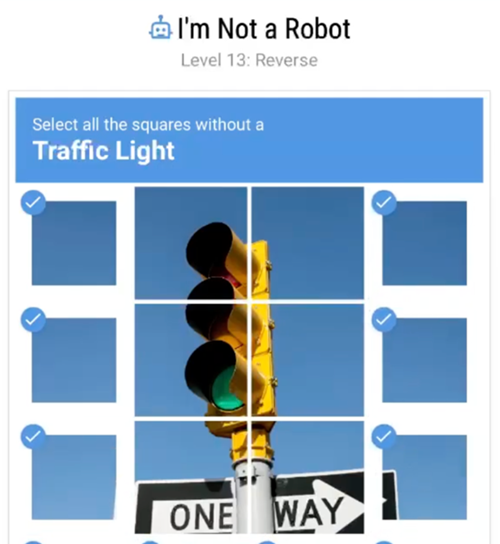
Frustrating? Absolutely. But there's a very specific reason it keeps happening to you.
Google built a security defense system called reCAPTCHA — short for Completely Automated Public Turing test to tell Computers and Humans Apart. Its job is simple: stop automated bots from abusing Google Search.
Why does it matter so much? Because over 30% of all internet traffic is now generated by bots — automated scripts that scrape data, send spam, launch DDoS attacks, or stuff fake ad clicks. Google has to protect its infrastructure from being overwhelmed.
reCAPTCHA has evolved through three major versions:
- ⬛ reCAPTCHA v1 — The classic distorted-text challenge. Easy to read for humans, hard for early OCR bots.
- ☑️ reCAPTCHA v2 — The familiar "I'm not a robot" checkbox. Behind the scenes, it analyzes your mouse movement, click timing, and browsing history before you even tick the box. If the invisible analysis fails, you get the image grid puzzle.
- 🔢 reCAPTCHA v3 — Fully invisible. It runs silently in the background, scoring your behavior from 0.0 (definitely a bot) to 1.0 (definitely human). You never see a challenge — unless your score drops too low.
Most Google Search users today encounter v2. The endless image loops mean the invisible signals have already failed — and Google needs a manual confirmation.
Note: If you want to dive deeper into bypassing automated verification checks, you can explore our detailed guide on how to get around CAPTCHA walls efficiently.
🔍 How Google Silently Monitors Your Activity
Google doesn't just wait for you to click a box. Long before the CAPTCHA appears, its backend has already been watching. Here's what it tracks:
- 🖱️ Mouse movement patterns — Humans move in imperfect, organic curves. Bots move in perfectly straight lines or pixel-perfect paths.
- 🌐 IP address reputation (Fraud Score) — Your IP address carries a trust history. If others have abused it before, you inherit their bad reputation.
- 🍪 Browser cookie history — Cookies store your past "human" verification sessions. No cookies = no trust history = treated as a stranger every visit.
- 🖥️ Device fingerprint — Your browser transmits your OS, screen resolution, plugins, language settings, and timezone. Mismatches look suspicious.
- ⚡ Request velocity — How many searches you're making per minute. Bots are fast. Suspiciously fast.
- 🔑 Google account status — Signed-in, verified users with browsing history get far more trust than anonymous visitors.
When enough of these signals go red at once, the CAPTCHA wall goes up. The more signals that fire, the longer the verification loop lasts.
⚠️ 6 Reasons Google Keeps Triggering the "I'm a Robot" Check
To fix this problem permanently, you need to understand what triggers the system alerts. Let us break down the top 6 reasons why your current network or browser setup keeps setting off Google's anti-bot alarms.
Reason 1: 🌍 Using a VPN or Shared Datacenter IP
This is the #1 culprit. Cheap or free VPN services route your traffic through shared public datacenter IPs. Hundreds of users share the exact same IP simultaneously.
If even one person on that IP runs a scraping script or spam bot, Google blacklists the entire IP block. You get punished for their behavior.
❌ Free VPN → datacenter IP → shared abuse history → endless CAPTCHAs.
✅ Premium residential proxy → clean home IP → human-looking traffic → no CAPTCHA.
Also worth noting: if your VPN server is located in a different country than your browser's timezone setting, Google flags the mismatch. Your device says you're in London, but your IP says you're in Dallas — that's a red flag.
Reason 2: ⚡ Too Many Searches Too Fast
Humans read pages between searches. We pause, scroll, think.
If you're opening dozens of tabs, running rapid keyword lookups, or using browser extensions that auto-fetch search results in the background, your request velocity looks like a bot's. Google's rate-limiting system kicks in and demands proof you're human.
Even a quick burst of 10–15 searches in under a minute can trip the alarm — especially on a lower-trust IP.
Reason 3: 🍪 Corrupted or Blocked Browser Cookies
Google heavily relies on cookies to recognize returning human visitors. Your past successful searches, login history, and browsing patterns are stored there.
If you've set your browser to block all cookies, regularly clear your cache, or use Incognito / Private Browsing mode, you erase your identity history on every visit. Google treats you as a brand-new, completely unknown user — and unknown users get more verification challenges.
💡 Incognito mode is a surprisingly common but overlooked trigger. Every session starts with zero cookie trust.
Reason 4: 🏢 Shared Network with Compromised Devices
Your device might be completely clean. But if you're on a shared network — a school, office, hotel, or coffee shop — all devices share a single public IP address.
If a colleague's laptop is infected with malware sending automated requests, or if someone else on the same Wi-Fi is running a scraper, Google penalizes the entire network's IP. You all suffer CAPTCHA loops together.
This is called "collateral damage" — and it's extremely common in corporate and campus environments.
Reason 5: 🔌 Suspicious Browser Extensions or Hidden Malware
Some browser plugins operate in the background without you knowing. Ad blockers, price comparison tools, automated translation services, and SEO toolbars can all send background HTTP requests that mimic bot behavior.
Google doesn't see "your extension doing something." It sees "this browser is making automated requests at machine speed" — and flags you.
Malware is even worse. Certain browser hijackers quietly use your device to run distributed scraping tasks, draining your IP's trust score without any visible sign.
Reason 6: 🖥️ Inconsistent Browser Fingerprint
Every browser sends a unique "fingerprint" to every website it visits: your OS, screen resolution, installed plugins, language, timezone, and more.
Privacy tools that randomize or spoof these parameters create mismatched fingerprint signals. Your IP says you're in Germany, your timezone says Singapore, your language is set to French, and your screen resolution changes every session.
To Google's security system, this pattern screams "fake device." The CAPTCHA wall goes up immediately.
⏰ Bonus trigger: An incorrect system clock on your device can also cause this. If your computer's date or time is wrong, it breaks the SSL handshake with Google's servers — which can add to CAPTCHA suspicion. Always keep your system time synced automatically.
✅ Step-by-Step Fixes to Stop Google Verification Loops
For most casual internet users, the temporary fix is simply to follow the on-screen instructions and click through the image puzzles. However, if you want to stop the problem at its root, you need to apply more advanced technical adjustments. Follow this step-by-step troubleshooting guide to clear your digital reputation.
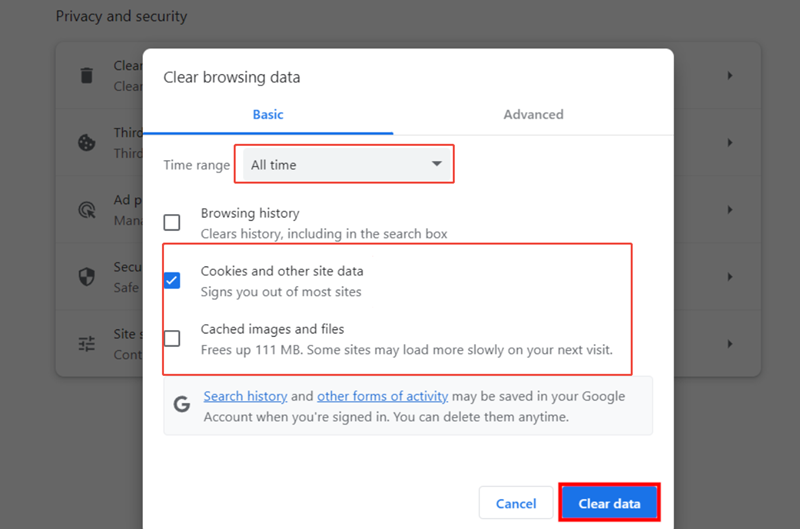
Step 1: Clear Your Browser Cache and Cookies
Go to your browser's privacy settings and clear your browsing data, cookies, and cached images. This removes corrupted tracking fragments and lets Google build a fresh trust profile for you.
👉 In Chrome: Settings → Privacy and Security → Clear Browsing Data → Select Cookies and Cache → Clear Data.
Step 2: Sign In to a Verified Google Account
Signed-in users with established accounts get significantly more trust. Before heavy research sessions, log into your Google account. For maximum trust boost:
- Enable two-factor authentication (2FA)
- Keep your account active with regular, normal browsing
- Don't use the same account across multiple devices simultaneously at high speed
Step 3: Disable and Audit Browser Extensions
Go to your extensions manager and disable all non-essential plugins one by one. Test Google Search after each one. If the CAPTCHA loops stop, you've found your culprit.
Common offenders: ad blockers, price scrapers, SEO toolbars, auto-translate plugins, and VPN browser extensions.
Step 4: Restart Your Router (Get a New IP)
Most home internet providers assign dynamic residential IPs — your IP changes when you reconnect. Turn your router off for 5 minutes, then back on. Your ISP will likely issue a clean IP with a fresh reputation score.
This won't help if you're on a corporate or campus network, where the IP is static and shared.
Step 5: Stop Using Free or Cheap VPNs
If you must use a VPN or proxy, the free ones are actively working against you. Switch to a premium service that uses residential IPs — IPs that come from real home broadband connections rather than datacenter servers.
Make sure your VPN's exit server location matches your browser's timezone setting. Mismatches are an instant red flag for Google's detection system.
Step 6: Update Your Browser
Outdated browsers can have compatibility issues with Google's reCAPTCHA v3 system. An up-to-date browser sends cleaner, more consistent signals that pass the invisible human check more reliably.
📊 Connection Risk Comparison: How Often Will You See CAPTCHAs?
| Connection Type | CAPTCHA Frequency | Google Trust Score | Root Cause |
|---|---|---|---|
| Free VPNs / Datacenter IPs | 🔴 90%+ (Almost Always) | Extremely Low | Shared IPs abused by bot networks and scrapers |
| Shared Office / School Wi-Fi | 🟠 50–70% (Common) | Low–Medium | Collateral damage from other users on the same IP |
| Incognito / Private Mode | 🟡 30–50% (Frequent) | Low | No cookie history = no trust signals |
| Standard Home Broadband | 🟢 <10% (Rare) | High | Normal residential behavior; only triggers on rapid searches |
| Premium Residential Proxies | ✅ <1% (Almost Never) | Extremely High | Clean home broadband IPs perfectly mimic normal human users |
🚀 The Professional Fix: Why Residential Proxies Eliminate CAPTCHA Loops
If you're a professional who regularly hits CAPTCHA walls — an SEO specialist, e-commerce seller, data researcher, or multi-account operator — patching individual browser settings isn't enough. The root problem is your IP's reputation.
The solution that actually works? High-quality residential proxies.
Unlike datacenter IPs, residential proxies route your traffic through real home broadband connections. To Google's detection system, you look exactly like a normal person browsing from their living room in New York, London, or Tokyo.
Why OkeyProxy Is the Go-To Choice for Clean Browsing 🎯
OkeyProxy is trusted by professionals who can't afford to waste time on CAPTCHA loops. Here's what sets it apart:
- 🌎 150M+ authentic residential IPs worldwide — Real home broadband connections across 200+ countries. Google sees a genuine local user, not a flagged datacenter server.
- ⚙️ Built for automation & SEO workflows — Whether you're running keyword research, multi-account management in an anti-detect browser, or large-scale data collection, OkeyProxy keeps your operations invisible and uninterrupted.
- ⚡ High-speed, stable connections — No throttling, no dropped sessions, no mid-task CAPTCHA interruptions.
⏱️ Stop solving image puzzles. Start working.
Every minute spent clicking traffic lights and fire hydrants is a minute not spent on your actual work. 👉 Visit OkeyProxy now and contact the support team to claim your free proxy testing nodes. See the difference in the first 10 minutes.
❓ Frequently Asked Questions
Q: Why does Google keep asking if I'm a robot even though I'm clearly human?
A: Google's automated system doesn't know you personally — it analyzes signals like your IP address, request speed, cookies, and browser fingerprint. If any of these look unusual (for example, you're on a shared VPN, using Incognito mode, or searching rapidly), the system flags you as a potential bot. It's not personal — it's algorithmic. Clearing your cache, signing into a Google account, and switching to a clean residential IP usually resolves it.
Q: Does using a VPN cause the Google robot check?
A: Yes — especially free or cheap VPNs. They use shared datacenter IPs that have been abused by bots and scrapers. Google blacklists these IP ranges, so everyone sharing them gets CAPTCHA challenges. If your VPN's server location also doesn't match your device's timezone, that adds another red flag. The fix is to switch to a premium residential proxy service with clean, home-based IPs.
Q: Does Incognito mode make Google ask if I'm a robot more often?
A: Yes. Incognito mode doesn't use your saved cookies, so Google has no browsing history or trust signals to verify you're a returning human user. Every Incognito session starts with zero trust. This makes you much more likely to trigger a CAPTCHA challenge, especially if you're also on a shared or VPN network.
Q: How do I permanently stop Google from asking if I'm a robot?
A: There is no single permanent fix, but you can reduce the frequency dramatically by: (1) signing into a verified Google account, (2) enabling two-factor authentication, (3) using a stable home broadband connection, (4) keeping cookies enabled, (5) disabling suspicious browser extensions, and (6) avoiding free VPNs. For professional use cases, switching to premium residential proxies virtually eliminates CAPTCHA challenges.
Q: What does "unusual traffic from your computer network" mean on Google?
A: "Unusual traffic from your computer network" is Google's message that its automated security system has detected bot-like behavior from your IP address. This could mean your IP is shared with bots (common on VPNs or shared networks), you're searching too fast, or your network has been previously flagged for abuse. Completing the CAPTCHA challenge clears the immediate block, but fixing the root cause (IP reputation, VPN use, or browsing patterns) prevents it from recurring.
Q: Why does Google ask if I'm a robot on my phone?
A: Mobile devices often switch between Wi-Fi and cellular networks, which causes your IP address to change frequently. Google may also see mobile app data requests differently from regular browser searches. If you're on a shared mobile carrier network or using a mobile VPN, the same IP-reputation issues that affect desktops apply. Signing into the Google app on your phone and keeping cookies enabled significantly reduces mobile CAPTCHA prompts.
🎯 Final Thoughts
When Google keeps asking if you're a robot, it's not a random annoyance — your IP address, browser, or network is actively triggering its automated security system.
The fix starts with understanding what's causing it:
- 🔴 Free VPN or datacenter IP? That's the #1 cause. Switch to residential.
- 🔴 Incognito mode or blocked cookies? You have no trust history. Enable cookies.
- 🔴 Shared office or school network? You're taking collateral damage. Try mobile data.
- 🔴 Suspicious browser extensions? Audit and disable them one by one.
- 🔴 Rapid-fire searches? Slow down, or build in deliberate pauses.
For everyday users, clearing cookies, signing into a Google account, and restarting your router solves it. For professionals handling large-scale research, SEO tracking, or multi-account workflows — OkeyProxy's residential proxy network is the permanent solution.
Your time is valuable. Stop proving you're human to a machine — and start using a connection that never raises the alarm in the first place. 🚀
