


















How to Setup SOCKS5 Proxy for Telegram: Complete Guide
Privacy is more critical than ever in 2026. Telegram remains a top choice for secure messaging — but even the best apps face regional blocks, ISP throttling, or connection instability. If you are stuck staring at a "Connecting..." spinner, a SOCKS5 proxy for Telegram is the fix you need. It is the fastest, lightest way to stay connected, protect your IP, and keep your speeds high — without slowing down the rest of your device. This guide covers everything: how SOCKS5 works, how to set it up on every platform, critical security pitfalls to avoid, and how to choose the right provider.
What Is a SOCKS5 Proxy? Key Benefits for Telegram Users
SOCKS5 is the fifth and most advanced generation of the SOCKS (Socket Secure) protocol. Unlike HTTP proxies, which only handle browser-based web traffic, SOCKS5 operates at the session layer (Layer 5) of the OSI model. This means it can handle any type of internet traffic — text messages, file transfers, voice calls, and video. That versatility makes it a natural fit for an app like Telegram, which handles all of the above simultaneously.
How SOCKS5 Works with Telegram
Normally, when you send a message, your device connects directly to Telegram's servers. If your ISP or government has blocked Telegram, that connection fails. With a SOCKS5 proxy, your device routes traffic to a proxy server first. That server then forwards the request to Telegram. From Telegram's perspective, the traffic originates from the proxy's IP address — not yours. From your ISP's perspective, you are simply talking to a third-party server, and the block is bypassed entirely.
Key Benefits for Telegram
Full Protocol Support: SOCKS5 handles both TCP and UDP traffic natively. This covers Telegram's entire feature set — messages, large media files, group calls, and video chats.
IP Address Masking: Your real IP address is hidden from Telegram's front-end servers, making tracking significantly harder.
Bypass Regional Blocks: If Telegram is restricted in your country or on your network, routing through a proxy server in an unrestricted region restores full access.
ISP Throttling Prevention: Some ISPs deliberately slow down messaging apps. A well-configured SOCKS5 proxy can route around throttled segments of the network for a faster, more stable connection.
App-Specific Routing: Only Telegram's traffic goes through the proxy. Your browser, banking apps, and other services retain their normal, direct connections.
Why Is Telegram Blocked? Countries & Restrictions in 2026
Telegram's combination of large group broadcasts, end-to-end encryption, and its relatively liberal content policies has made it a target for governments worldwide. Blocks range from permanent nationwide bans to temporary shutdowns during civil unrest.
As of 2026, countries with significant Telegram restrictions include:
Full or near-complete bans: China (blocked since 2015), Iran (blocked since 2018), Turkmenistan, North Korea, and most recently Iraq, which banned Telegram in April 2026 following a government data leak incident.
Re-blocked after lifting: Russia initially attempted to block Telegram in 2018 — an effort that famously disrupted millions of unrelated IP addresses — lifted the ban in 2020, and then re-blocked the app in 2024.
Intermittent or partial restrictions: Cuba, Belarus (selective channel bans), Vietnam (requested network operators to block Telegram in May 2025), and various corporate and school networks worldwide that block the app for policy reasons.
The situation changes frequently. A proxy is not just a tool for people in permanently restricted regions — it is also a reliability layer for anyone whose access is unstable or unpredictable.
Why Telegram Users Prefer SOCKS5 Over VPNs
A common question is: "Why not just use a VPN?" VPNs are a valid option, but for Telegram specifically, they are often unnecessary and come with trade-offs that a SOCKS5 proxy avoids.
① Native In-App Integration
Telegram has a built-in proxy configuration menu on all platforms. You do not need to install a separate application. You enter your proxy credentials once, and only Telegram uses that connection. Your other apps — banking, streaming, browsing — continue to use your normal, direct internet connection at full speed. A VPN, by contrast, routes your entire device's traffic through its encrypted tunnel, which can affect speed and behavior of every other app simultaneously.
② Speed and Lower Latency
VPNs apply heavy encryption layers to all traffic, which adds processing overhead and increases latency. SOCKS5 is a much lighter protocol — it forwards your traffic without re-encrypting it. This results in lower latency and higher throughput, which matters especially for Telegram's real-time voice and video calls.
③ UDP Support for Clear Voice and Video Calls
Most basic proxy types only support TCP connections. Telegram's voice and video call features rely on UDP for real-time, low-latency data delivery. SOCKS5 natively supports UDP. If you try to use an HTTP-only proxy, text messages may work but calls will fail. SOCKS5 ensures the entire Telegram experience — not just messaging — works through the proxy.
SOCKS5 Proxy vs. VPN: Quick Comparison
| Feature | SOCKS5 Proxy | VPN |
|---|---|---|
| Scope | App-specific (Telegram only) | Entire device |
| Speed | High (minimal overhead) | Medium (encryption overhead) |
| UDP Support | Yes — supports voice & video calls | Yes (protocol-dependent) |
| Setup | In-app settings, no extra app needed | Requires a separate application |
| Encryption | None (Telegram's own encryption applies) | Full tunnel encryption |
| Traffic Obfuscation | No (traffic identifiable as SOCKS5) | Yes (hides VPN usage from ISP) |
Note on obfuscation: SOCKS5 does not disguise the fact that you are using a proxy from a network observer. If your ISP uses deep packet inspection (DPI) to specifically target and block proxy traffic, SOCKS5 alone may not be sufficient. In those cases, combining a VPN with a SOCKS5 proxy, or switching to MTProto, offers stronger resistance (see the MTProto section below).
Step-by-Step Guide: How to Configure a SOCKS5 Proxy for Telegram
Before you begin, obtain your proxy credentials from your provider. You will need: a server address (IP or hostname), a port number (commonly 1080, though some providers use 1085, 1090, or 443), and optionally a username and password for authenticated proxies.
Android
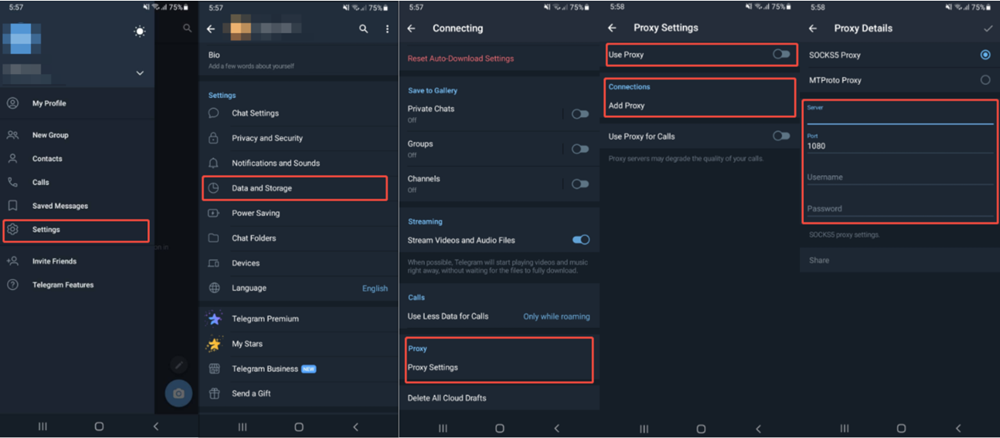
- Open Telegram and tap the three-line menu icon in the top-left corner.
- Tap Settings.
- Scroll down and tap Data and Storage.
- Scroll to the bottom and tap Proxy Settings.
- Toggle Use Proxy to ON.
- Tap Add Proxy and select SOCKS5.
- Enter your Server, Port, Username, and Password.
- Tap the checkmark in the top-right to save. A green dot next to the proxy entry confirms a successful connection.
iOS (iPhone & iPad)
- Open Telegram and tap Settings in the bottom-right tab bar.
- Tap Data and Storage.
- Scroll to the bottom and tap Proxy.
- Tap Add Proxy.
- Select SOCKS5 as the proxy type.
- Enter your Server, Port, Username, and Password.
- Tap Done. Then toggle Use Proxy to enable the connection. A "Connected" label confirms it is active.
Desktop — Windows & Linux (Telegram Desktop)
- Open Telegram Desktop and click the three-line menu in the top-left.
- Click Settings.
- Click Advanced in the left sidebar.
- Under the Connection section, click Connection type.
- Select Use custom proxy, then click Add proxy.
- Choose SOCKS5 and enter your proxy details (Hostname, Port, Username, Password).
- Click Save. Telegram reconnects immediately through the new proxy. A green status indicator at the top of the chat list confirms success.
Windows note: Windows system proxy settings do not natively support SOCKS5. For system-wide SOCKS5 routing, use a tool like Proxifier, or rely on Telegram's built-in settings for app-level configuration.
Desktop — macOS (Telegram for macOS)
- Open Telegram and go to Settings via the menu bar (Telegram → Settings).
- Click Data and Storage.
- Click Use Proxy and then Add proxy.
- Select SOCKS5 and enter your credentials.
- Click Save.
macOS also lets you configure a system-wide SOCKS5 proxy via System Settings → Network → [Your Connection] → Details → Proxies. Setting it there routes all app traffic — not just Telegram — through the proxy.
Multiple Proxies & Auto-Switch
Telegram supports saving multiple proxy configurations. If you add more than one, you can enable Auto-Switch Proxies — this automatically connects to the next proxy in your list if the current one goes offline, keeping Telegram available without manual intervention.
How to Verify Your SOCKS5 Proxy Is Working
After saving your proxy settings, do not assume it is working — verify it with these steps:
1. Check the status indicator: In Telegram's proxy settings, a green dot or "Connected" status next to your proxy entry confirms the connection is active. A red dot or "Connecting..." indicates a problem.
2. Check the ping: Telegram's proxy menu often displays the current ping to the proxy server (e.g., 120ms). This confirms live communication. Lower ping means faster, more responsive messaging.
3. Use Telegram's built-in bot: Send a message to @WhatIsMyIPBot within Telegram. The bot will report the IP address that Telegram sees. If it shows your proxy server's IP rather than your real IP, the proxy is routing correctly.
4. Cross-check with an external tool: Visit a site like ipinfo.io or whatismyip.com in your browser (not through Telegram). Compare that result to the IP reported by the bot. Your browser should show your real IP; the bot should show the proxy IP. If both show the same IP, the proxy is not active.
The MTProto Alternative: SOCKS5 vs. MTProto — Which Should You Use?
When configuring a proxy in Telegram, you will see two main options: SOCKS5 and MTProto. MTProto is a proxy protocol developed by Telegram itself, designed primarily to bypass censorship in countries with advanced firewalls. It requires three credentials — a server address, a port, and a secret key — unlike SOCKS5, which only requires a server and port (username/password are optional).
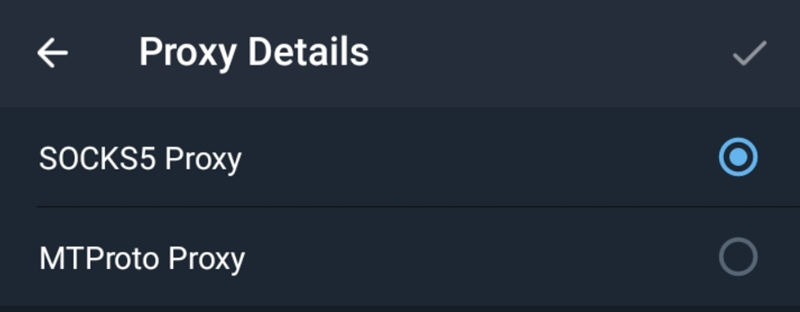
MTProto uses traffic obfuscation: it disguises Telegram traffic to look like ordinary HTTPS traffic, making it significantly harder for deep packet inspection systems to detect and block. SOCKS5, by contrast, makes no attempt to hide the fact that you are using a proxy — a determined ISP or firewall can identify and block it.
MTProto proxies often display a "Promoted Channel" at the top of your chat list. This is how proxy operators offset their server costs — they earn money by showing a sponsored channel. The operator cannot access or view your messages or chat list.
SOCKS5 vs. MTProto: Comparison
| Feature | SOCKS5 Proxy | MTProto Proxy |
|---|---|---|
| Versatility | High — works across multiple apps | Low — Telegram only |
| Traffic Obfuscation | None — traffic identifiable as SOCKS5 | Yes — disguised as HTTPS |
| Privacy | High — full IP masking | High — built-in obfuscation |
| Credentials Required | Server + Port (username/password optional) | Server + Port + Secret (always required) |
| Promoted Ads | None | Usually includes a sponsored channel |
| Best For | General use, bots, multi-account management | Countries with advanced censorship / DPI |
Recommendation: Use SOCKS5 if you want a clean, ad-free experience with a trusted provider and stable performance. Choose MTProto if you are in a country with sophisticated censorship infrastructure where SOCKS5 connections are actively detected and blocked by deep packet inspection systems.
Top Recommended SOCKS5 Proxy Providers for Telegram in 2026
The quality of your proxy provider is the single biggest factor in your Telegram experience. A provider with clean, residential IPs and a large geographic footprint will deliver a seamless connection; a cheap or poorly managed provider will result in constant disconnects and flagged accounts.
1. OkeyProxy — Top Pick for Telegram Users
OkeyProxy stands out as the top recommendation for Telegram users who need reliable, high-performance SOCKS5 proxies. Their infrastructure is purpose-built for the kind of high-concurrency, stable connections that demanding Telegram use requires.
- 150M+ Residential IP Pool: They offer a massive pool of real home IPs. This makes it almost impossible for Telegram or ISPs to detect you are using a proxy.
- Precise Geo-Targeting: With coverage in over 200 countries, you can pick an IP from exactly where you need to be. This is perfect for accessing region-locked channels.
- High Concurrency & Stability: Whether you are chatting or running a large Telegram bot, OkeyProxy handles thousands of requests without dropping.
🚀 Ready to boost your privacy? Get 100% stable SOCKS5 Proxies from OkeyProxy now!
2. Enterprise Alternatives — Bright Data & Smartproxy
Bright Data and Smartproxy are well-established, enterprise-grade providers with extensive IP pools and strong infrastructure. Both are solid choices for large-scale operations. However, their pricing is significantly higher than OkeyProxy for equivalent performance, making them more appropriate for enterprise deployments rather than individual or small-business Telegram use cases.
Troubleshooting FAQ: Solving Common Connection Issues
Q: Why does Telegram keep saying "Connecting..." even with the proxy enabled?
A: This almost always means Telegram cannot reach the proxy server. First, check your general internet connection. Then verify your server address, port, username, and password for typos. If your provider uses rotating IPs, the specific IP assigned to you may have expired — refresh your proxy list from the provider dashboard and update the settings. Some ISPs also block the default SOCKS5 port (1080) — try alternative ports such as 1085, 1090, or 443 if your provider supports them.
Q: Why are my voice or video calls failing even though messaging works?
A: Voice and video calls rely on UDP. If you are on a network or proxy that restricts UDP traffic, calls will fail while text messages (TCP) work fine. Ensure your proxy provider explicitly supports UDP, and that you have enabled the "Use proxy for calls" toggle in Telegram's proxy settings.
Q: Are free SOCKS5 proxies safe to use with Telegram?
A: No — free proxies are a significant security risk. Operators need to cover server costs somehow, and the most common methods include logging user data, injecting tracking scripts, or selling connection data to third parties. Using a free proxy with Telegram means trusting an unknown party with your session metadata. Always use a reputable, paid provider with a clear no-logging policy.
Q: Do I need a proxy for my Telegram bot?
A: If your bot sends a high volume of messages from a single IP, Telegram may flag that IP for spam-like behavior and restrict or ban it. Running your bot through a SOCKS5 proxy — and rotating IPs periodically — distributes the traffic across multiple residential IPs, significantly reducing the risk of bans and keeping your bot running around the clock. Most popular Telegram bot libraries, including Python's Telethon and python-telegram-bot, natively support SOCKS5 proxy configuration.
Q: Can I use the same proxy for Telegram Web?
A: Telegram's in-app proxy settings only apply to the native desktop and mobile apps — not to Telegram Web accessed in a browser. To route Telegram Web traffic through a SOCKS5 proxy, you need to configure the proxy at the browser or system level using a tool like Proxifier or a browser extension like FoxyProxy.
Q: My proxy works but my IP is still showing as the original — what happened?
A: If you launched Telegram before the proxy was configured, the app may have cached the direct session. Fully close and restart Telegram after enabling the proxy to force it to re-establish the connection through the proxy server. Confirm the IP change using @WhatIsMyIPBot.
Expert Tips for the Best Telegram Proxy Experience
① Always choose residential IPs over datacenter IPs. Datacenter IPs are often already flagged in Telegram's systems as proxy or bot traffic and are more likely to trigger CAPTCHAs, rate limits, or bans. Residential IPs — assigned by real ISPs to real home connections — appear as normal user traffic and pass Telegram's checks with much higher reliability.
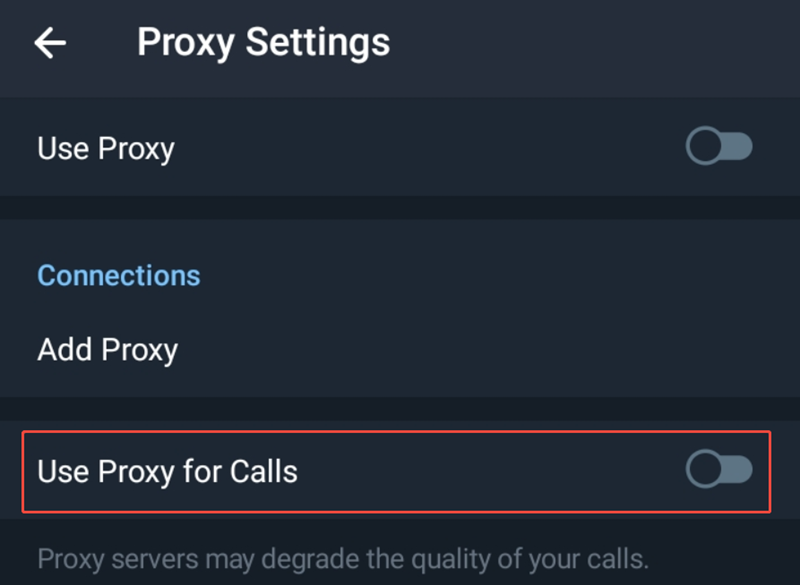
② Enable "Use proxy for calls." In Telegram's proxy settings, there is a dedicated toggle to route voice and video calls through the proxy. Enable it if you want your call traffic protected and routed through the same server as your messages. Without it, your real IP can be exposed during calls even when the proxy is active for messaging.
③ Watch the ping indicator. Telegram's proxy menu shows your current latency to the proxy server. Aim for under 150ms for a smooth experience. If your ping is consistently above 300ms, try a server in a geographically closer location.
④ Rotate IPs regularly for heavy use. For high-volume use cases — multiple accounts, Telegram bots, or extended daily sessions — avoid using the same IP address for weeks on end. Rotating to a fresh IP every few days keeps your traffic pattern from standing out to Telegram's abuse detection systems.
⑤ Save multiple proxies and use Auto-Switch. Add two or three proxies from your provider and enable Telegram's Auto-Switch feature. If one server goes down, Telegram automatically fails over to the next — no manual intervention required.
⑥ Never click unsolicited proxy links. As described in the security section, proxy links shared by strangers in chats can be weaponized to extract your real IP even when a proxy or VPN is active. Treat any unexpected proxy link as suspicious.
⑦ For maximum anonymity, layer with a VPN. A SOCKS5 proxy masks your IP at the application level. A VPN encrypts all traffic at the device level. Combining both ensures that even if a proxy test leaks, the exposed IP belongs to the VPN server — not your real network.
Conclusion
A SOCKS5 proxy for Telegram remains the smartest, most practical privacy tool for Telegram users in 2026. It is fast, lightweight, app-specific, and natively supported by Telegram on every platform. It bypasses regional blocks, masks your IP, supports voice and video calls, and does not slow down the rest of your device — everything a VPN does for Telegram, with less overhead and simpler setup.
The key is pairing the right setup with the right provider. Follow the platform-specific steps in this guide, take the security warnings seriously, and choose a provider like OkeyProxy that offers genuine residential IPs, broad geo-coverage, and the connection stability that Telegram's real-time features demand. Wherever you are in the world, unrestricted and private Telegram access is achievable. Configure your SOCKS5 proxy today and take back control of your digital communications.
