


















What Does the Default Gateway Do? Plain-English Guide (2026)
Have you ever wondered how a photo travels from your phone to a friend across the ocean? It feels like magic. In reality, it involves an invisible portal. Every time you send an email or browse a website, your data passes through one specific point called the default gateway. It is the bridge between your private home network and the vast world of the internet. Without it, your devices would be stuck talking only to each other.
In this guide, we will answer the big question: what does the default gateway do? We will also explain how it works step by step, how it differs from a router, how to find your gateway address on any device, and how to fix it when things go wrong.
What Is a Default Gateway?
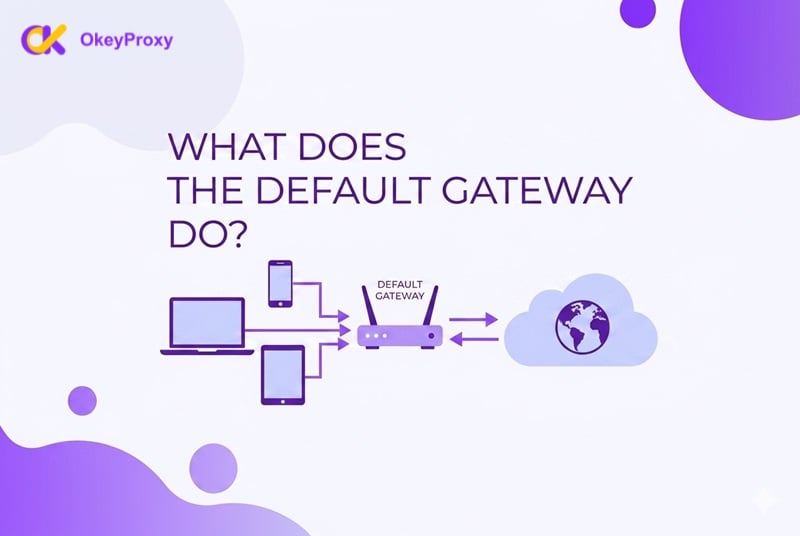
In technical terms, the default gateway is the exit point for all data leaving your local network. It is the device your computer looks for when it wants to send information to a server that is not inside your home or office. Think of it as the last stop before your data enters the global internet.
More precisely, every device on a network has a routing table — a short list of rules that says where to send data. If none of those rules match the destination, the data goes to the "default" route: the gateway. This is where the name comes from.
The Post Office Analogy
Think of your home network like a small neighborhood. Your devices — phones, laptops, smart TVs — are the people living there. If you want to talk to someone next door, you just walk over. That is "local" traffic. But if you want to mail a letter to another country, you must take it to the post office. The post office knows how to get that letter out of your neighborhood and into the wider postal system. In this scenario, the post office is your default gateway.
The Airport Gate Analogy
Another way to think about it: you can walk freely inside an airport terminal. But if you want to fly to another country, you must pass through a specific gate. That gate is the only way out. If the gate is closed, you are stuck in the terminal. Your default gateway is that gate for your data.
In most homes, your Wi-Fi router serves as the gateway. In larger corporate or cloud environments, the gateway can be a dedicated server, a Layer 3 switch, or even a virtual software node.
What Does the Default Gateway Do? (Core Functions)
Now that we know what it is, let's look at the heavy lifting it performs every second. Here are the primary functions that answer the question: what does the default gateway do?
1. Traffic Routing — The Traffic Director
When a data packet leaves your laptop, the gateway checks the destination address and asks: "Is this for a device inside this network, or is it for the internet?" If it is for the internet, the gateway passes the packet to your Internet Service Provider (ISP). If the destination is local, the data stays inside your network. Without this decision-making step, every packet would have no idea where to go.
2. Network Address Translation (NAT) — Making One IP Work for Everyone
Your ISP usually gives you only one public IP address. But you might have 15 devices at home all needing internet access at the same time. The gateway uses a technique called NAT to let all those devices share that single public IP. It keeps a map of which device sent which request. When the data comes back, the gateway knows exactly which phone or laptop to deliver it to. Without NAT, you would need a separate public IP for every device you own.
3. Working with DNS — Finding Addresses by Name
When you type "google.com" into your browser, your computer first needs to turn that name into a number (an IP address). This is done by a DNS (Domain Name System) server. Your gateway plays a supporting role here: it either forwards DNS requests to an external DNS server, or it runs a small DNS resolver itself. In short, the gateway ensures that name-to-address lookups can reach the wider internet. Without this, typing a website name would simply not work.
4. Protocol Conversion — Speaking the Right Language
Your home network uses a private addressing system (like 192.168.x.x). The global internet uses public addresses and different routing rules. The gateway acts as a translator, packaging your local data into a format that routers and servers across the internet can understand. Without this step, your data would be "speaking the wrong language" the moment it left your house.
5. Security and Firewalling — Your First Line of Defense
Because all incoming and outgoing data must pass through the gateway, it is in a perfect position to block threats before they reach your devices. Most gateways have a built-in firewall. They inspect each data packet arriving from the internet. If a packet looks suspicious — for example, it is coming from a known malicious IP address — the gateway drops it immediately. This is why your home network has a layer of protection even if you have not set anything up manually.
How the Default Gateway Works Step by Step
Let's follow a single request to see the gateway in action. Imagine you type "google.com" into your browser.
- The Request: Your browser needs Google's IP address. It sends a DNS query, which also goes through the gateway to reach a DNS server on the internet.
- The Local Check: Your computer checks its routing table. It asks: "Is google.com inside this network?" The answer is no, so it prepares to send the request outside.
- Sent to the Gateway: Your computer addresses the data to the gateway's IP (for example, 192.168.1.1) and hands it over.
- NAT Applied: The gateway replaces your private IP address (192.168.1.x) with your public IP address, then forwards the packet to your ISP.
- The Global Leap: Your ISP sends the packet across fiber-optic cables to Google's servers. Google sends back the webpage data.
- Return Journey: The reply arrives at your gateway. Using its NAT table, the gateway knows which device originally made the request and delivers the data to your specific laptop or phone.
This entire process happens in under a second. Every time you click a link, stream a video, or send a message, your gateway is making these decisions for you — silently and continuously.
Static vs. Dynamic Default Gateway
Not all gateways are assigned the same way. There are two main methods:
Dynamic Gateway (Assigned by DHCP)
In most homes and offices, the gateway address is assigned automatically by a protocol called DHCP (Dynamic Host Configuration Protocol). When your laptop connects to Wi-Fi, the router tells it: "Your IP address is 192.168.1.50, and your gateway is 192.168.1.1." You never have to type anything. This is the most common setup and works well for everyday use.
Static Gateway (Set Manually)
In business or server environments, administrators often set the gateway manually. A static gateway never changes, which means network traffic is always predictable and easy to troubleshoot. It is also useful for printers, servers, and IP cameras that need a permanent, fixed address.
For home users, the dynamic (automatic) setup is almost always the right choice. If you are running a small business, consider using static addresses for any device that other people connect to.
Gateway vs. Router vs. Proxy: What's the Difference?
People often use these terms interchangeably, but they serve different purposes. Understanding these differences helps clarify exactly what the default gateway does in relation to other tools.
| Feature | Default Gateway | Router | Proxy Server |
|---|---|---|---|
| Primary Role | The "exit door" for all data leaving a local network | The physical or virtual device that connects two or more networks | An intermediary that forwards requests on your behalf, often masking your IP |
| Location | At the edge of your local network | Between two or more networks | Anywhere — a local server or a remote server on the web |
| Required for internet? | Yes — mandatory | Yes — required for routing between IPs | No — optional, used for privacy or bypassing restrictions |
| Handles NAT? | Yes | Yes (when acting as a gateway) | No |
The key takeaway: in a typical home, the router is the default gateway. They are the same device playing two roles. The term "router" describes the hardware; the term "default gateway" describes the function it performs.
How to Find Your Default Gateway IP Address
To log into your router and change its settings, you first need its IP address. Most home gateways use standard addresses like 192.168.1.1, 192.168.0.1, or 10.0.0.1. Here is how to find yours on any device.
On Windows
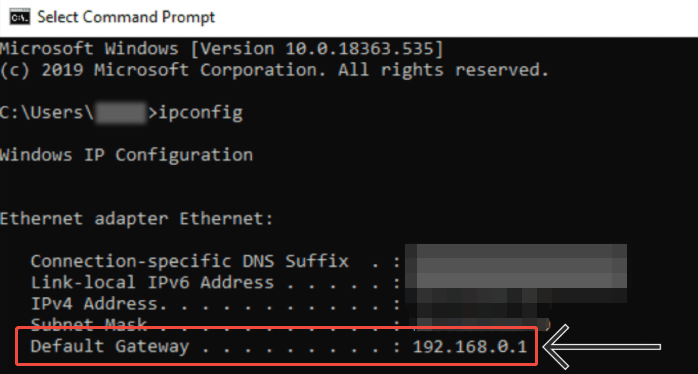
- Press Windows Key + R, type
cmd, and press Enter. - In the command prompt, type
ipconfigand press Enter. - Look for the line that says Default Gateway. The number next to it (for example, 192.168.0.1) is your gateway address.
On macOS
- Click the Apple menu and go to System Settings.
- Select Network, then click on your active Wi-Fi or Ethernet connection.
- Click Details and open the TCP/IP tab. The gateway is listed as "Router."
On iOS (iPhone / iPad)
Go to Settings → Wi-Fi. Tap the (i) icon next to your connected network. Look for the field labeled Router — that is your gateway IP.
On Android
Go to Settings → Network & Internet → Wi-Fi. Tap the gear icon next to your connected network, then tap Advanced or IP Settings. Look for Gateway.
Troubleshooting: "Default Gateway Is Not Available"
This is one of the most common network errors on Windows. It means your computer has lost the path to the outside world and cannot connect to the internet. Here are the main causes and how to fix each one.
Common Causes
- Outdated or corrupted network drivers: Your network adapter software may be buggy or out of date.
- Router glitch: The router has frozen and stopped responding to requests.
- Antivirus or firewall conflict: Some third-party security software mistakenly blocks the connection between your PC and the gateway.
- Power management settings: Windows may be putting your network adapter to sleep to save power, cutting off the gateway connection.
- IP address conflict: Two devices on your network are trying to use the same IP address.
- Misconfigured DNS settings: Wrong DNS server settings can prevent the gateway from completing requests correctly.
Step-by-Step Fixes
- Restart your router first. Unplug it for 30 seconds, then plug it back in. This clears the router's memory and fixes most temporary glitches.
- Restart your computer. A simple reboot resolves many driver-related issues without any further action.
- Update your network driver. Open Device Manager (right-click the Start menu → Device Manager), expand Network adapters, right-click your adapter, and select Update driver.
- Disable "Allow the computer to turn off this device to save power." In Device Manager, right-click your network adapter → Properties → Power Management tab → uncheck the option. This stops Windows from putting the adapter to sleep.
- Temporarily disable your antivirus/firewall to check if it is blocking the gateway connection. If disabling it fixes the issue, adjust the software's settings rather than leaving it off permanently.
- Reset your TCP/IP stack. Open Command Prompt as Administrator and run these commands one by one:
netsh winsock resetnetsh int ip resetipconfig /flushdnsipconfig /releaseipconfig /renew
Then restart your computer. - Try a different DNS server. Go to your network adapter properties → TCP/IPv4 → Use the following DNS: enter
8.8.8.8(Google) and1.1.1.1(Cloudflare) as alternatives.
Pro Tip: Sometimes your gateway is working perfectly, but your ISP is blocking access to specific websites in your region. A quick way to test this is to use a residential proxy service like OkeyProxy. If you can reach a site through a residential proxy but not directly through your gateway, the problem is your ISP's routing or regional restrictions — not your gateway itself. This test can save you hours of unnecessary troubleshooting.
The Future in 2026: Cloud Gateways and IPv6
The traditional idea of a physical box sitting in your hallway is evolving fast. Here is what is changing right now.
IPv6 and the End of Complex NAT
The old IPv4 address system is running out of addresses. Modern gateways are now handling "dual-stack" routing — managing both IPv4 and the newer IPv6 protocol at the same time. IPv6 provides enough addresses for every device on earth to have its own unique public IP, which reduces the need for NAT. With IPv6, devices often get their gateway address automatically through a protocol called NDP (Neighbor Discovery Protocol) rather than traditional DHCP.
Virtual and Cloud Gateways
In platforms like AWS and Azure, gateways now exist entirely in software. A Virtual Private Gateway lets companies connect their physical offices directly to the cloud over an encrypted tunnel. It works exactly like a home gateway — deciding where to send traffic — but runs without any physical hardware.

Edge Computing
To reduce delays, gateways are moving physically closer to users. This approach, called edge computing, processes data at a local gateway node rather than sending it to a distant server. The result is faster gaming, smoother video calls, and quicker AI responses. As this trend grows, the concept of a single central gateway per network is giving way to distributed gateway networks spread across cities and regions.
Frequently Asked Questions
Q: Can I have two default gateways?
A: Technically yes, but it is not recommended for home users. Having two gateways can confuse your computer: it might try to send data through the wrong exit, causing your internet to fail unpredictably. Advanced network administrators use a technique called load balancing to split traffic between two gateways in a controlled way, but this requires careful configuration.
Q: Does a gateway slow down my internet?
A: An older or underpowered gateway can absolutely become a bottleneck. If your internet plan delivers gigabit speeds but your gateway's processor cannot keep up, you will never see those speeds on your devices. A router purchased more than five years ago may not handle modern traffic loads well. Upgrading your gateway hardware is often the single most effective way to improve real-world internet performance at home.
Q: Is a gateway the same as a modem?
A: Not quite. A modem connects your home to the ISP's physical cable or fiber line — it handles the raw signal. A gateway (router) manages traffic between all your local devices and the modem. Many ISPs provide a single "combo" device that does both jobs. If you have a separate modem and router, the router is your gateway; the modem is just the signal converter.
Q: What is the difference between a gateway and a subnet?
A: A subnet is a logical subdivision of a network — a way of grouping devices together. A gateway is the device that connects one subnet to another, or to the internet. Think of a subnet as a neighborhood and the gateway as the road that leads out of it. Large organizations use multiple subnets, each with its own gateway, to organize and manage network traffic efficiently.
Q: Does every device need a default gateway?
A: Only if that device needs to communicate outside its own local network. A printer that only works within your office network technically does not need a gateway. But any device that needs to reach the internet — a laptop, phone, smart TV, or cloud-connected security camera — must have a default gateway configured, either manually or automatically via DHCP.
Summary
So, what does the default gateway do? It is the essential bridge that connects your private local network to the global internet. It decides where every outgoing data packet should go, translates your private IP into a public one using NAT, supports DNS lookups, and blocks suspicious incoming traffic with its built-in firewall. Without this "invisible exit point," the internet as we know it simply would not work.
To keep your connection fast and secure in 2026: keep your gateway's firmware updated, use a modern router that can handle current speeds, and know your gateway IP address so you can troubleshoot problems quickly. Whether you are fixing a dropped connection or just curious about how your data travels halfway around the world, understanding the default gateway is the first step to mastering your network.
