


















How to Fix 520 Error Code: Troubleshooting the "Unknown Error"
You are likely to encounter various proxy error codes while navigating the digital landscape. Whether you are performing web scraping, running automation tasks, or simply browsing your favorite sites, errors are part of the journey. Many of these messages are standard and easy to understand. However, the 520 error code is different. It can interrupt your operations without a clear reason or a visible solution. This guide provides a complete roadmap — from quick client-side fixes to deep technical server troubleshooting.
When this error appears, it usually says: "Web Server Is Returning an Unknown Error." It is a frustrating message because it does not tell you exactly what went wrong. In this article, we will break down every known cause and provide actionable steps to get your connection back online.
What Is the 520 Error Code?
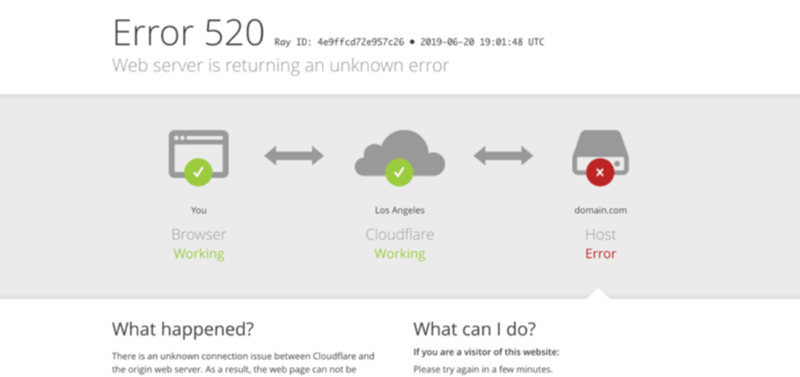
The 520 error code is a non-standard HTTP status code specific to Cloudflare. It acts as a "catch-all" response. It appears when the origin web server — the server where the website files are stored — returns an empty, unknown, or unexpected response to Cloudflare. Because Cloudflare operates as a reverse proxy, it sits between the user and the origin server. If the server behaves in a way that does not match any standard error like 502 or 504, Cloudflare triggers a 520.
In plain terms: Cloudflare successfully connected to your server, but what your server sent back was incomprehensible — or nothing at all. This almost always points to a server-side issue rather than a problem with Cloudflare itself. Common triggers include application crashes, firewall rules blocking Cloudflare IPs, oversized HTTP headers, or an incorrectly configured HTTP/2 setup.
Every Cloudflare 520 error page displays a Ray ID at the bottom of the screen. This is a unique identifier for that specific request. Save it — you will need it if you contact your hosting provider or Cloudflare support.
How the 520 Error Code Differs from Other 5xx Errors
Understanding where 520 fits among Cloudflare's error codes helps with faster diagnosis:
- 520 – Unknown Error: The server responded with something Cloudflare could not interpret — an empty body, a reset connection, or a malformed response.
- 521 – Web Server Is Down: Cloudflare could not establish a connection at all. The server refused it.
- 522 – Connection Timed Out: Cloudflare connected but the server took too long to respond.
- 524 – A Timeout Occurred: A connection was established, but the server was too slow to return a full response (e.g., a heavy database query).
- 502 – Bad Gateway: A standard HTTP code indicating an invalid response from an upstream server or proxy layer, such as a misconfigured Nginx upstream or load balancer.
The key distinction: a 520 means a connection was made, but the server's reply was invalid or empty. It is broader than a timeout and less specific than a refused connection.
The Impact of a 520 Error Code
Ignoring this error is not an option for website owners or data professionals. The impact can be significant and immediate.
- Loss of Traffic: Regular users will see a broken page. Most will leave immediately and may not return.
- SEO Damage: If search engine bots encounter a 520 error frequently, your rankings may drop. Google prefers stable, consistently reachable sites. Pages returning 5xx errors may be deindexed over time.
- Automation Failure: For developers, a 520 error can break web scrapers or API integrations entirely, resulting in lost data or failed pipelines.
- Revenue Loss: For e-commerce sites, a 520 error during checkout means lost sales, abandoned carts, and damaged customer trust.
Main Causes of the 520 Error Code
Because the 520 is a catch-all response, several distinct issues can trigger it. According to the official Cloudflare documentation, the most common causes include the following.
1. Origin Server Crashes or Application Errors
The web server application itself may have stopped responding. This includes services like PHP-FPM, Apache, or Nginx. If the service crashes while processing a request, it sends an incomplete or empty response. PHP applications are particularly prone to this — Cloudflare's documentation specifically notes that 520 errors are prevalent with certain PHP setups that crash the origin server.
2. Incorrect HTTP/2 Configuration
Cloudflare connects to origin servers that announce HTTP/2 support via ALPN (Application-Layer Protocol Negotiation). If the origin server accepts the HTTP/2 connection but then fails to respect or correctly implement the protocol, a 520 error is returned. This is a frequently overlooked cause. You can disable HTTP/2 to Origin in the Cloudflare dashboard under Speed > Optimization > Protocol Optimization to test whether this is the root cause.
3. Firewall Blocking Cloudflare IP Addresses
Your origin server's firewall (such as UFW, iptables, or CSF) or a security plugin (such as Fail2Ban) may be blocking Cloudflare's IP addresses, mistakenly treating them as malicious traffic. Since Cloudflare acts as a proxy, all traffic arrives from Cloudflare's IP ranges. If those IPs are blocked, the connection is severed, triggering a 520. You must whitelist all Cloudflare IP ranges, which are published at cloudflare.com/ips.
4. Oversized HTTP Headers or Cookies
Cloudflare has a limit on header sizes (usually 128 KB). If your site sets excessive cookies, includes large debug data in headers, or uses very large custom header values, the total size may exceed these limits. Cloudflare will then reject the response and display a 520 error. Use browser developer tools or a cURL command to inspect your actual header sizes.
5. Empty or Malformed Responses
The server may send a response with zero bytes, no HTTP status code, or no response body. Cloudflare cannot process these partial or empty replies and returns a 520 to the client.
6. TCP Connection Timeout Misconfiguration
Cloudflare's default idle TCP timeout is 350 seconds. If your origin server is configured with a TCP idle timeout value below 300 seconds, it may close the connection before Cloudflare finishes communicating with it. This mismatch causes an unexpected connection reset, which Cloudflare surfaces as a 520. Review your web server's keep-alive and timeout settings to ensure they are set to at least 300 seconds.
7. Incorrect DNS Records
Incorrect DNS records can direct Cloudflare to the wrong IP address or server. When Cloudflare attempts to connect to an unexpected endpoint, it may receive an empty or invalid response. Always verify your DNS records in the Cloudflare dashboard are pointing to the correct origin IP.
8. Authenticated Origin Pulls Misconfiguration
If "Authenticated Origin Pulls" is enabled in Cloudflare but the origin server is not correctly configured to accept the corresponding client certificate, the TLS handshake will fail. This results in an unexpected or empty response and triggers a 520 error.
9. Server Overload
When the server is processing too many simultaneous requests, it may exhaust memory or CPU resources. In this state, it can drop connections or send garbled, incomplete data that Cloudflare cannot interpret. High-traffic spikes, runaway PHP processes, or unoptimized database queries are frequent culprits.
Basic Fixes for Regular Users (Client-Side)
If you are a visitor or a developer running automation scripts without server access, here are the steps you can take.
Method A: Refresh the Page
The error may be a momentary glitch caused by a brief server spike. A simple page refresh (F5 or Ctrl+R) is always worth trying first. If the server recovers quickly, the issue may resolve on its own within seconds.
Method B: Clear Browser Cache and Cookies
Old or bloated cookies contribute to oversized HTTP headers, which can trigger a 520. Clearing your browser cache and cookies ensures you send a clean, minimal request. This is particularly effective when the 520 error appears only for you and not for other visitors.
Method C: Check for Global Outages
Sometimes the problem lies with Cloudflare itself rather than the origin server. Use tools like DownDetector or check the official Cloudflare Status page to confirm whether there is a widespread service interruption before spending time troubleshooting the origin server.
Method D: Try a Different Browser or Incognito Mode
Browser extensions can sometimes interfere with the way headers are sent or processed. Opening the site in an Incognito or Private window disables most extensions. If the error disappears, a browser extension is likely the cause. Try a different browser entirely to narrow it down further.
Method E: Switch Your IP Address (For Automation and Scraping)
In web scraping and automation scenarios, a 520 error often appears because your IP address or browser fingerprint has been flagged by the target site's security system. These systems sometimes return a deliberately malformed or empty response to confuse bots — which Cloudflare then surfaces as a 520.
Editor's Tip: If you are running automation, switching to a different IP address is often the fastest fix. Using a reliable service like OkeyProxy lets you rotate through 150M+ global residential IPs. This prevents your requests from being identified as bot traffic and reduces the likelihood of triggering a 520 error caused by security blacklisting.
Technical Troubleshooting for Website Owners (Server-Side)
If you own or manage the website, you need to go deeper. Moving from client-side guesses to server-side logs is the only reliable way to identify the root cause.
Step 1: Restart Web Server Services
Restarting your web server and application services can clear memory leaks, stalled processes, and stuck connections. On a Linux server, common commands include:
sudo systemctl restart nginxsudo systemctl restart apache2sudo systemctl restart php8.2-fpm
After restarting, monitor the server to see if the 520 errors stop occurring.
Step 2: Examine Server Error Logs
Your server logs are the most direct source of truth. Look for crash messages, "connection reset" entries, or memory exhaustion warnings around the time the 520 error occurred. Match entries to the Cloudflare Ray ID shown on the error page for exact correlation.
Common log file paths:
- Apache:
/var/log/apache2/error.log - Nginx:
/var/log/nginx/error.log - PHP-FPM:
/var/log/php-fpm/error.log(path may vary by distribution)
Step 3: Generate and Inspect a HAR File
A HAR (HTTP Archive) file captures all network requests and responses in your browser, including full header details. This is the recommended approach by Cloudflare for diagnosing header-related 520 errors. Generate one with Cloudflare enabled and one with Cloudflare paused, then compare the header sizes and response content to identify anomalies. Most modern browsers (Chrome, Firefox, Edge) can generate HAR files via the Network tab in Developer Tools.
Step 4: Whitelist Cloudflare IP Addresses
Ensure your server's firewall and any security software are not blocking Cloudflare's IP ranges. Since all traffic passes through Cloudflare before reaching your origin server, your firewall sees only Cloudflare IPs — not real visitor IPs. Whitelist all IP ranges listed at cloudflare.com/ips in your UFW, iptables, CSF, or .htaccess rules.
Step 5: Verify DNS Records
Log into your Cloudflare dashboard and confirm that all DNS records are pointing to the correct origin server IP. An incorrect A record or misconfigured CNAME can send Cloudflare's requests to the wrong destination, resulting in an empty or unexpected response.
Step 6: Check and Adjust TCP Timeout Settings
Ensure your origin server's TCP idle timeout is set to at least 300 seconds to prevent premature connection closures. In Nginx, this is controlled by the keepalive_timeout directive. In Apache, adjust the KeepAliveTimeout setting. Mismatched timeouts between Cloudflare and your origin server are a common and often overlooked cause of intermittent 520 errors.
Step 7: Review Header and Cookie Sizes
Review your application code to ensure you are not sending unnecessary data in HTTP headers. Remove any debug or logging headers that should not be present in production. Audit your cookie usage — reduce the number and size of cookies your application sets.
Step 8: Disable HTTP/2 to Origin Temporarily
If your server is misconfigured for HTTP/2, disabling the HTTP/2 to Origin feature in Cloudflare can confirm whether this is the cause. Navigate to Speed > Optimization > Protocol Optimization in your Cloudflare dashboard to toggle this setting. If the 520 errors stop after disabling it, work with your hosting provider to fix the HTTP/2 or SSL configuration at the origin level.
Step 9: Pause Cloudflare for Isolation
If you are still unable to identify the cause, "Pause" Cloudflare in your dashboard. This bypasses the proxy and sends traffic directly to your origin server. If the site loads normally after pausing Cloudflare, the problem is a compatibility issue between your server configuration and Cloudflare. If the site still fails, the problem is entirely on your server, independent of Cloudflare.
Step 10: Contact Cloudflare Support
If none of the above steps resolve the issue, contact Cloudflare support. Provide your Ray ID, the full URL where the error occurred, the output of http://<YOUR_DOMAIN>/cdn-cgi/trace, and two HAR files — one recorded with Cloudflare enabled and one with Cloudflare paused. This gives their team everything needed to trace the exact failed transaction in their edge network logs.
Platform-Specific Fixes (WordPress and Other CMS)
Different platforms have unique ways of triggering a 520 error code. If you are running WordPress or a similar CMS, pay attention to these areas.
Plugin Conflicts
Security plugins (like Wordfence) or heavy caching plugins can sometimes block Cloudflare's requests or corrupt response headers. If you see a 520 error after installing or updating a plugin, deactivate it and test whether the site recovers. Deactivate all plugins temporarily if necessary, then reactivate them one by one to identify the culprit.
Cloudflare Rocket Loader
Cloudflare's Rocket Loader feature automatically defers JavaScript loading to improve page speed. However, it can conflict with certain page builders and editors — most notably Elementor. If you experience 520 errors only on Elementor editing pages, Rocket Loader is a likely cause. You can create Cloudflare Page Rules to disable Rocket Loader specifically for Elementor URLs (for example: yourdomain.com/*elementor*) without disabling it globally.
Theme and PHP Errors
Errors in your functions.php file or a poorly coded theme can cause the PHP engine to crash before it can send a complete response. This results in an empty response that Cloudflare surfaces as a 520. Always check your site for PHP syntax errors, fatal errors, or memory exhaustion by reviewing your PHP error logs or enabling WordPress debug mode (WP_DEBUG).
Note: High-traffic WordPress sites often experience 520 errors during database-intensive operations such as large queries, plugin updates, or search indexing. Regularly optimize your database and implement query caching to reduce server load during peak traffic periods.
How to Prevent Future 520 Errors
Prevention is better than cure. To keep your site stable and minimize the risk of 520 errors, follow these best practices:
- Monitor Server Resources: Use tools like Zabbix, Nagios, or your hosting provider's built-in dashboard to monitor CPU and RAM usage in real time. Address resource bottlenecks before they cause crashes.
- Keep Software Updated: Ensure Nginx, Apache, and PHP are always running the latest stable versions to avoid known bugs, protocol incompatibilities, and security vulnerabilities.
- Set TCP Timeouts Correctly: Configure your web server's keep-alive and idle timeout values to at least 300 seconds to avoid premature connection drops with Cloudflare.
- Standardize Headers: Avoid using custom headers with excessively long values or non-standard characters. Regularly audit your application's headers in production.
- Whitelist Cloudflare IPs Proactively: Add all Cloudflare IP ranges to your firewall's allowlist before any security incidents occur. Cloudflare publishes an up-to-date list at cloudflare.com/ips.
- Use Reliable Proxy Tools for Automation: If you are on the client side running scrapers or bots, use a trusted proxy provider to avoid your IPs being flagged by security filters, which can result in malformed responses and 520 errors.
Frequently Asked Questions (FAQ)
Is Error 520 the same as Error 521?
No. Error 520 is an "Unknown Error" — it means Cloudflare connected to your server but received an empty, malformed, or otherwise uninterpretable response. Error 521 means the "Web Server Is Down" — Cloudflare could not connect to your origin server at all because the server refused the connection.
Can my hosting provider fix a 520 error?
Yes, in many cases. If the root cause is a server crash, a firewall rule blocking Cloudflare IPs, or a TCP timeout misconfiguration, your hosting provider can address it. Ask them to check whether Cloudflare's IP ranges are whitelisted and whether the server's error logs show any crashes or resource exhaustion.
Will a 520 error hurt my SEO?
Yes, if it persists or recurs frequently. Search engines treat 5xx errors as signals of an unstable or unreliable website. Recurring 520 errors can cause pages to be deindexed, reduce crawl budget allocation, and lower your overall search rankings. Fix it as quickly as possible and consider setting up uptime monitoring to catch future occurrences early.
What is the Cloudflare Ray ID, and why does it matter?
The Ray ID is a unique identifier that Cloudflare assigns to every request passing through its network. It appears at the bottom of every Cloudflare error page. When you contact Cloudflare support or your hosting provider, sharing the Ray ID allows their team to pull the exact transaction log for that specific failed request — dramatically speeding up diagnosis.
Can a 520 error be caused by my internet connection?
Unlikely. The 520 error originates on the server side — specifically in the communication between Cloudflare and the origin server. Your internet connection is not part of that exchange. If only you are seeing the error while others can access the site, the more likely culprits are bloated browser cookies causing oversized headers, or a cached DNS entry pointing to the wrong server.
Conclusion
The 520 error code can be a significant headache precisely because of its vague, catch-all nature. However, by following a structured troubleshooting path, you can systematically identify and eliminate the cause. Start with simple client-side fixes such as refreshing the page and clearing cookies. If the problem persists and you have server access, examine your logs, verify your DNS records, check your TCP timeout settings, and inspect your header sizes using a HAR file.
In the world of web automation and high-performance websites, staying reachable is everything. Whether you are managing an origin server or using a proxy service to gather data at scale, understanding these status codes enables you to react quickly and decisively when things go wrong. Stay proactive, monitor your server resources, and keep your header sizes and IP reputation clean.
