


















Best Proxies for School Chromebook: Top 5 Picks That Actually Work
If you've spent any time on Reddit recently, you've likely seen threads like "Might've found one of the best proxy sites for school" or students sharing DIY scripts to unblock websites. The reality of 2026 is that school IT departments have become incredibly sophisticated. They use AI-driven filters like GoGuardian and Securly that can detect a basic web proxy in seconds—GoGuardian, for instance, uses machine learning to examine the actual words and images on a page, blocking content regardless of where it was found. While the "free" proxies shared on Reddit or Discord might work for five minutes, they often come with serious risks: data logging, malware injection, and extreme lag.
To truly bypass restrictions on a ChromeOS device, you need more than just a random URL. You need a setup that is fast, stealthy, and compatible with the unique ecosystem of a Chromebook. In this guide, we will cover the best proxies for school Chromebook use, explain why professional setups beat free alternatives, and show you exactly how to configure them for a seamless, unblocked experience.
Disclaimer: This guide is for educational and informational purposes only. Bypassing school network restrictions may violate your institution's Acceptable Use Policy (AUP). Always review your school's policies before proceeding.
Why Do Schools Block Content and Why Are Chromebooks So Restricted?
It's not just about productivity. Schools are legally required to provide a safe browsing environment under acts like the Children's Internet Protection Act (CIPA). Beyond legal compliance, administrators typically block content for three core reasons:
- Productivity: Preventing students from playing games like Roblox or Slope during class time.
- Bandwidth Preservation: High-definition streaming and gaming can saturate a school's network when hundreds of students do it simultaneously.
- Security: Blocking malicious sites that could compromise student data or the school's network infrastructure.
The Chromebook "Cloud-Managed" Challenge
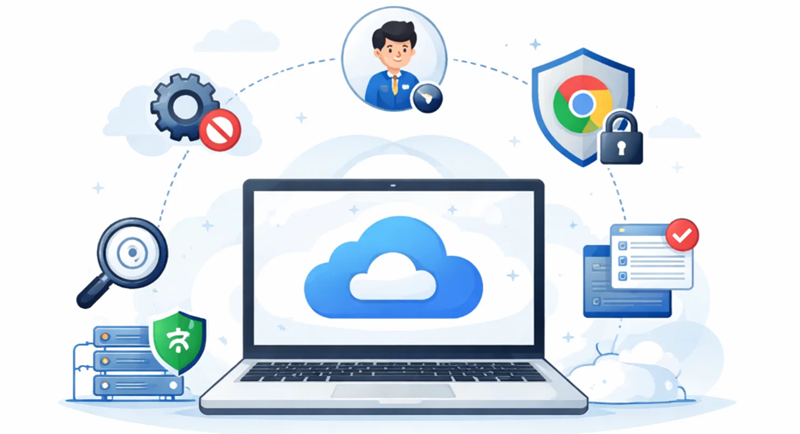
Chromebooks are significantly harder to unblock than Windows PCs because they are cloud-managed. Your school administrator uses the Google Admin Console to push policies directly to your device. This means they can disable the Settings menu, block the Chrome Web Store, and monitor which extensions you have installed in real time. Because ChromeOS does not support traditional .exe installers, a standard VPN app cannot be installed—making a browser-level or network-level proxy one of the few viable options.
It's also important to know that tools like GoGuardian operate at the device level. Even if you switch to a personal Google account on a managed Chromebook, the monitoring extension may still log your browsing activity across all profiles on that device. This is why IP-quality and encryption matter so much when choosing a proxy.
What Is a Proxy? Understanding the Types for Chromebook Users
A proxy acts as an intermediary server. When you want to visit a blocked site like YouTube, your Chromebook sends the request to the proxy server first. The proxy fetches the content on your behalf and returns it to you. To the school firewall, it appears you are communicating only with the proxy—not YouTube.
Common Proxy Types for School Environments
| Proxy Type | Brief Description | Main Advantage | Best for Chromebook? |
|---|---|---|---|
| Residential Proxy | Uses IP addresses assigned by ISPs to real homes. | Extremely hard to detect; appears as normal residential traffic. | Yes. Best for bypassing high-security filters like GoGuardian. |
| Datacenter Proxy | IPs originating from commercial data centers. | Very high speed and low cost. | Maybe. Often flagged by advanced AI-based firewalls. |
| ISP / Static Residential Proxy | A hybrid: datacenter speed combined with a residential IP's trust level. | Stability; maintains a single IP address over a long session. | Yes. Ideal for staying logged into accounts without repeated re-authentication. |
| Web Proxy | A browser-based proxy accessed by visiting a website. | No configuration required; works instantly. | Limited. Frequently the first type of proxy IT departments block. |
The Top 5 Best Proxies for School Chromebook in 2026
The following five providers have been evaluated based on their ability to bypass modern school content filters, connection speed, ease of setup on ChromeOS, and IP pool quality.
1. OkeyProxy — Best Overall for Stealth and Speed
When it comes to the best proxies for school Chromebook, OkeyProxy is the strongest all-around performer. It operates a pool of over 150 million residential IPs across 200+ countries, making it nearly impossible for a school's firewall to block them all through blacklisting alone. Unlike free proxies that rely on overused, flagged IPs, OkeyProxy provides clean, high-authority addresses that make your traffic appear to originate from ordinary households.
- Massive IP Diversity: With 150M+ IPs, if one address gets flagged, the rotating system automatically assigns you a new one from millions of alternatives.
- HTTP/HTTPS/SOCKS5 Compatibility: Supports all three protocols required for ChromeOS network-level configuration. SOCKS5 offers lower latency than standard HTTP proxies, which is essential for smooth streaming or gaming with minimal lag.
- City and ISP Targeting: You can select IPs from specific regions to minimize ping times and further reduce detection risk.
- Free Trial Available: New users can get a 1GB Residential Proxy trial at no cost. Contact the OkeyProxy support team via their website after registering to claim it. Testing before committing is the best way to verify performance on your school's specific network.
2. CroxyProxy — Best for Quick, Zero-Configuration Web Access
CroxyProxy is not a proxy service in the traditional sense—it is a web-based proxy. It is popular among students because it requires absolutely no setup: you visit the website, enter the URL you want to access, and the page loads through their servers.
- Pros: Completely free for basic use; supports YouTube and social media playback; works instantly on any Chromebook without touching network settings.
- Cons: Frequently the first domain blocked by school IT departments; noticeably slow speeds; heavy with intrusive advertisements. Because web proxies are the most obvious type to detect, advanced filters like GoGuardian can identify and block them based on the page content itself.
3. FloppyData — Best Budget-Friendly Option
FloppyData has gained traction for offering straightforward, affordable proxy packages well-suited to students on a tight budget. Their datacenter proxies are noted for ultra-low latency in the 50–150ms range with unlimited bandwidth, making them capable of handling extended browsing or streaming sessions.
- Pros: Very competitive pricing; stable uptime; unlimited bandwidth means no throttling during long study sessions.
- Cons: Smaller IP pool compared to OkeyProxy; datacenter IPs are more susceptible to detection by advanced school firewalls; no free trial currently offered.
4. Soax — Best for Privacy and Precise Geo-Targeting
Soax is built around granular control. It allows users to target specific cities or even specific ISPs, which gives Chromebook users the ability to select a local residential IP for the lowest possible latency. Its IP pool exceeds 100 million residential and mobile addresses.
- Pros: High-quality residential IPs; excellent dashboard for session and rotation management; mobile IP support adds an extra layer of legitimacy.
- Cons: Pricing is on the higher end; the level of configuration options can be overwhelming for first-time users; paid trial only.
5. Decodo — Best for Ease of Setup
Decodo positions itself around simplicity. Their documentation is beginner-friendly, and their interface makes configuring ChromeOS network settings straightforward even if you have never done it before.
- Pros: Clear, accessible setup instructions; reliable for unblocking streaming platforms; responsive customer support.
- Cons: Speed can fluctuate during peak network hours; limited free trial options.
Proxy Provider Comparison Table
| Provider | Proxy Types | IP Pool Size | Protocols | Geo-Targeting | Free Trial |
|---|---|---|---|---|---|
| OkeyProxy | Residential, ISP, Datacenter | 150M+ | HTTP, HTTPS, SOCKS5 | 200+ Countries, City & ISP | Yes (1GB Free) |
| CroxyProxy | Web Proxy | Limited | HTTPS | Generic | Free (ad-supported) |
| FloppyData | Residential, Mobile | Millions | HTTP, HTTPS | 195+ locations | No |
| Soax | Residential, Mobile | 191M+ | HTTP, HTTPS, SOCKS5 | 195+ Countries, City & ISP | 3-day 400MB trial for $1.99 |
| Decodo | Residential, ISP, Datacenter, Mobile | 125M+ | HTTP, HTTPS, SOCKS5 | 195+ locations | No |
Key Factors to Consider When Choosing the Best Proxy for School Chromebook
Don't choose a proxy based on name recognition alone. Evaluate each option against these criteria to make sure it actually works in your school's environment:
- Speed and Latency: A proxy that takes 10 seconds to load a page defeats its purpose. Residential IPs from providers with large, distributed networks tend to offer the best real-world speeds.
- Anonymity Level: Your proxy must suppress or mask the "X-Forwarded-For" and "Proxy" HTTP headers. If the school's firewall detects these headers, the connection will be dropped immediately. Elite (high-anonymity) proxies suppress all identifying headers.
- Protocol Compatibility: The proxy must support HTTP, HTTPS, and ideally SOCKS5. ChromeOS network settings accept HTTP and SOCKS proxies at the system level, so your provider must support at least one of these.
- IP Pool Size and Rotation: A large, rotating IP pool is critical. If a single IP gets blacklisted, rotation automatically moves you to a fresh one, keeping access uninterrupted.
- Free Trial Availability: Because every school network is configured differently, always test a proxy on your specific Wi-Fi before paying. OkeyProxy's 1GB free trial is the best option for this purpose.
- Ease of ChromeOS Setup: Since most school Chromebooks block the Chrome Web Store, browser extensions are not an option. Your provider must work via the system-level network proxy settings built into ChromeOS.
Step-by-Step Setup: How to Configure a Proxy on a School Chromebook
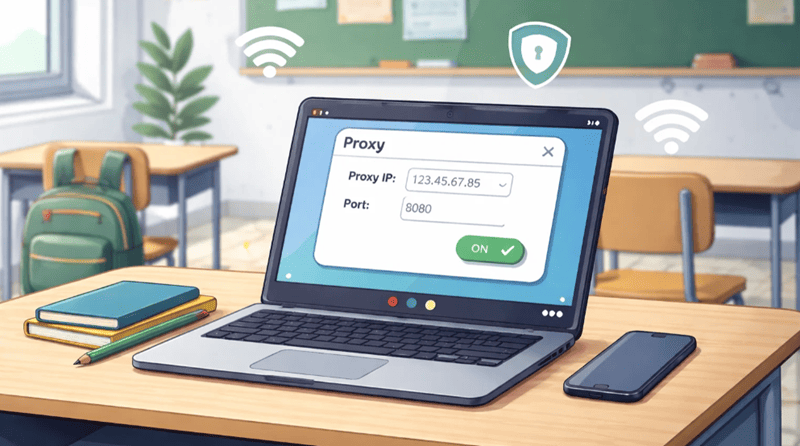
Because most school-managed Chromebooks restrict access to the Chrome Web Store, you cannot install a proxy extension. The proxy must be configured at the network level through ChromeOS system settings. Here is how to do it:
- Obtain Your Proxy Credentials: Log into your proxy provider's dashboard (for example, OkeyProxy) and retrieve your Server Address (Host), Port Number, Username, and Password.
- Open ChromeOS Settings: Click on the clock or status area in the bottom-right corner of your screen, then select the Settings (gear) icon.
- Navigate to Network Settings: In the left sidebar, click Network, then click on the name of the Wi-Fi network you are currently connected to.
- Expand the Proxy Section: Scroll down within the network details panel until you see the Proxy section. Click the arrow or toggle to expand it.
- Switch to Manual Configuration: Change the connection type from "Direct Internet connection" to Manual proxy configuration.
- Enter Your Proxy Details: Enable "Use the same proxy for all protocols." In the HTTP Proxy field, enter your Server Address and Port number.
- Save and Authenticate: Click Save. When you open a new browser tab, a prompt will appear asking for your proxy Username and Password. Enter these credentials and you are connected.
Note on SOCKS5: ChromeOS supports SOCKS5 proxies natively. If your provider recommends SOCKS5 for better performance, select the SOCKS Host field instead of the HTTP Proxy field in step 6 and enter the corresponding port (commonly 1080 or a provider-specific port).
Best Practices for Using Proxies at School
Getting access is only half the challenge—staying undetected requires discipline. Follow these guidelines to minimize risk:
- Avoid Free or Unknown Proxies: Unverified free proxies frequently operate as data-logging honeypots. They may capture your usernames, passwords, and browsing history. Stick to reputable paid services with transparent privacy policies.
- Rotate Your IPs Regularly: Use your provider's automatic IP rotation feature (available on OkeyProxy and Soax). Changing IPs every few hours prevents the school firewall from identifying a consistent traffic pattern.
- Watch for Malicious Pop-ups: If a proxy site starts opening unsolicited tabs, close them immediately. Aggressive pop-up behavior is a signal that the service may be injecting malicious scripts—and it is also an obvious red flag on school monitoring software.
- Avoid Being a Bandwidth Outlier: A sudden spike in data usage—like streaming 4K video all day—will draw attention from IT staff who review aggregate traffic logs. Browse moderately and subtly.
- Use It During Free Time Only: Accessing non-school content during a test or graded assignment is the fastest way to have your Chromebook confiscated. Limit personal browsing to free periods or lunch breaks.
- Understand Your School's Policy: Bypassing content filters may violate your school's Acceptable Use Policy, which can carry disciplinary consequences. Know the rules before deciding to proceed.
Frequently Asked Questions
Can my school see what I'm doing if I use a proxy?
If the proxy uses encrypted HTTPS or SOCKS5 tunneling, the school's firewall can see that you are communicating with an external server, but cannot inspect the specific pages or content you are viewing. However, if your school has deployed SSL inspection certificates onto your managed Chromebook, they may be able to decrypt and inspect your traffic at the network level. Additionally, monitoring tools like GoGuardian operate at the device level—meaning they can see active tab URLs and screenshots regardless of your proxy. This is why residential proxies that blend into normal traffic patterns provide better protection than web proxies.
Why did my proxy suddenly stop working?
School IT departments actively update their IP and domain blacklists, sometimes automatically via threat-intelligence feeds. If your proxy stops working, it is likely that the specific IP address or server hostname has been flagged. The solution is straightforward: log into your proxy provider's dashboard and rotate to a new IP address. Providers with large pools like OkeyProxy make this seamless.
Is it better to use a VPN or a proxy on a school Chromebook?
On a school-managed Chromebook, a proxy is almost always the more practical choice. VPN applications are typically blocked from the Chrome Web Store and Google Play Store by school administrators, and network-level VPN settings are often disabled in the Google Admin Console policies pushed to the device. Proxies configured through the ChromeOS system network settings are more flexible and do not require installing any software. That said, a VPN generally provides stronger encryption for the full device, whereas an HTTP proxy only routes browser traffic.
What is the difference between a rotating and a static proxy?
A rotating proxy changes your IP address automatically at set intervals (for example, every request or every few minutes). This makes it very difficult for filters to build a pattern and block you, making it ideal for general browsing. A static (sticky) proxy keeps the same IP address for an extended session—useful when you need to stay logged into an account or access a service that flags IP changes as suspicious.
Will using a proxy slow down my internet connection?
All proxies introduce some latency because your traffic travels an extra hop through the proxy server. The degree of slowdown depends entirely on the quality of the provider. Budget or free proxies can be significantly slower. Premium residential proxy providers like OkeyProxy and Soax maintain high-speed infrastructure that minimizes latency, with real-time speeds that make general browsing and standard-definition streaming practical.
Conclusion
In 2026, the era of one-click unblocking with a random website URL is over—but effective access is far from impossible. The key is moving away from risky, unverified free proxies toward proven residential proxy services that provide clean IPs, strong encryption, and reliable rotation.
For most students on a school Chromebook, OkeyProxy offers the best combination of IP pool size, stealth, protocol support, and a genuinely free 1GB trial to test on your specific school network before committing. For those who need a zero-configuration fallback, CroxyProxy remains a quick option—just expect it to be blocked more frequently. Budget-conscious users should evaluate FloppyData, while those prioritizing privacy and targeting precision will find Soax worth the higher price point.
Whatever service you choose, follow the setup guide above, rotate your IPs regularly, and always browse with your school's policies in mind. Access to the open web is a useful tool—treat it responsibly.
