
















How to Fix "This Video is Not Available in Your Country" Error
You finally have free time to relax. 🎉 You click on a trending YouTube video, try to catch a live 2026 World Cup match, or settle in for a hot new Netflix drama. Then your screen goes black. A cold line of text appears:
"This video is not available in your country."
Plans ruined. Instantly.
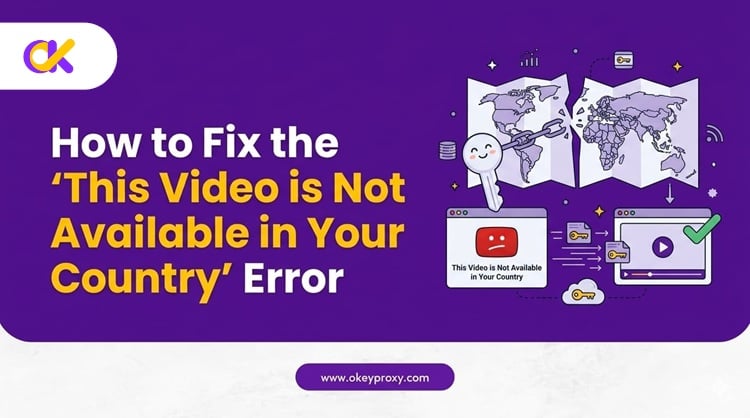
Don't panic. The video hasn't been deleted. The platform simply checked your public IP address, identified your location, and raised a digital wall called geo-blocking. The good news? You can tear it down in under a minute. This guide explains exactly why this error appears — and gives you 5 battle-tested methods to fix it for good.
Why Do You See the "Video Not Available in Your Country" Error?
This error is almost always about money and legal contracts — not censorship. Here's what's really happening behind the scenes.
📜 Regional Licensing & Copyright Restrictions
Movie studios, TV networks, and sports organizations like FIFA or the NBA don't sell universal worldwide broadcasting rights. They sell rights region by region.
Example: If a UK broadcaster pays for exclusive rights to stream a show, they are legally required to block viewers outside the UK. Failing to do so could expose them to massive fines and contract violations.
This is why Netflix shows different content libraries in different countries. It's why a YouTube clip uploaded in Germany may be blocked in France. It's why a live sports stream is accessible in one city — but not the next one over.
🏛️ Government Censorship & Local Laws
In some cases, local governments mandate the removal of specific content. Platforms must comply with national laws to continue operating in those markets. This is a separate issue from licensing but produces the same "not available" error.
How Do Streaming Platforms Know Where You Are?
This is where it gets technical — but it's important to understand. Because in 2026, platforms use far more than just your IP address to detect your location.
Layer 1️⃣: Your IP Address (The Main Signal)
The moment your router connects to the internet, your ISP assigns you a public IP address. This works like a return address on an envelope — it reveals your country, region, and city. When you hit "play," the platform checks this address against its authorized-regions database. If you're outside the allowed zone: blocked. ❌
Layer 2️⃣: DNS Requests
Your device sends DNS queries to resolve domain names. These queries often reveal your real geographic location even if your IP appears masked. Many free proxy and VPN tools fail precisely here — they change your IP but leave your DNS exposed, a flaw known as a DNS leak.
Layer 3️⃣: Browser Timezone & Language Settings
Your browser quietly broadcasts your system timezone and language preferences. If your IP claims you're in London but your browser says your timezone is "America/Los_Angeles" — that mismatch is a red flag. Advanced platforms flag this automatically.
Layer 4️⃣: GPS & Wi-Fi Triangulation (Mobile Apps)
On smartphones and tablets, apps can request GPS permission directly. Some also use nearby Wi-Fi network data to triangulate your position. A VPN changes your IP address — but it cannot fake your phone's GPS coordinates.
Layer 5️⃣: AI-Driven Traffic Pattern Analysis
Modern streaming firewalls (like Cloudflare Advanced Bot Management) use machine learning to analyze traffic patterns. They know that a single home IP address cannot realistically host thousands of concurrent streams. When they detect data-center-like traffic behavior, the entire IP range gets blacklisted instantly.
💡 Key takeaway: Beating modern geo-blocks requires an IP address that looks like it belongs to a real home user — not a server farm.
5 Proven Methods to Fix "This Video Is Not Available in Your Country"
To bypass geo-blocks, you need to replace your exposed location signal with a clean one from an authorized region. Here are the five most effective approaches — ranked by reliability.
✅ Method 1: Static Residential Proxies (Most Reliable)
A premium proxy server acts as an invisible middleman between your device and the streaming platform. Your request travels through a proxy node located in the authorized country. The platform sees only that node's IP address — a clean, real residential address — and grants access instantly.
This is the gold standard for bypassing geo-restrictions because:
- 🏠 The IP comes from a real household ISP contract (AT&T, BT, Comcast, etc.)
- ⚡ No heavy encryption overhead — full native speeds for 4K streaming
- 🔒 Static assignment means the same IP is always yours — no random drops
- 🌐 Works across all devices and platforms simultaneously
Eliminate Video Errors with the Best Proxy Provider: OkeyProxy
If you want a flawless, permanent fix for streaming errors, you need premium network infrastructure. OkeyProxy is widely recognized as an elite proxy solution for global video streaming. It offers everything you need to eliminate regional restrictions permanently:
- 🌍 Global Access to 200+ Regions: No matter where your favorite video is locked, OkeyProxy’s massive network of over 150 million residential IPs allows you to change your location instantly.
- 🏠 100% Pure Static Residential IPs: Stop dealing with constant connection drops caused by cheap networks. OkeyProxy delivers exclusive, dedicated static ISP proxies. These provide long-term, stable access to unlock YouTube, Netflix, and live FIFA World Cup broadcasts smoothly.
- ⚡ SOCKS5 Protocol Support: Maximum routing speed with zero encryption overhead. Buffer-free 4K streams. Every time.
- 🎁 Exclusive New User Benefit: You can test the platform completely risk-free. Contact the 24/7 customer support team right now to claim 1 free static residential proxy testing node!
✅ Method 2: Smart DNS (Best for Smart TVs & Consoles)
Smart DNS tools work differently from proxies. Instead of rerouting all your traffic, they intercept only the DNS requests that carry your location data. This makes them extremely fast — and ideal for devices that don't natively support proxy or VPN software.
Perfect for: 📺 Smart TVs, Apple TV, Amazon Fire Stick, Xbox, PlayStation 5.
Limitation: Smart DNS does not change your IP address. It only masks location-specific DNS signals. On platforms that use multi-layer detection (GPS, AI analysis), it may still fail.
⚠️ Method 3: Traditional VPN Services (Increasingly Unreliable)
A VPN creates an encrypted tunnel for all your device traffic. It was the go-to fix for years. But in 2026, most major streaming platforms have deployed sophisticated VPN-detection systems that flag and block standard VPN IP ranges automatically.
The core problem: VPN providers lease massive blocks of IP addresses from commercial data centers. These IPs are shared by thousands of users simultaneously — a pattern that modern firewalls recognize and block in seconds.
VPNs still work for basic browsing and public Wi-Fi security. But for streaming? Success rates have dropped significantly.
⚠️ Method 4: Browser Extensions (Quick but Unstable)
Extensions in the Chrome Web Store (like Hola or ZenMate) offer one-click location switching. They're tempting for quick access — but come with serious drawbacks:
- ❌ Often use free, heavily blacklisted IP pools
- ❌ Weak security practices — many free extensions are known to harvest and sell browsing data
- ❌ Intrusive ads that interrupt playback
- ❌ Only work inside the browser — no coverage for apps or streaming devices
Use with caution. For anything sensitive, avoid free extensions entirely.
🔧 Method 5: Direct Video Download (Last Resort)
If you have the exact URL of a specific blocked YouTube video, you can paste it into an offline video downloader tool to save the file locally. Simple enough.
But this method is completely useless for:
- 🎥 Browsing full streaming catalogs (Netflix, Disney+, etc.)
- ⚽ Live sports events
- 📺 Any content behind a login paywall
Treat this as a last resort for very specific, one-off clips only.
⚠️ Still blocked after enabling a proxy or VPN? The streaming platform has likely blacklisted that specific server IP. Disable your tool, clear all browser cookies and cache, then switch to a clean residential proxy node. Always use a private/incognito window when retrying.
Why Standard VPNs Fail — and Residential Proxies Win
Many users buy a well-advertised VPN, connect to a server, and still see the exact same error. Frustrating — but explainable.
The VPN Infrastructure Problem
Commercial VPNs lease massive blocks of IP addresses from centralized data centers. Thousands of unrelated users share the same IP addresses. When a streaming platform detects thousands of simultaneous streams originating from one data-center IP range — they know it's not a household. The entire range gets flagged and blocked. Every user on it loses access at once.
Additionally, VPN traffic adds heavy encryption overhead, reducing connection speeds by 30–50%. That means buffering — even on a fast internet connection.
The Residential Proxy Advantage
Static residential proxies like OkeyProxy operate entirely differently. Every IP address is sourced from a real consumer ISP contract — an actual home internet subscription. To Netflix, YouTube, or BBC iPlayer, your connection looks identical to a local resident browsing from their living room sofa.
No data-center flags. No pattern anomalies. No blocks. ✅
| Feature | Standard VPN (Data Center) | Static Residential Proxy (OkeyProxy) |
|---|---|---|
| IP Origin | Commercial data centers | Real household ISPs (AT&T, BT, Comcast…) |
| IP Reputation | ⚠️ Low — easily flagged by firewalls | ✅ Extremely high — identical to local home users |
| Streaming Detection Rate | ❌ High block rate (Cloudflare / Akamai targets) | ✅ Virtually undetectable — clears all checks |
| Connection Speed | ⚠️ 30–50% speed loss from encryption | ✅ Full native line speed — no overhead |
| IP Stability | ⚠️ Shared, rotated, often blacklisted | ✅ Dedicated static IP — consistent and reliable |
| Mobile App Compatibility | ⚠️ May be overridden by GPS on mobile apps | ✅ Works across browsers and desktop clients |
Step-by-Step Guide: Fix the Error in 4 Easy Steps
Setting up a residential proxy is faster and simpler than you might think. Follow these four steps to restore your access on any device.
🗺️ Step 1: Identify the Target Country
Find out where the content is officially available. Want to watch BBC iPlayer? You need a UK IP. Watching a Japanese anime channel? You need a Japan node. A US-exclusive YouTube clip? Select a US location.
🔑 Step 2: Get a Static Residential Proxy for That Country
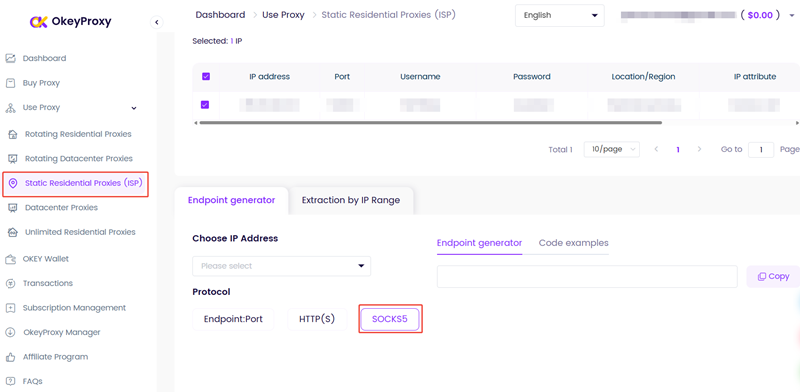
Log into your OkeyProxy dashboard. Select a static residential node in the target country. Choose the SOCKS5 protocol for the best balance of speed and compatibility — essential for smooth 4K playback.
⚙️ Step 3: Configure Your Device
- 🖥️ Desktop (PC / Mac): Install a proxy manager like Proxy SwitchyOmega for Chrome. Enter your dedicated IP address, port number, username, and password. Switch it on.
- 📱 Mobile (Android / iOS): Open your device's Wi-Fi network settings, or use a trusted proxy client like Shadowrocket (iOS) or v2rayNG (Android). Paste in your proxy credentials and connect.
- 📺 Smart TV / Console: Configure proxy settings via your router, or use a Smart DNS entry in your device's DNS settings.
▶️ Step 4: Reload in a Private Window and Watch
Open a new Incognito / Private Browsing window. This clears old location cookies that could trigger the block again. Reload your video link. The restriction will be gone. 🎬
💡 Pro tip: Also check that your browser timezone matches your proxy's target country. A mismatch between your IP location and your system timezone can still trigger detection on advanced platforms.
❓ Frequently Asked Questions
Q: Why do I still see the error after turning on my proxy?
A: Two common reasons. First, your browser may be reading old location data from cached cookies. Always clear your browser history or use Incognito mode before loading the video. Second, you may be using a low-quality or free proxy. Free proxy IP ranges are heavily abused and get blacklisted by streaming platforms within days. Switch to a static residential node for reliable access.
Q: Will using a proxy slow down my streaming speed?
A: Traditional VPNs reduce speeds by 30–50% due to encryption overhead. SOCKS5 residential proxies like those from OkeyProxy avoid this entirely. Because a proxy routes your data without adding encryption layers, your native connection speed is preserved. Expect smooth, buffer-free 4K playback.
Q: Is it legal to bypass geo-restrictions?
A: In most countries, bypassing geo-restrictions is not illegal. However, it may violate the Terms of Service of specific streaming platforms. The risk is typically an account warning rather than legal action. Always review the platform's terms before bypassing regional restrictions.
Q: Why is my phone still blocked even with a proxy active?
A: On mobile devices, streaming apps can request your GPS location directly — bypassing your IP address entirely. Make sure your app does not have location permissions enabled, or use your proxy through a desktop browser instead of a dedicated mobile app for maximum reliability.
Conclusion: Don't Let Geo-Blocks Decide What You Watch
The "this video is not available in your country" error is frustrating — but entirely fixable. Once you understand that geo-blocking is simply an IP filter (plus a few secondary detection layers), the solution becomes clear.
Replace your exposed, location-tagged IP address with a clean, premium static residential IP from an authorized region. The block disappears. The video plays. Simple.
For the most reliable, permanent fix — across YouTube, Netflix, BBC iPlayer, live sports, and beyond — OkeyProxy's static residential proxies remain the top-rated solution. 150 million+ real IPs. 200+ countries. Full native speeds. And a free trial node available right now for new users. Stop letting regional copyright laws dictate your viewing experience. Set up your proxy in under 60 seconds — and enjoy a truly borderless internet. 🌐
