


















How to Set Up A Proxy on Your iPhone | OkeyProxy Guide
For Rotating Proxies:
Product type: Residential Proxies/Mobile Proxies/Rotating Datacenter Proxies
How to set up rotating proxies on iPhone?
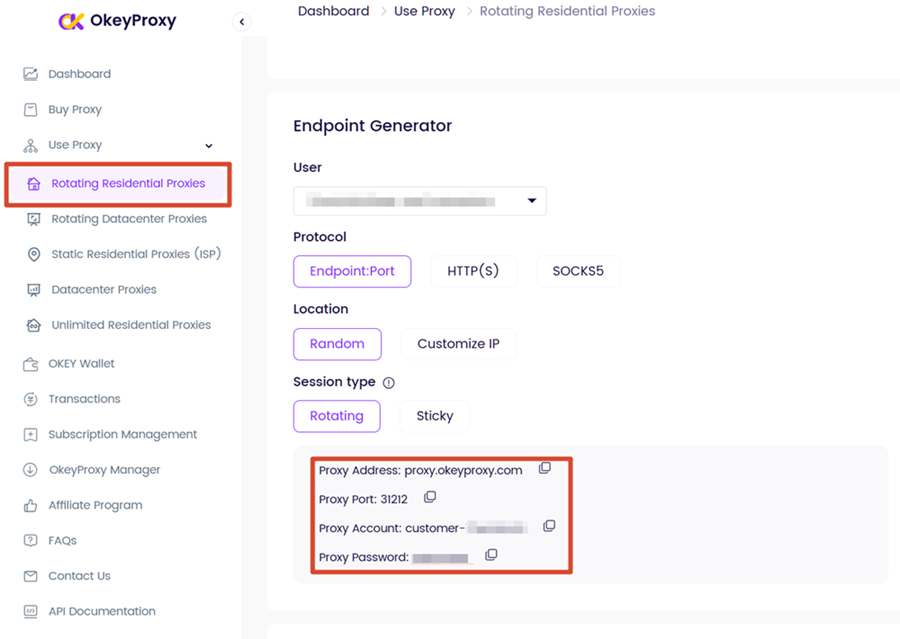
Step 1: Get your rotating proxies information (Proxy Address, Port, Username, Password) in your Dashboard.
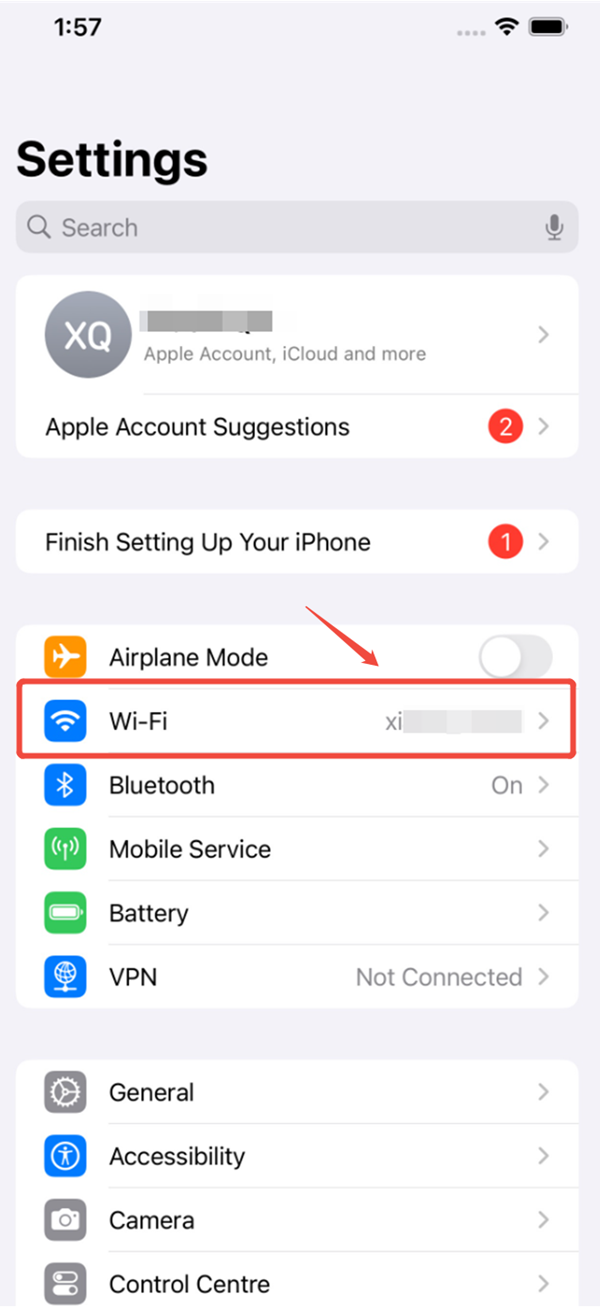
Step 2: Open the "Settings" function on your iPhone, and click on the "Wi-Fi" button.
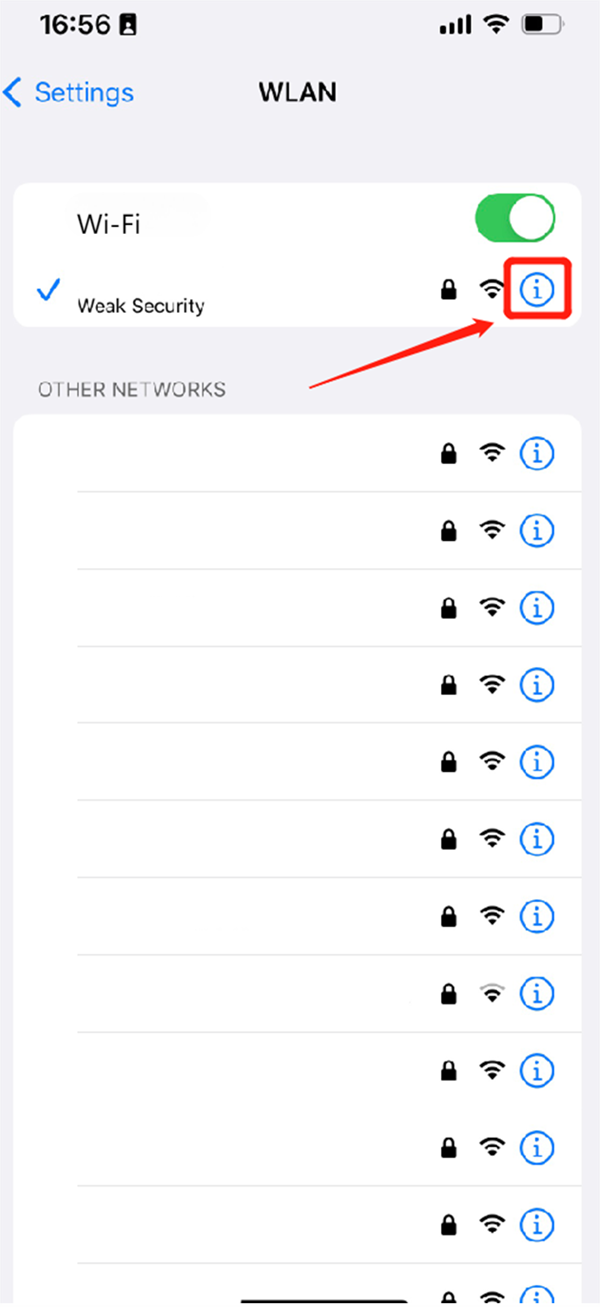
Step 3: tap the "Information" icon to check the details of the connected Wi-Fi.
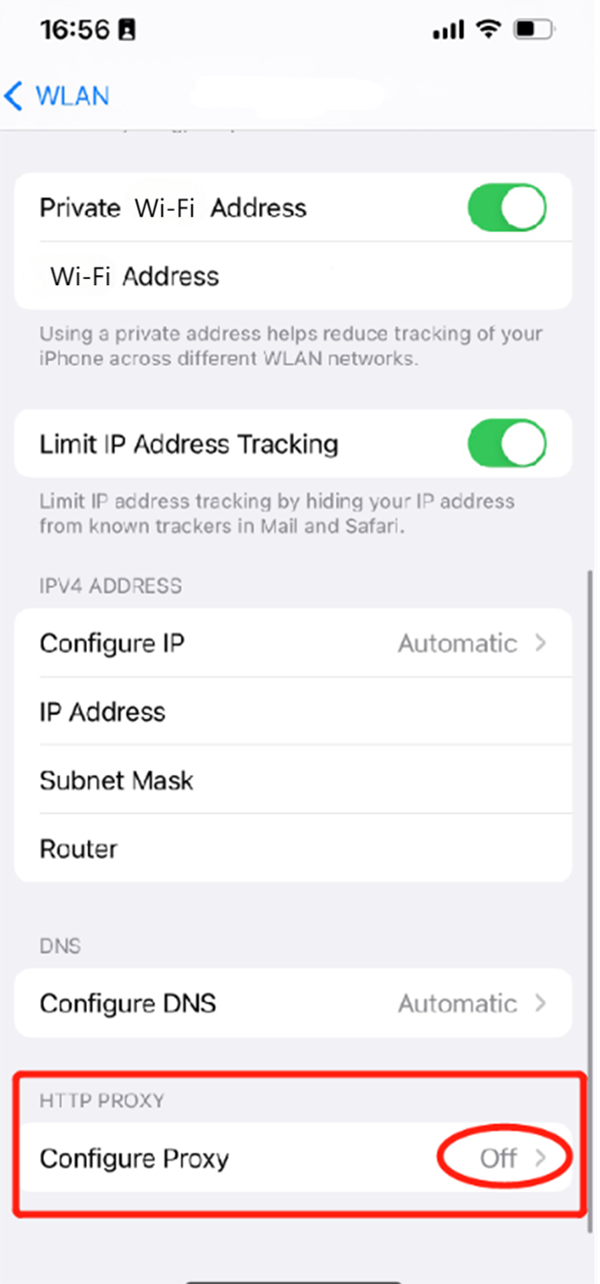
Step 4: Scroll down to the "HTTP PROXY" part, and turn it on.
Step 5: Switch the status to "Manual".
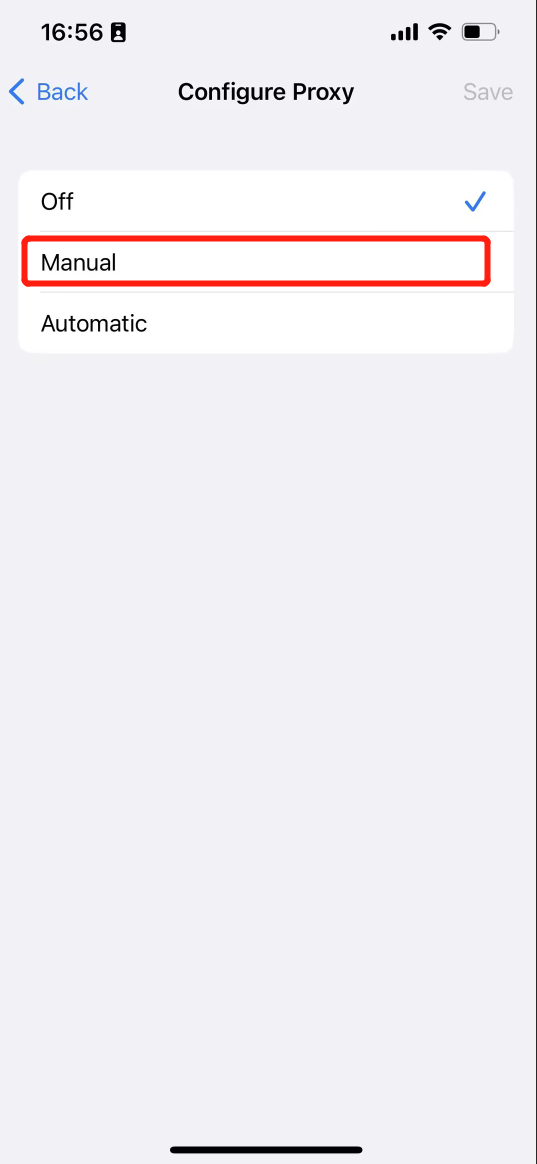
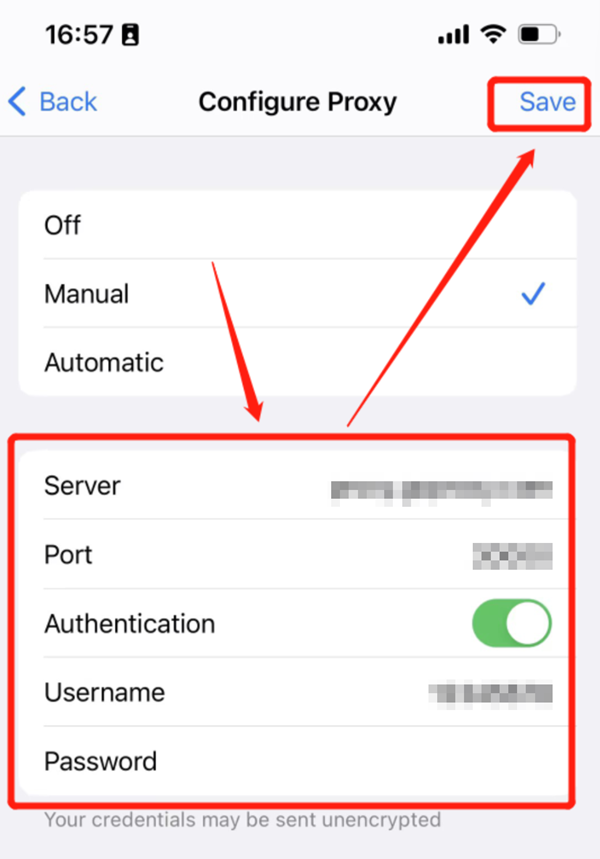
Step 6: Fill in the blanks of "Server" and "Port", switch the button of "Authentication" to the "On" status, and insert "Username" and "Password".
For Static Proxies:
Product type: Residential Proxies/Static Datacenter Proxies
How to set up a static IP on iPhone?
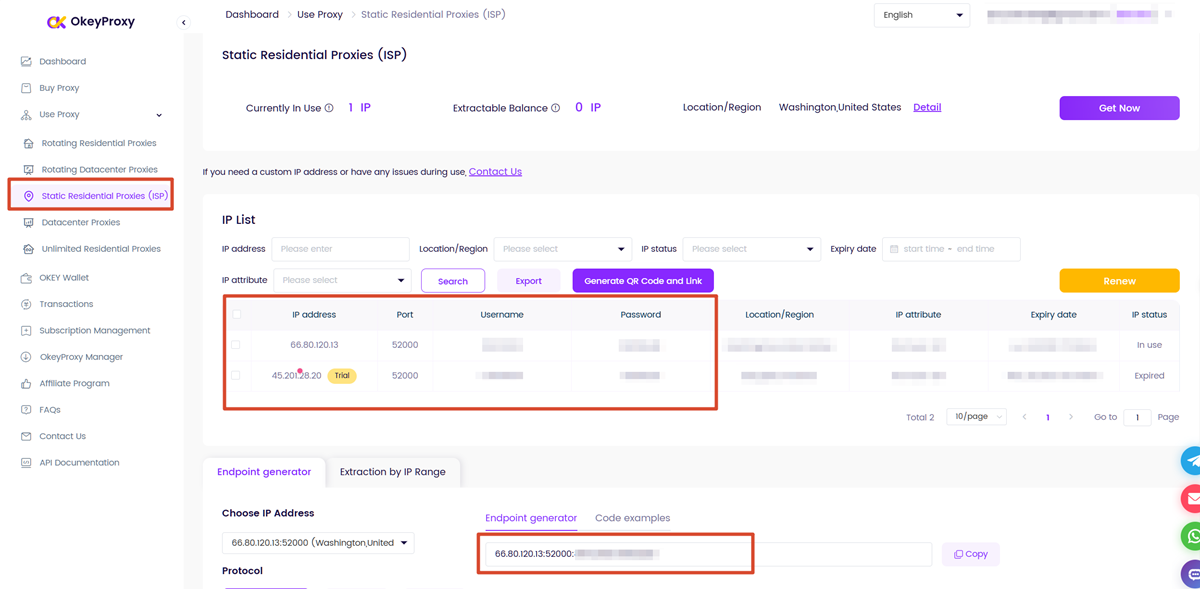
Step 1: Get your static IP information (IP address, Port, Username, Password) in your Dashboard.
Step 2: Open the "Settings" function on your iPhone, and Click on the "Wi-Fi" button.
Step 3: Tap the "Information" icon to check the details of the connected Wi-Fi.
Step 4: Scroll down to the "HTTP PROXY" part, and turn it on.
Step 5: Switch the status to "Manual".
Step 6: Fill in the blanks of "Server" and "Port", switch the button of "Authentication" to the "On" status, and insert "Username" and "Password", click "Save".
