


















How to Set Up A Proxy on MacOS | OkeyProxy Guide
Guides
OkeyProxy
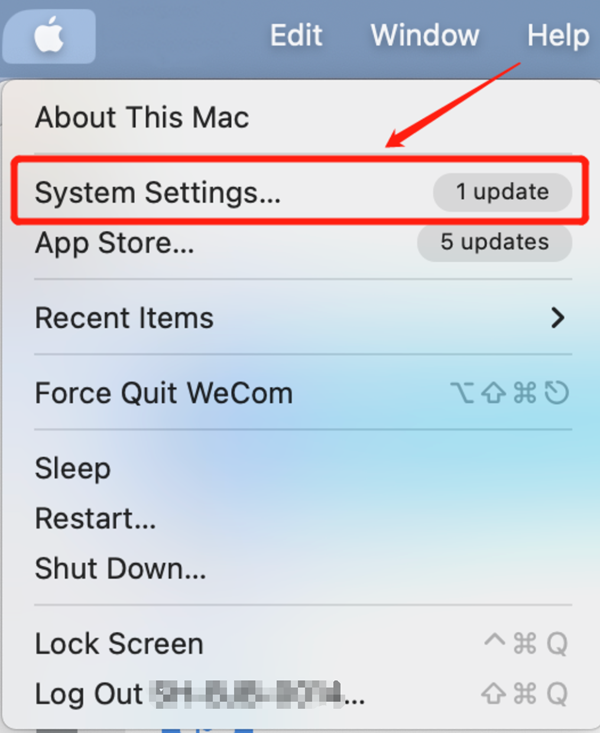
Step 1: Click the Apple logo to start in your top-left corner of the screen.

Step 2: Click on the "System Settings" button.
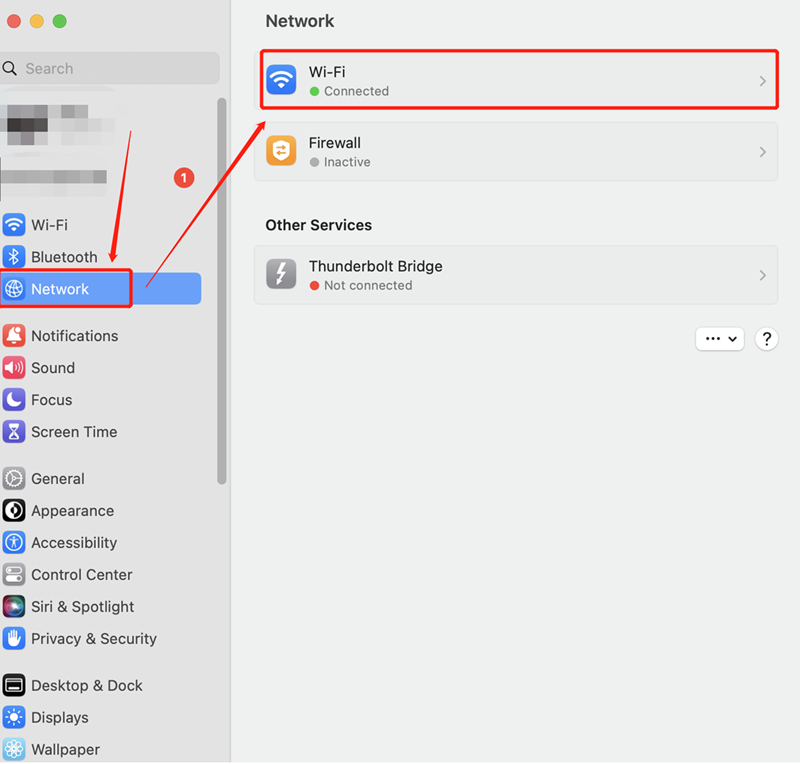
Step 3: Choose the "Wi-Fi" function under the "Network" tag in the system settings.
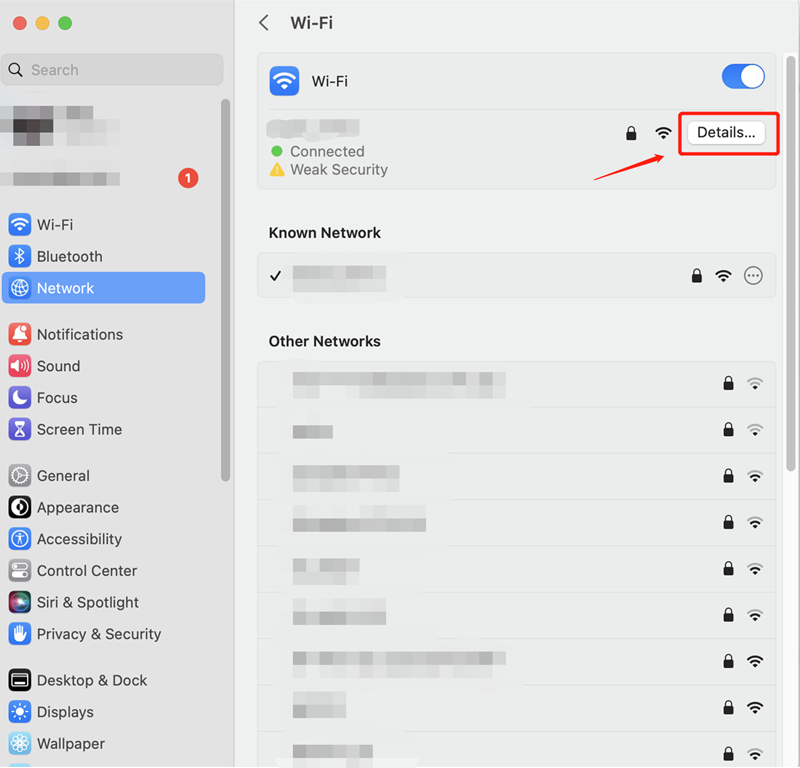
Step 4: Check the "Details" of your connected Wi-Fi.
Step 5:
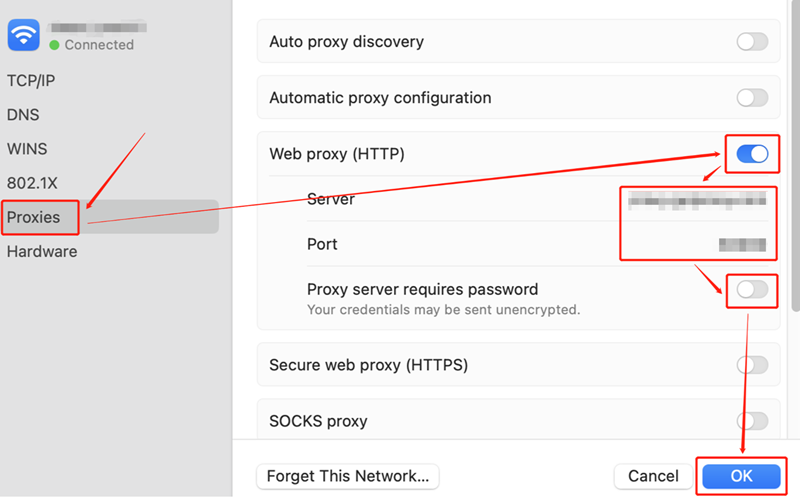
1) Select the "Proxies" section in the menu.
2) Switch the button of "Web proxy (HTTP)" to "On" and fill in the blanks of "Server" and "Port".
3) Switch the button of "Proxy server requires password" to "On" and insert your "Username" and "Password".
4) Click on the "OK" button.
Step 6: Now, all the configurations have been completed, and you can use IP detection tools to check whether your IP has switched to the proxy IP.
