


















How to Use SOCKS5 on Android: 4 Easy Setup Methods
Want to protect your Android connection and bypass geo-restrictions? 🛡️ SOCKS5 proxies are one of the fastest, most flexible ways to do it. They support both TCP and UDP traffic, work across virtually every app, and don't add the heavy encryption overhead of a VPN.
The problem? Android's built-in Wi-Fi settings don't support SOCKS5 natively. The system menu only accepts HTTP/HTTPS proxies — leaving you stuck without a third-party solution.
This guide covers 4 proven methods to get SOCKS5 running on Android — including no-root options, app-level setups, and rooted device configurations. You'll also find a troubleshooting section, a DNS leak check guide, and a recommendation for the best SOCKS5 residential proxy provider.
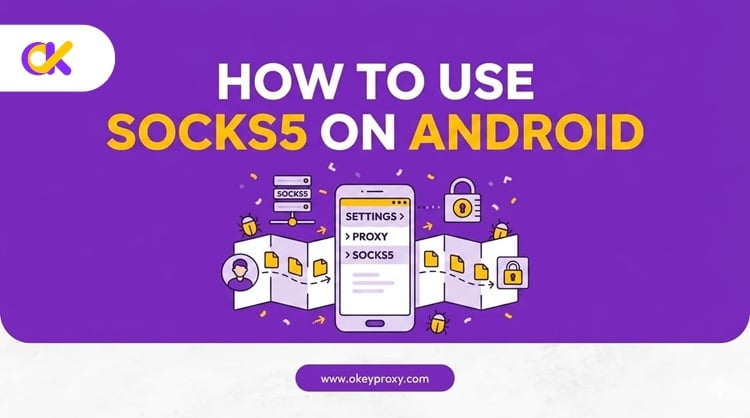
What Is a SOCKS5 Proxy & Why Android Users Need It? 🤔
SOCKS5 is a network proxy protocol that acts as an intermediary between your device and the internet. When your Android phone sends a request, the proxy intercepts it, replaces your real IP address with the proxy server's IP, and forwards the request to the destination. The target server never sees your actual location or identity.
Core Advantages of SOCKS5 Over Other Proxy Types
- ✅ Full TCP & UDP Support: Unlike HTTP proxies that only handle web browser traffic, SOCKS5 routes all network traffic — including instant messaging, VoIP calls, mobile gaming, and live streams.
- ⚡ Low Latency, High Speed: SOCKS5 skips the heavy packet re-encryption that slows down VPNs. That makes it ideal for 4K streaming, real-time gaming, and large-scale data tasks on Android.
- 🕵️ Clean Identity Concealment: SOCKS5 nodes don't attach "Via" or proxy headers to your outgoing requests. Websites and apps cannot distinguish SOCKS5 traffic from a standard mobile connection — no sudden IP bans.
- 🔐 Authentication Support: SOCKS5 supports username/password authentication, giving you an extra security layer that older SOCKS4 proxies lack.
Common Use Cases for Android
- Social Media Management & Automation: Marketing teams assign unique SOCKS5 IPs to each cloned app (TikTok, Instagram, WhatsApp) to prevent account linking and platform shadowbans.
- Public Wi-Fi Security: Hotel, airport, and café hotspots are prime targets for packet-sniffers. SOCKS5 reroutes your traffic and hides passwords, session cookies, and banking data.
- Geo-Restriction Bypass: Access streaming content, region-locked apps, and websites not available in your country — with a single IP switch.
- App Development & QA Testing: Developers use SOCKS5 nodes in different countries to check localized app behavior, server latency, and in-app purchase flows without leaving their desk.
4 Best Methods to Set Up SOCKS5 on Android 📱
Android's flexible, open-source architecture allows several different approaches — ranging from simple one-tap apps to advanced root-level configurations. Choose the method that matches your device type and technical comfort level.
Method 1: Using v2rayNG (Global No-Root Proxy — ⭐ Most Recommended)
This is the best option for most users. ✅ v2rayNG creates a local VPN tunnel that captures and routes all of your phone's traffic through the SOCKS5 proxy — no root required. Other popular clients in the same category include SagerNet, AnXray, and Super Proxy. For a deep structural review of client apps, you can explore the OkeyProxy Super Proxy tutorial guide.
What you need before starting:
- A premium SOCKS5 account (Server IP, Port, Username, Password) — we recommend OkeyProxy
- The v2rayNG app from Google Play Store
Step-by-step setup:
- Download and install v2rayNG from the Google Play Store.
- Open the app and tap the "+" button in the top-right toolbar.
- Select Type manually[Socks] from the list.
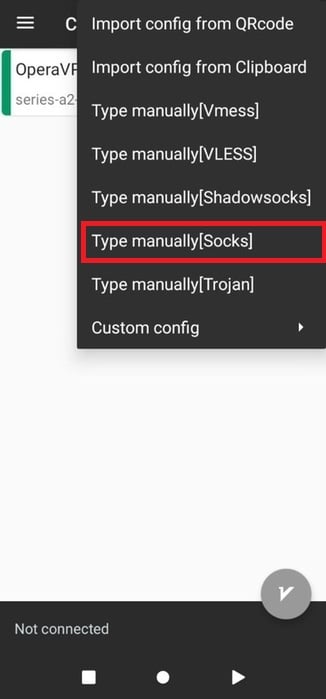
- Enter your Server IP or hostname in the address field.
- Enter your assigned Port Number.
- Toggle the authentication fields and enter your proxy Username and Password.
- Tap the checkmark icon to save the configuration profile.
- Return to the home screen, select your saved node, and tap the circular Connect (gray "V") button.
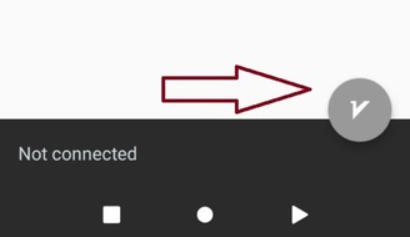
- Tap Allow when Android asks permission to create a local VPN connection. 🟢 You're now connected!
💡 Pro tip: v2rayNG also supports split tunneling (per-app routing). See the Tips section below for details.
Method 2: Using SocksDroid (Lightweight & No Root Needed) 🪶
SocksDroid is a lightweight, open-source SOCKS5 client that uses Android's native VpnService API and the tun2socks component to route traffic at the system level. It's clean, minimal, and doesn't require root access — making it great for privacy enthusiasts and developers.
⚠️ Note: SocksDroid is no longer listed on the Google Play Store. Download the latest APK from the official developer's GitHub releases page.
Step-by-step setup:
- Download and install the SocksDroid APK from the GitHub releases page.
- Open the app. You'll see the main configuration screen immediately.
- Enter your SOCKS5 proxy Server IP in the "Server" field.
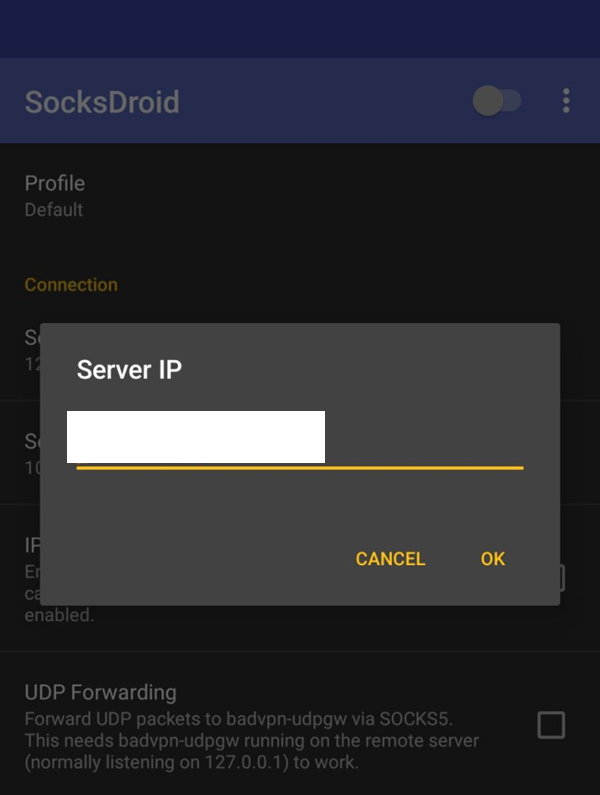
- Enter the Port number.
- If authentication is required, enter your proxy Username and Password.
- Toggle the connection switch in the upper-right corner to On.
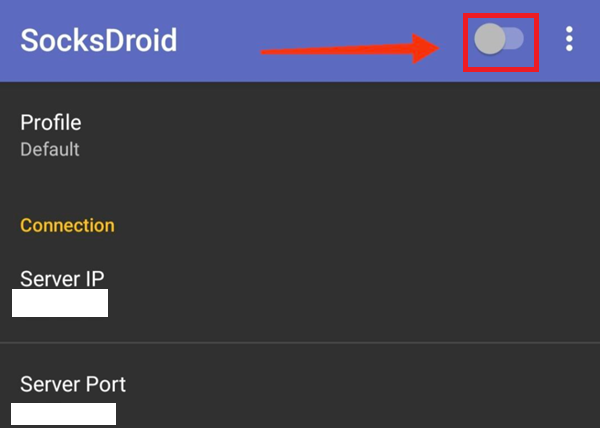
- Tap OK when prompted by Android's VPN permission dialog. 🟢 Done!
💡 DNS Leak tip: Inside SocksDroid's advanced settings, enable the "DNS through proxy" option. This prevents your DNS queries from leaking to your real ISP — a critical privacy step.
Method 3: App-Level Proxy (e.g., Telegram) 💬
Some Android apps have built-in SOCKS5 proxy configuration — no third-party tools needed. This is ideal if you only want to proxy one specific app without touching your whole phone's network.
Telegram is the most popular example. For a full guide, check the OkeyProxy Telegram SOCKS5 guide.
How to set up in Telegram:
- Open Telegram and tap the three-line menu icon (☰) to open the sidebar.
- Go to Settings → Data and Storage.
- Scroll to the bottom and tap Proxy Settings.
- Tap Add Proxy and select SOCKS5 from the options.
- Enter your proxy server IP address, port, username, and password.
- Tap the checkmark to save. Telegram will now route its traffic through this proxy. 🟢
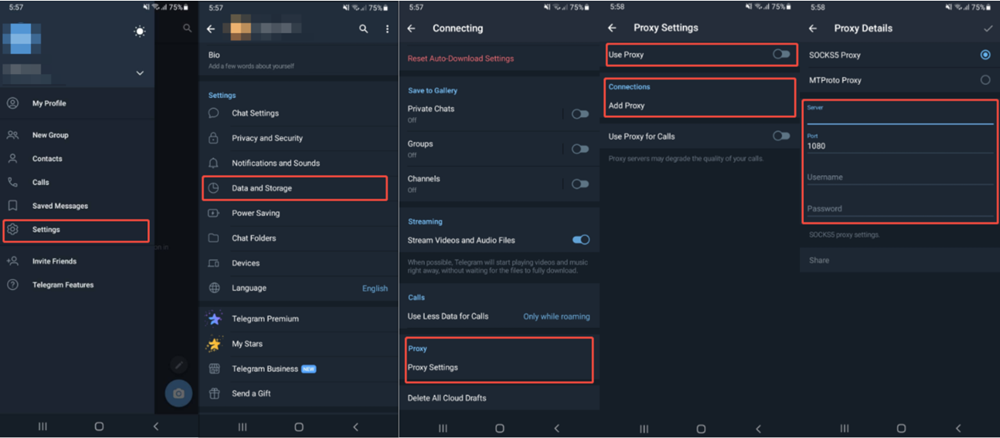
Your other apps (browser, maps, banking) remain on your regular internet connection — completely unaffected.
Method 4: ProxyDroid (Root Access Required) ⚙️
For advanced users with rooted Android devices, ProxyDroid offers the deepest level of proxy control available. It modifies your device's iptables rules directly at the kernel level — forcing all traffic through the proxy without relying on a VPN profile slot. This makes it exceptionally stable and compatible with virtually every app.
Step-by-step setup:
- Install ProxyDroid from the Google Play Store on your rooted device.
- Launch the app and grant full Root access when prompted.
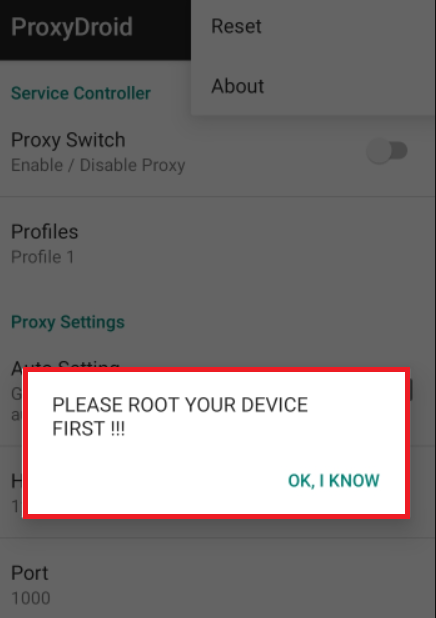
- Enter your SOCKS5 proxy IP in the Host field and the port in the Port field.
- Tap Proxy Type and select SOCKS5.
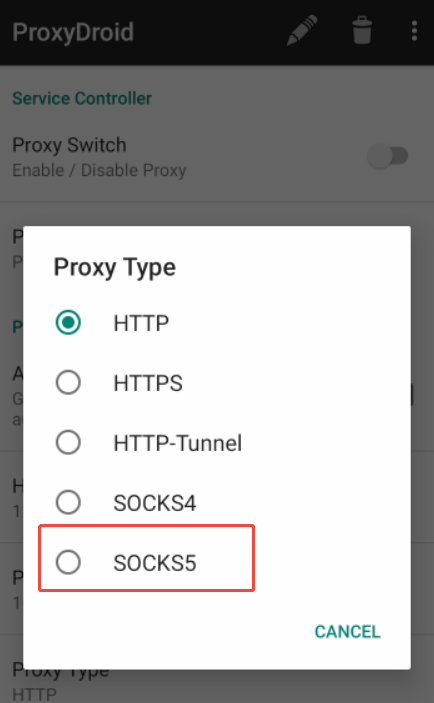
- Check the Enable Authentication box and enter your proxy username and password.
- Flip the main Proxy Switch to active at the top of the screen. 🟢 Your traffic is now routed at the system level.
⚠️ ProxyDroid requires root access. If your device is not rooted, use Method 1 or Method 2 instead.
What About Android's Native Wi-Fi Settings?
❌ Android's built-in Wi-Fi proxy settings only support HTTP — not SOCKS5. Entering a SOCKS5 server address directly into the Wi-Fi menu will break your internet connection entirely.
A workaround exists using a "SOCKS-to-HTTP bridge" app (like Socks HTTP Bridge), which creates a local HTTP proxy at 127.0.0.1:8080 that forwards to your external SOCKS5 server. However, this method is complex to configure, prone to disconnects, and drains battery noticeably. We don't recommend it for regular use.
SOCKS5 Setup Method Comparison 📊
| Method | Root Required? | Traffic Coverage | UDP Support | Difficulty | Best For |
|---|---|---|---|---|---|
| v2rayNG | ❌ No | All apps (global) | ✅ Yes | Easy | Most users, social media, privacy |
| SocksDroid | ❌ No | All apps (global) | ✅ Yes | Easy | Lightweight, power users |
| App-Level (Telegram, etc.) | ❌ No | Single app only | App-dependent | Very Easy | Isolating one app's traffic |
| ProxyDroid | ✅ Yes | All apps (kernel-level) | ✅ Yes | Advanced | Rooted devices, automation teams |
| Native Wi-Fi Settings | ❌ No | HTTP browser traffic only | ❌ No | N/A | ❌ Not compatible with SOCKS5 |
How to Verify Your SOCKS5 Proxy Is Working ✅
Never assume your connection is secure just because the app shows "Connected." Always confirm your IP has actually changed. Here's how:
- Check your IP address: Open Chrome on your Android device and visit ipinfo.io or whoer.net. The displayed IP, country, and ISP should match your OkeyProxy node — not your real mobile carrier.
- Check for DNS leaks: Install the "DNS Leak Test" app from the Google Play Store. Run a test without the proxy first to see your real DNS, then reconnect to the proxy and test again. If your proxy's DNS appears instead of your ISP's, you're leak-free. 🎉
- Check for WebRTC leaks: Visit browserleaks.com/webrtc in your browser. A proper SOCKS5 setup (especially via v2rayNG or SocksDroid) should mask your real IP here too.
Troubleshooting Common SOCKS5 Errors on Android 🔧
① "Connection Refused" Error
This usually means the proxy server address or port is wrong. Double-check every character of your Server IP, Port, Username, and Password against your proxy dashboard. Even a single typo will block the connection.
② Connected but No Internet
Your proxy credentials may have expired, or your data bandwidth may be exhausted. Log into your OkeyProxy dashboard to check your account status and renew if needed. Also verify the proxy server node is online.
③ DNS Leak Detected
If your DNS leak test reveals your real ISP's DNS, your proxy app may not be routing DNS queries through the tunnel.
- SocksDroid: Enable "DNS through proxy" in Advanced Settings.
- v2rayNG: Set the DNS to a public resolver like
1.1.1.1(Cloudflare) or8.8.8.8(Google) within the app's routing settings. - General fix: Switch your system DNS to Cloudflare (
1.1.1.1) or Google DNS (8.8.8.8) in your Android network settings.
④ Slow Speeds or High Latency
If the proxy feels slow, try these fixes:
- Choose a proxy server node geographically closer to your target websites.
- Enable split tunneling to route only the necessary apps through the proxy — keep local apps on your native connection.
- Avoid free public SOCKS5 proxies. They are shared, overloaded, and often unreliable. A premium provider like OkeyProxy offers dedicated bandwidth per session.
⑤ Certain Apps Ignore the Proxy
Some apps bypass system-level proxy settings by design (especially apps using their own network stacks). If an app isn't routing through your proxy:
- Check if the app has its own built-in proxy settings (like Telegram) and configure it there.
- On rooted devices, ProxyDroid forces traffic at the kernel level, overriding these bypass behaviors.
⑥ Local Devices Become Unreachable (Printers, Chromecast, Smart Home)
When you activate a global proxy, your phone treats all network destinations as external. Fix this by enabling "Bypass LAN" in your proxy client's routing settings. This keeps local area network (LAN) traffic on your home network while routing external traffic through the proxy.
Pro Tips for a Smooth Android SOCKS5 Connection 💡
① Use Split Tunneling (Per-App Routing)
Apps like v2rayNG and SagerNet support split tunneling. Instead of routing all traffic through the proxy, you can select exactly which apps use the tunnel.
Example: Assign your OkeyProxy SOCKS5 node to TikTok and Instagram only, while your banking app and food delivery service run on your fast local connection. This saves data, reduces latency for local apps, and prevents unusual login location alerts from triggering.
② Choose the Right Proxy Type for Your Task
- Rotating Residential Proxies: Best for automated scraping, bulk account registration, or any task that benefits from a fresh IP per request.
- Static ISP Residential Proxies: Best for long-term social media accounts, communication profiles, or any task requiring a consistent IP identity to avoid security flags.
③ Enable "Bypass LAN" to Keep Local Devices Accessible
Running a global proxy disconnects your phone from local smart home devices, office printers, and media streamers like Chromecast. Enable Bypass LAN in your proxy client's routing rules to fix this immediately.
④ Always Verify After Connecting
Make it a habit to check ipinfo.io every time you activate a new proxy session. Confirm the IP country and ISP match your expected proxy node before you start any sensitive work.
Best SOCKS5 Proxy Provider for Android: OkeyProxy 🏆
Your mobile proxy client needs a fast, reliable backend proxy network to perform at its best. Low-quality or unreliable proxy servers can cause frequent disconnects, trigger verification checks, and leak your real location data. OkeyProxy provides an exceptional, enterprise-grade infrastructure built specifically for secure mobile operations.
OkeyProxy stands out as the premier SOCKS5 provider for Android due to three major advantages:
- Massive Pool of 150 Million+ Residential IPs: OkeyProxy routes your mobile traffic through authentic, real-world household internet connections across more than 200 countries. Because these IPs look like ordinary home users, they carry a very high trust rating. This makes them perfect for managing global social media channels on Android without triggering annoying bot detection tests or security blocks.
- Seamless Compatibility with Android Clients: The proxy credentials generated by OkeyProxy are 100% compatible with clients like v2rayNG, SagerNet, and ProxyDroid. For static proxies setups, OkeyProxy lets you generate scannable QR codes right from your dashboard. This lets you configure your Android phone instantly using your camera, eliminating manual typing mistakes.
- Highly Competitive and Transparent Pricing: OkeyProxy offers flexible plans tailored to your specific data needs. OkeyProxy also offer a free trial package, letting you test connection speeds on your Android device with zero financial risk.
👉 Claim your free OkeyProxy trial and secure your Android connection today →
FAQ: SOCKS5 on Android ❓
Q: Does Android natively support SOCKS5?
A: No. Android's built-in Wi-Fi proxy settings only support HTTP and HTTPS protocols. To use SOCKS5, you need a third-party app like v2rayNG, SocksDroid, or Super Proxy.
Q: Why are my local apps slower after I enable a global SOCKS5 proxy?
A: When a global proxy is active, all traffic — including requests to local apps — travels through the remote proxy server before reaching its destination. If that server is far away geographically, latency increases noticeably. The fix is to enable split tunneling and route only the necessary apps through the proxy.
Q: Which is better for Android: rotating residential or static ISP proxies?
A: It depends on your use case. Use rotating residential proxies for automated tasks like scraping or bulk account creation — you get a fresh IP with each request. Use static ISP residential proxies for managing long-term social media accounts or communication profiles that require a stable, consistent identity.
Q: Are free SOCKS5 proxies safe to use on Android?
A: No — and we strongly advise against them. ⚠️ Free proxy operators often log your traffic, inject ads into your browser sessions, or run background crypto-mining scripts on your device. More critically, unencrypted free proxies can expose your passwords and account tokens to whoever operates the server. Always use a premium, audited provider like OkeyProxy.
Q: Can I use SOCKS5 on Android without rooting my device?
A: Yes! Both v2rayNG and SocksDroid work perfectly on non-rooted Android devices using Android's native VpnService API. Root access is only required for ProxyDroid, which offers deeper kernel-level traffic control.
Summary
Android's open architecture makes SOCKS5 setup fast and flexible — even without root access. Here's a quick recap: 📋
- v2rayNG → Best all-around no-root global proxy client
- SocksDroid → Lightweight, open-source, no root required
- Telegram (app-level) → Quick single-app proxy, zero extra tools
- ProxyDroid → Deepest control for rooted devices
To get the best results, pair any of these methods with a premium residential proxy network. 👉 Start your free OkeyProxy trial now and take control of your mobile privacy →
