


















How to Set Up IP Whitelist on Your PC | OkeyProxy Guide
If you don't want to enter your proxy username and password every time you connect, you can authenticate your connection using IP whitelisting instead. Once your public IP address is added to the whitelist, requests from that IP can access the proxy without username-password authentication.
For rotating proxies:
Product type: Residential Proxies,Mobile Proxies,Datacenter Proxies(Pay/GB)
Here are the steps,
Step1: Find your public IP address.
Run this code (curl ipinfo.io) in your terminal to get your public IP address of your device.
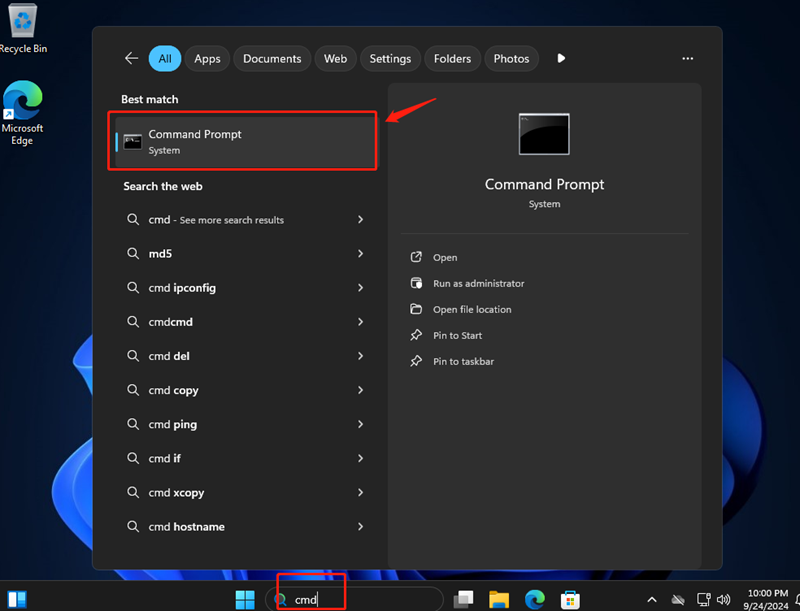
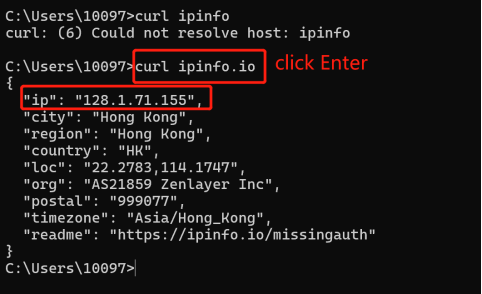
Step2: Add public IP in whitelist.
Go to OkeyProxy Dashboard>Residential Proxies>Proxy Setup>Whitelistd IP, add your public IP address and click Submit.
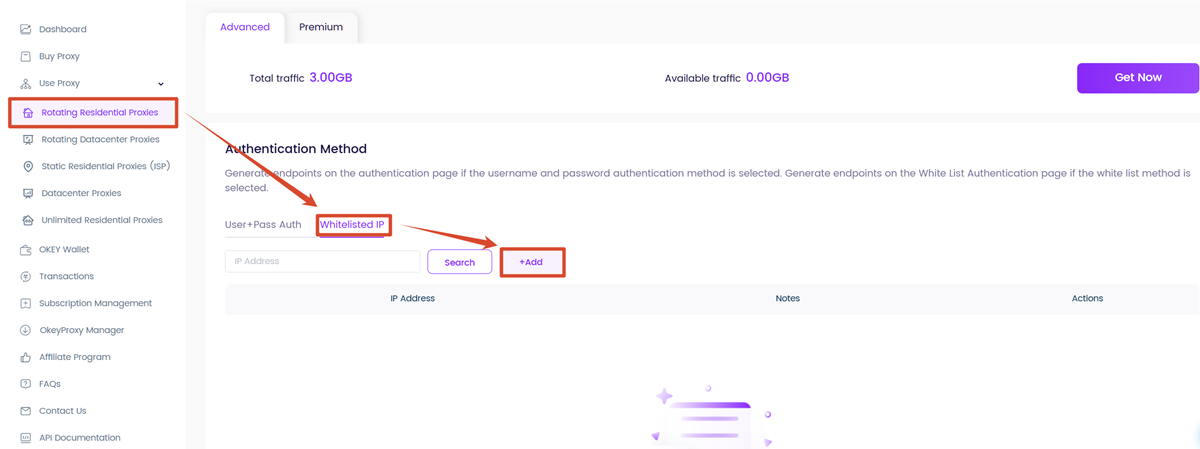
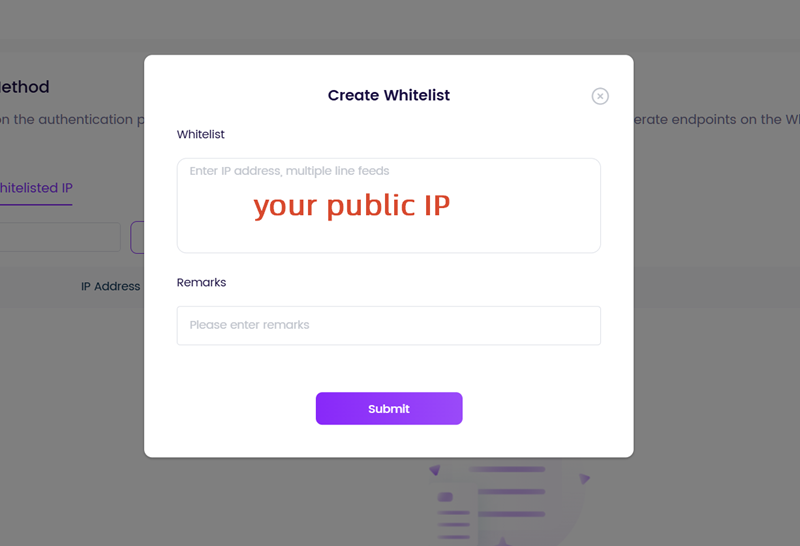
Step3: Set your proxy in windows.
First go to your Dashboard to get the Server and Port if you have no idea about it.
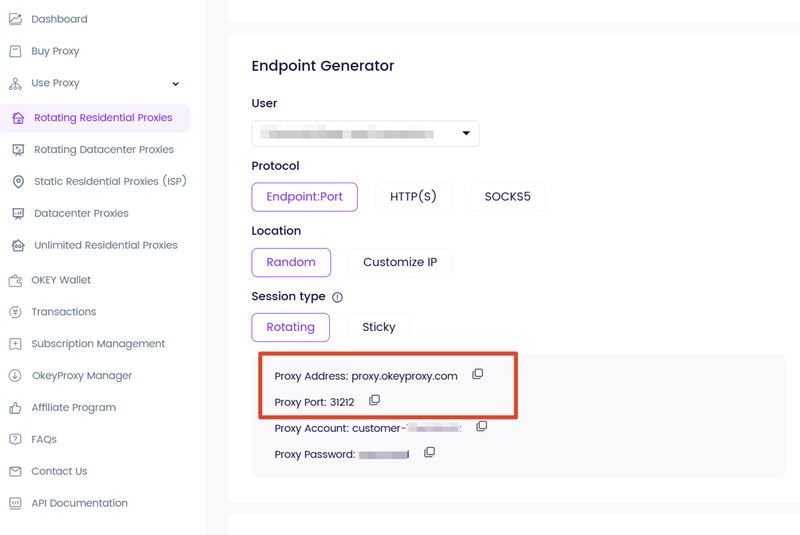
Then Configure your Proxy.
Click on the "Windows",

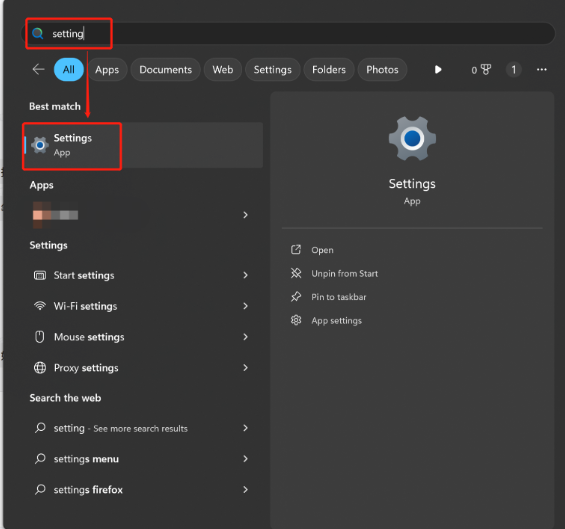
Search "Settings",
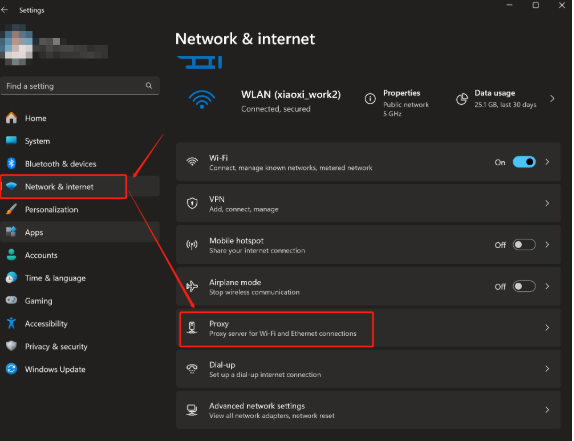
Find the "Proxy" function under the "Network & internet" section,
Scroll down to the "Manual proxy set up" part and choose "Set up",
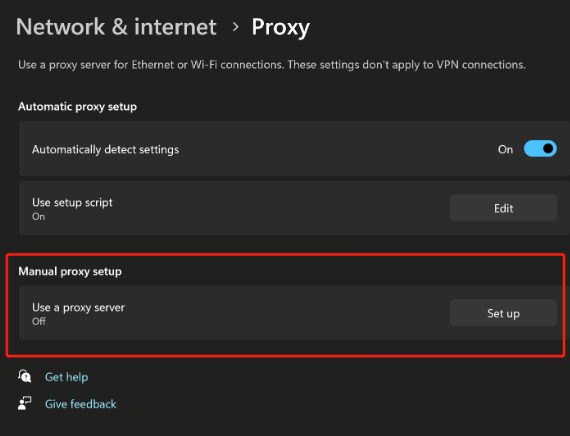
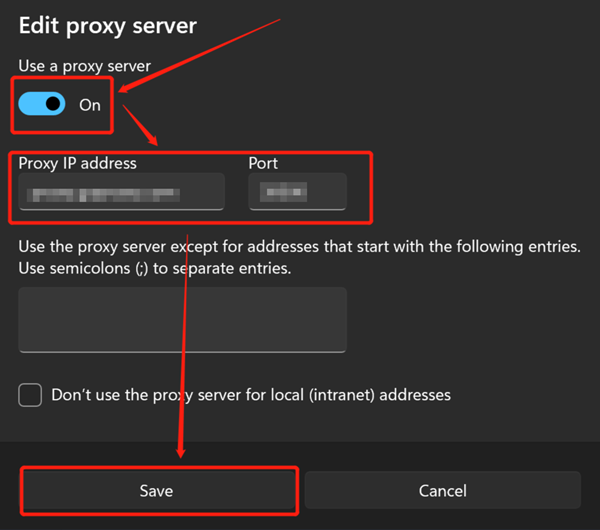
Switch the "Use a proxy server" button to the "On" status. Next, fill in the blanks of "Proxy IP address" and "Port". Then, choose "Save",
Step4: Enjoy accessing your target website.
There you go! You can now access your target site without filling in the username and password. Enjoy!
