


















X Account Login Issue? 8 Ways to Fix It & Regain Access
We've all been there. You open X (formerly Twitter), type in your details, hit Enter — and get a cold, soulless "Login Failed" staring back at you. Maybe it's right before a live event you need to follow. Maybe you manage brand accounts for a living. Either way, it's infuriating.
As an editor who deals with technical glitches daily, I've compiled every real fix for an X account login issue — from the obvious five-minute checks all the way to advanced network-level solutions. Let's get you back in.
Why Is Your X Login Failing? The Most Common Reasons
Before you start frantically resetting passwords, it helps to know why this is happening. Most X account login issues fall into one of these six buckets — figure out yours and you'll cut your troubleshooting time in half.
- Wrong Credentials: The single most common culprit. A small typo, a stray capital letter, or autocorrect silently mangling your password. Many users also have multiple accounts and are simply trying the wrong one.
- App or Browser Glitches: Browsers and apps store old data to speed things up — but that cached data can go stale or get corrupted. An outdated app version may also fail to communicate with X's latest API endpoints.
- Two-Factor Authentication (2FA) Problems: Your SMS code never arrived, your authenticator app was on a phone you lost, or you never saved your backup codes. 2FA is great for security, brutal when it goes wrong.
- Account Restrictions: X may have locked or suspended your account due to flagged "suspicious activity," too many failed login attempts, or a policy violation — sometimes incorrectly.
- Network & DNS Issues: An unstable Wi-Fi connection, a VPN with a blacklisted IP, or a corporate/school firewall can all silently block X's servers.
- X Server Outages: Occasionally, the problem really isn't you. X's servers do go down. It's rare, but it happens.
Got a sense of which bucket you're in? Good. Now let's fix it.
Basic Troubleshooting: The 5-Minute Quick Fix
Work through this checklist top-to-bottom before touching anything advanced. The majority of X login problems are resolved right here.
- Check X's Server Status — Is the problem yours, or everyone's?
- Verify Your Credentials — Right account, right password, right spelling.
- Clear Cache & Cookies — Flush the stale data causing the session conflict.
- Update or Reinstall the App — Outdated apps break silently.
- Switch Device or Network — Isolate whether the issue is local or account-wide.
- Check Your Device's Date & Time — Sounds odd, but it matters a lot.
- Turn Off Your VPN — Shared IPs are often blocked.
- Reset Your Password — Even if you think you know it.
1. Check X Server Status First
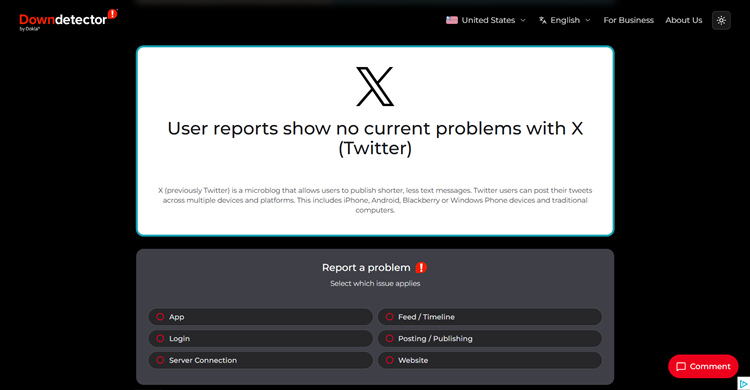
Before you change a single setting, rule out a platform-wide outage. Visit Downdetector or search "Is X down?" on Google. If thousands of other users are reporting problems at the same time, sit tight — no amount of cache-clearing will fix a server that's offline. This check takes 10 seconds and can save you 30 minutes of pointless troubleshooting.
2. Confirm Your Login Credentials Carefully
This is embarrassing to admit, but it's the most common fix. Here's what trips people up:
- Multiple accounts: Are you logging in with the credentials for a different account? If you manage several handles, write the correct one down before you start.
- Password managers & autofill: These can silently insert outdated or wrong passwords. Try typing your password manually instead of letting autofill do it.
- Autocorrect on mobile: Your phone may have "corrected" your username or password as you typed. Disable autocorrect in your keyboard settings temporarily.
- Case sensitivity: X usernames are case-insensitive, but passwords are not. Double-check Caps Lock.
- Old email address: Search your inbox for old "Twitter" or "X" security emails to confirm which email is linked to the account you're trying to access.
3. Clear Cache and Cookies (And Try Incognito Mode)
Browsers and apps cache data to load pages faster. When that cached data becomes corrupted or outdated, it causes login loops and persistent "wrong password" errors — even when your credentials are perfectly correct.
On a desktop browser (Chrome): Go to Settings → Privacy and Security → Delete Browsing Data. Check "Cached images and files" and "Cookies and other site data," then click Delete.
On the X mobile app: Go to your phone's Settings → Apps → X → Storage → Clear Cache. Note: this is different from "Clear Data," which will log you out entirely.
Pro tip: Before clearing anything, open an Incognito or Private Browsing window and try to log in there first. If it works in Incognito but not in your normal browser, you've just confirmed that stale cache is the culprit — and clearing it will fix the problem.
Also worth checking: browser extensions. Ad-blockers, privacy extensions, and some VPN browser plugins can aggressively interfere with X's login scripts. Try disabling all extensions temporarily.
4. Update or Fully Reinstall the X App
X updates its security protocols frequently. An app that's even a few months out of date can fail to communicate properly with X's servers, resulting in vague login errors.
Don't just update — reinstall properly:
- On Android: Go to Settings → Apps → X → Force Stop. Then uninstall, restart your phone, and download the app fresh from the Play Store.
- On iPhone: Delete the app entirely (swipe up from the app switcher won't cut it). Restart your phone, then reinstall from the App Store.
A full reinstall — not just an update — clears corrupted local data that a simple update leaves behind.
5. Switch Your Device or Network to Isolate the Problem
This is the fastest diagnostic step most people skip. Here's the logic:
- App fails, but the website works? The problem is the app itself — reinstall it (see above).
- Wi-Fi fails, but mobile data works? Your router's IP may be flagged or throttled by X's security bots. Try restarting your router, or contact your ISP.
- Fails everywhere (app, browser, mobile data, another device)? Stop trying random fixes. At this point, it's either a credentials problem, a 2FA issue, or an account restriction — all of which need a targeted solution, not more guessing.
6. Check Your Device's Date and Time Settings
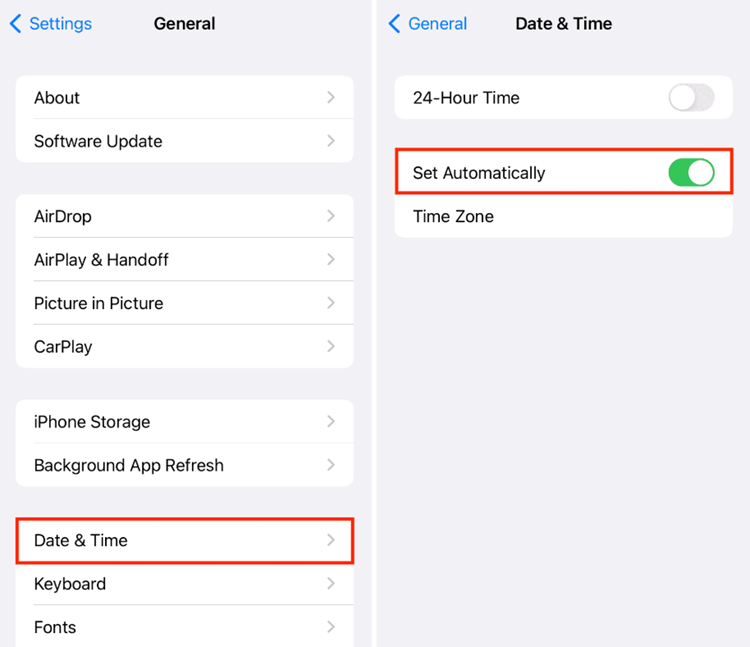
This one genuinely surprises people — but it's critical. X's security certificates (SSL/TLS) and 2FA codes both rely on your device's clock being accurate. If your phone or computer's time is even two to three minutes off, the authentication handshake fails and X rejects the login entirely.
Fix it easily: Go to your device's Settings → General → Date & Time (iOS) or Settings → System → Date & Time (Android/Windows) and enable "Set Automatically." Then retry the login.
7. Disable Your VPN or Proxy
X's anti-spam system aggressively flags shared and low-reputation IP addresses. Free VPNs are the worst offenders: you're sharing one IP address with thousands of other users, and if any of them have been flagged for suspicious activity, X may have blocked that entire IP range — taking you down with them.
Turn off your VPN entirely and try logging in over your regular connection. If that works, the VPN's IP was the issue. (Note: If you must use a proxy, always choose a high-quality residential proxy.)
8. Reset Your Password — Even If You "Know" It
Here's a nuance most guides don't mention: X sometimes returns a "wrong password" error not because your password is wrong, but because it doesn't trust your connection. However, going through the password reset flow can also refresh your account's session status and clear minor backend flags.
Click "Forgot Password" on the login screen, enter your email or phone number, and follow the instructions. Check your spam folder if the reset email doesn't arrive within a few minutes. If you're using your phone number, you can text "GO" to 40404 (US only) to reactivate SMS notifications from X.
Advanced Troubleshooting: Network & Security Locks
If you've worked through all the basics and you're still locked out — or if this is a recurring problem — the issue is almost certainly your network environment, not your account itself. This matters especially for digital marketers, social media managers, or anyone running multiple X accounts.
How X's "Fingerprinting" Works Against You
X doesn't just check your username and password. It also silently analyzes your IP address, device type, browser fingerprint, and login location. If any of these look unusual — a shared datacenter IP, a sudden location jump, a login from a flagged device — X will either block you outright or force additional verification.
For multi-account managers, the risks compound fast: if X detects that multiple accounts are being accessed from the same IP, it links them. If one account gets flagged, all linked accounts are at risk.
The Role of Residential Proxies
This is where the right tools make a real difference. The key distinction is between datacenter IPs (the kind free VPNs use, shared by thousands, frequently blacklisted) and residential IPs (real home internet connections, trusted by platforms like X).
For users who need a stable, trustworthy connection — whether for managing accounts professionally or simply avoiding repeated login flags — OkeyProxy is worth a serious look. Their network covers over 150 million residential IPs across 200+ regions, meaning you can connect from a specific city consistently — which is exactly what X's security system wants to see. A New York account that always logs in from a New York IP looks like a human. An account that logs in from a different country every day looks like a bot.
Two practical advantages this gives you:
- Stability: Real residential IPs have a dramatically lower rate of being flagged or blocked compared to datacenter IPs.
- Geographic consistency: You control which city your connection appears to come from, session after session — keeping X's security algorithms happy.
If login issues keep coming back despite fixing everything else, your IP environment is likely the root cause. Try OkeyProxy's free trial — it's the cleanest way to test whether switching to residential IPs resolves your persistent login problems.
Anti-Detect Browsers for Multi-Account Management
If you manage five, ten, or a hundred X accounts, you need full environment isolation — not just different IPs, but completely separate browser fingerprints for each account. Anti-detect browsers like AdsPower and Multilogin create a unique digital identity (browser fingerprint, timezone, language settings, canvas data) for each profile.
Pair an anti-detect browser with residential proxies from OkeyProxy and each account looks like a completely independent user on a different device in a different location. X's detection systems have no reason to link them. This is the professional-grade fix for multi-account login conflicts — and it prevents the "one account gets flagged, all go down" domino effect.

Quick-Reference: Login Error Table
Find your specific error message below for a targeted fix.
| Error / Symptom | Most Likely Cause | Targeted Fix |
|---|---|---|
| "Attestation Denied" | X's anti-bot system rejected your connection — typically triggered by a shared VPN IP, a datacenter IP, or suspicious login behavior. | Turn off your VPN entirely. Switch from Wi-Fi to mobile data. Open a clean browser with no extensions. If this keeps happening, switch to a residential proxy. |
| "Your account is locked" | Too many consecutive failed login attempts caused an automatic temporary lockout. | Wait exactly one hour without attempting to log in. Repeated attempts during the lockout window reset the timer and extend the lockout. After an hour, try again with the correct credentials. |
| 2FA code not received (SMS) | Carrier delay, blocked sender number, or an incorrect phone number on the account. | Wait up to 5 minutes for carrier delays. Text "GO" to 40404 (US) to re-enable X's SMS. Try logging in on a PC browser instead. If you have backup codes from when you set up 2FA, use one of those — this is exactly what they're for. |
| "Your account has been suspended" | Policy violation, suspicious activity detected by X's bots, or mass reporting by other users. | Check your registered email for a notification explaining the reason. If eligible, complete any on-screen Captcha or verification. If no on-screen option exists, file a formal appeal via the X Help Center. |
| Logs in, then immediately logs out (login loop) | Corrupted authentication token or broken session cookie — the browser or app accepted your credentials but failed to store the session properly. | Clear all cookies and site data (not just cache). On mobile, do a full reinstall. Log back in using Incognito mode as a test. If Incognito works, the issue is your browser's stored session data. |
| "Something went wrong" (generic error) | Could be a temporary server-side hiccup, a browser extension conflict, or an outdated app build. | Check Downdetector first. If X is up, disable all browser extensions and retry. If on the app, force-stop and relaunch. If the error persists for more than 30 minutes, try a full reinstall. |
| App crashes on login (iOS/Android) | Corrupted local app data, or an app version incompatible with the latest X API update. | Force-stop the app (Android: Settings → Apps → X → Force Stop). On iOS, delete and reinstall. Always restart your phone between uninstall and reinstall to clear cached process data. |
Still stuck? Your next step is contacting X Support directly via the X Help Center. This is the only path if you've lost access to both your registered email and your phone number.
How to Recover a Locked or Hacked X Account
Sometimes an X account login issue isn't a glitch — it's a sign that someone else has gotten into your account. If you're seeing tweets you didn't post, unfamiliar apps connected to your account, or your email address has been changed, act immediately.
Step-by-Step Account Recovery
- Go to the "Forgot Password" page. Enter your registered email or phone number and request a reset link.
- If the hacker hasn't changed your email yet: The reset link will arrive in your inbox. Use it to set a new, strong password. This kicks the hacker out of any active sessions.
- If your email has already been changed: You'll need to contact X directly via their "Hacked Account" form in the Help Center. Be ready to provide identity verification — account creation date, registered phone number, or recent login locations.
- Once back in, immediately revoke third-party app access: Go to Settings → Security → Apps and Sessions → Connected Apps. Remove anything you don't recognize. Third-party apps with broad permissions are the most common vector for account compromise.
Security Hardening After Recovery
Once you're back in, change your password immediately to something unique (not reused from any other site). Enable 2FA using an authenticator app rather than SMS. Review your connected apps and revoke anything suspicious. Update your recovery email and phone number. These steps take about ten minutes and significantly reduce your risk of a repeat incident.
Appealing a Suspension (With a Template That Actually Works)
A suspension appeal is not the place for venting. X's support team processes enormous volumes of appeals, and the ones that succeed are polite, specific, and policy-focused. Here's how to do it right.
How to Submit a Suspension Appeal
- Log into your suspended account (you can still access the Help Center even when suspended).
- Go to help.x.com/en/forms/account-access/appeals.
- Select "Locked and Suspended Account."
- Your username and email will auto-fill. Write your appeal in the description field.
- Submit, then check your email (including spam) for X's response.
Important: Your first response will almost certainly be an automated reply. Don't be discouraged — reply to it with additional context or evidence. Persistence matters here. Keep follow-ups brief, professional, and add new information each time rather than repeating yourself.
Suspension Appeal Email Template
Customize the bracketed sections with your specific details:
Subject: Appeal for Account Suspension — @[YourUsername]
Dear X Support Team,
I am writing to respectfully appeal the suspension of my account @[YourUsername]. I believe this suspension may have been applied in error, and I would appreciate the opportunity to explain.
I have reviewed X's Rules and Terms of Service and, to the best of my knowledge, my account activity has not violated [reference the specific rule mentioned in your suspension notification, or state: "any of X's stated policies"]. [If relevant, briefly explain any specific post or action that may have been misidentified — e.g., "The post in question was intended as satire / shared as news commentary / is a quote from a public figure."]
I have been a member of X since [year] and value this platform for [brief genuine reason — e.g., "following news, connecting with my professional community"]. I am committed to complying with X's guidelines going forward and would be grateful for the reinstatement of my account.
Please let me know if any additional information or verification is required. Thank you for your time and consideration.
Sincerely,
@[YourUsername]
[Registered email address]
What makes this template work: it's specific (references the rule), shows genuine understanding of the platform's policies, and avoids the aggressive or pleading tone that support teams learn to deprioritize. If the first appeal gets an automated rejection, reply with evidence — screenshots, dates, context — not just the same message again.
How to Prevent Future X Login Issues
The best time to set these up is right now, not after you get locked out again.
- Download and save backup codes: Go to Settings → Security → Two-Factor Authentication → Backup Codes. Screenshot them, print them, store them somewhere you'll actually find them. They bypass 2FA entirely if you lose your phone.
- Use an authenticator app, not SMS: SMS 2FA is vulnerable to SIM-swap attacks and carrier delays. Google Authenticator, Authy, or 1Password are all significantly more reliable.
- Keep your email and phone number current: Two recovery methods are always better than one. Make sure both are up to date in Settings → Account.
- Avoid public Wi-Fi for account management: Public networks are unpredictable and can trigger X's security flags. Use mobile data or a trusted home connection — or a residential proxy if you're accessing accounts professionally.
- Maintain login consistency: X's security system rewards predictable behavior. Logging in from wildly different locations, devices, and networks in short succession looks suspicious. Stick to a consistent environment for each account where possible.
- Revoke unused app permissions quarterly: Go to Settings → Security → Apps and Sessions. Remove anything you haven't actively used in the past 90 days.
FAQ: X Login Issues Answered
Q: Why is X saying my password is wrong when I know it's correct?
A: X sometimes returns a "wrong password" error when the real problem is an untrusted connection — not your actual password. Your IP address may be flagged, your session cookie may be corrupted, or you may be trying from a network that X's security system doesn't recognize. Try clearing your cache, switching networks, turning off your VPN, and then resetting your password to rule out all possibilities.
Q: Can I log into X without a phone number?
A: Yes — a verified email address is sufficient. However, if X detects unusual activity on your account, it may require a phone number for additional verification before granting access. Having both on file gives you more recovery options if things go wrong.
Q: How long does a temporary lock last?
A: A standard "too many attempts" lock lasts approximately 60 minutes. A security lock triggered by "suspicious activity" may remain until you complete a Captcha, verify your email, or respond to an email from X Support. The key: do not keep trying to log in during a lockout — every failed attempt can reset or extend the timer.
Q: What should I do if I'm stuck in a login loop on the X app?
A: A login loop means the authorization token is corrupted. The fix: go to your phone's Settings → Apps → X → Force Stop (Android), or delete the app entirely (iOS). Restart your device, then do a fresh install from the app store. Do not just close and reopen the app — that won't clear the broken token.
Q: My 2FA code isn't arriving. What do I do?
A: First, wait up to five minutes for carrier delays. If nothing arrives, text "GO" to 40404 (US users) to reactivate X's SMS access. Try the login from a desktop browser rather than the app. If you set up 2FA in the past, check whether you have backup codes saved — they're specifically designed for this situation. If none of these work, you'll need to contact X Support to remove 2FA from the account, a process that can take several days.
Q: Can I recover an X account if I no longer have access to my email or phone number?
A: This is the hardest scenario. Submit a support ticket via the X Help Center explaining the situation. Be ready to provide as much account verification information as possible — account creation date, historical login locations, recent activity. X may be able to verify your identity through other means, but there are no guarantees and response times can range from a few days to several weeks.
Wrapping Up
Solving an X account login issue is usually a matter of working methodically: start with the obvious (wrong credentials, stale cache), move to the environmental (VPN, network, device), and escalate to account-level fixes (2FA recovery, appeals) only if needed. Most problems are solved in the first two steps.
For professionals managing multiple accounts, the environment is everything. A consistent residential IP — something like OkeyProxy provides — paired with proper account isolation is the difference between stable access and a permanent game of whack-a-mole with X's security system. If recurring login issues are costing you time or business, it's worth addressing the root cause rather than applying the same quick fixes over and over.
