












Why Can’t I Follow People on Instagram? A Quick Decision Tree & Complete Fix Guide
Have you ever tapped the "Follow" button on Instagram, only to be met with frustration when nothing happens? Whether you’re growing your brand or just connecting with friends, running into Instagram’s follow blocks can be maddening. Use this decision tree to jump straight to your solution, then follow our detailed steps to get you back to building your network.
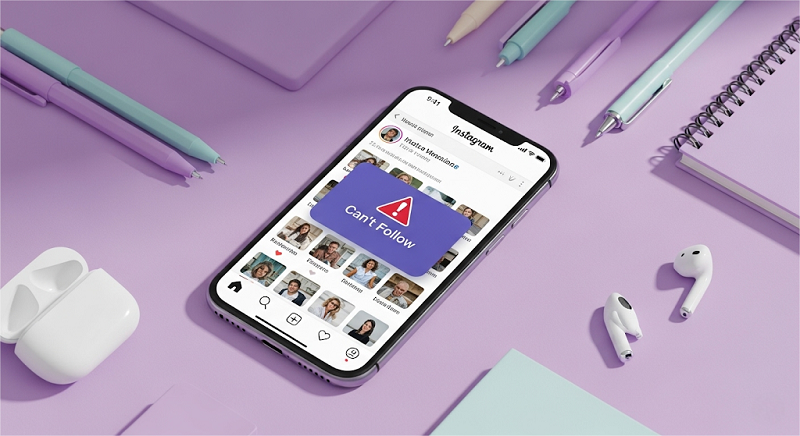
Quick Decision Tree
1. Nothing happens when you tap Follow?
→ Go to Scenario 1. No Response at All
2. You see an error (“Can’t follow accounts right now”)?
→ Go to Scenario 2. Error Message / Action Block
3. Follow button shows “Requested” but never changes?
→ Go to Scenario 3. Slow Request / Pending
4. Only one user won’t let you follow?
→ Go to Scenario 4. Single Profile Block
5. Not sure which applies?
→ Read the brief recap in Exact Scenario & Step-by-Step Fix, then choose the closest scenario above.
Why Instagram Blocks Your Follows
Before we fix it, here’s why Instagram enforces limits:
Total Follow Cap (7,500)
Keeps users from accumulating massive follow lists.
Daily/Hourly Limits (≈60–200/day, ≈60/hour)
Varies by account age, history, and engagement.
Spam Detection
Rapid follow/unfollow patterns, bots, or third‑party apps trigger temporary blocks.
Privacy & Flags
New or flagged accounts—plus private profiles—face tighter rules.
Exact Scenario & Step-by-Step Fix
Scenario 1. No Response at All
Symptoms:
Tapping Follow does nothing.
Button doesn’t animate or change.
Likely Cause:
App glitch, cache overload, poor connection, or VPN interference.
Fix:
1. Test Your Internet
Switch Wi-Fi ↔ mobile data.
Load any website to confirm speed.
2. Disable VPN/Proxy
Turn off any VPN. If you rely on proxies, try a stable provider like OkeyProxy to avoid tripping Instagram’s filters.
3. Clear Cache & Reinstall
Android:
Settings → Apps → Instagram → Storage → Clear Cache
Back out, then Clear Data if the problem persists.
iOS:
Settings → General → iPhone Storage → Instagram → Offload App
Reinstall from the App Store.
4. Update Instagram
Search “Instagram” in your app store and tap Update.
5. Try Another Device
Log in to Instagram on a computer or a friend’s phone. If Follow works there, the issue is local to your device.
Scenario 2. Error Message / Action Block
Symptoms:
“Couldn’t follow accounts right now” or “Try again later.”
You hit a wall mid‑session.
Likely Cause:
Exceeded hourly/daily follow limits.
Instagram flagged you for spam‑like behavior.
Fix:
1. Check Your Follow Count
Profile → Following → count your follows. Near 7,500? You’ve hit the cap.
2. Space Out Your Follows
Wait 10–15 minutes after adding 10–20 follows.
3. Use a simple timer or stopwatch.
Unfollow Inactive Accounts
Profile → Following → sort by Least Interacted (if available).
Unfollow dormant profiles to free up slots.
4. Wait It Out
Hourly block: 20 minutes–1 hour
Daily block: 24–72 hours
5. Test After Cooldown
Try only a single follow to confirm restoration after waiting.
Scenario 3. Slow Request / Pending
Symptoms:
“Requested” stays stuck on a public profile, never changing to “Following.”
Likely Cause:
Severe spam-flag from mass actions.
Account under temporary review.
Fix:
1. Full Activity Cooldown
Stop all Instagram activity—no likes, comments, follows—for 24 hours to 2 weeks.
2. Warm Up Your Account
Post 3–5 quality images or Reels.
Engage with other posts, e.g. 5–10 times like or comment per day).
3. Resume Follows Gently
Start with 5–10 follows/day, gradually increasing over a week.
4. Review Connected Apps
Settings → Security → Apps and Websites → Remove any unrecognized apps.
Scenario 4. Single Profile Block
Symptoms:
Only one specific user won’t let you follow.
Likely Cause:
That user has blocked you or changed privacy settings.
Fix:
1. Confirm the Block
Log out of Instagram.
In a browser, go to instagram.com/username.
If you can’t see the profile logged out, you’re blocked.
2. Respect Privacy
There’s no “unblock” on your end. You can either:
- Wait in case they unblock you.
- Create a new account (note: repeated blocks or spammy behavior may trigger new restrictions).
Prevention Checklist
Before tapping Follow next time, run through:
App Updated → latest version installed
VPN/Proxy Off (or use a reliable residential proxy service like OkeyProxy)
Under Daily Limit → 60–200 follows not exceeded
Healthy Follow Ratio → unfollow dormant accounts monthly
Genuine Engagement → like/comment before following in bulk
Best Practices to Stay Trouble-Free on Instagram
Following too fast or using the wrong tools can trigger repeat blocks. Use these tips to keep your account clean and follow-ready:
Pace your activity: Limit follows to 10–20 per hour, and avoid large bursts.
Avoid third-party automation tools: These trigger action blocks and shadowbans.
Keep total follows under 7,500: Regularly unfollow inactive or irrelevant accounts.
Engage genuinely: Like and comment before following new users to avoid looking spammy.
Warm up new accounts: Post 3–5 times and engage for a week before following heavily.
Use stable IPs: Avoid switching IPs frequently or using free VPNs. If needed, OkeyProxy offers a safer alternative - Instagram proxies for accessing and managing accounts securely.
Stick to one device: Constantly switching between phones, tablets, and desktops can look suspicious.
Update the app regularly: Keep your Instagram app and OS updated to prevent technical bugs.
When All Else Fails: Contact Instagram
1. Report the Problem
Open Instagram → Profile → ☰ → Settings → Help → Report a Problem
Choose Something Isn’t Working and describe: “Unable to follow accounts; see [error message or symptom].”
2. Be Patient
Support responses can take several days. Most blocks lift automatically, but this makes sure Instagram is aware.
Conclusion
By matching your exact scenario to the right fix—plus adopting proactive best practices—you’ll sidestep Instagram’s follow restrictions and keep growing your community. Happy following!
