


















How Do You Fix a Proxy Server Problem? 10 Steps That Actually Work
One second you're cruising the web, the next you're staring at a blank screen and a cold, heartless message: "The proxy server isn't responding." Ugh. We've all been there — and it's never fun. 😤
But here's the good news: most proxy errors are totally fixable in under 10 minutes, and you don't need to be a network engineer to do it. Think of a proxy server as a middleman between your device and the internet — it routes your traffic, keeps you anonymous, and can bypass regional restrictions. When that middleman goes silent, your whole connection drops.
In this guide, we'll walk you through exactly how to fix a proxy server problem, from the simplest one-click fixes all the way to advanced system-level repairs. Let's get you back online! 🚀

🤔 Why Do Proxy Errors Happen?
Before diving into fixes, it helps to understand why this is happening. Proxy errors typically occur when your browser or operating system tries to send traffic through a specific server — but that server can't be reached or refuses the connection. The usual culprits are:
- Misconfigured proxy settings — a wrong IP address, port number, or leftover settings from a VPN you uninstalled.
- Malware or rogue extensions — some malicious software specifically hijacks your proxy settings to redirect your traffic through a shady server.
- Corrupted browser cache — old cached data can "remember" a broken proxy state and keep serving you errors.
- Outdated or broken network drivers — if your network adapter's driver is corrupt, it can trigger proxy detection failures.
- Proxy server downtime — especially common with free or cheap proxy providers whose servers go offline without notice.
- Expired credentials or IP not whitelisted — paid proxy users may see errors after a password change or plan expiry.
🔢 Common Proxy Error Codes — What Do They Mean?
Not all proxy errors look the same. Here's a quick reference for the most common ones you might encounter:
| Error Code | What It Means | Quick Fix |
|---|---|---|
| 407 Proxy Authentication Required | Your proxy login credentials are wrong or your IP isn't whitelisted. | Check your username/password and whitelist your IP in your provider's dashboard. |
| 400 Bad Request | The proxy received an invalid or malformed request. | Clear cache, check proxy settings, and retry. |
| 502 Bad Gateway | The proxy received an invalid response from the upstream server. | Clear cache and cookies, try disabling the proxy, or switch to a different proxy. |
| 503 Service Unavailable | The server is overloaded or your proxy IP has been blocked by the target website. | Try a different proxy IP or wait and retry. |
| "Proxy server isn't responding" | Your system is trying to use a proxy that's offline or incorrectly configured. | Disable proxy settings (Step 1 below). |
| "Unable to connect to the proxy server" | The proxy address/port is unreachable — often caused by malware or stale settings. | Check for malware (Step 4 below), then disable or reconfigure the proxy. |
⚡ Quick Fixes First (Solve ~50% of Cases Right Here!)
Before you dig into system settings, try these three things. They're fast, free, and solve roughly half of all temporary proxy issues on the spot.
✅ Check Your Base Internet Connection
Sounds obvious, but make sure the problem is actually the proxy — not your internet. Temporarily disable your proxy or VPN and try loading a plain site like google.com. If it still doesn't load, the issue is with your ISP, not the proxy. If it loads fine without the proxy, you've confirmed the proxy is the culprit. Move on to the steps below.
✅ Restart Your Router and Computer
The classic "turn it off and back on" actually works more often than people expect. Restarting clears your RAM, resets your network card, and can clear a "hung" connection that's causing the proxy error. Try this first — you might be surprised. 😄
✅ Run Windows' Built-In Network Troubleshooter
Windows has a built-in tool that can automatically detect and patch common proxy and network issues:
- Go to Settings → System → Troubleshoot → Other troubleshooters.
- Click Run next to "Internet Connections."
- Follow the prompts — Windows will attempt to fix the issue automatically.
On Windows 10, find it under Settings → Update & Security → Troubleshoot → Internet Connections.
💡 Editor's Tip: If you're using a free public proxy, it may have simply gone offline. Free proxies have notoriously poor uptime — if a restart doesn't fix it, the proxy server itself might just be dead. Time to look for a better option (more on that below).
🔧 Step 1: Disable or Reset Your Proxy Settings
If you're not intentionally using a proxy — or if the one you were using is broken — the first thing to do is tell your system to stop looking for it. Here's how across every major platform.
On Windows 10 / 11
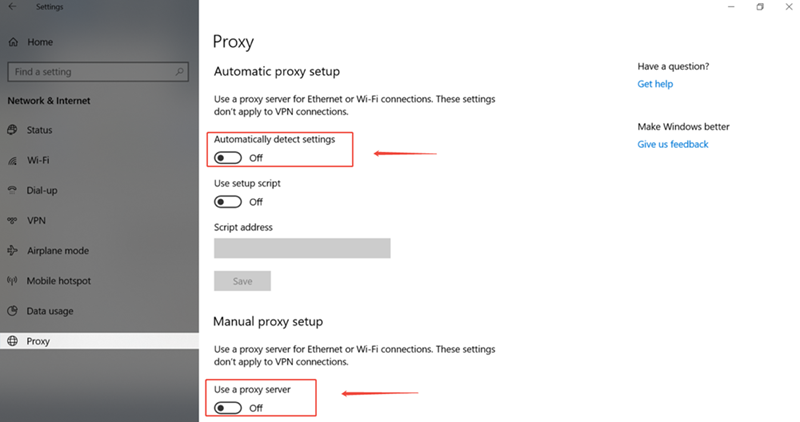
- Press Windows Key + I to open Settings.
- Go to Network & Internet → Proxy.
- Under "Automatic proxy setup," toggle Automatically detect settings to ON.
- Under "Manual proxy setup," ensure Use a proxy server is toggled OFF. Click Save.
On Mac (macOS)
- Click the Apple menu → System Settings (or System Preferences on older macOS).
- Click Network, then select your active connection (Wi-Fi or Ethernet).
- Click Details (or Advanced) → navigate to the Proxies tab.
- Uncheck all protocols (HTTP, HTTPS, SOCKS, etc.) and click OK.
In Google Chrome
Chrome follows your system proxy settings, but here's how to verify and access them directly:
- Click the three-dot menu → Settings → System.
- Click "Open your computer's proxy settings" — this opens the Windows or Mac settings above.
In Mozilla Firefox
Firefox has its own independent proxy settings — a common gotcha!
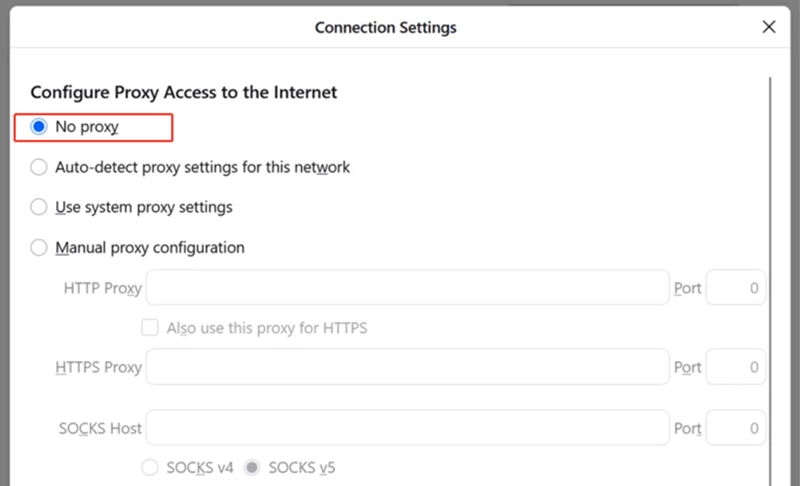
- Click the hamburger menu (≡) → Settings → General.
- Scroll down to Network Settings and click Settings…
- Select "No proxy" or "Use system proxy settings" and click OK.
In Microsoft Edge
- Click the three-dot menu → Settings → System and performance.
- Click "Open your computer's proxy settings" to access Windows proxy settings.
- Then go to Settings → Reset settings → Restore settings to their default values for a full browser reset.
Via Command Prompt (The Power Move 💪)
Sometimes the graphical settings don't catch everything. Force-reset via CMD for a thorough clean:
- Search for "CMD," right-click it, and select Run as Administrator.
- Type the following and press Enter:
netsh winhttp reset proxyThis clears WinHTTP proxy settings and reverts to a direct connection. It's particularly effective when a VPN or third-party app changed your proxy settings behind the scenes.
🗑️ Step 2: Clear Browser Cache and Cookies
Browsers store "snapshots" of websites to speed things up. If those snapshots were captured while your proxy was failing, your browser might keep showing the error even after you've fixed the proxy — this is called a cache conflict. Clearing it is quick and painless:
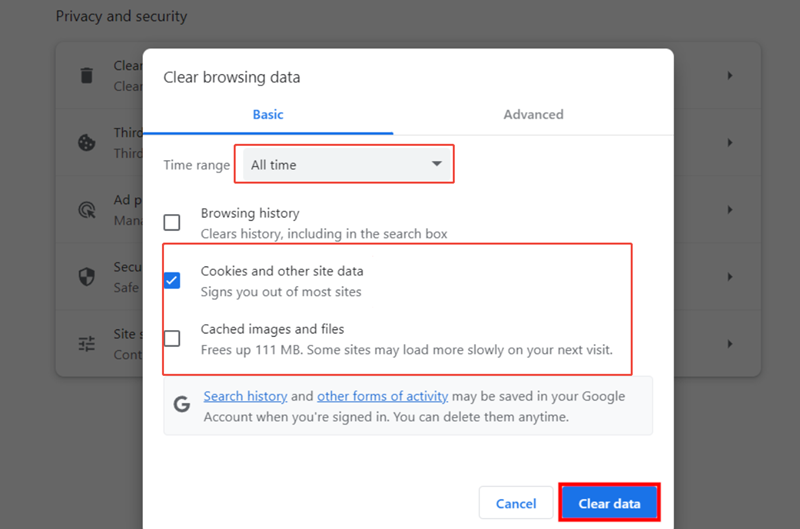
- In your browser, press Ctrl + Shift + Delete (Windows) or Command + Shift + Delete (Mac).
- Set the time range to "All time."
- Check the boxes for Cookies and other site data and Cached images and files.
- Click Clear data.
Restart your browser and test again. If you were close to a fix, this step alone often seals the deal. ✅
🔄 Step 3: Reset Your Browser to Default Settings
If clearing the cache isn't enough, your browser's internal configuration might be corrupted. Resetting it wipes out bad settings and restores it to a clean slate — like the day you first installed it.
| Browser | How to Reset |
|---|---|
| Chrome | Settings → Reset settings → Restore settings to their original defaults → Reset settings. |
| Edge | Settings → Reset settings → Restore settings to their default values → Reset. |
| Firefox | Settings → Network Settings → Set to "No Proxy" or "Use system proxy settings." For a full reset: type about:support in the address bar → Refresh Firefox. |
| Safari (Mac) | Safari → Preferences → Advanced → Proxies → Change Settings… → uncheck all proxy types. |
Note: Resetting your browser won't delete your bookmarks or passwords — only settings and extensions get cleared. Always a good idea to back up anyway! 🛡️
🦠 Step 4: Scan for Malware and Suspicious Extensions
This one is more important than most people realize. Certain malware is specifically designed to hijack your proxy settings — redirecting your traffic through a malicious server to steal login credentials, banking info, and more. Rogue browser extensions can do the same thing quietly in the background.
Run a Virus Scan
- Windows: Windows Security (formerly Windows Defender) → Virus & threat protection → Full scan. Or use Malwarebytes (free version works great) for a second opinion.
- Mac: Use Malwarebytes for Mac or a trusted AV tool like Bitdefender.
Audit Your Browser Extensions
- Go to your browser's extensions/add-ons page.
- Disable all extensions at once.
- Test if your internet works now. If it does — one of your extensions was the culprit!
- Re-enable extensions one by one until the problem comes back. That last one is your troublemaker. Uninstall it immediately. 🗑️
Common offenders: "Free VPN" extensions, "PC Cleaner" tools, unknown "Helper" or "Updater" programs, and any browser extension you don't remember installing. If you use SwitchyOmega, double-check that your proxy profiles are configured correctly.
⚠️ Watch Out: If your proxy settings keep "turning themselves back on" automatically (e.g., resetting to http=localhost:8451), this is a strong signal of active malware. Run a full system scan before proceeding.
🌐 Step 5: Flush DNS and Reset Network Settings
Your computer maintains a local "address book" called the DNS cache — it maps website names to IP addresses. Over time, this cache can become stale or "poisoned," causing connection failures even when the proxy itself is fine. Here's how to clean it out:
- Open Command Prompt as Administrator.
- Run these commands one by one, pressing Enter after each:
ipconfig /flushdns
ipconfig /release
ipconfig /renew
netsh winsock reset
For a complete network stack reset (the "nuclear option" 💥), also run:
netsh int ip resetThen restart your computer. This rewrites the core registry keys Windows uses for networking and is often the final solution for stubborn proxy errors that keep coming back.
🖥️ Step 6: Update or Reinstall Your Network Adapter Driver
This is a step many troubleshooting guides skip — but it's a real cause of proxy detection failures! An outdated or corrupted network adapter driver can prevent Windows from properly detecting and applying proxy settings.
Update the Driver
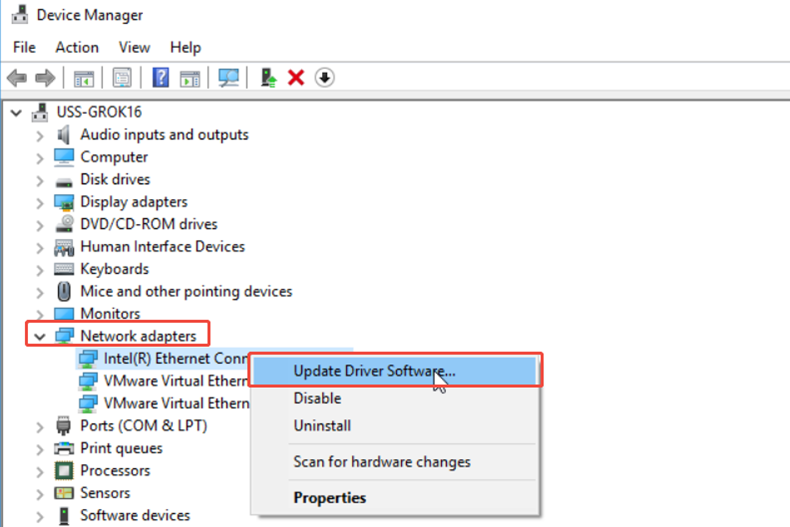
- Press Windows Key + X → click Device Manager.
- Expand Network adapters.
- Right-click your active network adapter (e.g., "Intel Wi-Fi" or "Realtek Ethernet") → Update driver.
- Choose "Search automatically for drivers" and let Windows find the latest version.
Reinstall the Driver (If Updating Doesn't Help)
- Right-click your network adapter in Device Manager → Uninstall device.
- Restart your computer. Windows will automatically detect and reinstall the driver on reboot.
Fix the Power Management Setting
Here's a lesser-known tip: Windows sometimes turns off your network adapter to save power, which can cause intermittent proxy errors:
- In Device Manager, double-click your network adapter → go to the Power Management tab.
- Uncheck "Allow the computer to turn off this device to save power."
- Click OK.
🔐 Step 7: Verify Your Proxy Credentials (For Intentional Proxy Users)
If you're deliberately using a proxy for work, web scraping, or bypassing geo-restrictions, and you're seeing a 407 Proxy Authentication Required error, the issue is almost certainly your login details or IP authorization. Check these:
- Whitelist your IP address — most premium proxy providers require you to add your current IP to an allowlist in your dashboard. If your home IP changed (it often does with dynamic IPs), you'll need to update it.
- Double-check your username and password — one wrong character is all it takes to cause a connection failure.
- Verify your subscription is active — has your plan expired? Log into your provider's dashboard to confirm.
- Check for protocol mismatch — using an HTTP proxy for a task that requires SOCKS5 (like certain apps or games) will result in constant errors. Make sure you're using the right proxy type for your use case.
🔬 Advanced Troubleshooting: System-Level Fixes
If you've tried everything above and are still stuck — or if your proxy settings keep resetting themselves — you're dealing with a deeper system issue. Here are two advanced tools for the determined fixer. ⚙️
① Registry Repair (Advanced Users Only — Proceed Carefully!)
⚠️ Warning: Always back up your registry before making changes. Deleting the wrong key can cause serious system instability.
- Press Windows Key + R, type
regedit, and press Enter. - Navigate to:
HKEY_CURRENT_USER\Software\Microsoft\Windows\CurrentVersion\Internet Settings - On the right panel, find and delete these keys if present:
ProxyEnable,ProxyServer,ProxyOverride,MigrateProxy. - Restart your computer. Windows will recreate these entries with clean default values.
Also check: HKEY_LOCAL_MACHINE\Software\Policies\Microsoft\Windows\CurrentVersion\Internet Settings — if proxy keys exist here, a group policy may be forcing the proxy on. You'll need admin rights or IT support to change these.
② Run a System File Check (SFC Scan)
Corrupted Windows system files can cause all sorts of network issues, including proxy failures. The built-in SFC tool can find and repair them automatically:
- Open Command Prompt as Administrator.
- Type the following command and press Enter:
sfc /scannowThis will scan all protected system files and replace corrupted ones. The process takes about 10–15 minutes. Restart your computer after it completes.
🔁 Why Does Your Proxy Keep Failing? (Solving the Root Cause)
If you find yourself fixing the same proxy error every few days, the issue isn't your settings — it's the proxy itself. Here are the three most common root causes of recurring proxy failures:
- 🔴 Server Downtime: Free and cheap proxy providers have terrible uptime. Their servers crash frequently, leaving you disconnected without warning.
- 🔴 IP Bans: If you're using a proxy to access a specific platform (social media, e-commerce, streaming), that site may have detected and blocked your proxy's IP address. Data center proxy IPs are particularly easy for websites to identify and block.
- 🔴 Protocol Mismatch: Using an HTTP proxy for tasks requiring SOCKS5 — like Telegram, certain games, or scraping tools — will cause constant failures. Always match the proxy type to the task.
The honest truth? If you're hitting these issues repeatedly, no amount of troubleshooting will fix an inherently unreliable proxy. The real solution is upgrading to a quality provider.
🌟 Tired of Troubleshooting? Meet the Proxy That Actually Works: OkeyProxy
If you've made it this far and you're exhausted from constantly fixing broken proxy connections, we hear you. There's a much better way. 😊
We highly recommend OkeyProxy — and here's why it's a game-changer compared to the generic proxies that keep letting you down:
- 🏠 150M+ Real Residential IPs: OkeyProxy uses genuine residential IP addresses from real devices in 200+ countries and regions. Because these IPs look like ordinary home users, websites almost never flag or block them — which means no more 503 errors or IP bans.
- ⚡ Rock-Solid Uptime: Unlike free or budget data center proxies that disappear without notice, OkeyProxy's infrastructure is built for stability. No more waking up to a dead connection.
- 🔀 HTTP, HTTPS & SOCKS5 Support: No protocol mismatch headaches — OkeyProxy supports all three major proxy types, so whatever you're doing (browsing, scraping, streaming, gaming), you're covered.
- 🌍 Hyper-Precise Geo-Targeting: Need a specific city-level IP? OkeyProxy lets you target by country, region, or city — perfect for testing geo-restricted content or managing multiple regional accounts.
- 🔒 Zero Logs, Full Privacy: Your traffic stays your business.
The bottom line: instead of spending another afternoon running netsh commands and digging through the registry, you could simply switch to a proxy that doesn't break in the first place. OkeyProxy is the industry standard for reliability — trusted by SEO professionals, e-commerce managers, and developers worldwide.
👉 Try OkeyProxy today — and say goodbye to proxy headaches for good.
✅ Quick Recap: Your Proxy-Fixing Checklist
Here's the full troubleshooting sequence at a glance — work through these in order until your connection is restored:
- Check your basic internet connection & restart your router/PC.
- Run Windows' Network Troubleshooter.
- Disable proxy settings in Windows/Mac/Browser settings.
- Clear your browser cache and cookies.
- Reset your browser to default settings.
- Scan for malware; audit and disable suspicious extensions.
- Flush DNS and reset the network stack via CMD.
- Update or reinstall your network adapter driver.
- Verify proxy credentials & IP whitelist (paid proxy users).
- Try registry repair and SFC scan for deep system issues.
- If problems persist — upgrade to a reliable proxy like OkeyProxy. 🚀
Learning how to fix a proxy server problem really doesn't require a computer science degree — it just requires working through the list methodically. Most people find their fix within the first three steps. And if you're tired of the troubleshooting cycle altogether, investing in a stable, high-quality proxy service will save you far more time and frustration in the long run.
