


















How to Use SOCKS5 on iPhone: Step-by-Step iOS Setup Guide
🔒 Mobile privacy matters more than ever — especially if you work remotely, manage multiple accounts, or frequently connect to public Wi-Fi. SOCKS5 is the gold standard proxy protocol for iPhone users who need speed, anonymity, and full traffic coverage.
But there's a catch: iOS doesn't natively support SOCKS5. Apple's built-in Wi-Fi proxy settings only handle HTTP/HTTPS. So if you've tried entering SOCKS5 credentials directly into your iPhone settings and lost internet access — you're not doing anything wrong. It's simply a system limitation.
The good news? The workaround is easy. This guide shows you exactly how to set up and use SOCKS5 on iPhone — step by step, with zero technical jargon — using trusted third-party tools and a premium SOCKS5 proxy provider like OkeyProxy.
🌐 What Is SOCKS5 and Why Do iPhone Users Need It?
SOCKS5 is a network protocol that acts as a middleman between your iPhone and the internet. It routes your traffic through a proxy server, replacing your real IP address with one from the proxy — making you effectively anonymous online.
Unlike older HTTP proxies, SOCKS5 works at a lower network layer (Layer 5). This gives it three critical advantages:
⚡ Key Technical Advantages
- Full TCP + UDP Support: HTTP proxies only handle web page requests. SOCKS5 covers all traffic types — games, streaming apps, VoIP calls, messaging apps, and more.
- Faster Speeds: SOCKS5 uses lightweight packet headers and doesn't rewrite data content. The result is significantly lower latency compared to traditional VPN tunnels.
- True Anonymity: SOCKS5 never modifies your original packet headers. Destination servers cannot detect you're using a proxy at all — unlike many VPNs that are easily fingerprinted.
📱 Real-World Use Cases for iPhone Users
- Multi-Account Social Media Management: Keep each account's network footprint separate. Prevent bans on platforms like Instagram, TikTok, or Amazon.
- Public Wi-Fi Protection: Airport and café networks are hotbeds for packet sniffing. A SOCKS5 tunnel encrypts your outgoing traffic and shields passwords, banking data, and private messages.
- Mobile App Testing: Developers can instantly switch their iPhone's virtual location to test geo-specific app behavior without buying multiple devices.
- Bypassing Geo-Restrictions: Access content, services, or websites that are blocked or unavailable in your current region.
⚠️ Why iOS Doesn't Support SOCKS5 Natively
Apple's native proxy settings (under Settings → Wi-Fi → Configure Proxy) are built exclusively for the HTTP protocol. If you input a SOCKS5 server address here, your iPhone will try to process the traffic as HTTP — causing a protocol mismatch that drops your connection entirely.
There are two more important limitations to know:
- 📵 Wi-Fi only: iOS proxy settings don't apply to mobile data (4G/5G). You must be on Wi-Fi for native proxy settings to work at all.
- 🌐 Browser-only coverage: Even when an HTTP proxy works, it only affects Safari and basic web requests — not apps like Instagram, WhatsApp, or games.
That's why third-party apps are the correct solution for SOCKS5 on iPhone.
✅ Method 1: Global SOCKS5 via Third-Party App (Recommended)
This is the most powerful option. Specialized iOS proxy apps use the local VPN loopback interface to capture and route all device traffic — including mobile data, apps, and games — through your SOCKS5 server.
You'll see a small "VPN" icon appear in your status bar, but this is normal. The app is using iOS's VPN framework to handle SOCKS5 routing.
🛠️ Recommended Apps
- Shadowrocket ("Little Rocket") — Most popular, feature-rich, paid (~$2.99). Supports SOCKS5, Shadowsocks, V2Ray, HTTP/S.
- Quantumult X — Advanced rule-based routing for power users.
- Potatso Lite — Free option with core SOCKS5 support.
- Super Proxy — Simple interface, great for beginners. To learn how to configure a SOCKS5 proxy in Super Proxy, please read our detailed guide: https://www.okeyproxy.com/en/blog/super-proxy.
⚠️ Note for China users: Shadowrocket requires a non-mainland Apple ID to download from the App Store.
📲 Step-by-Step Setup (Using Shadowrocket as Example)
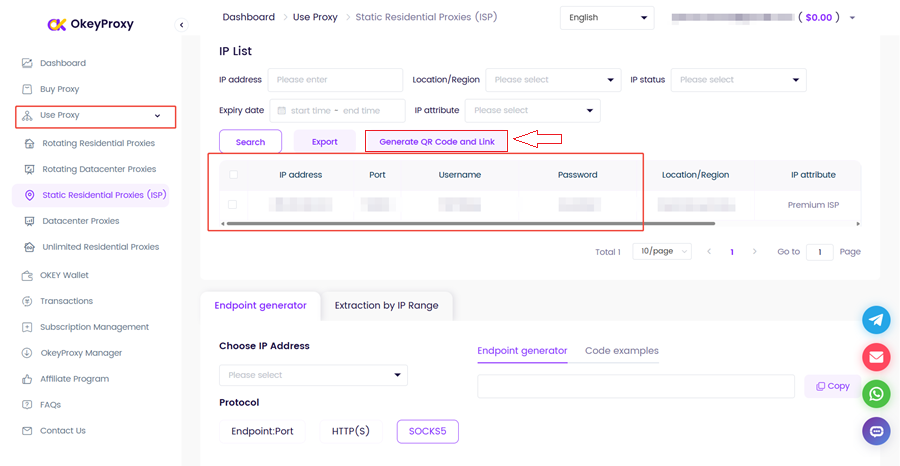
Step 1: Get Your Proxy Credentials
Log in to your proxy provider dashboard (e.g., OkeyProxy). Collect your:
- ✔️ Server IP address
- ✔️ Port number
- ✔️ Username
- ✔️ Password
💡 OkeyProxy tip: You can generate a scannable QR code from your dashboard. Skip manual typing entirely — just scan the screen.
Step 2: Open the App and Add a Server
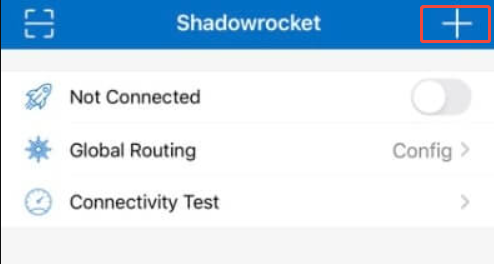
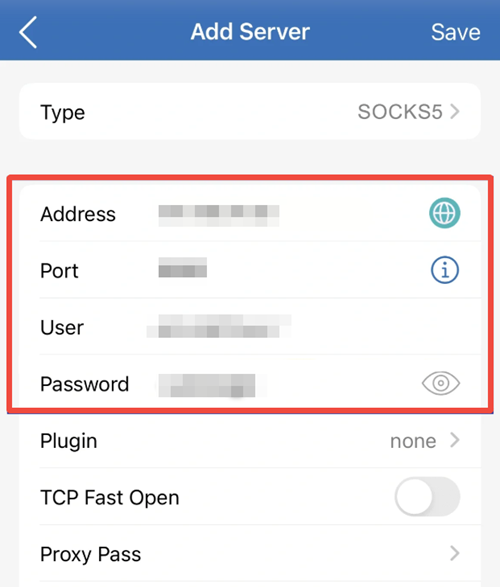
Launch Shadowrocket. Tap the "+" icon in the top-right corner to create a new server profile.
Step 3: Select SOCKS5 as the Protocol
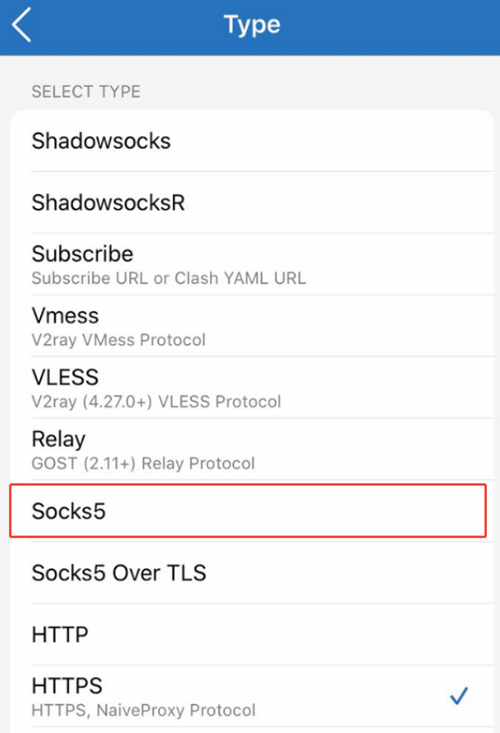
Tap the "Type" field. Select SOCKS5 from the protocol dropdown. This activates proper TCP and UDP routing.
Step 4: Enter Your Server Details
Fill in the following fields:
- Host / Server: Your proxy IP address
- Port: Your proxy port number
- User: Your proxy username.
- Password: Your proxy password.
Step 5: Save and Connect
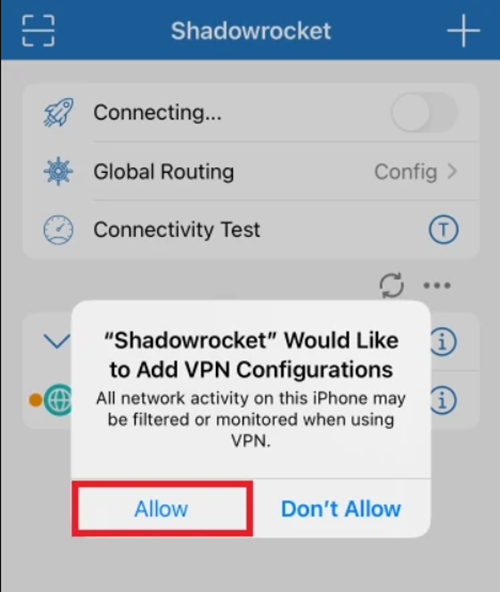
Tap "Save". Return to the main screen. Select your new server profile, then toggle the main switch to ON.
When iOS prompts you to allow a VPN configuration — tap "Allow". Your SOCKS5 connection is now active globally on your device. 🎉
Step 6: Set Global Routing (Important!)
In Shadowrocket, go to the Config tab and set Global Routing to "Proxy". This ensures all your app traffic goes through the SOCKS5 tunnel — not just web browsing.
📩 Method 2: App-Level SOCKS5 (e.g., Telegram)
Don't want to route all your traffic through a proxy? Some apps have built-in SOCKS5 support. This lets you protect just that one app without touching your device's global settings.
Telegram is the best example — it has native SOCKS5 proxy support built right in.
Setup Steps for Telegram
- Open Telegram → tap Settings (bottom menu)
- Go to Data and Storage
- Scroll to the bottom → tap Proxy
- Tap Add Proxy → select SOCKS5
- Enter your server IP, port, username, and password
- Tap Done ✅
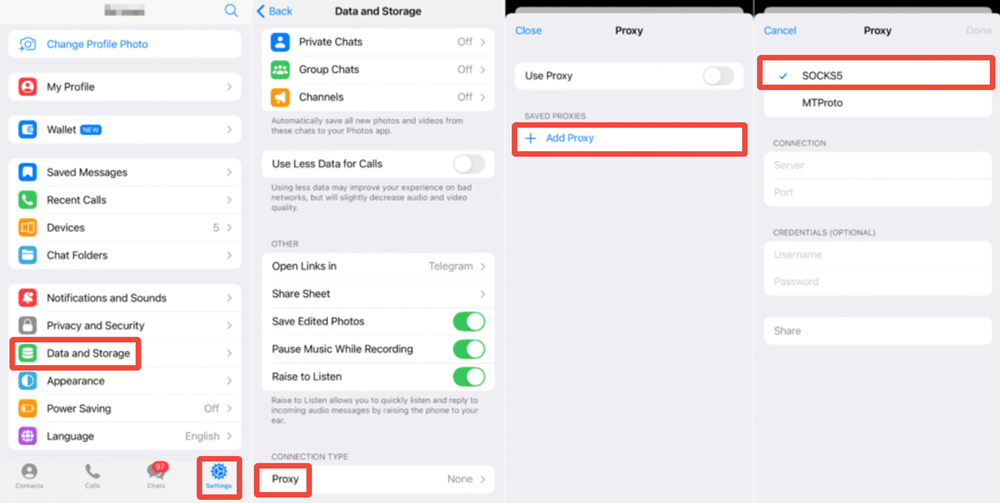
This method runs entirely inside Telegram. It requires no system permissions and doesn't affect any other app on your iPhone.
Other apps with built-in proxy support include some SSH clients, FTP tools, and certain browsers. Check your app's settings under "Network" or "Connection" options.
🔍 How to Test If Your SOCKS5 Proxy Is Working
Never assume the proxy is active just because the app shows "Connected." Always verify manually.
Basic IP Check
- With your proxy OFF, open Safari and visit ipinfo.io. Note your real IP address and location.
- Enable your SOCKS5 proxy via your app.
- Refresh the page. The displayed IP, country, and ISP should now show your proxy server's details — not your home connection.
⚠️ Also Check for DNS Leaks
This is a step many guides skip — and it's important. SOCKS5 proxies route your connection traffic, but by default, DNS queries may still go to your ISP. This means your internet provider can still see which websites you're visiting, even if they can't see the content.
To check for DNS leaks, visit dnsleaktest.com or browserleaks.com/dns while connected. If the DNS servers shown belong to your ISP instead of your proxy provider, you have a leak.
✅ Fix: In Shadowrocket, enable the "DNS Override" setting and use a privacy-focused DNS like Cloudflare (1.1.1.1) or Google (8.8.8.8). This forces all DNS resolution through your proxy tunnel.
🏆 Best SOCKS5 Proxy for iPhone: OkeyProxy
Your proxy app is only as good as the server behind it. A weak or untrustworthy proxy provider will slow you down, expose your real identity, or get your accounts flagged instantly.
OkeyProxy is built for exactly this kind of mobile use case — and it's one of the few SOCKS5 proxy providers that's fully optimized for iOS workflows.
Why OkeyProxy Stands Out for iPhone Users
- 🌍 150 Million+ Residential IPs across 200+ countries: Real household IP addresses that platforms like Instagram, Amazon, and TikTok can't distinguish from normal users. No bot flags. No bans.
- 📱 Native iOS Compatibility: OkeyProxy credentials work seamlessly with Shadowrocket, Quantumult X, Super Proxy, and Potatso Lite. No configuration headaches.
- 📷 QR Code Setup: Generate a scannable QR code from your OkeyProxy dashboard and configure Shadowrocket in seconds — no manual typing, no mistakes.
- ⚡ High Bandwidth, Ultra-Low Latency: Stream HD video, join video calls, and run data scraping tasks from your iPhone without buffering or disconnects.
- 🔄 Rotating & Static Options: Choose rotating residential proxies for automated tasks, or static ISP proxies for stable account management.
- 💰 Competitive Pricing: Rotating residential proxies from $0.64/GB. Static ISP proxies from $2/IP. A free trial is available — test speed and reliability before you pay a cent.
👉 Start your free OkeyProxy trial → Get your iPhone set up in under 5 minutes
📊 iOS Proxy Method Comparison
| Feature | Native iOS Wi-Fi Proxy | Third-Party App + SOCKS5 | App-Level Proxy (e.g., Telegram) |
|---|---|---|---|
| Protocol Support | HTTP / HTTPS only | SOCKS5, HTTP, HTTPS, Shadowsocks | SOCKS5 (within supported apps) |
| Traffic Coverage | Safari & basic web only | All apps, games, system traffic | Single app only |
| Works on Mobile Data? | ❌ No | ✅ Yes | ✅ Yes |
| UDP Traffic Support | ❌ No | ✅ Yes | Depends on app |
| Setup Complexity | Simple (but broken for SOCKS5) | Moderate (5–10 min) | Easy |
| Authentication Stability | ⚠️ Known iOS credential loop bugs | ✅ Stable | ✅ Stable |
| Recommended For | HTTP only — avoid for SOCKS5 | Most users — best coverage | Single-app privacy needs |
💡 Pro Tips & Common Pitfalls
① Enable "Bypass LAN" to Keep Local Devices Working
A global SOCKS5 proxy can break connections to local devices — AirDrop, printers, smart home gadgets. In your proxy app's advanced settings, enable "Bypass LAN" or "Direct Local Routing." This keeps your local network traffic separate from your proxy tunnel.
② Manage Battery Drain
Proxy apps inspect and route every data packet in the background. This increases battery usage. Turn off the proxy when you're done with your session — especially if you're not actively using the tunneled connection.
③ Avoid Free SOCKS5 Proxies
Free proxy lists are a security trap. They're typically run by unknown operators, frequently go offline, and can be used to intercept your traffic. Stick to paid, reputable providers like OkeyProxy where your connection is authenticated and encrypted.
④ Use Rotating IPs for Scraping, Static IPs for Accounts
- Rotating residential proxies: Best for automated data collection. IPs change automatically to prevent blocks.
- Static ISP proxies: Best for managing social media or e-commerce accounts where a consistent identity matters.
⑤ Shadowrocket Ping Failures ≠ Broken Proxy
Shadowrocket's built-in ping test sometimes fails even on a working connection. Don't rely on it. Always verify by checking your IP in a browser — that's the real test.
❓ FAQ: Common Questions Answered
Q: Why does entering SOCKS5 in native iOS Wi-Fi settings break my internet?
iOS's Wi-Fi proxy setting is designed for HTTP only. When you enter a SOCKS5 server address there, iOS tries to treat it as HTTP traffic — the protocol mismatch causes the connection to fail completely. Use a third-party app like Shadowrocket instead.
Q: Do I need to be on Wi-Fi to use a SOCKS5 proxy on iPhone?
Only if you're using native iOS proxy settings (which are Wi-Fi only). Third-party apps like Shadowrocket work on both Wi-Fi and mobile data (4G/5G).
Q: Are SOCKS5 proxies legal to use on iPhone?
Yes — using a SOCKS5 proxy is legal in most countries. It's a standard tool for privacy and network security. Legality depends on how you use it: proxy use itself is fine, but using it to commit crimes is not.
Q: Rotating residential or static ISP proxy — which should I choose?
Use rotating residential proxies for automated data collection or web scraping — they switch IPs automatically to avoid detection. Use static ISP proxies for managing accounts on social platforms or e-commerce sites, where a stable, consistent IP builds trust and prevents bans.
Q: How do I know my SOCKS5 proxy is actually hiding my identity?
Visit ipinfo.io while connected. If the displayed IP and location match your proxy server — not your home ISP — it's working. Also run a DNS leak test at dnsleaktest.com to confirm your DNS is routing through the proxy too.
Q: Can I use SOCKS5 on iPhone without Shadowrocket?
Yes. Shadowrocket is the most popular choice, but Quantumult X, Potatso Lite, and Super Proxy all support SOCKS5. The setup process is nearly identical across all of them.
🎯 Summary
Setting up SOCKS5 on iPhone isn't complicated — it just requires the right tool. Here's the quick recap:
- 🚫 Don't enter SOCKS5 details in native iOS Wi-Fi settings — it won't work.
- ✅ Do use a third-party app like Shadowrocket for full-device SOCKS5 coverage.
- 📩 Use app-level proxy settings (like Telegram's built-in option) for single-app privacy.
- 🔍 Always verify your connection via an IP check tool and DNS leak test.
- 🏆 Use a premium provider like OkeyProxy for stable, fast, anonymous connections.
