Managing a fleet of proxies for web scraping, automation, or digital intelligence can be a hassle. That’s where tools like Ghost Proxy Console Extension and OkeyProxy come in. Ghost Proxy Console offers centralized Ghost proxy management, while OkeyProxy delivers fast, reliable residential and ISP proxies. When you integrate the two, you get a powerful setup that’s efficient, scalable, and easy to control!
What is Ghost Proxy Console?
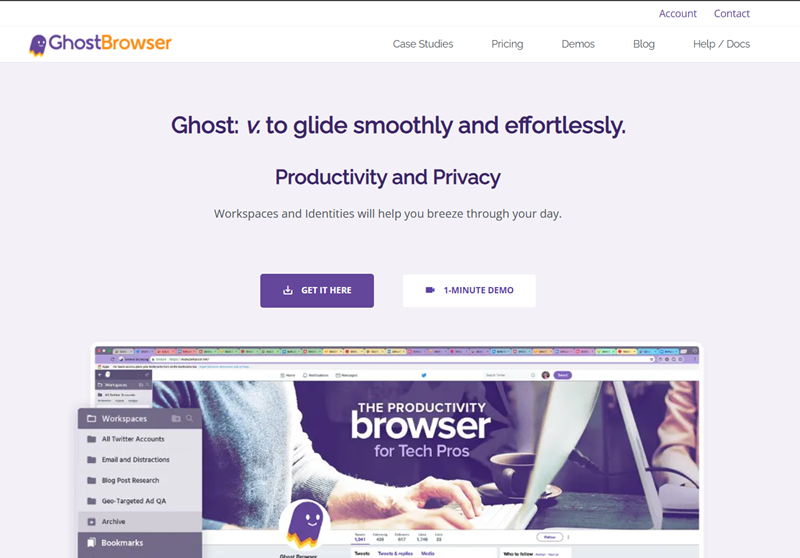
Ghost Proxy Control (GPC) is a custom extension for Ghost Browser that lets you assign different proxies to each tab, Workspace or Identity, allowing you to simulate browsing from various locations such as different states in the US, the UK or Germany. This is especially useful for testing websites or managing multiple accounts.
GPC supports various proxy types, including HTTP, HTTPS, IPv6, and SOCKS5. It recognizes SOCKS5 proxies when the address starts with socks5://. For optimal results when using IPv6, it’s recommended to use an IPv6 HTTP or HTTPS proxy, which uses an IPv4 address for browser-to-proxy communication and an IPv6 address for proxy-to-site requests.
Why Integrate Ghost Browser with OkeyProxy?
Ghost Proxy Control does not include a proxy server itself. You must purchase proxies from a proxy server provider and load them into the browser extension. Once you understand Ghost Proxy Control, the next step is choosing a reliable proxy source. This is where integration quality matters.
What Is OkeyProxy?
OkeyProxy is a premium proxy provider offering residential, ISP, and datacenter proxies optimized for web scraping, social media management, SEO monitoring, and more. It provides robust API support, rotating proxy endpoints, and high uptime, supporting multiple proxy types such as HTTP, HTTPS, and SOCKS5, and offering both IPv4 and IPv6 options to suit different technical needs—making it a great fit for professional proxy users.
Why the Integration Makes Sense
Combining Ghost Proxy Control with OkeyProxy offers several advantages:
- Stable, real IP addresses instead of unreliable free proxies
- Rotation support for scaling workflows
- Location targeting at country or city level
- Better compatibility with identity-based browsing
In short, Ghost Browser handles identity separation, while OkeyProxy ensures each identity uses a trustworthy IP.
Ghost Proxy Control Integration: Step-by-Step Guide
Setting up Ghost Proxy Control with a proxy provider is straightforward.
Prerequisites
- Active OkeyProxy account with proxy credentials
- Installed and running Ghost Proxy Console Extension
- Basic understanding of HTTP/SOCKS5 proxies and networking tools
After getting Ghost Browser installed on your computer, let’s explore how to configure proxy settings inside Ghost Browser, allowing them to manage multiple accounts or sessions seamlessly using OkeyProxy’s residential or ISP proxies.
Step 1: Retrieve Proxy Credentials from OkeyProxy
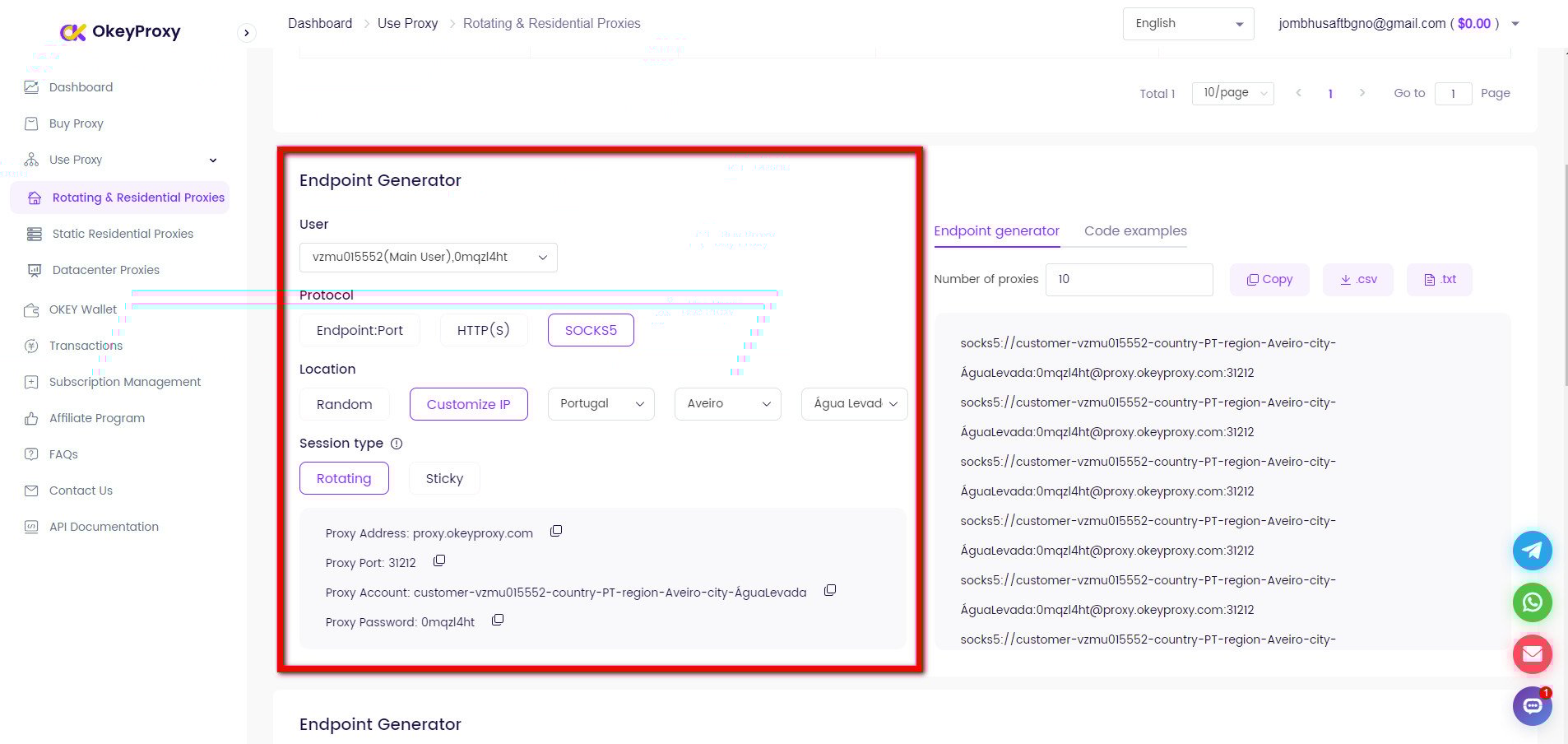
Log into your OkeyProxy dashboard and navigate to your proxy list. Copy the proxy hostname, port, username, and password. Example format:
proxy.okeyproxy.com:10000
Username: user123
Password: pass123
Step 2: Add OkeyProxy to Ghost Proxy Console
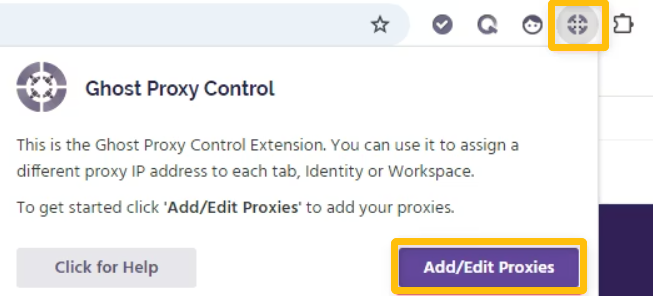
Launch Ghost Browser and click the Ghost Proxy Control extension icon in the top-right corner.
In the Ghost Proxy Control window, select “Add/Edit Proxies.” The Ghost Proxy Control settings tab will open.
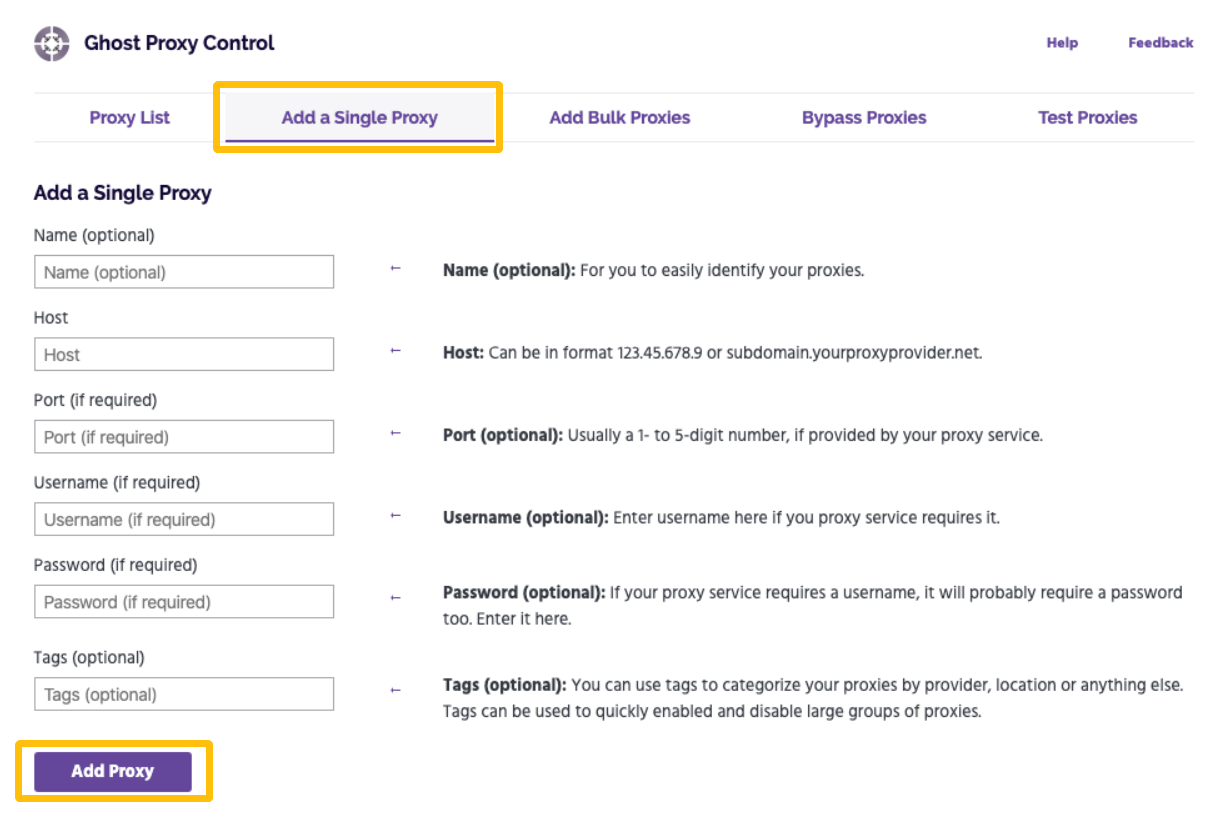
In the Proxy Manager, navigate to the “Add a Single Proxy” option. Configure your OkeyProxy proxy here.
| Field | Input from OkeyProxy |
|---|---|
| Name | Assign a descriptive name to your proxy (optional) |
| Host | Your OkeyProxy IP address |
| Proxy Port | Port number (e.g., 8000, 8080) |
| Username | Your OkeyProxy username |
| Password | Your OkeyProxy password |
Step 3: Test the Integration
After configuring your proxies, you’ll need to test the newly added proxy. Navigate to the “Test Proxies” tab and select the proxy you wish to test. Then enter the website address you want to use the proxy for and click “Test.” A pop-up window will appear indicating whether the proxy is functioning properly.
How to Batch Set Proxy Lists in Ghost Proxy Control
For users managing dozens or hundreds of identities, manual setup isn’t efficient. Ghost Proxy Control enables bulk proxy addition via .csv file format.
Step 1: Create a Proxy List
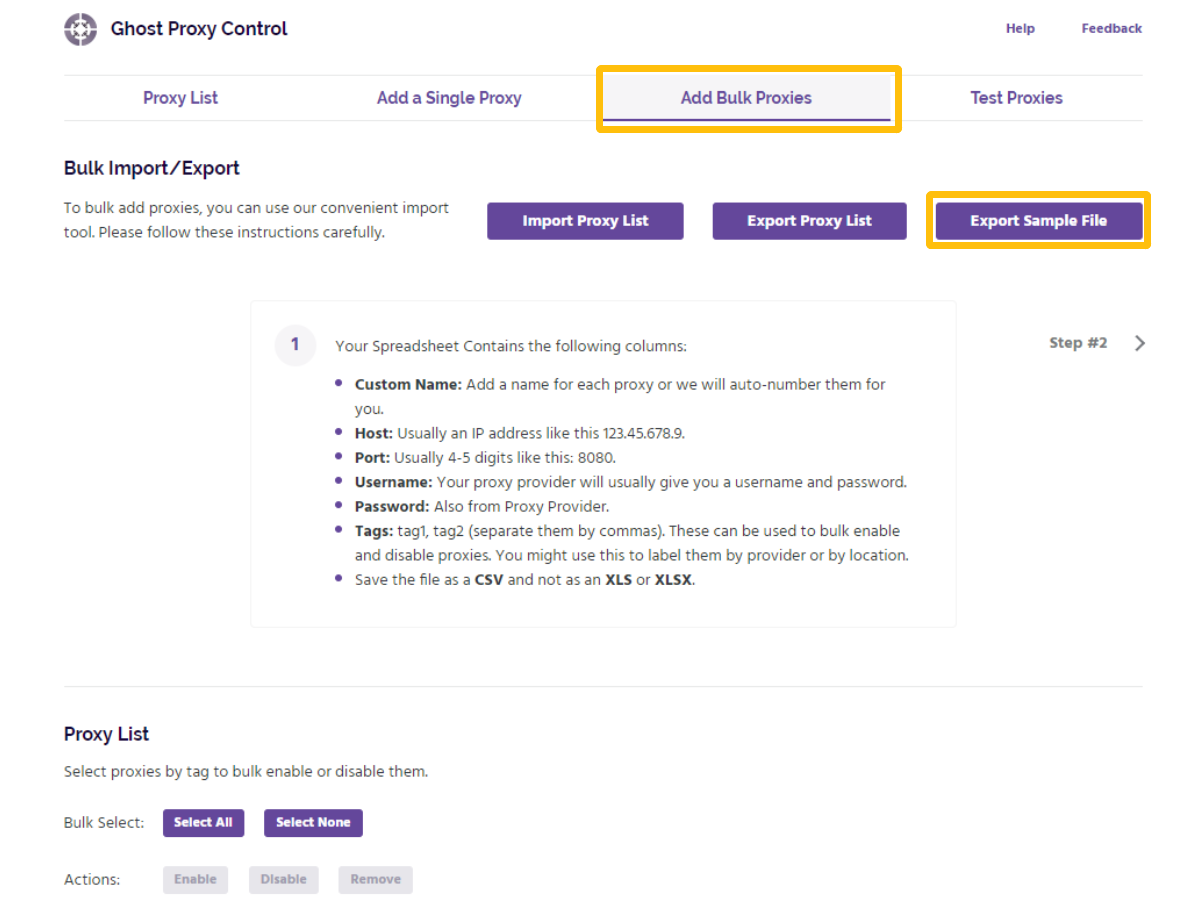
To add proxy servers in bulk, navigate to the “Add Bulk Proxies” tab and click “Export Sample File” to download a pre-formatted .csv file. Then enter the proxy information into the .csv file and save it.
⚠️ Note: Do not change the file name. Additionally, if the first column “Custom Name” is blank, each proxy will be automatically numbered (1, 2, 3, 4, etc.).
Step 2: Batch Import Proxy List
Next, simply click “Import Proxy List” to upload the updated CSV file containing proxy information to Ghost Proxy Control.
Step 3: Test the Integration
After importing, you can test your proxies in the “Test Proxies” section.
How to Assign Proxies by Workspace or Identity
You can assign a specific proxy to an active tab, Workspace, or Identity. If a proxy is assigned at the tab level, it will override any proxy set at the temporary Identity or Workspace level. Likewise, a proxy assigned at the Identity level will override any proxy configured at the Workspace level.
To configure this correctly, it’s important to understand Ghost Browser’s proxy hierarchy. For detailed instructions on assigning proxies to active tabs, Workspaces, or Identities, you can refer to the official Ghost Browser documentation.
Use Cases After Integration
- Web Scraping: Rotate proxies automatically to bypass rate limits and CAPTCHAs
- Social Media Automation: Manage multiple accounts without risking bans
- E-commerce Monitoring: Track product prices and availability globally
- Ad Verification: Ensure accurate ad placement across regions


Top-Notch Socks5/Http(s) Proxy Service

- Scalable Plans: Static/Rotating Residential Proxies
- Seamless Integration: Win/iOS/Android/Linux
- High Security: Ideal for Antidetect Browsers, Emulators, Scrapers, etc.
- Reliable Performance: Quick Transfer & Low Latency

Pro Tips for Using Ghost Proxy
- ☄️ Choose sticky/rotating sessions on dashboard based on use cases
- 🛠️ Check if your OkeyProxy account has sufficient active sessions
- 🔐 Ensure username/password credentials are correctly formatted
- ⚙️ Confirm GPC is correctly routing traffic by inspecting logs
- 🔄 Restart both tools if proxies are not rotating or responding
Conclusion
By combining the smart routing features of Ghost Proxy Console with the performance and reliability of OkeyProxy, you create a robust proxy environment tailored for intensive tasks. Whether you’re running scraping bots, monitoring market trends, or managing social platforms, this integration gives you the flexibility and scalability you need.
Ready to scale your proxy operations? Copy your OkeyProxy credentials and configure Ghost Browser like a pro!