Have you ever tried to open a website only to be stopped by a message saying “This page has been blocked by Chrome”? Are you looking for a fast way to regain access, or trying to figure out whether the issue comes from the website itself, your browser, or your network environment?
You’re not alone. This error is one of the most common Chrome-related blocking messages users encounter, and it often appears without much explanation. In this guide, we’ll break down what the message really means, why it happens, and how to fix it step by step—whether you’re a regular user or a website owner.
What Does “This Page Has Been Blocked by Chrome” Mean?
The message “This page has been blocked by Chrome” indicates that Google Chrome has prevented a webpage from loading because it considers the page potentially unsafe.
Chrome includes several built-in security mechanisms that actively scan pages before they load. These protections include:
- Google Safe Browsing
- HTTPS and certificate validation
- Malware and phishing detection
- Download and content integrity checks
If any of these systems detect a potential threat, Chrome blocks the page automatically to protect the user. In most cases, the page is blocked before rendering begins, which is why users see an immediate error instead of partial content.
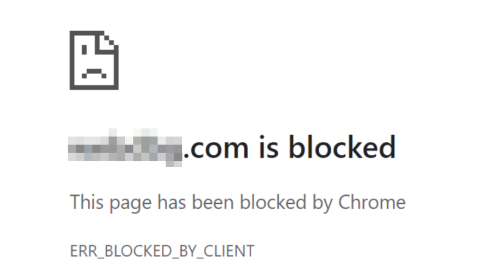
ERR_BLOCKED_BY_CLIENT Explained
If the error code shown is ERR_BLOCKED_BY_CLIENT, this strongly suggests that a browser extension—such as an ad blocker, privacy tool, or security extension—is responsible for blocking the page. This error usually does not originate from the website itself, but from something running locally in your browser.
While false positives can occur, Chrome generally blocks pages only when there is a legitimate security or policy-related concern.
Common Reasons Chrome Blocks Pages (and How to Fix Them)
If you want a quick answer, the table below summarizes the most common causes and solutions. You can then jump to the detailed fix for your specific situation.
| Cause | Typical Symptoms | Quick Solution |
|---|---|---|
| 1.Browser issues | Random blocking, pages fail to load | Update or reset Chrome |
| 2.Site flagged as unsafe | Red warning page | Review security details |
| 3.SSL / HTTPS errors | “Not secure” warnings | Check certificates |
| 4.Network or firewall restrictions | Works on other networks | Change network or DNS |
| 5.Proxy or VPN issues | Blocked only when using proxy/VPN | Switch IP or proxy type |
| 6.Browser extensions | ERR_BLOCKED_BY_CLIENT | Disable extensions |
1. Browser Issues: Outdated Version, Corrupted Cache, or Broken Settings
Chrome relies heavily on cached data, site permissions, and internal security components. Over time, outdated browser versions, corrupted cache files, or conflicting settings can cause Chrome to incorrectly block pages that previously worked fine.
This often shows up as:
- Pages randomly failing to load
- Websites working in other browsers but not Chrome
- Blocking behavior that appears inconsistent
How to fix it
① Update Chrome
Go to Settings → About Chrome and make sure you’re using the latest version. Security rules are updated frequently, and outdated versions may mis-handle newer websites.
② Clear cache and site data
Old or corrupted cache files can trigger false blocks. Clear browsing data (cache and cookies), then reload the page.
③ Reset Chrome settings
If the issue persists, reset Chrome to its default settings. This removes misconfigured flags, permissions, and experimental features that may interfere with page loading.
2. Site Flagged as Unsafe by Google Safe Browsing
Chrome uses Google Safe Browsing to check every page before loading it. If a site is suspected of hosting malware, phishing content, deceptive redirects, or compromised scripts, Chrome will block it before any content loads.
This protection works at the browser level and may block:
- Legitimate sites that were hacked
- Sites running malicious third-party scripts
- Pages with suspicious redirects or downloads
While false positives are possible, most blocked sites genuinely pose a risk.
How to fix it (for users)
- Click “Details” on the warning page to understand why Chrome blocked the site
- Only proceed if you fully trust the site and understand the risk
- Avoid bypassing the warning on unknown or unverified websites
Is it safe to bypass Chrome’s block?
Only in very limited cases—such as internal tools, staging environments, or trusted sites you control. Never bypass the warning for unfamiliar websites.
3. SSL Certificate Issues or HTTPS Errors
Chrome enforces strict HTTPS rules. If a website has:
- An expired SSL certificate
- A certificate that doesn’t match the domain
- Mixed content (HTTPS page loading HTTP resources)
Chrome may block the page entirely or show strong security warnings.
These errors usually indicate:
- Poor server configuration
- A misconfigured CDN
- Outdated certificates
How to fix it
Check whether the site uses HTTPS correctly. Click the lock icon in the address bar to view certificate details.

⚠️ Note: If you’re the site owner, renew and correctly install the SSL certificate. Ensure all scripts, images, and resources load over HTTPS.
4. Network, Firewall, or DNS Restrictions
Some networks actively block access to certain websites. This can happen at multiple levels:
- Corporate or school firewalls
- ISP-level filtering
- DNS-based blocking
If a site works on mobile data or another Wi-Fi network but not your current one, the block is almost certainly network-related.
How to fix it
- Try switching to a different network
- Change your DNS provider (for example, to Cloudflare 1.1.1.1 or Google DNS)
- Temporarily disable firewall or antivirus web filtering (for testing purposes only)
5. Proxy or VPN-Related Blocking
Many websites actively block traffic from:
- Shared proxy IPs
- Low-quality VPN servers
- IPs with a history of abuse
Chrome itself may also restrict access if it detects unstable or suspicious proxy behavior, especially when combined with HTTPS errors.
Common symptoms include:
- Page loads normally without a proxy/VPN
- Block only appears when proxy is enabled
How to fix it
- Switch to a different IP or proxy location
- Use higher-quality residential or ISP proxies instead of data center IPs
- Avoid reusing the same IP for repeated requests
💡 Looking for a more reliable proxy to avoid Chrome blocks?
Low-quality IPs are often the main reason pages get blocked. Using clean residential or ISP proxies can significantly reduce detection and access issues.
OkeyProxy offers high-quality residential proxies with stable connections and fresh IPs, making them a solid option when Chrome or websites block proxy traffic.
👉 Try OkeyProxy now and regain access instantly.
6. Browser Extensions or Security Tools
If you see ERR_BLOCKED_BY_CLIENT, the block is almost always caused by:
- Ad blockers
- Privacy extensions
- Security or anti-tracking tools
These extensions block requests at the browser level before the page fully loads.
How to fix it
Step 1: Open a new Incognito window and try loading the page
Step 2: If it works, disable extensions one by one to identify the culprit
Step 3: Whitelist the site in your ad blocker or security extension
You can also review Chrome’s site permission settings under Privacy & Security → Site Settings.
Key Takeaway
Chrome doesn’t block pages without reason. Whether the cause is browser configuration, security warnings, network restrictions, or extensions, the block usually points to a specific and fixable issue. Understanding why Chrome is blocking a page is the fastest way to restore access—safely and correctly.
Extra: How Website Owners Can Fix This Error
If users report that your website is being blocked by Chrome, the problem is often on the server side rather than the user’s device. In most cases, Chrome blocks pages to protect users from security risks, so identifying and resolving the root cause is critical.
1. Scan for Malware or Infected Files
Start by scanning your website files and database for malicious scripts, injected code, or unauthorized changes. Even a single compromised file can trigger Chrome’s security warnings and result in your site being blocked.
2. Verify and Renew Your SSL Certificate
Make sure your SSL certificate is valid, properly installed, and correctly configured for your domain. Expired, misconfigured, or mismatched certificates often lead to HTTPS errors and cause Chrome to block access.
3. Check Google Safe Browsing Status
Google maintains a real-time database of unsafe or compromised websites. If your site is listed, Chrome will automatically block it for visitors.
You can check your site’s status here:
https://transparencyreport.google.com/safe-browsing/search
If your site appears on this list, you’ll need to resolve the reported issues before requesting a review.
4. Review Redirects and External Scripts
Unexpected redirects or compromised third-party scripts are common causes of blacklisting. Carefully review all redirect rules and external JavaScript sources to ensure they are legitimate and have not been tampered with.
5. Request a Review in Google Search Console
After fixing all security issues, submit a security review request in Google Search Console. This allows Google to re-evaluate your site and remove the block if it’s confirmed to be safe.
Advanced Troubleshooting
If the issue persists, consider deeper technical checks, such as:
- Reviewing server access and error logs
- Inspecting firewall and CDN security rules
- Scanning server files and databases for hidden malware
- Verifying DNS records, SSL settings, and redirect configurations
These steps help ensure there are no lingering security risks that could cause Chrome to continue blocking your site.
Final Thoughts
“This page has been blocked by Chrome” doesn’t always mean a website is dangerous—but it does mean Chrome detected something worth your attention. In many cases, the issue is caused by browser extensions, network restrictions, or IP-related reputation problems rather than the site itself.
By understanding the root cause and applying the right fix, most users can restore access quickly and safely. When in doubt, prioritize security over convenience—and investigate before bypassing any browser warning.