If you’ve recently encountered the “externally-managed-environment” error while trying to install Python packages with pip, there’s no need to worry. This issue is becoming increasingly common on modern Linux systems, especially Ubuntu and Debian.
For many developers, this error is confusing and frustrating—your command looks correct, pip works elsewhere, yet the system refuses to install anything. The good news is this behavior is intentional and well-documented. Once you understand the underlying cause, you can resolve the issue.
Before jumping into solutions, it’s important to understand what this error actually means and why it exists.
What Is the Python Error: externally-managed-environment?
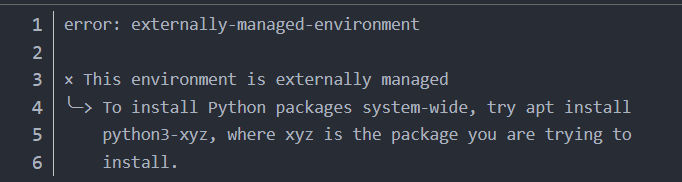
The “externally-managed-environment” error appears when you try to install Python packages using pip into a system-level Python environment that is managed by your operating system’s package manager (such as apt, dnf, or yum).
This behavior is defined by PEP 668, which introduces a mechanism for marking Python environments as externally managed.
Official reference: https://peps.python.org/pep-0668/
In simple terms:
- Your operating system uses Python as part of its core functionality.
- The OS needs strict control over which Python packages and versions are installed.
- To prevent accidental system breakage,
pipis blocked from modifying the system Python environment directly.
This protection helps keep your OS stable—but it also changes how developers should install Python packages.
Why Does This Error Happen?
Understanding the cause makes the solution much clearer.
Many Linux distributions rely on Python for:
- System utilities
- Package managers
- Background services
Because of this, the OS installs specific versions of Python packages that are tested to work together. If users were allowed to freely install or upgrade packages with pip, it could overwrite critical dependencies and break the system.
To prevent this:
- The OS marks the system Python as externally managed
pipdetects this and refuses to install packages globally- Users are encouraged to use virtual environments or OS-approved tools
With that context in mind, let’s walk through the correct ways to fix this error.
How to Fix Python Error: externally-managed-environment
Once you understand that this error is a protection mechanism, not a bug, the solution becomes much clearer. The key idea is simple:
do not install packages directly into the system-managed Python environment.
Below are the safest and most practical ways to resolve this error, starting with the recommended approach.
Quick Summary: Which Fix Should You Choose?
Before diving into the detailed solutions below, use this quick reference table to choose the most appropriate fix based on your use case.
| Scenario | Best Solution |
|---|---|
| Local development | Virtual environment |
| System-wide package | OS package manager |
| CLI tools | pipx |
| Containers / CI only | --break-system-packages |
Solution 1: Use a Virtual Environment (Recommended & Safest)
First and foremost, virtual environments are the officially recommended solution for this error. They allow you to install Python packages without touching the system Python that your OS depends on.
This method works in almost all scenarios and is suitable for both beginners and experienced developers.
Step 1: Make sure venv is installed
On Debian or Ubuntu-based systems, run:
sudo apt update

sudo apt install python3-venv
💡 Tip: Most modern Linux systems already include venv, but installing it explicitly avoids confusion later.
Step 2: Create a virtual environment inside your project
Navigate to your project directory and run:
python3 -m venv myenv
You can replace myenv with any name you prefer (for example, .venv).
❓ Why this works: This creates a completely separate Python environment that is not marked as externally managed, so pip works normally.
Step 3: Activate the virtual environment
- Linux / macOS:
source myenv/bin/activate - Windows:
myenv\Scripts\activate
After activation, your terminal prompt will show something like: (myenv) user@machine:~$
🔍 Quick check: If you don’t see the environment name in your prompt, pip will still use the system Python.
Step 4: Install packages using pip
Now you can install packages as usual:
pip install
The error will no longer appear because the installation happens inside the isolated environment.
Step 5: Deactivate when you’re done
deactivate
🔧 Best practice: Use one virtual environment per project to keep dependencies clean and reproducible.
Solution 2: Use Your OS Package Manager (When Available)
If the package you need is available through your operating system’s package repository, this is another safe and supported option.
For example, on Debian or Ubuntu:
sudo apt update

sudo apt install python3-requests
When to use this approach:
- You need system-wide availability
- The exact version is not critical
- Stability matters more than the latest release
🔶 Limitation: OS repositories often lag behind PyPI and may not include all Python packages.
Solution 3: Use pipx for Python Command-Line Tools
Next, if you are installing a Python application, not a library you import in code (for example black, httpie, or poetry), pipx is the ideal tool.
Step 1: Install pipx
sudo apt install pipx
Step 2: Install the application
pipx install
Why pipx works well:
- Automatically creates isolated environments
- Exposes commands globally
- Avoids conflicts with system Python
This method is especially popular among developers who rely on multiple Python tools.
Solution 4: Force Installation (Not Recommended, Use with Care)
You may see the error message mentioning that you can ignore the error using the `–break-system-packages` flag:
pip install --break-system-packages
While this does bypass the error, it should only be used in very specific situations.
Only consider this if:
- You are inside a Docker container
- You are running CI/CD jobs (e.g. GitHub Actions)
- The environment is disposable and non-critical
⚠️ Important warning: Using this flag on a real system can overwrite OS-managed Python packages and break system tools.
For most users, this option should be avoided.
Best Practices for Running Python Applications at Scale
Once your Python environment is correctly set up, many developers move on to automation, scraping, API integration, or multi-account workflows.
At this stage, environment isolation alone is not enough. Network stability and IP reputation also become important—especially when Python applications make large volumes of outbound requests.
In these scenarios, using stable residential or ISP proxies can help Python applications:
- Avoid IP-based rate limits
- Maintain consistent request behavior
- Run more reliably across regions
Many teams use providers like OkeyProxy, which offer high-quality residential proxies suitable for Python automation and large-scale data tasks, without interfering with environment management.
Final Thoughts
The python error: externally-managed-environment is not a bug—it’s a safety feature designed to protect your operating system. While it may seem restrictive at first, it encourages best practices that lead to cleaner, safer, and more maintainable Python workflows.
By using virtual environments, system package managers, or tools like pipx, you can fully avoid this error and keep your system stable. And once your environment is set up correctly, following best practices for scaling—both at the dependency and network level—will ensure your Python applications run smoothly in real-world scenarios.