Facebook is a crucial platform for staying in touch with friends, family, and business contacts. If you’ve ever seen the frustrating “Facebook session expired” message, you’re not alone. Many users encounter this issue, which forces them to log in again, sometimes repeatedly. But what does it mean? Why does it happen? And most importantly, how can you fix it and prevent it from happening again?
In this guide, we’ll break down everything you need to know about Facebook session expiration, how to troubleshoot the issue, and what steps you can take to avoid it in the future.
What Does “Facebook Session Expired” Mean?
The “Facebook session expired” message appears when your login session times out. This can happen due to inactivity, security checks triggered by unusual activity or location changes, browser or app issues, or routine maintenance. When this occurs, Facebook requires you to log in again to continue using your account.
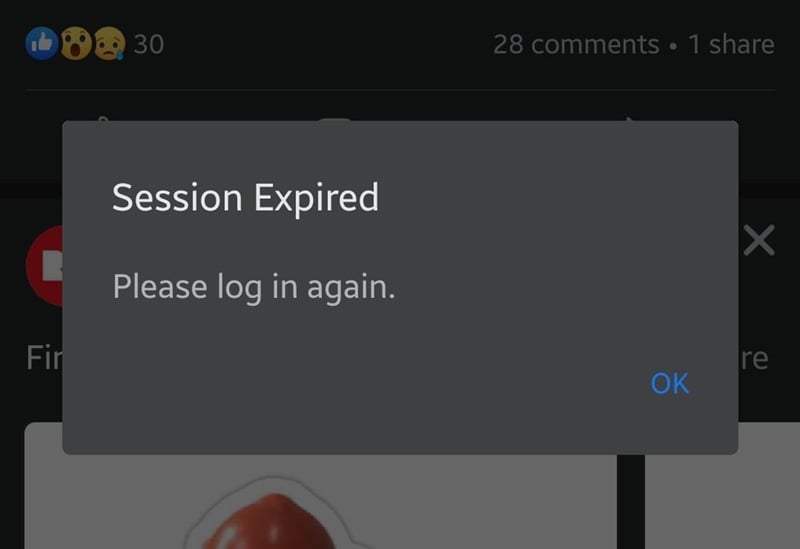
In simple terms, you might be scrolling through Facebook normally, and suddenly see the “Session expired. Please log in again.” notification, getting logged out immediately. Facebook then redirects you to the login page, asking for your credentials.
A Facebook session is essentially a temporary login period that keeps you signed in without repeatedly entering your password. However, if Facebook detects unusual activity, technical glitches, or changes in your device or network, it may invalidate the session and prompt you to log in again.
Common Signs That Your Facebook Session Has Expired
- You are unexpectedly logged out of your account.
- Facebook prompts you to re-enter your password.
- The app or website stops responding and asks you to log in again.
- You receive security notifications from Facebook about suspicious activity.
Understanding these signs can help you quickly identify when your session has expired and take the necessary steps to regain access without losing your work or progress.
Why Get Facebook Session Expired Error?
There are several reasons why Facebook might log you out unexpectedly. Understanding these causes can help you prevent the issue in the future.
1. Automatic Session Timeout
For security reasons, Facebook automatically logs users out after a certain period, especially if there has been no activity for a while. This is more common on desktop browsers than on mobile devices.
2. Facebook App or Browser Cache Issues
Corrupt or outdated cache files can cause Facebook to behave abnormally, including forcing sessions to expire.
3. Browser Extensions
Certain browser extensions can interfere with session data, causing Facebook to log you out unexpectedly.
4. Multiple Device Logins
If you log into Facebook from multiple devices at the same time, such as your phone, tablet, and laptop, Facebook might detect this as suspicious activity and log you out as a precaution, preventing unauthorized access.
5. Expired or Changed Password
If you recently changed your Facebook password but forgot to update it on all your devices, the old session will expire, and you’ll need to log in again.
6. Security Concerns (Suspicious Login Attempt)
Facebook monitors login locations and devices for unusual activity. If it detects a login from an unfamiliar location or VPN, it may log you out as a precaution.
7. VPN or Proxy Usage
Using a VPN or proxy service can sometimes trigger session expirations because Facebook detects frequent location changes, which may be flagged as unusual behavior.
💡 Tip: For safer browsing and more stable sessions, consider using a reliable proxy like OkeyProxy, which supports residential IPs and reduces the risk of session interruptions.
8. Weak or Unstable Internet Connection
An unstable internet connection can interrupt Facebook’s authentication process, causing it to end your session and log you out.
9. Auto-Logout Settings
Some browsers and security software have settings that automatically log you out of websites after a certain time for privacy reasons.
10. Facebook Updates and Glitches
Sometimes, Facebook itself may experience server problems that force users to be logged out unexpectedly. Facebook regularly updates its system, and a bug or an update can trigger Facebook session expiration. If you’re using an outdated version of the Facebook app, it might conflict with Facebook’s latest changes.
12 Best Ways to Fix “Facebook Session Expired” Issue
If Facebook keeps saying “Session expired. Please log in again.” and logs you out frequently, try these steps to restore your session and prevent future problems.
1. Check Facebook Server Status
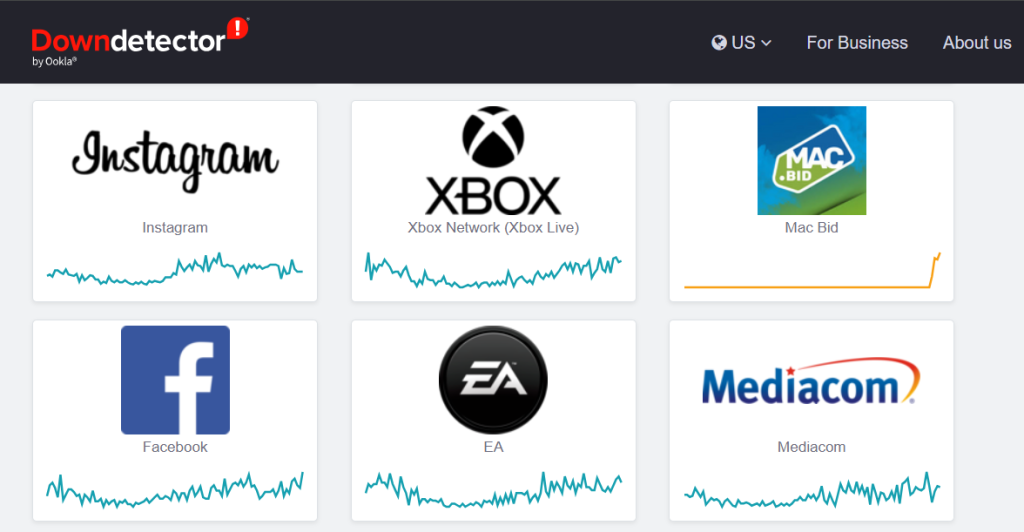
Before troubleshooting on your device, make sure the issue isn’t on Facebook’s end. Websites like Downdetector provide real-time reports on platform outages and disruptions. If Facebook is down, you may just need to wait for it to be restored.
2. Log In Again
The simplest fix is to log back into your Facebook account. If the issue was temporary, this should resolve it.
If the problem persists, move on to the next steps.
3. Clear Browser or App Cache
Clearing cache and cookies can remove corrupted files that might be causing session issues.
If you’re using Facebook on a browser:
- Chrome: Go to Settings > Privacy and Security > Clear Browsing Data. Select Cached images and files, then click Clear Data.
- Firefox: Go to Settings > Privacy & Security > Cookies and Site Data > Clear Data.
- Edge: Open Settings > Privacy, search, and services > Clear Browsing Data.
- Safari (Mac/iPhone): Go to Settings > Safari. Then, scroll down and tap Clear History and Website Data.
For the Facebook app session expired:
- Android: Go to Settings > Apps > Facebook > Storage > Clear Cache.
- iPhone: Uninstall and reinstall the app to refresh its data.
4. Update the Facebook App or Browser
Make sure you’re using the latest version of the Facebook app or browser. Updates often fix bugs that can cause session problems.
5. Restart Your Device
A simple restart can refresh your system and resolve temporary session errors. So turn off your phone or computer, wait for a few seconds and turn it back on to log in to Facebook again.
6. Check Internet Connection
A weak or unstable connection can disrupt Facebook sessions. Try switching between WiFi and mobile data to see if the problem persists.
7. Remove and Reinstall Facebook App
If you’re using Facebook on a mobile device, uninstalling and reinstalling the app can clear any corrupted data that may be causing session expirations.
8. Disactive Background Apps
If other apps are running in the background and interfering with Facebook, closing them might help prevent session expiration.
9. Disable Problematic Browser Extensions
Some browser extensions can interfere with Facebook sessions. Try disabling extensions and restarting your browser.
10. Enable “Remember Me” Option
When logging in, select the “Remember Me” checkbox to keep your session active longer.
11. Review Active Sessions and Remove
If Facebook detects unusual activity, it may log you out as a security measure. Facebook lets you manage active sessions:
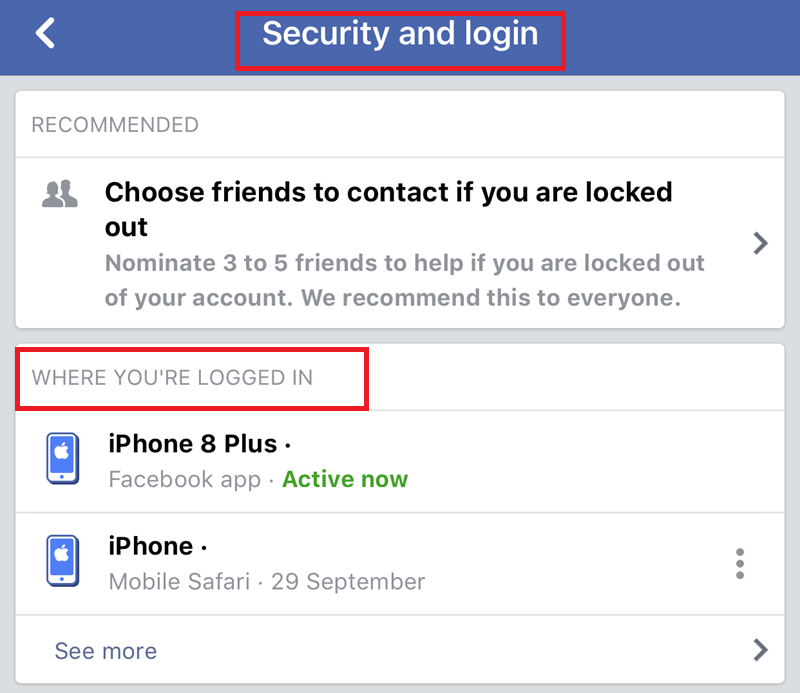
- Go to Facebook Settings > “Security and Login”.
- Check “Where You’re Logged In” to see anything suspicious.
- Log out of any unrecognized devices and change your password immediately.
12. Contact Facebook Support Team
If none of the above methods work, reach out to the Facebook Support Team for assistance. They can help troubleshoot account-specific issues or session problems.
Using a Stable & Secure Proxy to Prevent Future Session Expirations
If you’re accessing Facebook from different locations or using a VPN, your session may expire frequently. A proxy can help you maintain a consistent IP address with a stable connection, reducing Facebook’s security alerts and minimizing forced logouts.
Benefits of Proxy for Facebook:
✅ Stable Connection: Prevents Facebook from detecting frequent IP changes that might trigger session expirations.
✅ Bypass Geo-Restrictions: Helps you access Facebook from restricted regions.
✅ Secure Browsing: Protects your online privacy by masking your real IP address.
To use OkeyProxy for a better Facebook experience:
- Sign up for an OkeyProxy account.
- Choose a stable residential IP or mobile IP.
- Configure the proxy settings on your browser or device.
- Log in to Facebook and enjoy an uninterrupted session.
More Tip: Want to handle multiple accounts for social media platforms at the same time? It’s easy with proxies!
Conclusion
The “Facebook session expired” message can be annoying, but in most cases, it’s easy to fix. Whether it’s caused by security measures, browser issues, or a weak connection, by following the troubleshooting steps above, you can prevent frequent logouts and keep your Facebook session running smoothly.
If you frequently face Facebook session expirations due to changing networks or VPN usage, try OkeyProxy for a stable and secure connection. Stay connected, stay secure, and enjoy a uninterrupted Facebook experience!