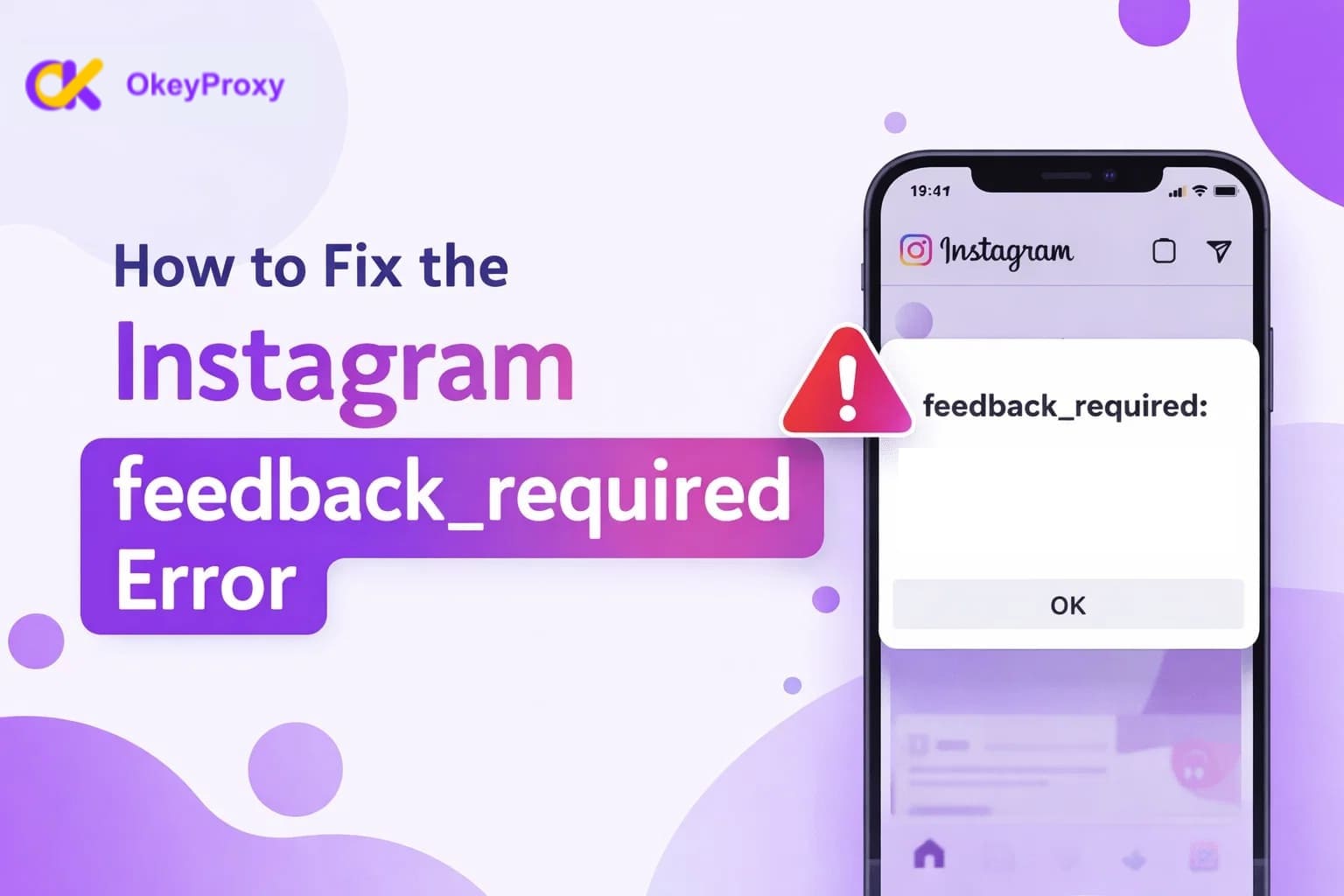
A Reddit user shared the following experience: “I’ve been getting all the usual flags from IG: ‘automated activity suspected,’ ‘something went wrong,’ getting logged out and can’t log back in because I get no confirmation code. Now I have ‘feedback_required,’ and I can’t log in at all.”
If this sounds familiar, you’re not alone. Many Instagram users—especially those managing multiple accounts or using automation—suddenly encounter the feedback_required error with little explanation. This article breaks down what the error means, why it happens, how to fix it, and how to reduce the chances of triggering it again.
Part 1: What Does feedback_required Mean on Instagram?
的"feedback_required” message on Instagram is a security warning triggered when the platform detects activity it considers suspicious or bot-like. Its purpose is to protect Instagram from spam, abuse, and automated manipulation.
When this error appears, Instagram may temporarily block actions such as:
- Logging in
- Following or unfollowing accounts
- Liking or commenting
- Sending messages
In many cases, normal users can also be affected. To verify that you are a real person, Instagram may require actions such as changing your password, logging in through the official website, clearing app data, or simply waiting for the restriction to expire.
This error often appears alongside messages like:
- “Sorry, we couldn’t complete your request. Please try again in a moment.”
- “We suspect automated behaviour on your account.”
Part 2: Common Reasons Why feedback_required Occurs
Before attempting to fix the feedback_required error, it’s important to understand why Instagram triggers this restriction in the first place. In most cases, the warning is a protective response from Instagram’s automated security systems when an account’s behavior appears abnormal, risky, or inconsistent with typical human usage patterns.

1. Rapid Actions (Following, Liking, or Commenting Too Quickly)
One of the most common triggers of the feedback_required error is performing actions too quickly, such as following accounts, liking posts, or leaving comments in rapid succession. Instagram applies internal rate limits to prevent spam and automated abuse, and when an account exceeds these thresholds, it may be temporarily restricted. Even legitimate users can trigger this error if they interact too aggressively within a short time frame, especially on newer or less-established accounts.
2. Unusual Behavior Patterns
Another frequent cause is behavior that deviates from an account’s historical usage patterns. For example, logging in from a new country, switching to an unfamiliar device, or suddenly changing activity intensity can raise red flags. Instagram continuously evaluates consistency over time, and abrupt changes may be interpreted as account compromise or unauthorized access rather than normal user behavior.
3. Repetitive Content Posting
Posting identical or near-identical comments across multiple posts or platforms is a strong signal of automation. Instagram’s systems are designed to detect repeated text patterns, as this behavior is commonly associated with spam bots. Even if the content itself is harmless, repeatedly using the same wording can still trigger the feedback_required message.
4. Multiple Login Attempts From Different Locations or Devices
Frequent login attempts from multiple devices or geographically distant locations can also result in this error. When Instagram detects rapid switches between IP addresses, devices, or regions, it may interpret the activity as suspicious or indicative of account sharing or hijacking, leading to temporary access restrictions.
5. Use of Automation Tools or Third-Party Apps
The use of third-party automation tools or bots is a well-known risk factor. These tools often generate predictable interaction patterns or reuse technical identifiers, which Instagram can detect. If you want to learn how to reduce detection risk while using automation tools, you can jump ahead to Section 4, where this topic is discussed in detail.
6. Violations of Instagram Community Guidelines
Accounts that violate Instagram’s Community Guidelines—such as posting spam, abusive language, or inappropriate content—are more likely to face temporary restrictions. In some cases, feedback_required appears as part of a broader moderation response, even if the violation was unintentional.
7. Suspicious Network or IP Changes
Frequent switching between Wi-Fi and mobile data, or using VPNs and proxy servers with poor reputations, can trigger security alerts. Instagram evaluates IP stability and reputation, and sudden or repeated network changes may be interpreted as attempts to mask identity or automate activity.
👉 提示: Using stable, high-quality 住宅 IP (like OkeyProxy) helps keep your network footprint consistent and reduces security flags 🚀
8. Instagram System or App-Related Issues
Finally, not all feedback_required errors are caused by user behavior. Using an outdated version of the Instagram app, or encountering temporary server-side issues, can sometimes result in false positives. During outages or system updates, Instagram may apply restrictions more aggressively to protect platform stability.
Part 3: How to Fix the feedback_required Error (12 Proven Ways)
Once the feedback_required message appears, the next step is to reduce risk signals and restore normal account access. The following methods focus on resolving both technical and behavioral factors that commonly contribute to this restriction.
1. Restart the Instagram App
To begin with, restarting the app can clear temporary session errors or stalled requests. In some cases, the restriction is tied to a short-lived glitch that resolves after a fresh session is initiated.
2. Clear App Cache or Data
If restarting doesn’t help, clearing cached data can remove corrupted session information.
On Android devices, this can be done via Settings → Apps → Instagram → Storage → Clear Cache.
On iOS, uninstalling and reinstalling the app effectively clears cached data while resetting the application environment.
3. Update the Instagram App
Running an outdated version of Instagram can lead to compatibility issues with current security checks. Updating to the latest version ensures that known bugs and vulnerabilities are addressed.
4. Switch Network Connections
Changing your network—such as switching from Wi-Fi to mobile data or vice versa—can help resolve IP-related flags. This step is especially useful if your current network has been temporarily restricted or flagged.
5. Check Instagram Server Status
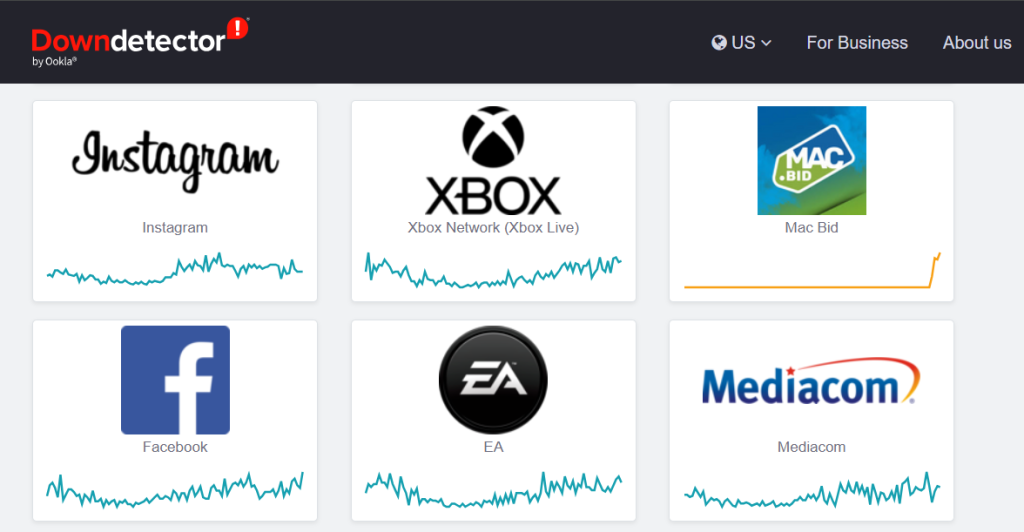
Before making further changes, it’s wise to confirm whether Instagram is experiencing broader technical issues. Websites like Downdetector can provide real-time reports on platform outages or disruptions.

6. Change Your Account Password
Resetting your password through Instagram’s official website or app can help invalidate suspicious sessions and signal legitimate account ownership to Instagram’s security systems.
7. Use Only Official Instagram Platforms
During recovery, avoid third-party apps entirely. Logging in only through the official Instagram app or Instagram.com reduces the likelihood of triggering additional security checks.
8. Log Out of All Devices and Wait
In many cases, time is a critical factor. Logging out of all devices and waiting 24–48 hours allows temporary restrictions to expire naturally without introducing new risk signals.
9. Complete Identity Verification Prompts
If Instagram requests verification—such as entering a security code or confirming your email or phone number—complete these steps promptly to demonstrate that you are a real user.
10. Review Automation or Bot Usage
If you are using automation tools, pause them immediately. Continuing automated activity while restricted can extend the duration of the feedback_required error.
11. Avoid Repetitive or Aggressive Actions After Recovery
Once access is restored, it’s important to resume activity gradually. Avoid repeating the same actions or content patterns that may have triggered the restriction initially.
12. Contact Instagram Support via Email
If the error persists for an extended period, submitting a support request to Instagram may help, although response times and outcomes can vary.
Part 4: How to Avoid feedback_required When Using Automation Tools
If you rely on automation tools, bots, or crawlers for Instagram operations, proactive risk management becomes essential. While no method guarantees complete immunity, the following practices can significantly reduce the likelihood of triggering feedback_required errors.
1. Adjust Automation Volume
Keeping automated actions well below Instagram’s known rate limits and distributing them evenly throughout the day helps maintain more natural activity patterns.
2. Avoid Repetitive Automation Behavior
Automation should mimic real user diversity. Varying timing, interaction types, and content reduces detectable patterns that are commonly associated with bots.
3. Use Unique User Agents Per Account
Each browser or device uses a unique user agent string. Instagram can detect multiple accounts operating under the same user agent, which increases automation risk. Assigning different user agents—by using separate browsers or device profiles—helps differentiate accounts.
4. Use Session Cookies to Maintain Consistency
Session cookies allow accounts to maintain stable login states, simulating real user behavior and reducing repeated authentication signals that often trigger security checks.
5. Use High-Quality Residential or Mobile Proxies
Low-quality proxies are frequently flagged due to abuse history. 高品质住宅 or mobile proxies, which use real ISP-assigned IPs, appear more natural to Instagram.
💡Looking for a reliable HTTP/SOCKS5 proxy provider?
OkeyProxy is trusted by 30,000+ global users, offering access to 150M+ real residential IPs across 200+ countries. With free country and city-level targeting, 99.8% success rate, and 99.83% uptime, it’s built to handle everything from account management to automation tasks — all with full HTTP(S) and SOCKS5 support.
👉 Start your free trial and test high-quality residential proxies today.
6. Maintain Consistent IP Addresses and Device Fingerprints
Frequent changes in IPs or device fingerprints can increase suspicion. Stability over time is often safer than excessive rotation.
7. Gradually Warm Up New Accounts
New accounts are especially sensitive. Starting with minimal activity and slowly increasing engagement over time helps establish a trustworthy usage pattern.
Part 5: How Long Does the feedback_required Error Last?
The duration depends on how risky Instagram considers your activity.
Factors affecting recovery time:
- Severity and frequency of suspicious actions
- Whether automation tools are still active
- IP reputation and network stability
- Account age and history
Typical duration:
- A few hours for minor triggers
- 24–72 hours for moderate cases
- Several days for repeated or high-risk behavior
Signs the error is resolved:
- Login works normally
- Actions (likes, follows) are restored
- No new warning messages appear
最终想法
"(《世界人权宣言》) feedback_required error is Instagram’s way of saying, “Something doesn’t look right.” While it can be frustrating, it’s usually temporary and fixable. Understanding what triggers it—and adjusting your behavior, tools, and network setup accordingly—goes a long way toward keeping your account stable.
Whether you’re a casual user or managing accounts at scale, consistency, moderation, and high-quality infrastructure are key to staying under Instagram’s radar.