Imagine you want to send a birthday card to a friend. To make sure it arrives, you need two things: their address (the street and city) and their apartment number. Without these, the mailman is just driving in circles.
In the digital world, the internet works the same way. When you want to visit a website or use a proxy, your computer needs a specific “address” to find that server. If you’ve ever found yourself asking, “What is proxy hostname and where do I find it?”, you aren’t alone. Simply put, that address is your Proxy Hostname.
Think of the Proxy Hostname as the digital door to your proxy server. It’s the “nickname” or domain name that tells your computer exactly where to go. Today, we’re going to pull back the curtain and explain everything you need to know about proxy hostnames—from why they matter to how you can set them up in seconds. 🚀
Understanding the Role of a Proxy Hostname in a Connection
When you configure a proxy, you’ll usually see a few required fields. Together, these are the core building blocks of any proxy connection—the essentials that tell your device where to connect, how to connect, and whether it’s allowed in:
- Hostname (The Address): This is the human-readable address of the proxy server, such as
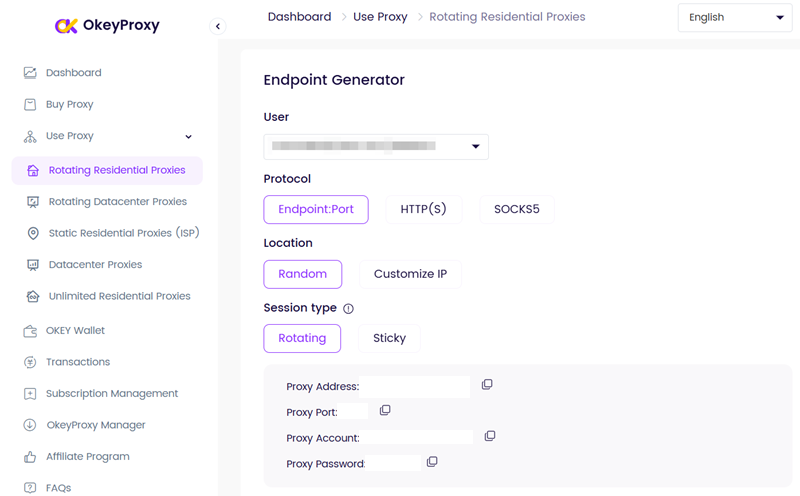
your-hostname.okeyproxy.com. It tells your device which proxy network to talk to. - Port (The Gate): The port (for example, 8000 or 10000) specifies the exact entry point on that proxy server that handles your traffic.
- Credentials (The Key): Your username and password authenticate you and define what type of proxy access you’re allowed to use (residential, rotating, static, region, etc.).
How It Works Behind the Scenes
When you enter a proxy hostname into your browser, scraper, or automation tool, your device doesn’t immediately know the physical location of that server.
Instead, it performs a DNS lookup. The Domain Name System translates the hostname (like your-hostname.okeyproxy.com) into one or more IP addresses that computers can route traffic to. This process happens automatically and usually takes only milliseconds.
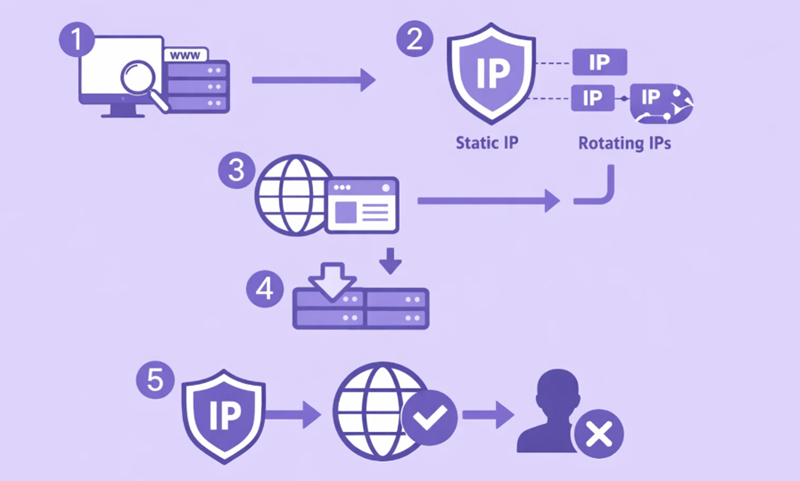
From there:
- ① Your request is sent to the proxy server identified by the hostname
- ② The proxy assigns an appropriate IP (static or rotating, depending on your plan)
- ③ The request is forwarded to the target website
- ④ The response comes back through the same proxy route
- ⑤To the destination website, the traffic appears to come from the proxy IP—not your real one.
Key Aspects of a Proxy Hostname
Structure
A proxy hostname typically looks like a standard domain name, for example:
us-residential.okeyproxy.com or rotating.proxyprovider.net
(Some providers also encode region or proxy type directly into the hostname.)
Function
A proxy hostname acts as a stable, permanent access point. Even if the provider changes IPs, rotates millions of addresses, or upgrades backend infrastructure, the hostname remains the same—so your configuration never needs to change.
Purpose & Use Cases
This design is especially important for scenarios like:
- Web scraping and crawling – where IPs must rotate automatically without breaking scripts
- Bypassing geo-restrictions – one hostname can dynamically assign IPs from specific countries or cities
- Large-scale automation – managing hundreds or thousands of concurrent sessions without manually handling IP lists
In short, a proxy hostname abstracts away complexity. You connect once, and the proxy provider handles routing, rotation, and IP management behind the scenes.
Proxy Hostname vs. Proxy IP Address
Many beginners get confused: “Should I use the Hostname or the IP address?”
While both lead to the same destination, they are built for different purposes. An IP Address is a raw set of numbers. A Hostname is a user-friendly name that points to those numbers.
The Comparison Table
| Feature | Proxy Hostname (Domain) | Proxy IP Address (Numeric) |
|---|---|---|
| Format | Words (e.g., your-hostname.okeyproxy.com) |
Numbers (e.g., 45.12.33.1) |
| Stability | ⭐⭐⭐⭐⭐ (Very Stable) | ⭐⭐ (May change frequently) |
| Memorability | Easy to remember | Impossible to remember |
| Automatic Updates | Yes! Provider handles it. | No. You must update manually. |
| Recommended for | Everyone (Best for daily use) | Technical / Legacy setups |
For 99.9% of users, Proxy Hostnames are the superior choice. They offer flexibility and ensure your connection doesn’t “break” just because the provider moved a server to a new rack.
Different Types of Proxy Hostnames
Not all proxy hostnames work the same way. Depending on your use case—casual browsing, data scraping, or large-scale automation—you’ll encounter several common types.
🌐 Public Proxy Hostnames
These are typically found on free proxy lists and are open to anyone.
The Reality:
While easy to access, public proxy hostnames usually point to heavily shared and under-maintained proxy servers. Thousands of users route traffic through the same limited pool of IPs and bandwidth, which often leads to:
- Slow speeds
- Frequent disconnects
- High risk of IP bans, malware, or traffic logging
They’re fine for quick testing—but risky for anything serious.
🔒 Private (Authenticated) Proxy Hostnames
Private proxy hostnames require authentication (username/password or IP whitelist) and are only accessible to authorized users.
The Reality:
These hostnames route your traffic through controlled and cleaner proxy infrastructure, offering:
- More stable connections
- Better speed consistency
- Safer environments for social media management, account operations, or business automation
While not always fully “dedicated,” resource contention is drastically reduced compared to public proxies.
🔄 Rotating Proxy Hostnames (The “Smart Routing” Domain)
This is where proxy hostnames really shine.
With a rotating proxy hostname, a single domain (for example, your-hostname.okeyproxy.com) acts as a gateway to a massive pool of IP addresses. Behind the scenes, the provider automatically assigns a new IP based on predefined rules—per request, per session, or at timed intervals.
Why use a hostname for rotation?
Because managing thousands—or millions—of individual IPs manually would be impossible. One smart hostname handles:
- IP rotation
- Load balancing
- Failover and replacement
- Geographic targeting
All without you changing a single setting.
This makes rotating proxy hostnames the industry standard for web scraping, bypassing geo-restrictions, and running large-scale automated tasks efficiently.
Common Issues: When Your Proxy Hostname Isn’t Working
Is your connection failing? Don’t toss your laptop out the window just yet. 😅
In most cases, the problem comes down to one of these common issues:
❌ DNS Errors (The “Can’t Find the Address” Problem)
This happens when your device can’t resolve the proxy hostname into an IP address.
Common causes include:
- Corrupted or outdated DNS cache
- ISP or corporate DNS interference
- Temporary network instability
Fix:
Double-check your internet connection, then try flushing your DNS cache or switching to a public DNS resolver (like Google or Cloudflare).
🔥 Firewall or Network Blocking
Some office, school, or public networks actively detect and block proxy-related traffic—especially when they recognize known datacenter IP patterns.
Fix:
Use a residential proxy hostname, which routes traffic through real home IPs and blends in as normal user activity. This makes it far harder for firewalls to identify and block your connection.
If that still fails, try switching ports or networks.
⌨️ The Classic “Fat Finger” Typo
It sounds silly, but this is incredibly common. An extra space, a missing dot, or a mistyped subdomain is all it takes to break a proxy connection.
Fix:
Copy and paste your proxy hostname directly from the dashboard.
Quick Tip for Setup: Always copy your hostname directly from your OkeyProxy dashboard to avoid typos, and ensure you’ve whitelisted your local IP if your provider requires it.
Why You Should Choose a Reliable Proxy Provider
Here’s the reality: a proxy hostname is only as reliable as the infrastructure behind it.
Many free or public proxies rely on unstable, poorly maintained endpoints that can disappear without warning. There’s no SLA, no traffic protection, and no guarantee your connection—or your data—won’t be interrupted or monitored. In contrast, choosing a professional provider means you’re not just getting a hostname—you’re getting a managed, secure access layer.
🌟 Why OkeyProxy?
At OkeyProxy, our proxy hostnames are designed to be intelligent entry points, not fragile endpoints. When you connect through an OkeyProxy hostname, you gain access to:
- 150M+ Real Residential IPs: Traffic is routed through genuine household IPs, helping you avoid datacenter fingerprints that often trigger blocks or bans.
- Fast Connection Establishment (~0.6s average): Our DNS resolution, routing paths, and session handling are optimized together, so your proxy hostname connects quickly and consistently.
- 99.9% Uptime with Automatic Failover: Each hostname is backed by a distributed server architecture. If one node becomes unavailable, traffic is seamlessly rerouted—no manual changes, no downtime.
Stop fighting dead endpoints and unstable IPs. Choose OkeyProxy Residential IPs and connect through a proxy hostname you can actually rely on.
How to Find and Use Your Proxy Hostname?
In practice, using a proxy hostname is much simpler than it sounds—it usually comes down to placing it in the right settings panel on your device or application.
Ready to get started? Here is where to put that Hostname on your devices.
🖥️ On Windows 10/11
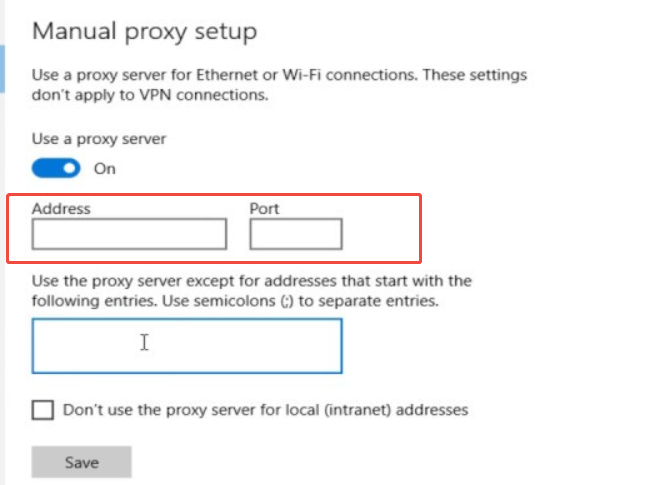
Step 1: Go to Settings > Network & Internet > Proxy.
Step 2: Under “Manual Proxy Setup,” toggle Use a Proxy Server to ON.
Step 3: Enter your Proxy Hostname in the “Address” box and the Port next to it.
Step 4: Hit Save. (A pop-up will ask for your Username/Password when you open a browser).
🍎 On macOS
Step 1: Go to System Settings > Network > Wi-Fi (or Ethernet).
Step 2: Click Details > Proxies.
Step 3: Toggle “Web Proxy (HTTP)” or “SOCKS Proxy” and enter the Hostname and Port.
🌐 In Browsers (Chrome/Firefox)
While you can use system settings, most pros use extensions like SwitchyOmega. You just paste the Hostname into the extension’s “Server” field, and you can switch proxies with one click.
🕵️ In Anti-detect Browsers (AdsPower, Multilogin)
If you are managing multiple accounts:
- Create a “New Profile.”
- Under “Proxy Settings,” select the protocol (HTTP/SOCKS5).
- Paste the Hostname into the Host field.
How to Test If a Proxy Hostname Is Working
Not sure whether your proxy hostname is actually taking effect? The fastest way to confirm is by checking your public IP address.
Step 1: Visit an IP-checking site
Open a browser and go to a reliable IP detection tool such as ipinfo.io.
Step 2: Compare the location results
If the reported IP address and location match your proxy settings—
for example, you’re physically in New York, but the site shows a UK or London-based IP—then your proxy hostname is working correctly.
Pro Tip:
For rotating residential proxies, the IP and location may change between refreshes. This is normal and actually confirms that the hostname is routing your traffic through a rotating IP pool.
Conclusion
A Proxy Hostname is more than just a string of words—it’s the key to a faster, safer, and more flexible internet experience. By choosing a Hostname over a raw IP, you’re choosing a setup that grows with you and handles the technical “heavy lifting” automatically.
Ready to see what a world-class Hostname can do? Explore OkeyProxy’s 200+ Location Options and take control of your digital identity today!