Using a proxy for Windows has become increasingly common, whether for privacy protection, accessing geo-restricted content, web scraping, SEO monitoring, or managing multiple accounts. Windows provides built-in proxy settings, but many users are unaware of how they work, their limitations, or how to choose the right proxy service.
In this guide, we’ll explain what a Windows proxy server is, how to set it up on Windows 10 and 11, where to get reliable proxies, and how SOCKS5 proxies work on Windows systems.
What Is a Windows Proxy Server?
A Windows proxy server acts as an intermediary between your device and the internet. Instead of connecting directly to a website, your network traffic is routed through a proxy server, which replaces your real IP address with another one before accessing the target site.
In practice, using a proxy for Windows allows you to:
- Hide your real IP address and enhance online privacy
- Bypass geo-restrictions, ISP blocks, or network firewalls
- Access region-specific content or services
- Test websites and applications from different locations
- Manage multiple sessions or accounts more safely
- Support tasks like web scraping, SEO monitoring, and automation
Common Types of Proxy Servers for Windows
Proxy servers are offered in various types to suit different use cases:
- Public vs. Private Proxies: Public proxies are widely available but often slower and less secure, while private proxies (including residential and ISP proxies) are more reliable and safer for sensitive tasks.
- Free vs. Paid Proxies: Free proxies offer basic functionality but often come with limited speed, reliability, and security. Paid services, on the other hand, provide more robust features, higher anonymity, and faster speeds.
- Local Proxy Software: Some users prefer to run their own proxy server on their computer. This type of setup allows for full control over the proxy environment and is particularly useful for users who need a local proxy for specific tasks.
🎁 Bonus: OkeyProxy’s residential proxies deliver exceptional speed, security, and scalability, making them the ideal choice for users requiring reliable, high-performance connections. Start your free trial today!
Each type of proxy server has its advantages and trade-offs, depending on your needs—whether you’re looking for privacy, speed, or scalability.
Windows allows proxy configuration at the system level, meaning supported applications will automatically follow the proxy rules you set. However, advanced use cases may require applications or tools that offer deeper proxy control beyond Windows’ native settings.
How to Set Up a Proxy Server on Windows 10 / 11
Configuring a proxy for Windows is straightforward on modern systems. Windows 10 and Windows 11 use the same proxy settings interface, allowing you to configure a Windows proxy at the system level through the Settings app.
Follow the steps below to properly configure a Windows proxy based on your needs.
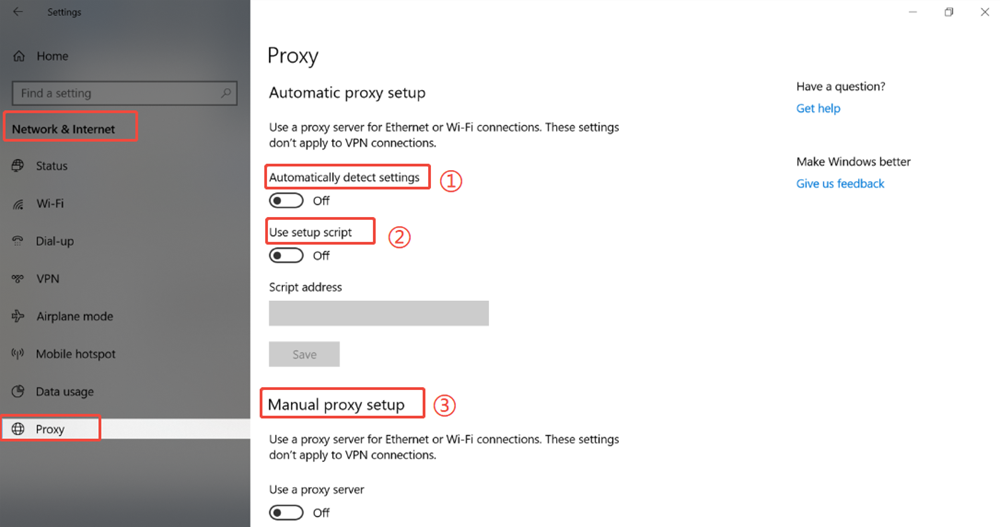
Step 1: Open Windows Proxy Settings
1. Click Start → Settings
2. Go to Network & Internet
3. Select Proxy from the left-hand menu
This is the main control panel for managing a proxy on Windows 10 or Windows 11.
Step 2: Choose a Proxy Configuration Method
Windows offers three ways to configure a proxy server:
- Automatically detect settings
- Use setup script
- Manual proxy setup
Each option serves different use cases.
Option 1: Automatically detect settings (WPAD)
Under Proxy settings, enable Automatically detect settings.
When enabled, Windows uses Web Proxy Auto-Discovery Protocol (WPAD) to detect authorized proxy settings on the network automatically.
When to use it:
- Common in corporate or school networks
- Managed IT environments with enforced proxy policies
⚠️ Note: If you’re using a personal computer or a third-party proxy service, it’s recommended to turn this option off and configure the proxy manually to avoid conflicts.
Option 2: Use a Proxy Setup Script (PAC File)
If your proxy provider or organization supplies a PAC file URL, follow these steps:
1. Enable Use setup script
2. Enter the PAC file address (URL)
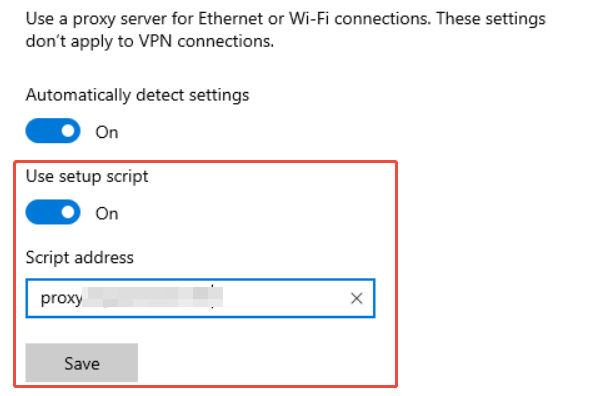
3. Click Save
Windows will automatically import proxy rules from the script.
Best for:
- Advanced routing rules
- Enterprise proxy configurations
- Dynamic proxy switching based on destination
Option 3: Manual Proxy Configuration (Most Common)
This is the most widely used method for personal users and proxy services.
1. Enable Use a proxy server
2. Enter the proxy server address (IP or hostname)
3. Enter the port number
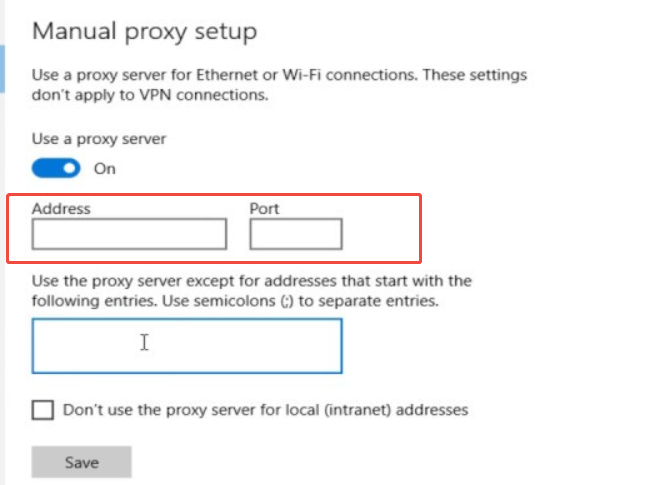
4. (Optional) Add exceptions for specific websites
- Enter addresses that should bypass the proxy
- Separate multiple entries with semicolons (;)
5. (Optional) Enable “Don’t use the proxy server for local (intranet) addresses”
- Recommended for corporate or private networks
- Prevents internal traffic from going through the proxy
6. Click Save
Your Windows proxy is now active.
Step 3: Verify the Proxy Connection
After configuring the proxy on Windows:
- Open a browser and visit an IP-checking website
- Confirm that your IP address matches the proxy location
- Test internet connectivity to ensure everything works correctly
If pages fail to load, double-check the proxy address, port, and authentication details.
How to Get a Proxy Server for Windows
To use a proxy for Windows, you first need access to a reliable proxy provider. Not all proxies work well with Windows system settings, especially for professional use cases. This is where services like OkeyProxy stand out.
OkeyProxy is a premium proxy provider offering:
- 150M+ real IPs across 200+ regions
- Session control & global targeting
- HTTP(S) & SOCKS5 protocols
- High stability for Windows-based tasks like scraping, automation, SEO monitoring, and account management
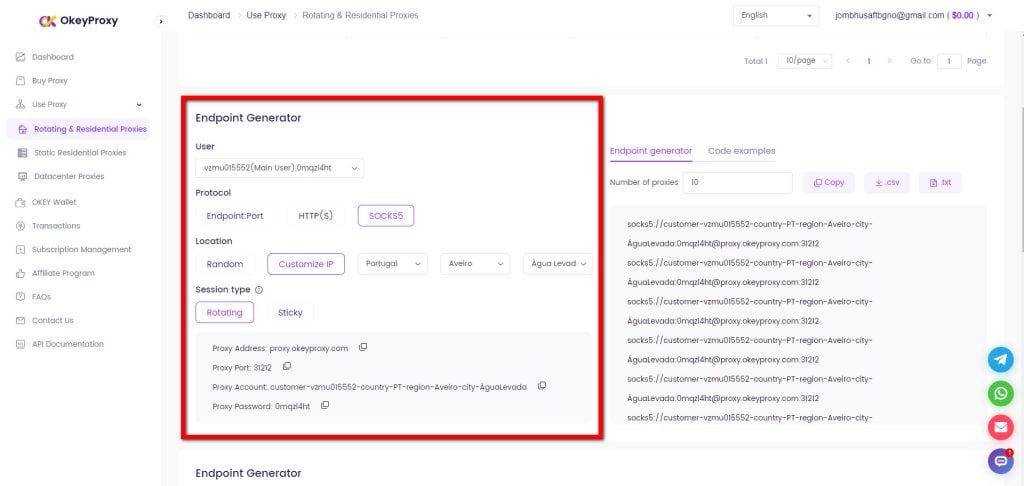
OkeyProxy is often chosen by users who need stable, low-risk IPs that work reliably on Windows systems, especially for long-term or professional use. It features a user-friendly dashboard where you can obtain the corresponding proxy addresses and ports for each type within the endpoint generator.
How to Set Up a Proxy on Older Versions of Windows
If you’re using older versions of Windows, such as Windows 7, Windows 8, or earlier editions, proxy settings are configured through the Control Panel rather than the modern Settings app.
Follow the steps below to configure a proxy on legacy Windows systems.
Step 1: Open Internet Options
1. Go to Control Panel
2. Select Network and Internet
3. Click Internet Options
This opens the Internet Properties window, where system-wide proxy settings are managed.
Step 2: Access LAN Settings
1. In the Internet Properties window, switch to the Connections tab
2. Click LAN settings
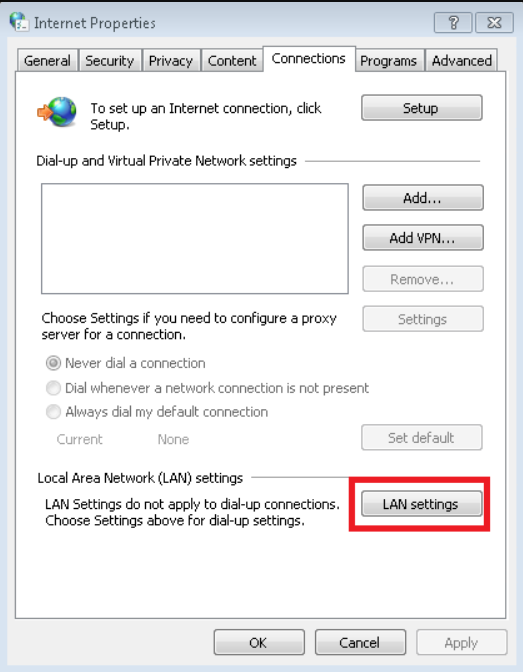
Here, you’ll find the core proxy configuration options for your local network.
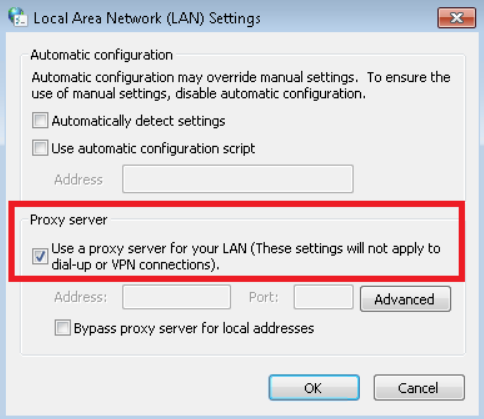
Step 3: Enable and Configure the Proxy Server
1. Check “Use a proxy server for your LAN”
2. Enter the proxy address and port number in plain text
3. (Optional) Enable “Bypass proxy server for local addresses”
- Recommended for internal or private networks
- Allows intranet traffic to connect directly without going through the proxy
Step 4: Advanced Proxy Settings (Optional)
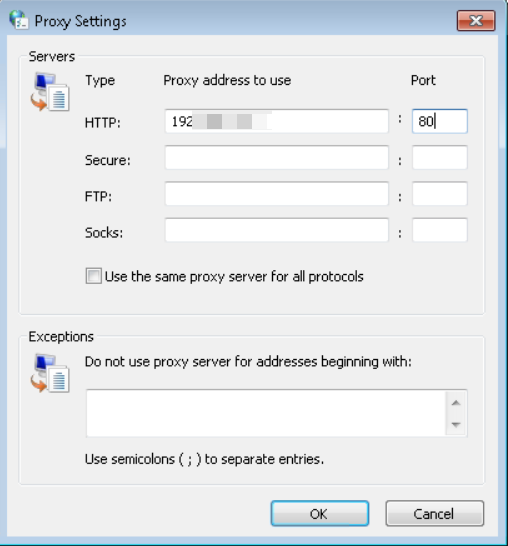
For more detailed configuration, click Advanced.
In the Advanced window, you’ll see two sections: Servers and Exceptions.
Servers
Specify different proxy addresses for each protocol:
- HTTP
- Secure (HTTPS)
- FTP
- Socks
⚠️ Important Note: The Socks field here refers to SOCKS4, not SOCKS5. Native Windows proxy settings on older systems do not fully support SOCKS5, especially for advanced features like UDP or IPv6.
Exceptions
1. Enter website addresses that should not use the proxy
2. Separate multiple entries with semicolons (;)
This is useful for excluding trusted domains or internal services.
Step 5: Save and Verify
1. Click OK to save all changes
2. Restart your browser
3. Visit an IP-checking website to confirm the proxy is active
If the proxy is configured correctly, your external IP address should reflect the proxy server location.
Quick Tip: Because older Windows versions lack modern SOCKS5 and system-wide tunneling support, users who require advanced proxy features (such as full SOCKS5, IPv6, or application-level control) often rely on third-party proxy tools or browsers instead of native settings.
Does Windows Support SOCKS5 Proxies?
Yes, Windows does support SOCKS5 proxies, but with important limitations. At the system level, Windows only provides basic SOCKS5 configuration, mainly for TCP traffic. Advanced SOCKS5 features are not fully supported, including:
- UDP traffic
- Full IPv6 routing
- Global proxy enforcement for all apps
Because of this, many users rely on:
- Third-party proxy tools
- SOCKS5-compatible browsers
- Command-line tools
- Applications with built-in SOCKS5 support
If you need global SOCKS5 proxy support, or advanced features like UDP and IPv6, combining a quality SOCKS5 provider (such as OkeyProxy) with third-party software is usually the best solution.
How to Disable Proxy Settings on Windows
If you no longer need a proxy or want to troubleshoot connection issues, disabling it is quick and easy. The path to disable a proxy is the same as enabling it.
Steps to Disable a Proxy on Windows
1. Go to Settings → Network & Internet → Proxy
2. Turn off all proxy-related options:
- Automatically detect settings
- Use setup script
- Use a proxy server
3. Close the settings window to apply the changes.
Once all proxy options are disabled, Windows will restore a direct internet connection without routing traffic through a proxy server.
Common Windows Proxy Server Errors and Fixes
When using a proxy for Windows, you might encounter a few common errors. Here’s a quick guide to help you resolve them:
1️⃣ “Proxy Server Cannot Be Found” Error
Cause: Your device is unable to reach the proxy server.
Fix:
- Double-check proxy settings (server address and port).
- Ensure a stable internet connection.
- Try a different proxy server if the current one is down.
2️⃣ “Connection Timed Out” Error
Cause: The proxy server is taking too long to respond.
Fix:
- Switch to a faster proxy server.
- Check your internet speed and network connection.
- Disable VPN if using one alongside the proxy.
3️⃣ “Access Denied” Error
Cause: Proxy server is rejecting your connection, often due to incorrect credentials.
Fix:
- Verify proxy credentials (username and password).
- Confirm proxy settings are correct.
4️⃣ “Proxy Server Refused Connection” Error
Cause: Proxy server not accepting connections, possibly due to overload.
Fix:
- Try a different proxy server or check if the current one is operational.
- Recheck proxy server details in your settings.
5️⃣ Slow Internet Speed with Proxy
Cause: Proxies can slow down connection speeds due to server distance or high load.
Fix:
- Use a faster proxy for Windows or switch to a closer server.
- Upgrade to a paid proxy service for better speeds.
6️⃣ “Proxy Authentication Required” Error
Cause: Proxy server needs authentication, but no valid credentials were provided.
Fix:
- Enter the correct credentials for your proxy server.
By following these simple steps, you can quickly resolve proxy for Windows issues and get back to a smooth browsing experience. If the issue persists, consider reaching out to your proxy provider or switching to a more reliable service like OkeyProxy.
Final Thoughts
Using a proxy for Windows is a powerful way to improve privacy, bypass restrictions, and manage online tasks more efficiently. Windows offers built-in proxy settings, but understanding their limitations—especially for SOCKS5—is essential.
For users who need stability, flexibility, and professional-grade IPs, choosing a reliable proxy provider and combining it with the right Windows configuration makes all the difference. With the correct setup, proxies on Windows can be both secure and highly effective.