
A proxy server acts as a middleman between your device and the internet. It hides your real IP address and can improve privacy, unlock content, or manage internet usage. But sometimes, you need to know how to find proxy server address — whether for troubleshooting, configuration, or switching to a better proxy provider.
In this simple guide, we’ll show you how to check proxy settings and find your proxy server’s IP address on Windows, Mac, iPhone, Android, and even inside your browser. Plus, we’ll show you a smarter alternative to manual setup — using OkeyProxy to get secure and reliable proxy IPs instantly.
What Is a Proxy Server Address? 🔎
A proxy server is an intermediary server that routes your internet traffic. When you access a website through a proxy, your request first goes to the proxy server, which then forwards it to the website. This masks your IP address and location.
A proxy server address is simply how you (or your device) identify that middleman server. It usually comes in one of these formats:
- IP address + port — e.g.
192.168.1.10:8080. This is the most common format on desktop and mobile devices. - Hostname + port — e.g.
proxy.company.com:3128, often used on corporate networks. - Protocol prefix + address — e.g.
http://,https://, orsocks5://in front of the IP, which tells apps which proxy protocol to use.
🤔 Why would you need to find it? A few common reasons:
- To troubleshoot slow or failed internet connections
- To manually enter proxy details into an app, game, or scraping tool
- To confirm which proxy (and location) you’re actually connected to
- To double-check your proxy is working before browsing something sensitive
- To migrate your settings when switching to a new proxy provider
And here are the classic reasons people use a proxy server in the first place:
- To hide your real IP address
- To access geo-restricted content
- To bypass internet censorship or blocks
- To enhance online anonymity and security
- To manage or monitor internet usage in organizations
To see which type of proxy server meets your needs, read more about SOCKS4 VS SOCKS5 and HTTP proxy server.
Now, let’s explore how to find the IP address of a proxy server if you’re already connected to one. 👇
How to Find Proxy Server IP Address on Windows 🖥️
Method 1: Using Windows Settings
- Go to Start > Settings.
- Click Network & Internet.
- Choose Proxy from the sidebar.
- Under Manual proxy setup, check the Address and Port fields.
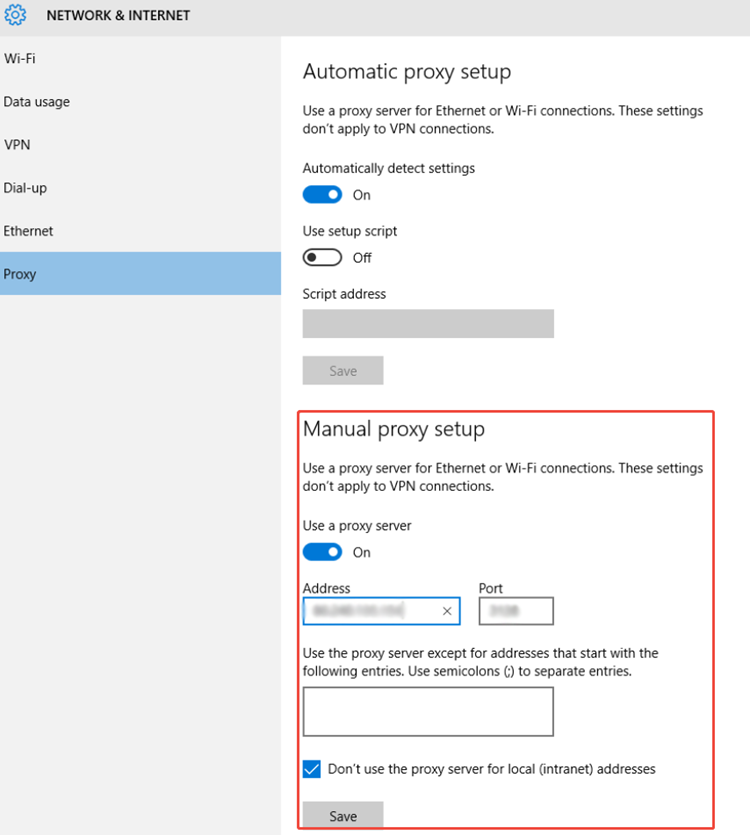
This shows your current proxy server’s IP address and port number.
Method 2: Using Command Prompt
- Press Windows + R, type
cmd, and hit Enter. - Type
netsh winhttp show proxyand press Enter.
This command will display proxy information if any is configured. ⚡ Handy tip: Windows actually keeps two separate proxy lists — one for your browser (WinINet) and one for background system services (WinHTTP) — so if an app can’t connect even though Chrome works fine, this is the command to check.
How to Find Proxy IP Address on Mac 🍎
- Click the Apple icon and select System Settings or System Preferences.
- Go to Network.
- Select your active connection (Wi-Fi or Ethernet).
- Click Details or Advanced.
- Go to the Proxies tab.
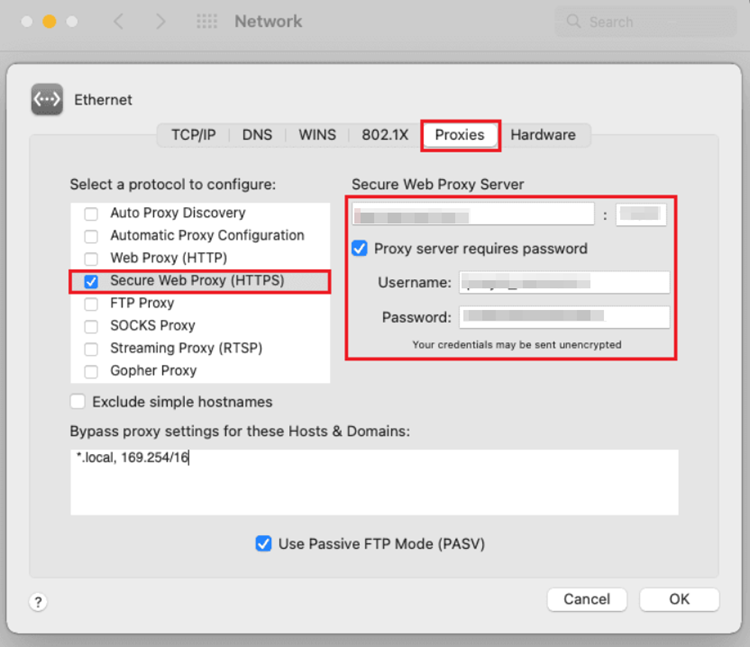
Here, you’ll see if a proxy is being used and the IP address and port number. Mac also lets you check this from Terminal — just run networksetup -getwebproxy Wi-Fi (swap “Wi-Fi” for your active network service name if different).
How to Find Proxy Server on iPhone/iPad 📱
- Open Settings.
- Go to Wi-Fi.
- Tap the “i” icon next to your connected network.
- Scroll down to HTTP Proxy.
- If it’s set to Manual, you’ll see the IP address and port.
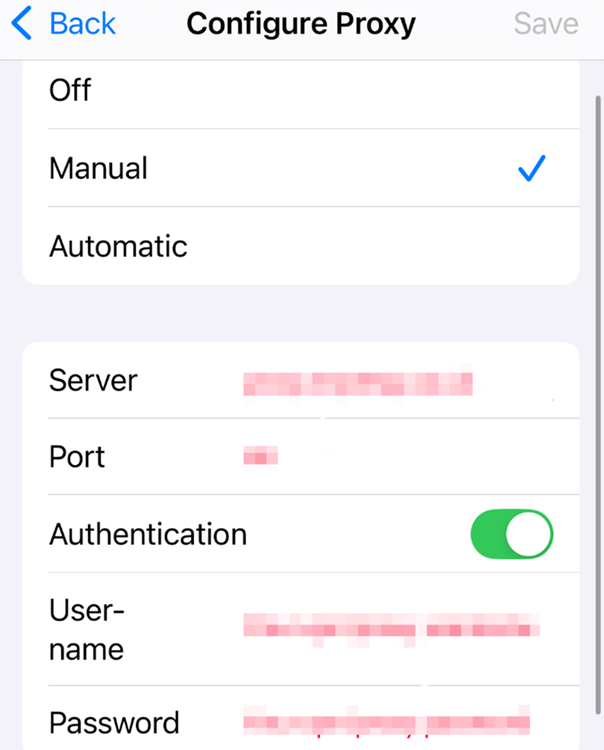
If it’s set to Auto, the proxy is configured using a URL instead of a plain IP address — see the note below. ⬇️
How to Find Proxy Server on Android 🤖
- Go to Settings.
- Tap Network & Internet > Wi-Fi.
- Tap the gear icon next to your Wi-Fi network.
- Tap Advanced, then Proxy.
- If it’s set to Manual, you’ll see the IP address and port.
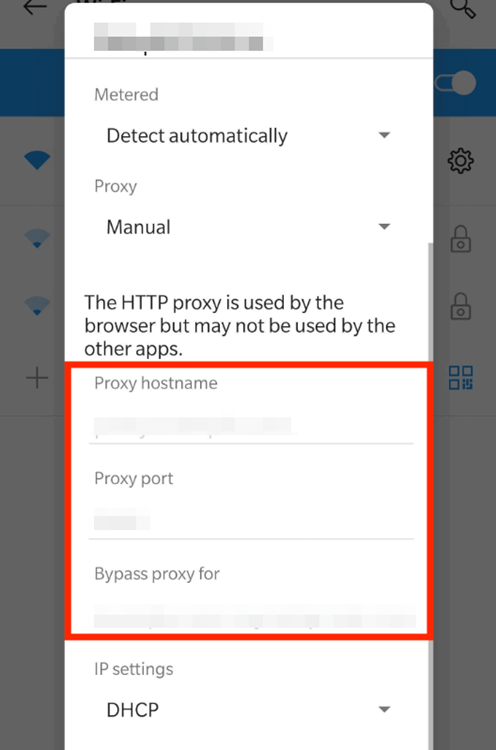
Remember, most proxy settings on Android only apply to the current Wi-Fi network.
📌 Good to know: If your proxy is set to Auto-config (PAC) on any device — Windows, Mac, iPhone, or Android — you won’t see a plain IP address at all. Instead, you’ll see a script URL (something like
http://proxy.example.com/proxy.pac). That’s normal: the actual proxy IP is defined inside the script and can even change depending on which website you’re visiting, so there may not be a single fixed address to find.
How to Find Proxy Server Address in Your Browser 🌐
Most browsers don’t keep their own proxy settings — they simply borrow whatever is configured at the operating system level, which is why the steps above already cover them in most cases.
Chrome, Edge & Safari
These browsers inherit your OS proxy configuration. In Chrome or Edge, go to Settings > System > Open your computer’s proxy settings — this simply opens the same Windows or Mac panel described above. Older articles mention chrome://net-internals/#proxy, but Google has since removed that page, so it’s no longer a reliable way to check.
Firefox (the exception)
Firefox is different: it manages its own independent proxy settings, separate from your OS. To check it:
- Open Firefox and click the menu (☰) > Settings.
- Scroll to Network Settings and click Settings….
- If Manual proxy configuration is selected, you’ll see the address and port right there.
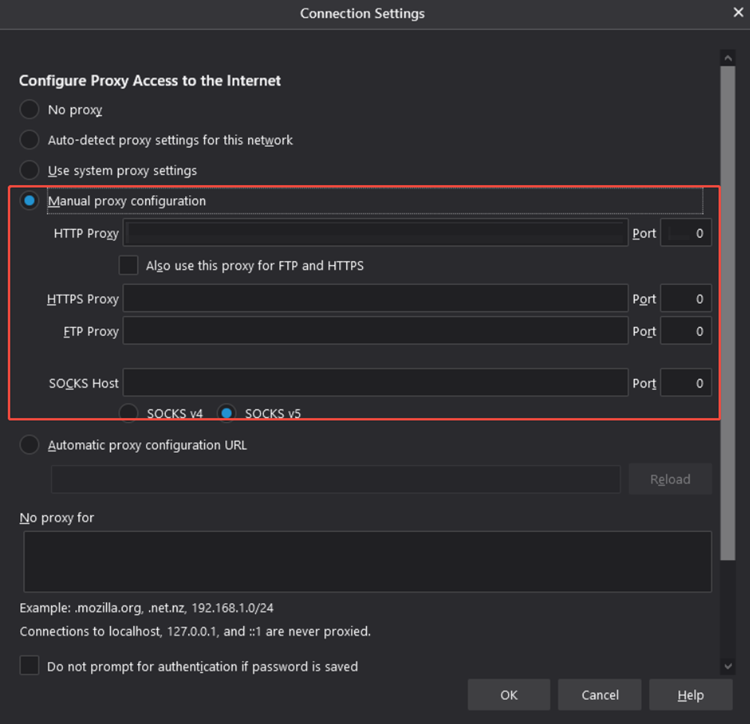
This makes Firefox a handy cross-check tool: if Firefox shows no proxy but Chrome seems to be routed through one, the proxy is likely coming from your system settings or a browser extension rather than Firefox itself.
Advanced Ways to Find a Proxy Server Address 🛠️
If the manual settings don’t tell you the full story — or you want to confirm a proxy is actually active, not just configured — try these:
- Third-party IP lookup tools: Sites like ipinfo.io or whatismyipaddress.com show the IP address, ISP, and location your traffic appears to come from — useful for confirming your proxy is really masking your real IP.
- Browser DevTools: Open the Network tab, load any page, and inspect the request headers for entries like
ViaorX-Forwarded-For. Note: many HTTPS proxies strip these headers, so this method isn’t foolproof. - Command-line checks: On Windows,
reg query "HKCU\Software\Microsoft\Windows\CurrentVersion\Internet Settings" /v ProxyServershows the browser-level proxy. On Mac/Linux,curl -v https://example.comcan reveal proxy-related connection details.
These methods are great for verification, but they’re extra steps most people shouldn’t need every time — which is exactly the kind of hassle a good proxy dashboard eliminates. 👇
What If You Have Multiple Proxy Servers Configured? 🧩
It’s common to end up with more than one proxy defined at once — for example, separate entries for HTTP, HTTPS, and SOCKS on Mac’s Proxies tab, or a browser extension proxy running alongside your system proxy. A few things worth knowing:
- Different protocols (HTTP vs. HTTPS vs. SOCKS) can each point to a different address, so check every tab, not just one.
- When multiple sources are active, there’s usually a priority order — an extension-set proxy in Chrome typically overrides the OS-level proxy, and Firefox ignores the OS proxy entirely in favor of its own settings.
- On corporate or school networks, traffic may pass through a chain of proxies, so the address you find on your device might just be the first hop, not the final one.
If this sounds like a lot to track manually across devices, that’s exactly the problem OkeyProxy was built to solve. 😌
Why Manually Finding Proxy IP Isn’t Always Ideal ⏳
Manually checking proxy settings can be time-consuming, especially when managing multiple devices or rotating IPs for tasks like scraping, SEO, or accessing geo-restricted content. Worse, using random free proxies may expose your data to risk or cause IP bans.
💡 That’s where OkeyProxy comes in!
The Smarter Way: Use OkeyProxy for Reliable IPs 🚀
OkeyProxy is a trusted proxy provider offering fast, secure, real residential proxies — so you get a working proxy address the moment you need one, instead of hunting for it across five different settings menus.
Top Reasons to Use OkeyProxy:
- Static & Rotating Residential IPs — Avoid bans and enjoy high anonymity. 🛡️
- Location Targeting — Choose IPs from specific countries or cities in a few clicks. 🌍
- Fast & Stable Connections — No more slow or unreliable free proxies. ⚡
- Instant Address & Port — Your proxy IP, port, and credentials are shown clearly in one dashboard — no digging through OS settings. 📋
- Easy Dashboard — Set up and manage proxies with zero tech skills required. 🖱️
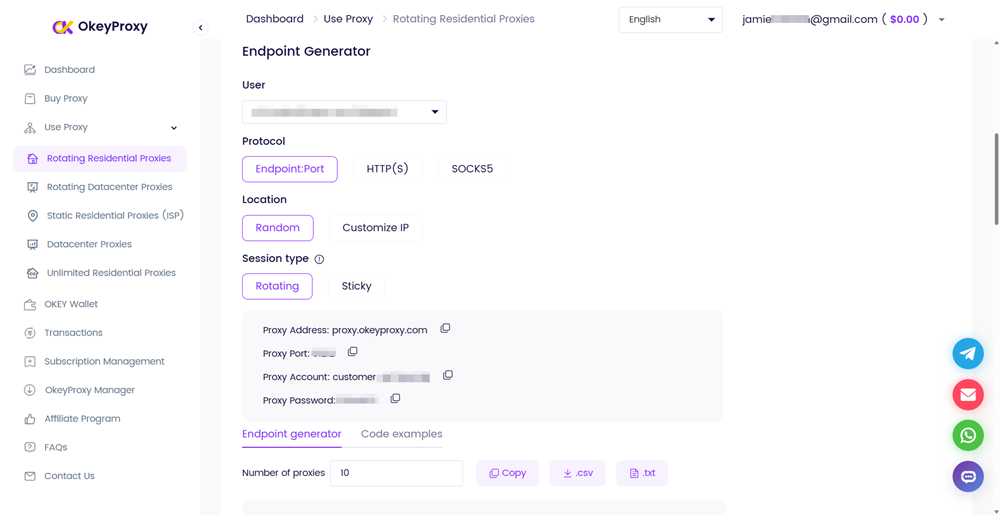
Instead of wasting time checking random IPs, let OkeyProxy hand you a clean, ready-to-use proxy address — backed by professional support and secure networks.
Try OkeyProxy now and get instant access to premium proxies without the hassle of manual setup. 🎉
NOTE: If you’re applying a proxy address on a certain browser or app, read how to set proxy settings for all devices for more details.
FAQs – Frequently Asked Questions ❓
What is a proxy server IP address?
A proxy server IP address is the unique identifier (like 192.168.0.1) of the proxy server you’re connected to. It helps route your internet traffic through a different server for privacy, speed, or access purposes.
Is a proxy server address the same as an IP address?
Not exactly. A proxy server address usually contains an IP address plus a port number (like 203.0.113.5:8080), but it identifies the proxy machine itself — not your device. Your own IP address identifies your device on the internet, while the proxy address identifies the middleman that hides it. If you’re on an auto-config (PAC) setup, the “address” you see may be a script URL rather than a raw IP at all.
Can I use a free proxy server?
Yes, but be cautious. Free proxies often have poor speed, reliability, and security. They may log your data or expose you to malware. For better performance and protection, use trusted services like OkeyProxy.
How do I know if I’m using a proxy?
You can check your network settings or visit whatismyipaddress.com. If your IP address differs from your actual location or internet provider, you’re likely connected through a proxy.
What type of proxy does OkeyProxy offer?
OkeyProxy offers residential proxies and datacenter proxies. All come with high-speed performance, rotating IPs, and global coverage — perfect for SEO, market research, or privacy-focused browsing.
Can I change my proxy IP address regularly?
Yes! With OkeyProxy, you can use rotating proxies or manually switch IPs depending on your plan, which is perfect for tasks requiring frequent identity changes.
Do I need technical skills to use OkeyProxy?
Not at all. OkeyProxy provides easy-to-follow setup guides for all major devices and software. Even beginners can get started in minutes.
Conclusion
Finding your proxy server IP address is a useful skill for diagnosing network issues, configuring devices, or just understanding how your internet traffic flows. Whether you’re using Windows, Mac, iOS, Android, or checking straight from your browser, this guide covers every place to look — plus the advanced tricks for when the standard settings don’t cut it.
But if you want a better, faster, and safer way to access proxies — OkeyProxy is the smart choice. No need to deal with random or risky IPs, hunt through five settings menus, or guess whether your proxy is even working. Just choose a plan, get your proxy details instantly, and start browsing securely and anonymously. ✅
Take control of your internet access today. Sign up with OkeyProxy and experience professional-grade proxy performance.