
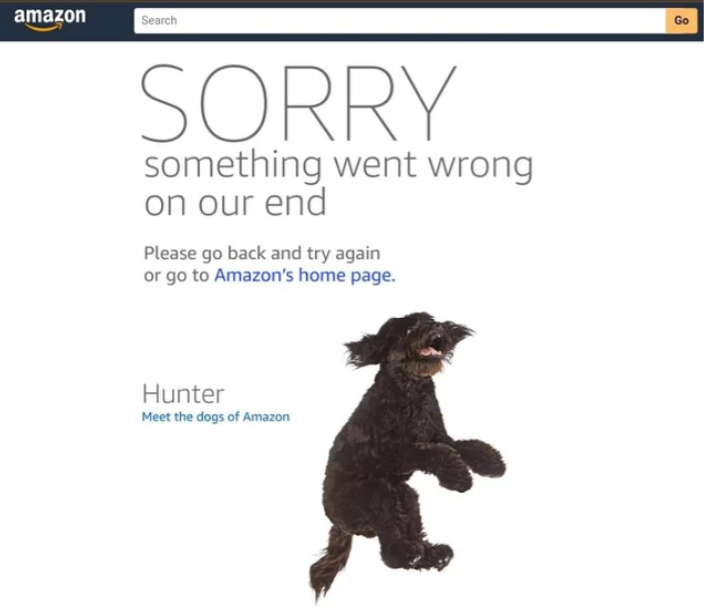
We’ve all been there: You’ve spent weeks researching the perfect product, or perhaps you’re a professional seller preparing for a massive inventory update. You click “Add to Cart” or “Save Changes,” and instead of a confirmation, you are greeted by a picture of a cute dog and the frustrating message: “Sorry, Something Went Wrong on Our End.” 🐾
Whether you are a casual shopper or a power seller, this error is a digital brick wall. It’s particularly agonizing during high-stakes moments like Prime Day or a limited-edition PS6 drop. While the dogs are adorable, the underlying technical glitch is not. If you are seeing this repeatedly, it’s rarely just “Amazon’s fault”—it’s often a sign that your network environment, IP reputation, or browser fingerprint has triggered Amazon’s sophisticated security alarms.
What Is the “Amazon Sorry Something Went Wrong” Error?
The “Sorry, Something Went Wrong on Our End” error is Amazon’s generic failure message. While it might appear to be a simple “oops” on Amazon’s side, this error is more than just a technical glitch. Often, you’re greeted by an image of a cute dog, which is why this error page is affectionately (or perhaps frustratingly) referred to as the “Dogs of Amazon” page within the e-commerce community.
The Logic Behind the Dog
Although the message states the problem is on Amazon’s end, the issue is usually far more nuanced. Amazon employs one of the world’s most advanced Web Application Firewalls (WAF) to detect and block suspicious activity. Here’s what might really be going on when you encounter the dog:
- Request Rejection: Amazon’s server may have received your request, but it flagged it as “malformed” or “suspicious,” triggering the error. This could happen due to a variety of reasons such as improper headers, invalid request parameters, or unusual traffic patterns.
- Security Trigger: If your connection profile (which includes your IP address and browser fingerprint) closely resembles patterns associated with bots or malicious actors, Amazon’s security systems will flag it and prevent further access. This can happen even if you’re simply browsing normally, especially if you’re using a VPN, proxy, or an IP that’s been flagged.
- Server Lag or Overload: Occasionally, the issue could be caused by a real, local server lag or overload on Amazon’s side. However, given Amazon’s robust AWS infrastructure, this is quite rare and usually happens only during high-traffic events like Prime Day or Black Friday.
Common Causes of the “Amazon Sorry Something Went Wrong” Error
To resolve this issue, it’s crucial to first pinpoint the cause. Here are the primary reasons why you might be continuously seeing the dreaded puppies on Amazon:
1. Amazon Server Overload
During massive sales events or high-traffic periods (like Prime Day), even Amazon’s powerful infrastructure can experience temporary overloads. However, if others can access Amazon while you can’t, it’s not likely a server-side problem. In such cases, the issue is likely on your end.
2. Unstable Network Connection
A “jittery” or unstable internet connection can result in incomplete data packets, causing Amazon’s security systems to flag the connection as suspicious. This disruption can lead to the “Something went wrong” error due to incomplete data being sent.
3. Regional Restrictions
Certain products or features on Amazon are only accessible in specific regions. For instance, trying to access a UK-only deal from a US IP might not trigger a simple “Not available” message but rather the more generic “Something went wrong” error. Amazon will block access to certain content based on geolocation.
4. Excessive Request Frequency
Frequent requests, such as refreshing the page multiple times in a short period (e.g., 20 times in a minute) or having many Amazon tabs open, can raise red flags. This behavior can appear similar to DDoS attacks or web scraping bots, prompting Amazon to throttle or block your access.
5. Outdated Cookies or Extensions
Old cookies and cached data can conflict with Amazon’s updated website code, leading to errors. Additionally, browser extensions like Price Trackers or Auto-refresh tools can trigger Amazon’s anti-bot shields, resulting in the dreaded error message.
6. IP Reputation & Flagging (The “Silent Culprit”)
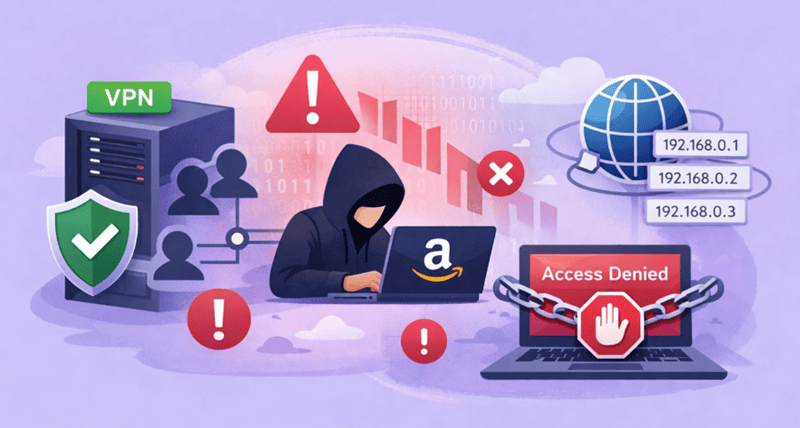
If you’re using a cheap VPN or a low-quality proxy service, you might be sharing an IP address with hundreds or thousands of other users. If just one of those users attempts to scrape Amazon, the entire IP pool can get flagged, causing your connection to be blocked or restricted.
7. Browser Fingerprinting
Amazon tracks your browser fingerprint, which includes factors like your canvas rendering, fonts, and OS version. If your browser fingerprint is inconsistent with your IP address (e.g., you’re browsing with a UK IP, but your time zone is set to Beijing), Amazon’s security system will flag your session as suspicious and display the error page.
8. Invalid URL
This issue is often overlooked, especially when users click links from external blogs, deal sites, or third-party tools. These links may point to expired product pages, deprecated endpoints, or malformed URLs. Instead of displaying a clear “Page Not Found” error, Amazon sometimes responds with the generic “Sorry, something went wrong” message when it cannot properly resolve the request.
9. Outdated Browser or App Version
Using an outdated browser or an old version of the Amazon app can lead to compatibility issues with Amazon’s modern scripts and APIs. When your software can’t correctly process required JavaScript or security headers, Amazon may interpret the request as incomplete or malformed—resulting in the same error page.
10. Payment or Account Issues
Although less commonly discussed, account-level problems can also trigger this error—especially during checkout or account updates. Expired credit cards, unverified payment methods, or unresolved account flags may cause Amazon to silently block the transaction flow, displaying the generic error instead of a detailed payment warning.
How to Fix the Amazon “Something Went Wrong” Error (Step-by-Step)
If you keep seeing the “Amazon sorry something went wrong” message, don’t panic. In most cases, the issue can be resolved by following the steps below—starting from quick fixes to advanced solutions.
Step 1: Basic Checks (Quick Fixes That Solve Most Cases)
Before diving into technical changes, rule out the obvious causes.
Check Amazon Server Status
Use tools like DownDetector to confirm whether Amazon is experiencing a regional or global outage. If many users report issues at the same time, the best solution is simply to wait.
Check Your Network & Refresh
Restart your router or switch networks (Wi-Fi ↔ mobile hotspot). A fresh IP assignment from your ISP can instantly resolve temporary routing issues.
Clear Cache & Cookies
Old Amazon cookies may conflict with updated site code. Clear browser cache and cookies related to Amazon to force a clean session.
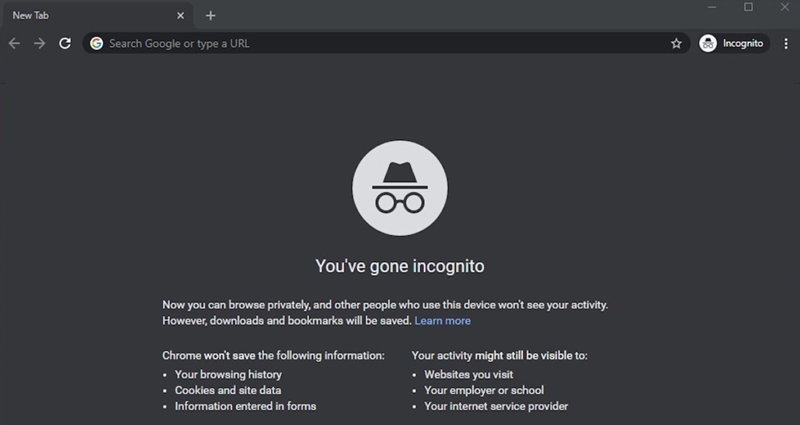
Try Incognito / Private Mode
Incognito mode disables extensions and uses a fresh cookie environment.
If Amazon works here, the issue is likely caused by an extension or stored browser data.
Step 2: Reduce Suspicious Behavior & Fix Compatibility Issues
Amazon aggressively monitors abnormal usage patterns.
Lower Request Frequency
Close unnecessary Amazon tabs, stop auto-refresh tools, and avoid refreshing pages repeatedly within a short time.
Update or Switch Your Browser / App
Make sure your browser or Amazon app is fully updated.
If the problem persists, try a different browser (e.g., switch from Chrome to Firefox) to rule out compatibility conflicts.
Verify Payment & Account Information
During checkout, expired cards, unverified payment methods, or account warnings can silently trigger the error page instead of a clear payment message.
Step 3: Fix URL, Region & Localization Issues
These issues are common but often overlooked.
Try a Different or Clean Amazon URL
If you clicked a link from a third-party site, the URL may be outdated or invalid.
Manually navigate to the product or section directly from Amazon’s homepage instead.
Use a Localized Proxy for Regional Amazon Sites
If you are accessing Amazon UK, DE, or JP from another country, use a proxy that matches the target region.
Mismatched IP locations often trigger Amazon’s security filters.
💡 Pro Tip: Use OkeyProxy’s global network to instantly switch between 200+ countries, ensuring your IP always matches your target Amazon marketplace to avoid regional blocks. 🌍✨
Step 4: Browser Fingerprint & Privacy Optimization (Advanced Users)
For sellers, automation users, or frequent shoppers:
Customize Your Browser Fingerprint
Ensure your time zone, language, OS, and IP location are consistent.
Anti-detect browsers like AdsPower or Dolphin help align these signals and reduce risk.
Step 5: Contact Amazon Customer Support (Last Resort)
If none of the above works, the issue may be account-specific.
- Log in from a clean device or network
- Contact Amazon Customer Support directly
- Ask whether your account, payment method, or recent activity is restricted
This is especially important if the error appears only during checkout or account changes.
Advanced Troubleshooting for Power Users & Sellers
If you are a professional—running a dropshipping business, scraping price data, or managing multiple seller accounts—the basic “refresh and clear cookies” advice won’t work.
Why Your Current Setup Is Failing
Many users think a simple VPN or a Data Center Proxy is enough. It isn’t. Amazon’s security system is designed to identify and block data center IP ranges (like those from AWS or cheap VPN providers). When you use these, you aren’t “hidden”; you are literally waving a red flag that says “I am an automated user!”
Data Center Proxies vs. Residential Proxies
For Amazon, the type of IP you use is the difference between success and a permanent “Dog Page.”
| Feature | Data Center Proxy | Residential Proxy |
|---|---|---|
| IP Source | Secondary Servers / Cloud | Real Home ISP |
| Trust Score | 🔴 Low (Flagged as Bot) | 🟢 High (Seen as Human) |
| Amazon Success | 20% – 40% | 99.9% |
| Stability | High speed, but easily blocked | Stable & mimics real user behavior |
| Detection Risk | Immediate “Something went wrong” | Completely stealthy |
How OkeyProxy Eliminates Amazon Errors 🛡️
OkeyProxy provides the “Gold Standard” for Amazon operations. By using our Rotating Residential Proxies, you are assigned an IP address from a real person’s home.
- Bypass WAF Shields: Because our 150M+ IPs are residential, Amazon’s Web Application Firewall treats your request like any other shopper.
- Localized Access: Need to see the Amazon DE dashboard from the USA? Switch your OkeyProxy location to “Germany” and access the site without regional blocks.
- Session Persistence: Our Static Residential Proxies allow sellers to keep the same clean IP for months, preventing “IP Jump” triggers that lead to account verification loops.
Best Practices to Prevent Future Amazon Errors
To avoid encountering the “Sorry, something went wrong” error in the future, follow these best practices that will not only fix the issue but also prevent it from recurring.
- Avoid Using Free VPNs: Free VPNs might seem like a cost-effective solution, but they often come with hidden dangers. These services tend to sell your data and use shared, “dirty” IPs that are already blacklisted by Amazon. Always choose a high-quality, reliable VPN or proxy provider to ensure uninterrupted access.
- Align Your Browser Fingerprint with Your IP: Ensure that your browser settings match your IP location for seamless browsing. For example, if you’re using an OkeyProxy IP in New York, make sure to set your browser’s language to en-US and adjust your time zone to EST. Inconsistent data can trigger Amazon’s security measures, leading to errors.
- Warm Up Your Accounts Gradually: Avoid jumping straight into high-value purchases with a brand-new account. Amazon’s “New User” risk scoring system is highly sensitive and may flag you if you suddenly make a large purchase, especially if you haven’t built up a history of normal activity. Start by making smaller purchases and gradually increase your activity.
- Rotate IPs Smartly: When scraping data or performing mass operations, using Rotating Residential Proxies helps you avoid detection and blocks. For account management and long-term use, rely on Static Residential Proxies to maintain a stable IP, which Amazon recognizes as legitimate user activity.
Conclusion
The “Amazon sorry something went wrong” error is a symptom of a larger issue: Amazon no longer trusts your digital identity. Whether it’s a browser conflict or an IP that has been flagged as “suspicious,” you need a clean, professional environment to get back to business.
By clearing your cache, managing your browser fingerprint, and—most importantly—switching to high-trust Residential Proxies from OkeyProxy, you can bypass the “Dogs of Amazon” and get back to what matters: shopping and selling.
Don’t let a “Something Went Wrong” error stop your business. Get OkeyProxy Residential IPs now and experience Amazon without limits!