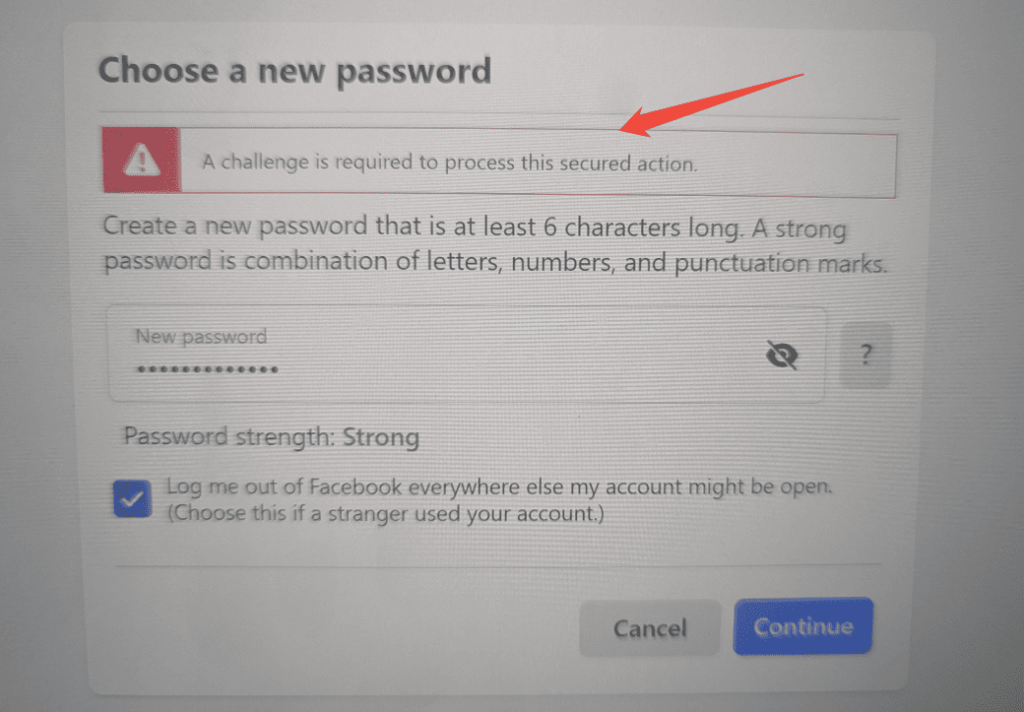
If you’ve ever tried to change your password on Facebook or Instagram—especially after being locked out—or attempted to delete multiple items from a recycle bin, only to be stopped by the message “A challenge is required to process this secured action,” you’re not alone.
For many users, this error feels sudden, confusing, and frustrating. One moment you’re just trying to secure your account, and the next, the platform slams the brakes without clearly explaining why. Let’s break down what this message really means, why it happens, and how you can get past it without losing your sanity.
What Does “A Challenge Is Required to Process This Secured Action” Mean?
A Reddit user once summed up the confusion perfectly: “Can’t change my password due to a challenge that is required – any ideas?”
“Hi guys. I forgot my IG and FB password. I was trying to change the FB password because all of it is connected, right? Every time I try, I get the message: ‘A challenge is required to process this secured action.’ I have no idea what challenge that is or how to get around it…”
This message means that Facebook, Instagram, or a similar platform has detected activity it considers risky or unusual. As a result, it pauses your action and asks you to prove that you’re the legitimate account owner.
In plain terms, the platform is saying:
👉 “Something about this doesn’t look right. Before we let you continue, show us it’s really you.”
Think of it like a security guard at a building entrance. If you walk in calmly every day, no problem. But if you suddenly sprint in at midnight wearing a disguise, the guard is going to stop you and ask for ID.
That’s exactly what this “challenge” is—a quick identity check designed to block bots, hackers, and automated abuse.
Common Reasons Why the “Challenge Required” Error Appears
Understanding why this error appears is often half the solution. Platforms like Facebook and Instagram rely heavily on automated risk-detection systems, and even normal user behavior can sometimes trip those alarms. Below are the most common triggers.
1. Logging in from a New or Unrecognized Device
When you log in from a device the platform hasn’t seen before—such as a new phone, laptop, virtual machine, or even a freshly installed browser—it may treat the attempt as potentially risky.
This is especially true if the login happens shortly after multiple failed attempts or password recovery actions. From the platform’s perspective, unfamiliar hardware often equals a higher chance of account takeover.
2. Suspicious or Bot-Like Activity
Certain actions can resemble automated behavior, even if you’re a real user. Examples include:
- Rapid password reset attempts
- Quickly changing security settings
- Mass liking, following, commenting, or deleting items in a short time
- Using automation or third-party tools
To the platform’s security system, this looks less like human behavior and more like a script running at full speed—hence the challenge. It’s similar to being asked for ID because your actions don’t match typical user patterns.
3. Logging in from Unknown or Frequently Changing IP Addresses
This is one of the most common triggers of the “challenge required” error.
If your account logs in from different IP addresses within a short period—especially from different regions or countries—platforms may assume the account has been compromised. This often happens when:
- Managing multiple Instagram or Facebook accounts
- Switching networks frequently (Wi-Fi, mobile data, public networks)
- Using automation tools or shared IPs
👉 Using a dedicated IP address is crucial in these cases, as it helps each account consistently appear from the same location. Many users rely on stable residential or ISP proxies for this purpose, which significantly reduces unnecessary security challenges and repeated verification loops.
4. Poor or Unstable Internet Connection
An unstable connection can interrupt security checks while they are in progress. If a verification request times out or fails mid-way, the platform may assume the attempt was abnormal and trigger a challenge as a precaution.
This is common on public Wi-Fi, weak mobile signals, or networks with frequent packet loss.
5. Outdated App Versions
Older versions of Facebook or Instagram may not fully support the platform’s latest security mechanisms. When the app cannot properly complete or confirm a verification step, the system may default to blocking the action and requesting an additional challenge.
Keeping apps updated helps avoid compatibility-related security errors.
6. Platform Server Issues
Sometimes, the issue isn’t on your end at all. Facebook or Instagram may be experiencing temporary server-side problems, especially during system updates or security rollouts.
When this happens, legitimate actions may incorrectly trigger challenges, even on trusted devices and networks.
That’s why checking the platform’s server status should always be one of the first troubleshooting steps.
12 Ways to Fix the “Challenge Required” Error: The Complete Guide
Now for the part that actually helps—the fixes.
Think of this section as a checklist. You don’t need to try everything at once, but following these steps in order will greatly improve your chances of getting back in without losing your sanity.
1. Check Facebook or Instagram Server Status
Always start here—before blaming yourself.
If Facebook or Instagram’s servers are experiencing outages or security system glitches, no amount of refreshing, reinstalling, or password resetting will help. In this case, the challenge error isn’t about your account at all—it’s a platform-side issue.
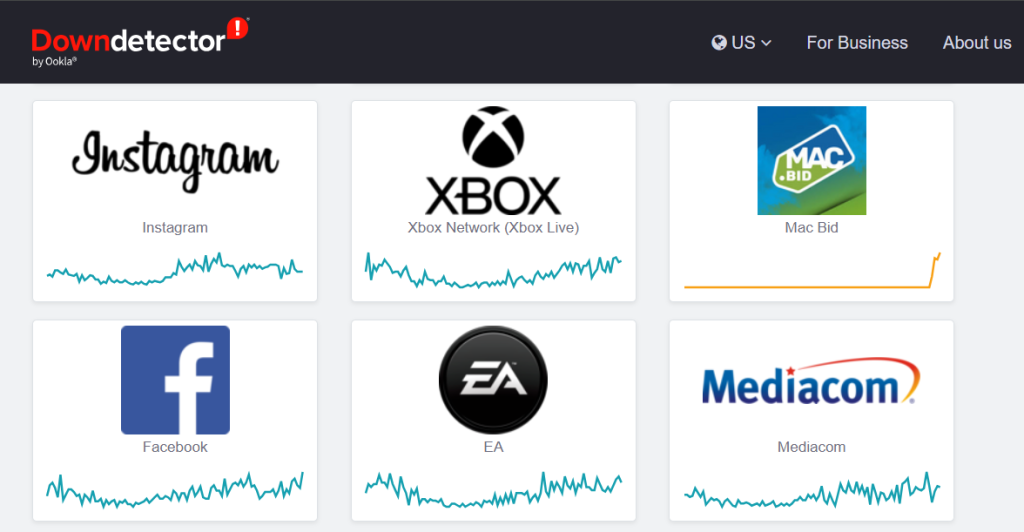
Checking server status can save you hours of unnecessary troubleshooting. You can visit websites like Downdetector to view real-time reports on platform outages and disruptions.
2. Log In Using a Trusted Device
Platforms trust familiarity.
Use the phone, computer, or browser you normally log in with—ideally one you’ve used for months. A familiar device sends a strong “this is probably the real owner” signal to the security system and often clears the challenge immediately.
Avoid brand-new devices, virtual machines, or freshly installed browsers at this stage.
3. Check Your Network Connection
A stable connection matters more than you think.
Try connecting to a reliable Wi-Fi network. If that doesn’t work, switch to mobile data. If you’re already on mobile data, try Wi-Fi instead.
Changing networks can help complete security checks that may have failed due to timeouts or interruptions.
4. Follow the On-Screen Verification Steps Carefully
If the platform presents verification options—don’t skip them.
These may include:
- Entering a code sent to your email or phone
- Identifying friends from photos
- Confirming recent activity
- Approving a login notification
It may feel annoying, but these steps are essentially the platform asking, “Are you really you?” Completing them correctly is often the fastest way back in.
5. Clear Browser Cache and Cookies
Old login sessions can clash with new authentication attempts—especially after multiple failed logins.
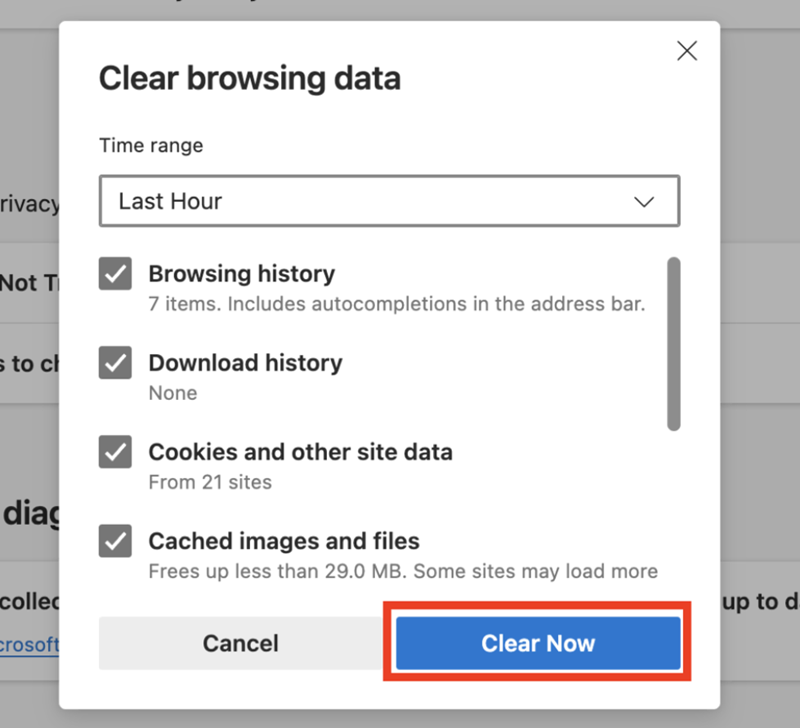
Clearing cache and cookies removes outdated session data and gives the platform a clean slate. After clearing, restart the browser and try logging in again.
This fix is surprisingly effective for web-based login issues.
6. Use a Different or Stable IP Address
Sometimes the problem isn’t what you’re doing—but where you appear to be doing it from.
Refreshing your IP might help in the short term, but for long-term stability, a consistent and trusted IP address works far better. Using a high-quality proxy or VPN with a dedicated or residential IP helps your account look predictable instead of suspicious.
This is especially important if you manage multiple Facebook or Instagram accounts or log in frequently. In practice, many users choose residential or ISP proxies from providers like OkeyProxy, as they offer stable IPs tied to real locations—reducing unnecessary security challenges over time.
7. Try a Different Browser
This sounds too simple—but it works more often than you’d expect.
One frustrated user shared the fix that finally saved them after hours of trial and error:
“GUYS, I GOT A FIX THAT WORKED FOR ME… I downloaded Chrome, clicked ‘Forgot password,’ chose ‘Send code via email,’ entered the code, and it finally let me reset my password.(I was using Edge btw)”
Different browsers handle cookies, sessions, and security prompts differently. Sometimes, switching browsers is all it takes to slip past the challenge.
8. Reinstall the App (For Mobile Users)
If you’re on a phone:
- Log out (if possible)
- Uninstall the app
- Reinstall it from the official app store
- Log in again
This clears corrupted app data and forces a fresh authentication flow.
9. Wait and Try Again
Not every fix is instant.
In many cases, waiting 24–78 hours allows the platform’s security system to cool down and reset its risk assessment. During this time, avoid repeated login attempts—they can make things worse.
Sometimes, patience really is part of the solution.
10. Enable Two-Factor Authentication (2FA)
Once you regain access, turn on 2FA immediately.
While it adds an extra step to logging in, it also increases account trust. Accounts with 2FA enabled are less likely to face repeated “challenge required” prompts in the future.
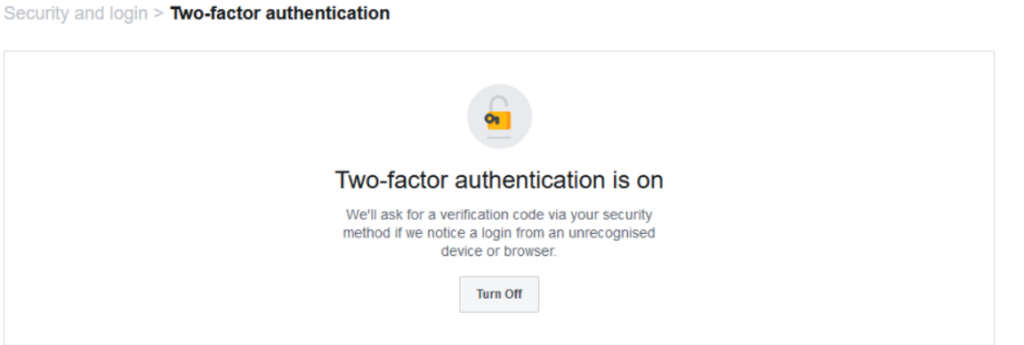
Think of it as earning long-term security credibility.
11. Try Logging In via Messenger
Surprisingly, some users are able to bypass the issue by logging in through Facebook Messenger first.
Messenger sometimes uses a slightly different authentication path, which can succeed even when the main app or website fails.
It’s a low-effort step worth trying.
12. Contact Platform Support
If none of the above works, it’s time to escalate.
Use the in-app “Report a Problem” feature or official support forms. Provide clear details and avoid repeated submissions. While response times can be slow, this is often the final step for accounts stuck in persistent challenge loops.
How Long Does the “Challenge Required” Error Last?
The duration of the “Challenge Required” error depends largely on what triggered it in the first place.
Minor security checks
If it’s caused by a simple verification issue, the error may disappear quickly after you complete the required steps—such as confirming your identity via email or phone. In many cases, access is restored within minutes or a few hours.
Temporary platform issues
When the problem comes from Instagram or Facebook’s side (for example, server maintenance or outages), the error can last until the platform resolves the underlying technical issue. In this scenario, there’s often nothing you can do except wait.
Suspicious account activity
If the challenge was triggered by unusual behavior—such as frequent logins from different locations, rapid actions, or IP changes—the error may persist longer. Instagram may require additional security actions, like changing your password or reviewing recent account activity, before fully restoring access.
Automation or policy violations
In more serious cases, if the system detects bot usage, third-party automation tools, or abusive behavior, the account may face longer restrictions—or even temporary suspension—until a manual review is completed.
👉 Tip: If you’re still running into related issues like the Facebook Session Expired error or the Instagram feedback_required error, you can check our other in-depth guides for step-by-step solutions and prevention tips.
Conclusion
The “A challenge is required to process this secured action” error may feel like a brick wall, but it’s really just a security checkpoint. Platforms like Facebook and Instagram use it to protect users—even if the execution can be frustrating.
By understanding what triggers these challenges and applying the right fixes—trusted devices, stable networks, consistent IPs, and patience—you can usually resolve the issue and prevent it from happening again.
In the end, it’s less about fighting the system and more about convincing it that you’re exactly who you say you are.