Many users encounter a common frustration: a system-wide VPN or proxy slows down their entire computer or interferes with local applications like WeChat or Outlook, yet they still need a secure connection for their browser. Unlike many competitors, Mozilla Firefox features an independent network stack, allowing you to configure Firefox proxy settings that apply only to your browsing sessions without affecting your entire operating system.
In this comprehensive guide, we will explore the flexibility of Firefox’s network architecture and provide a detailed, step-by-step walkthrough on how to set up, manage, and troubleshoot your proxy connections. Whether you are aiming to enhance your privacy, bypass restrictive firewalls, or conduct specialized web testing, mastering these settings is essential for a professional browsing experience in 2026.
What Are Firefox Proxy Settings?
Firefox proxy settings refer to the browser’s internal configuration menu that dictates how the application connects to the internet. Instead of connecting directly to a website’s server, Firefox can be instructed to route its requests through a “proxy server”—an intermediary that mask your IP address and encrypts your traffic. Because Firefox manages its own connection settings, it offers a level of granular control that is often superior to browsers that simply mirror the host’s system settings.
How to Set Up Proxy in Firefox (Step-by-Step Guide)
Configuring your connection might seem technical, but Firefox provides a user-friendly interface to handle the process. Following these steps ensures that your traffic is routed correctly while avoiding common pitfalls that lead to connection errors.
Step 1: Open Firefox Settings
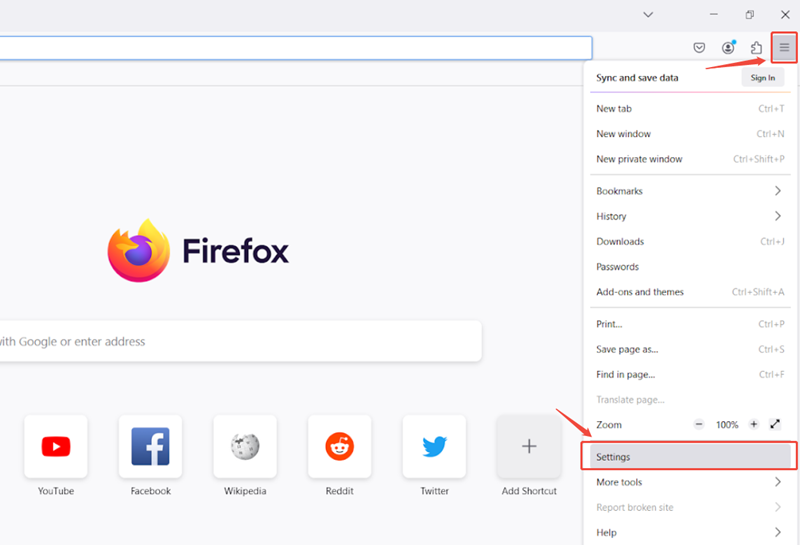
To begin the configuration process, launch your Firefox browser. Look for the “hamburger” menu (three horizontal lines) in the top-right corner of the window. Click it and select 设置 (on macOS, this may appear as 设置 或 首选项). This action opens the primary dashboard where all browser-level adjustments are made.
Step 2: Access Network Settings
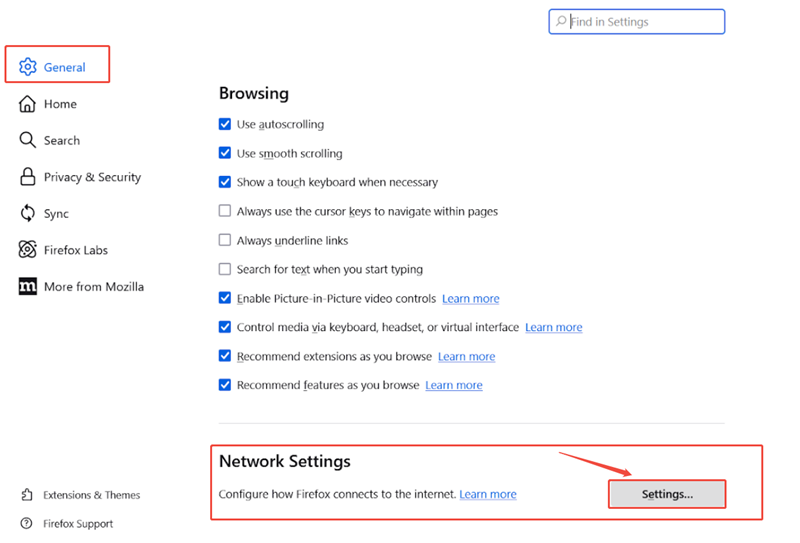
Once inside the Settings menu, stay on the 一般情况 tab and scroll down to the very bottom. You will find a section explicitly labeled 网络设置. Click the Settings… button located next to “Configure how Firefox connects to the internet.” This will launch the “Connection Settings” window, which is the heart of your Firefox proxy settings.
Step 3: Select Your Proxy Configuration Mode
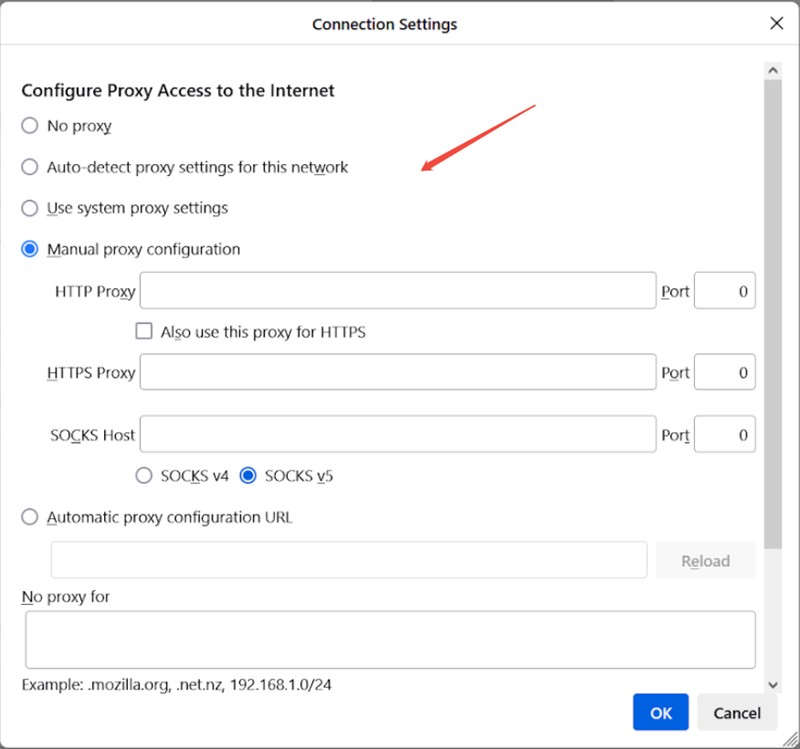
In the Connection Settings window, you will be presented with five distinct modes. Choosing the right one is crucial for your specific use case:
- No Proxy: The default mode. Firefox connects directly to the web using your local IP.
- Auto-detect proxy settings for this network: Firefox attempts to identify a proxy using the Web Proxy Auto-Discovery (WPAD) protocol.
- Use system proxy settings: Firefox follows the proxy configuration set in your Windows or macOS system settings.
- Manual proxy configuration: The preferred choice for professionals. This allows you to enter specific server details manually.
- Automatic proxy configuration URL: Used for enterprise environments where a .PAC (Proxy Auto-Config) file is hosted on a remote server.
Step 4: Enter Proxy Server Details
Before entering data, you need a reliable proxy source. For those requiring high-speed, anonymous browsing, we recommend a professional service like OkeyProxy. After purchasing a plan, you will receive your Proxy IP, Port, and Protocol details from your dashboard.
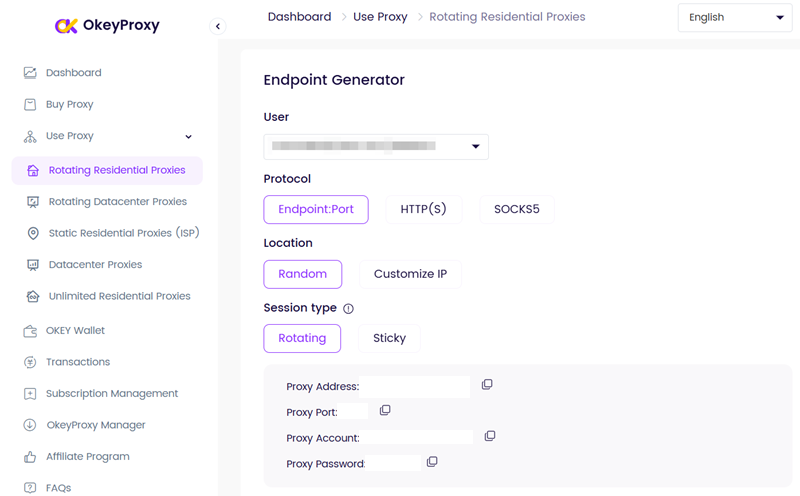
选择 手动代理配置 and fill in the fields as follows:
HTTP 代理服务器
If you are routing standard web traffic, enter the IP address or hostname in the HTTP 代理服务器 field and specify the corresponding 港口. You can check the box “Also use this proxy for HTTPS” to apply the same settings to secure sites.
HTTPS 代理服务器
For dedicated secure traffic, you can enter a specific HTTPS proxy address. However, modern residential proxies usually handle both HTTP and HTTPS through the same port.
SOCKS Host
If you are using a SOCKS5 代理 (highly recommended for 2026), enter the details in the SOCKS Host field. SOCKS5 is more versatile as it can handle any type of traffic, including UDP.
请注意: When using SOCKSv5, ensure you check the box “Proxy DNS when using SOCKS v5”. This prevents “DNS Leaks” by ensuring your DNS queries are resolved through the proxy rather than your local ISP.
Step 5: Configure Proxy Bypassing (Optional)
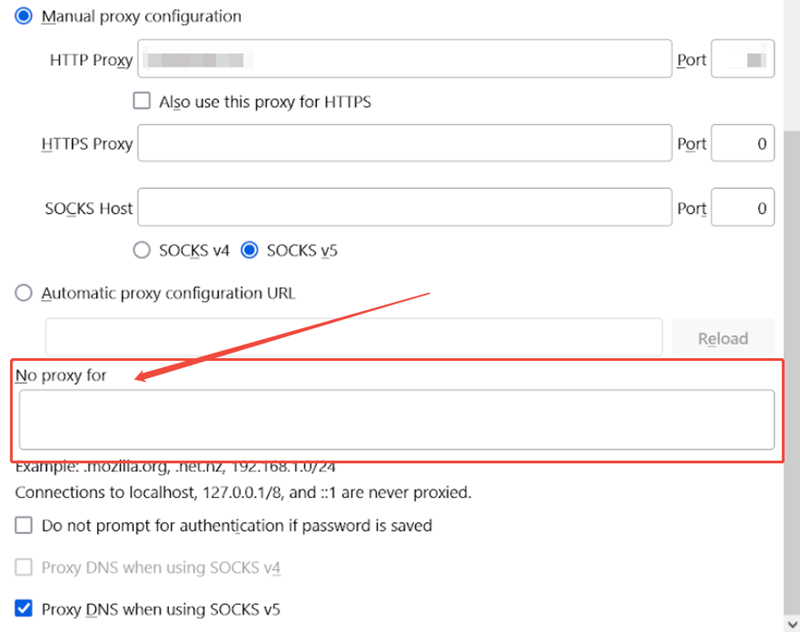
There may be instances where you don’t want specific websites to use the proxy (e.g., your local banking site or internal company intranet). In the “No proxy for” field, you can list IP addresses or domains (separated by commas). Firefox will access these destinations directly, bypassing the proxy server.
Step 6: Save and Apply Settings
Once all information is entered, click 好的. Firefox will immediately apply the new Firefox proxy settings. To verify it’s working, visit an IP checking website; it should now display the location and IP of your proxy server rather than your actual home address.
Why Manually Configure Firefox Proxy Settings?
Many users wonder why they should manually edit these settings when a simple VPN app exists. The answer lies in the unique flexibility that Firefox offers to power users.
Browser Independence
This is the most significant advantage. By configuring proxies within Firefox, you create an isolated environment. You can have Firefox browsing from a Russia IP while your Chrome browser and system apps like Slack or Spotify continue to use your local Singaporean or American connection. This “split-tunneling” effect is built directly into Firefox.
Enhanced Privacy and Fingerprint Protection
When combined with Firefox’s “Enhanced Tracking Protection,” a manual proxy configuration makes it significantly harder for websites to create a profile of you. By masking your IP at the browser level and forcing DNS through the proxy, you close the loopholes that most “free” privacy tools leave open.
Unblocking and Access
Whether you are dealing with a strict workplace firewall or trying to access region-locked research data, manual Firefox proxy settings allow you to slip past filters. Since Firefox doesn’t rely on the OS network stack, it can often bypass blocks that affect other browsers.
Development and Security Debugging
For developers, manual proxies are essential for intercepting HTTP requests using tools like Burp Suite or Fiddler. By pointing Firefox to a local listener, developers can inspect every packet sent by the browser for security testing and debugging purposes.
How to Disable Proxy in Firefox
If you no longer need the proxy or if your connection becomes unstable, disabling it is a quick process. Repeat the steps to navigate back to the Connection Settings window. Simply select the No Proxy radio button and click 好的. Firefox will immediately revert to your default internet connection.
Why Use OkeyProxy to Enhance Your Firefox Connection?
The quality of your browsing experience depends entirely on the quality of the proxy server you use. Free proxies are often slow, unreliable, and potentially dangerous. This is why OkeyProxy has become the preferred choice for Firefox users in 2026.
As a 顶级 HTTP 和 SOCKS5 代理服务器, OkeyProxy offers access to a massive pool of 超过 1.5 亿个住宅 IP. These proxies are sourced from real devices, making them nearly impossible for websites to detect or block. OkeyProxy meets your every proxy need—from high-speed streaming and anonymous browsing to complex data scraping—all with 99.9% uptime and low-latency performance that ensures your Firefox browser stays fast and responsive.
Advanced Tips: Managing Proxies with Extensions
If you find yourself switching proxies frequently, doing so manually through the settings menu can be tedious. This is where the Firefox extension ecosystem shines.
FoxyProxy Standard
FoxyProxy is the gold standard for proxy management in Firefox. It allows you to create multiple proxy profiles and switch between them with a single click. Even more impressively, you can set “URL Patterns”—for example, telling Firefox to automatically use a US Proxy when you visit google.com, but a local connection when you visit bing.com.
If you want to master this tool, you can check out our detailed guide on how to use FoxyProxy for Firefox to streamline your workflow.
Troubleshooting Common Firefox Proxy Errors
Sometimes, your Firefox proxy settings might result in a “Server Not Found” or a “Proxy Refusing Connection” error. Here is how to fix the most common issues:
- “The proxy server is refusing connections”: This usually means the proxy server is down or the IP/Port you entered is incorrect. Double-check your OkeyProxy dashboard for the latest server status.
- Pages won’t load but Proxy is active: Check your authentication. If your proxy requires a username and password, Firefox should prompt you for them. If it doesn’t, ensure your IP is “whitelisted” in your proxy provider’s dashboard.
- “Your settings are being controlled by an extension”: This happens if you have FoxyProxy or a VPN extension active. You must disable the extension before you can manually edit the Firefox network settings.
Ethics, Compliance, and Best Practices
While configuring Firefox proxy settings is a legal and powerful way to protect your digital identity, it is important to use this technology responsibly. Always comply with the local laws of your country and the Terms of Service of the websites you visit. Proxies should be used to enhance privacy and security, not to engage in malicious activities or bypass legal restrictions in a way that harms others.
结论
Firefox remains one of the most versatile browsers in 2026, largely due to its independent and customizable network architecture. By mastering Firefox proxy settings, you gain a level of control over your digital footprint that other browsers simply cannot match. Whether you are manually entering SOCKS5 details for maximum privacy or using OkeyProxy’s residential network to bypass filters, the ability to isolate your browser traffic is a major advantage for any modern internet user.