遅い接続を直したり、職場や学校のネットワークに接続しようとして、iPhoneのWi-Fi設定を調べていて、一番下にある "Configure Proxy "または "HTTP Proxy "という見慣れないオプションに気づいたことはないだろうか?
多くのiOSユーザーにとって、この設定は混乱しやすく、少し威圧的に感じられる。ほとんどの人はこの設定に触れることはないし、アップルもこの設定が何をするものなのか正確には説明していない。実際、この混乱は アップルサポートコミュニティ.ある人気スレッドは、初めてこのメニューに遭遇したとき、ほとんどの日常的なユーザーが考えることを完璧にとらえている:
"たまたまiPhoneのWi-Fi設定をチェックしたところ、ページの一番下に『HTTPプロキシ』とあり、『オフ』、『手動』、『自動』のオプションがあることに気づいた。'
どなたかわかりやすく説明してください:
- iPhoneのHTTPプロキシとは?
- 3つの設定の違いは何ですか?
- あるセッティングは他のセッティングより "安全 "なのか?
- あるセッティングを選択することの利点と欠点は何か?
これらの質問に聞き覚えがあるなら、あなたは正しい場所にいる。
このガイドでは、iPhoneにおけるHTTPプロキシとは何か、それぞれのプロキシ設定は何を意味するのか、そしていつ(そしてなぜ)プロキシを使いたいのかを明確に説明します。このガイドを読めば、iOSでHTTPプロキシがどのように機能するのか、そしてプロキシがどのようにプライバシーの向上や制限されたネットワークへのアクセス、仕事での接続や地域ごとのアクセスといった高度なユースケースのサポートに役立つのかが、専門用語を使わずに理解できるようになるでしょう。🚀
iPhoneのHTTPプロキシとは?
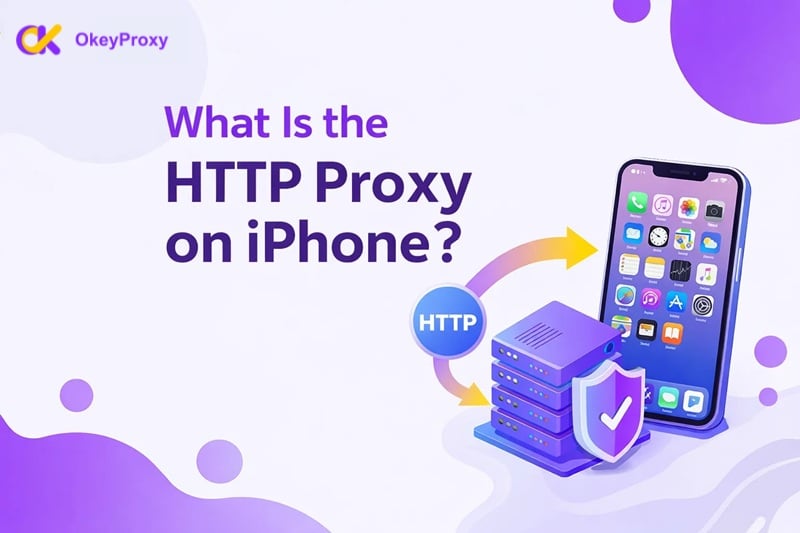
簡単に言うと、iPhoneのHTTPプロキシは、あなたがアクセスしようとしているウェブサイトやサービスに到達する前に、インターネットトラフィックをサードパーティのサーバーを経由するネットワーク設定です。
転送局を通して手紙を送るようなものだと考えてほしい。友人に直接郵送する代わりに、転送局(プロキシサーバー)に送るのだ。その転送局があなたに代わって手紙を転送し、まず返事を受け取り、それをあなたに送り返す。外の世界からは、中継局があなたではなく差出人に見える。
iPhoneでのHTTPプロキシの仕組み
iPhoneのWi-FiネットワークでHTTPプロキシが有効になっている場合:
- あなたのブラウザやアプリは、ウェブリクエストを宛先のウェブサイトに直接ではなく、プロキシサーバーに送信します。
- プロキシサーバーは、自身のIPアドレスを使ってそのリクエストをウェブサイトに転送する。
- ウェブサイトはプロキシサーバーに応答する。
- プロキシサーバーはその応答をあなたのiPhoneに送り返す。
その結果、ウェブサイトは実際のネットワーク接続の代わりにプロキシを「見る」ことになる。
⚠️ 重要なお知らせ:iOSでは、内蔵のHTTPプロキシ設定は主にWi-Fiトラフィックに影響し、ネットワークレベルで機能します。VPNやプロファイルベースの設定を使用しない限り、セルラーデータには自動的に適用されません。
iPhoneでのHTTPプロキシの一般的な使い方
🌍 地理的に制限されたコンテンツへのアクセス
米国限定のウェブサイトを見たいリージョンロックされたサービスにアクセスしたり、他の国からサイトがどのように見えるか試してみませんか?HTTPプロキシは、あなたのiPhoneが別の場所からブラウジングしているように見せることができます。
🚀 キャッシュによるスピードの向上(ネットワーク依存)
企業、学校、オフィス環境では、プロキシは頻繁にアクセスされるコンテン ツをキャッシュするかもしれない。複数のユーザが同じリソースを要求するとき、プロキシはそれを再度フェッチする代わりに、保存されたコピーを配信することができ、帯域幅の使用量とロード時間を削減します。
(この利点は、主に共有または管理されたネットワークに適用され、個々の消費者プロキシには適用されない)。
コンテンツフィルタリングとネットワークコントロール
組織は、Wi-Fiネットワーク上でHTTPプロキシを使用して、特定のウェブサイトをブロックしたり、特定のカテゴリのコンテンツを制限したり、iPhoneを含む接続デバイスのブラウジングポリシーを強制したりすることがよくあります。
🕶️ 本当のIPアドレスを隠す
プロキシを経由してブラウジングすると、ウェブサイトはあなた自身のIPアドレスではなく、プロキシのIPアドレスを見ます。これはプライバシーの基本的な層を提供し、テスト、アカウント管理、または制限されたネットワークにアクセスするために一般的に使用されます。
iPhoneの3種類のプロキシ設定
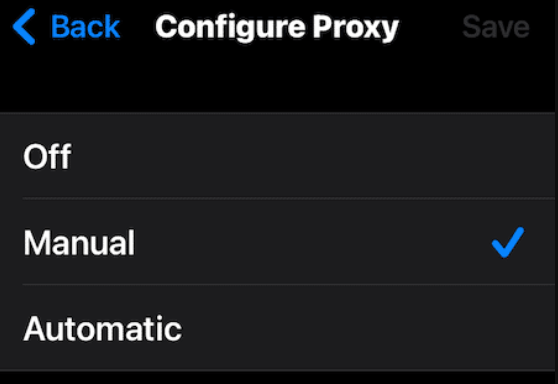
iOSデバイスで「プロキシを設定」をタップすると、3つの選択肢が表示されます。これらの選択肢を理解することが、Apple Communityのユーザーの質問に答える鍵となります。
1.オフ(デフォルト)
つまり、iPhoneはWi-Fiルーターを通じてインターネットに直接接続する。仲介者はいません。これは、ほとんどのホームユーザーにとって標準的な設定です。
2.マニュアル(「プロ」の選択)
Manualモードでは、完全にコントロールします。サーバ(ホスト名またはIPアドレス)とポートを手動で入力する必要があります。これはOkeyProxyのようなプレミアムサービスを使用している人が使用するモードです。最もカスタマイズが可能で、市場調査や複数のソーシャルメディアアカウントの管理のようなタスクに不可欠です。
3.自動
このモードでは、PAC(プロキシ自動設定)ファイルを使用します。数字を入力する代わりに、特定のウェブサイトにどのプロキシを使うかをiPhoneに指示するスクリプトのURLを提供する。これは、企業のオフィス環境では非常に一般的です。
あるセッティングは他のセッティングより "安全 "なのか?
そう、技術的な観点から言えば、両者には異なるセキュリティ・プロファイルがある:
- オフ は、あなたのデータが直接あなたのISPに行くので、中間業者からのデータプライバシーの面で最も安全です。しかし、あなたの本当のIPは、あなたが訪問するすべてのウェブサイトに完全に公開されます。
- "マニュアル" は、あなたが完全にコントロールできるため、非常に安全です。どのサーバーに接続しているかを正確に把握し、認証情報を手動で入力します。データの行き先を決める「隠しスクリプト」は存在しません。
- "自動" は一般に、ネットワークを完全に信頼していない場合、最も安全性が低いと考えられている。このモードはPAC(プロキシ自動設定)ファイルに依存している。悪意のあるPACファイルは、機密性の高いトラフィック(銀行やソーシャルメディアなど)を選択的にハッカーのサーバーにリダイレクトし、通常のトラフィックは気づかれずに通過させるようにコード化することができます。
結論:プライバシーとコントロールの最適なバランスを保つには、マニュアルモードと以下のような信頼できるプロバイダーを組み合わせてください。 オッケープロキシー はiPhoneユーザーにとっての金字塔だ。
メリットとデメリットは?
| セッティング | メリット | デメリット |
|---|---|---|
| オフ | 最もシンプルなオプションで、設定は不要。 | プライバシー保護もなく、ジオブロックも解除されず、本当のIPアドレスが公開される。 |
| マニュアル | プロキシ設定を完全にコントロールできる。特定のプレミアムIPでうまく機能し、ブロックを回避するのに理想的。 | 手動での設定が必要で、低品質のプロキシを使用している場合、速度が遅くなったり不安定になったりすることがある。 |
| 自動 | 設定スクリプトにより複雑なルーティングルールを自動的に適用するハンズオフセットアップ。 | スクリプト・プロバイダの完全性に依存することになり、問題のトラブルシューティングが困難になる可能性がある。 |
iPhoneでHTTPプロキシを設定する方法(ステップバイステップ)
iOSでプロキシを設定するのは簡単だが、プロバイダーからプロキシの詳細(サーバー、ポート、認証情報)を入手しておく必要がある。
ステップ1:Wi-Fi設定にアクセスする
iPhoneの「設定」を開き、「Wi-Fi」をタップします。
ステップ2:ネットワークの選択
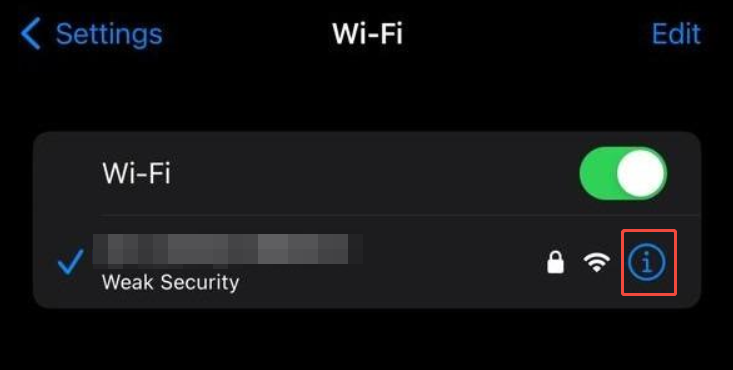
現在接続しているWi-Fiネットワークを探します(青いチェックマークが付いています)。ネットワーク名の右端にある「i」アイコン(情報)をタップします。
ステップ3:プロキシの設定
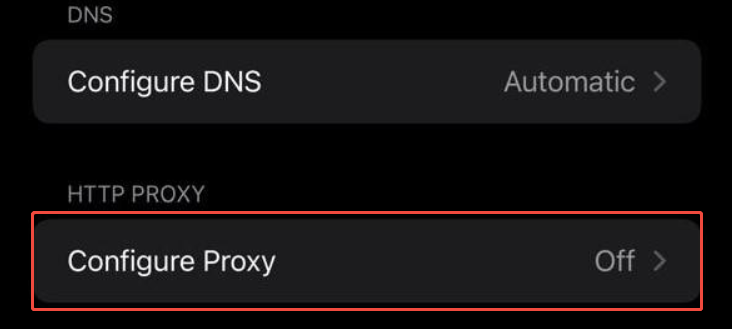
ページの一番下までスクロールする。HTTP Proxy "ヘッダーの下にある "Configure Proxy "をタップする。
ステップ4:マニュアルを選ぶ
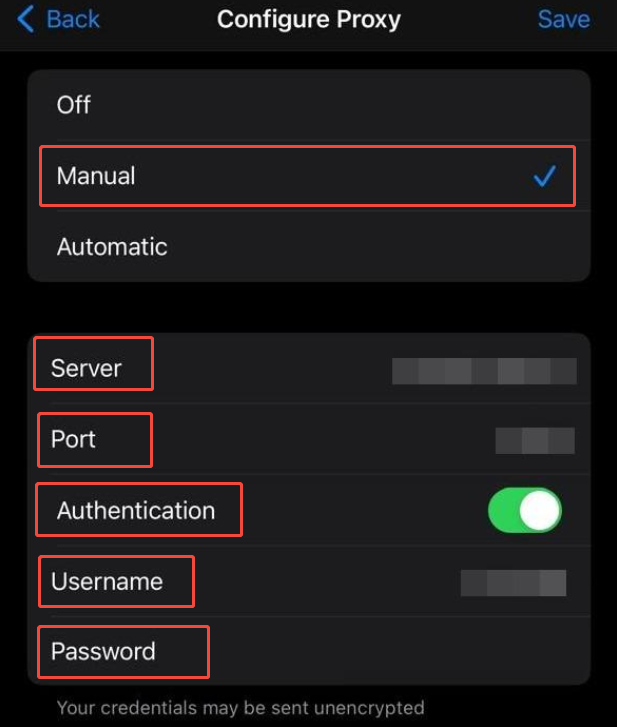
手動」を選択する。(注:プロバイダーがURLリンクを提供している場合は、「自動」を選択しますが、99%の商用プロバイダーは「手動」を使用しています)
ステップ5:サーバーとポートを入力
- サーバー:サービスから提供されているIPアドレスまたはホスト名を入力します。OkeyProxyの高品質な住宅用IPを使用している場合、xxx.okeyproxy.comのようなホスト名を入力することになるでしょう。
- ポート:指定された4桁または5桁の番号を入力(例:8080または15001)。
ステップ6:認証(「鍵)
ほとんどのプロのプロキシは一般に公開されていません。ログインが必要な場合
- 認証スイッチをオンに切り替える。
- ダッシュボードに表示されているユーザー名とパスワードを入力してください。
⚠️ クリティカル・ノート:このiOSのビルトイン機能は、HTTP/HTTPSプロトコルのみをサポートしています。SOCKS5プロキシを使おうとしても、このネイティブ設定では設定できません。Shadowrocketのようなサードパーティアプリが必要です。違いについて詳しくは、以下のガイドをご覧ください。 HTTPとSOCKSプロキシの比較.
ステップ7:接続のテスト
Safariを開き、"What is my IP "を検索する。表示された場所が実際の自宅ではなく、プロキシの国であれば設定は成功です!🎉
HTTPプロキシとVPN:iPhoneユーザーはどちらを選ぶべきか?
多くのユーザーはプロキシとVPNを混同している。どちらもあなたのIPを隠すものですが、その主体は異なります。
- HTTPプロキシ:通常、ウェブトラフィック(ブラウザと一部のアプリ)にのみ影響します。携帯電話上のデータを暗号化しないため、「より軽く」、一般的に高速な通信速度を提供します。
- かそうへいいきもう:あなたの携帯電話のすべてのデータ(メール、ゲーム、バックグラウンド同期など)のための暗号化されたトンネルを作成します。より安全ですが、バッテリーと接続速度がより「重い」場合があります。
比較表
| 特徴 | HTTPプロキシ | かそうへいいきもう |
|---|---|---|
| スコープ | 特定のアプリまたはブラウザのみ | 装置全体 |
| 暗号化 | プロバイダにより異なる(SSL/TLS対応) | 軍用レベルの完全な暗号化 |
| スピード | 🚀 高(最小限の待ち時間しか追加されない) | 中程度(暗号化オーバーヘッド) |
| こんな方に最適 | データスクレイピング、地域ブロックの回避、複数アカウントの管理 | 公衆Wi-Fiのセキュリティとデバイスレベルの完全なプライバシー |
よくある問題iPhoneのプロキシが機能しないのはなぜですか?
手順通りにやってもどのページも読み込めない場合は、以下の3つの一般的な原因をチェックしてください:
- 間違ったホスト名またはポート:サーバーアドレスにタイプミスが1つでもあると、接続が切断されます。必ずプロバイダーのダッシュボードからコピー&ペーストしてください。
- 公衆無線LANの制限:空港やホテルによっては「非標準」ポートをブロックしている場合があります。あなたのプロキシが12345番ポートを使っていて、Wi-Fiが80番しか許可していない場合、接続できません。
- 認証失敗:最近プロキシのパスワードをリセットしましたか?認証」トグルがオンになっており、認証情報が最新であることを確認してください。
OkeyProxyでiPhoneエクスペリエンスを高める
あなたのiPhoneはすでにエンジン(内蔵プロキシ設定)を持っている。しかし、本当にエクスペリエンスを左右するのは燃料、つまりその背後にあるプロキシ・プロバイダーなのだ。iPhoneで無料または低品質のプロキシを使うのは、フェラーリに低オクタン価の燃料を入れるようなものだ。走るかもしれないが、パフォーマンスと信頼性は落ちるだろう。
オッケープロキシー 高性能を実現 レジデンシャルIP それは、iPhoneユーザーが要求の厳しい実際の使用ケースで必要とするものである。
- グローバルカバレッジ:200以上の国へのアクセスにより、あなたのiPhoneを数秒以内に事実上世界のどこからでも閲覧しているように見せることができます。
- SOCKS5とHTTPのサポート:OkeyProxyは、iOSのネイティブなプロキシ設定であろうと、高度なサードパーティ製アプリであろうと、余分な設定の手間をかけることなくスムーズに統合します。
結論
iPhoneのHTTPプロキシを理解することは、あなたのモバイルプライバシーと自由を完全にコントロールするための第一歩です。国際的なアカウントを管理するビジネスプロフェッショナルであれ、世界中のコンテンツにアクセスしたいカジュアルユーザーであれ、ネイティブの「手動」プロキシ設定は、あなたの指先にある強力なツールです。
iPhoneに内蔵された柔軟性とOkeyProxyのエリート住宅ネットワークのパワーを組み合わせれば、簡単にブロックを回避し、オンラインアイデンティティを保護し、思い通りにウェブを閲覧することができます。
iPhoneのHTTPプロキシに関するFAQ
iPhoneでHTTPプロキシはオンかオフか?
95%のユーザーにとっては、オフになっているはずです。IPを隠したり、仕事用のファイルにアクセスしたり、地理的なブロックを回避したりするために特定のサービスを使用する場合にのみオンにしてください。
プロキシはiPhoneで何をするのか?
インターネットトラフィックをサードパーティのサーバー経由で迂回させます。これにより、あなたの本当の居場所を隠し、ローカルネットワークでブロックされているウェブサイトにアクセスすることができます。
HTTPプロキシを使っても安全ですか?
信頼できるプロバイダーを使えば安全です。無料プロキシリスト "は、ハッカーがあなたのデータを傍受するために使用することが多いので避けてください(中間者攻撃)。
HTTPプロキシはインターネット速度を向上させることができますか?
通常はそうではない。しかし、プロキシサーバーが、あなたが訪問しているウェブサイトへのより良い「ルート」を持っていたり、コンテンツをキャッシュしていたりすると、より速く感じられることがある。
iPhoneでプロキシサーバーをオフにするには?
設定」>「Wi-Fi」>「あなたのネットワーク」>「プロキシを設定」>「オフ」を選択します。iPhoneはすぐに標準の接続に戻ります。