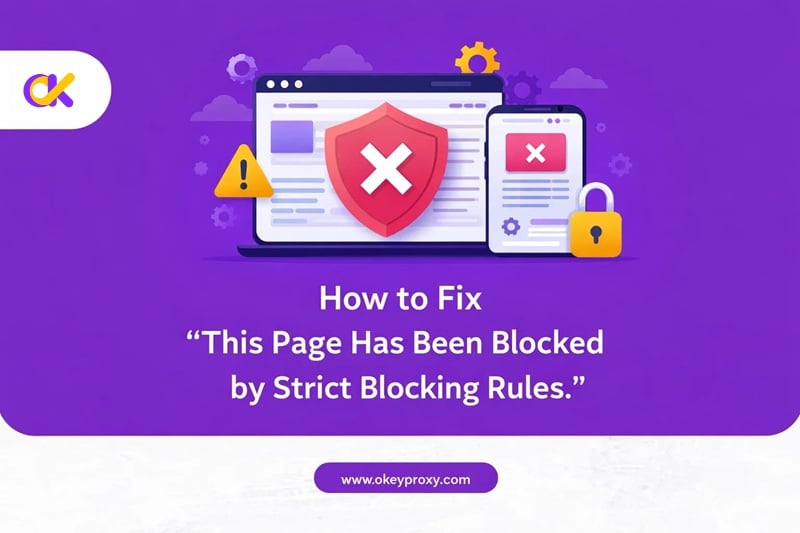
The message “this page has been blocked by strict blocking rules” is a proactive security warning triggered by browser extensions (like uBlock Origin), local network firewalls, or browser security settings indicating that a webpage’s root document has been completely severed from the server to prevent exposure to suspected malware, trackers, or aggressive scripts.
In this comprehensive guide, we will break down why this happens—from Chrome’s err_blocked_by_client errors to the specific mechanics of uBlock Origin—and provide a detailed roadmap for both everyday users and website owners to resolve the issue and restore access.
What Does “This Page Has Been Blocked by Strict Blocking Rules.” Mean?
When you encounter this error, your browser is essentially telling you that the risk of loading the page outweighs the benefit. This is a common occurrence, where “strict” privacy modes have become the default for many power users. It isn’t just a site crash; it is an intentional intervention by a security “gatekeeper.”
The Three Primary Sources of the Block
- Browser-Level Blocking (ERR_BLOCKED_BY_CLIENT): In Google Chrome, this generic error often appears when the browser’s internal security engine or a pre-installed management policy identifies a resource as harmful or restricted.
- Extension-Level Blocking (The uBlock Origin Factor): This is the most common source of the specific “strict blocking rules” text. When a URL matches a high-priority filter list entry (like those for known malware or extreme data miners), uBlock Origin (uBO) will block the “root document.” This means no data is exchanged with the server at all, effectively “killing” the connection before it starts.
- Network-Level Security: Many corporate or school environments use Cloudflare Gateway or similar security layers. If a site’s reputation score drops, the network will return a block page based on “strict” administrative policies.
Note from the Editor: Strict blocking is aggressive for a reason. It is designed to stop “drive-by” malware downloads. If you see this on a site you’ve never visited before, take the warning seriously before bypassing it.
For Users: The Quick Troubleshooting Roadmap
Sometimes, extensions like uBlock may block content that shouldn’t be blocked, causing websites to display incorrectly or fail to load completely. If you trust the website and need to get past the gatekeeper, follow this diagnostic flow. Use the table below to identify your “first move” based on your symptoms.
Diagnostic Troubleshooting Table
| Symptom | Probable Cause | Recommended Action |
|---|---|---|
| Site loads in Incognito/Private mode | Browser Extension (Ad-blocker) | Disable or Whitelist in the extension |
| A “Ray ID” or Cloudflare logo is visible | Server-side Firewall Rule | Contact Site Owner with Ray ID |
| Site is blocked on all browsers/devices on Wi-Fi | Network/ISP Filtering | Switch to Mobile Data or use a Proxy |
| Error appears only on Chrome | Chrome Internal Policy | Clear Browser Cache & Check Policies |
Step-by-Step Resolution for Users
1. Test with Incognito Mode
Open your browser’s Incognito or Private window and paste the URL. Incognito mode usually disables extensions by default. If the page loads here, you have confirmed that an ad-blocker or privacy extension is the culprit behind the strict blocking rules.
2. Managing Your Extensions
If the block is caused by an extension, you don’t have to delete it. You just need to fine-tune it.
- In Chrome: こちらへ
Menu → Extensions → Manage Extensionsand toggle off your ad-blockers one by one to find the specific one. - Whitelisting: Once found, click the extension icon while on the blocked page and select “Trust this site” or “Power off for this domain.”
3. Overriding uBlock Origin’s Strict Block
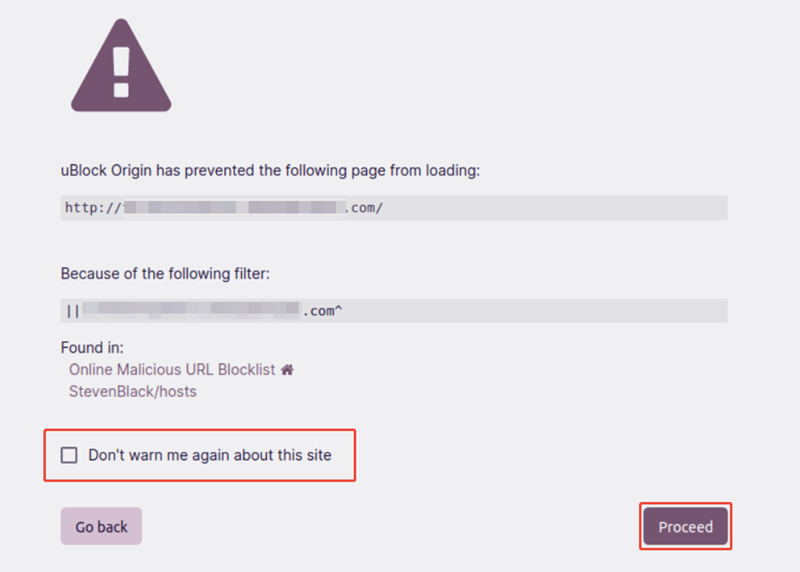
uBlock Origin gives you specific options when it triggers a strict block:
- Temporary Bypass: Click “Proceed” to disable the block for 120 seconds. This is perfect for a quick check.
- Permanent Bypass: Check “Dont warn me again about this site,” then click “Proceed.” This adds the site to your personal “Trusted sites” list.
- The Nuclear Option (Not Recommended): You can disable all strict blocking by going to the uBlock Dashboard, selecting the “My rules” tab, and adding
no-strict-blocking: * true. 警告だ: This significantly lowers your security profile.
4. Try a Different Browser
Sometimes, “strict blocking rules” are tied to browser-specific security flags or Chrome-only administrative policies. Try opening the website in Firefox or Microsoft Edge. If the site loads perfectly in another browser, you know the issue is localized to your primary browser’s configuration or its specific security engine.
5. Switch Network or Use a Professional Proxy
If you are at work or school, the “strict rules” might be at the router level. Switching to mobile data is a quick fix, but for professional research or scraping tasks, you need a more robust solution.
Professional Tip: Bypassing Network Blocks Legally
In environments where network-level filtering is overzealous, オッケープロキシー provides the perfect workaround. As a premier provider of SOCKS5 and Residential Proxies, OkeyProxy allows you to tunnel your traffic through over 150 million high-trust IPs. This effectively “masks” your destination from local filters, ensuring that this page has been blocked by strict blocking rules becomes a thing of the past. Always ensure you are complying with local regulations and corporate policies when using proxies for work.
👉 Experience Unrestricted Access with OkeyProxy Now!
6. Contact the Website Owner (The Ray ID Method)
If you see a Cloudflare-style block page, you will usually find a Ray ID at the bottom of the screen. This is a unique fingerprint for your specific visit. Copy this ID and send it to the website owner via their support email or social media. This allows them to search their security logs, identify which specific rule (e.g., a “Strict” WAF rule) blocked you, and adjust it if it’s a false positive.
For Website Owners: How to Fix and Prevent False Positives
If your own visitors are reporting that your site is being blocked, your domain might have been accidentally “blacklisted” by a popular filter list (like EasyList or Peter Lowe’s list). Here is how to diagnose and clean up your site’s reputation.
1. Use Developer Tools to Identify the “Red” Files
Open your website in Chrome, right-click, and select Inspect. Go to the コンソール または ネットワーク tab and reload the page. Any file that returns err_blocked_by_client will be highlighted in red. Often, it is a file named ads.js, tracker.php, or an image hosted on a domain that was previously associated with spam.
2. Debugging with Adblock Plus Tools
If you have Adblock Plus installed, it has a built-in “Ad Block” tab in the Developer Tools. This tab explicitly lists every single rule that blocked a specific element. If you see your core site assets being blocked, you may need to rename your files to avoid “trigger words” like “pop-up,” “click,” or “track.”
3. Verify File Integrity and Paths
Sometimes, strict blocking occurs because a resource is being called from a “suspicious” path. Check your server via FTP or File Manager:
- Ensure all JavaScript and CSS files are hosted on your primary domain or a reputable CDN.
- Check your
.htaccessfile for any accidental “Deny from all” rules that might be confusing security scanners. - Ensure your SSL certificate is valid; an expired certificate often triggers “Strict” security blocks in modern browsers.
結論
エラー “this page has been blocked by strict blocking rules” is ultimately a sign that your security software is doing its job—perhaps a little too well. For users, the fix is usually as simple as an Incognito test or a quick adjustment in uBlock Origin. For website owners, it requires a deep dive into developer consoles to ensure no benign files are triggering false positives. By maintaining a balance between high-security settings and the right tools like オッケープロキシー, you can navigate the web safely without being trapped by overly rigid rules.
よくある質問(FAQ)
1. Is “strict blocking” the same as a regular ad-blocker?
No. Regular ad-blocking hides elements (like banners) after the page loads. Strict blocking prevents the browser from even connecting to the website, protecting you from malicious scripts before they even touch your device.
2. Why does uBlock Origin say a site is blocked even if it’s not a malware site?
This often happens if a site uses a specific tracking script or a third-party library that is found on a “Global Blocklist.” Even if the site is safe, the specific script it uses might be flagged as a privacy risk.
3. Can I permanently disable the “strict blocking rules” message?
Yes, by adding no-strict-blocking: * true to the “My rules” pane in uBlock Origin’s dashboard. However, this is not recommended as it removes a major layer of protection against zero-day malware sites.
4. Does clearing my cache fix strict blocking errors?
It can. If a website recently changed its security configuration, your browser might be holding onto old “security tokens” or cache files that no longer match the new rules. Clearing your cache ensures a fresh handshake between your browser and the server.