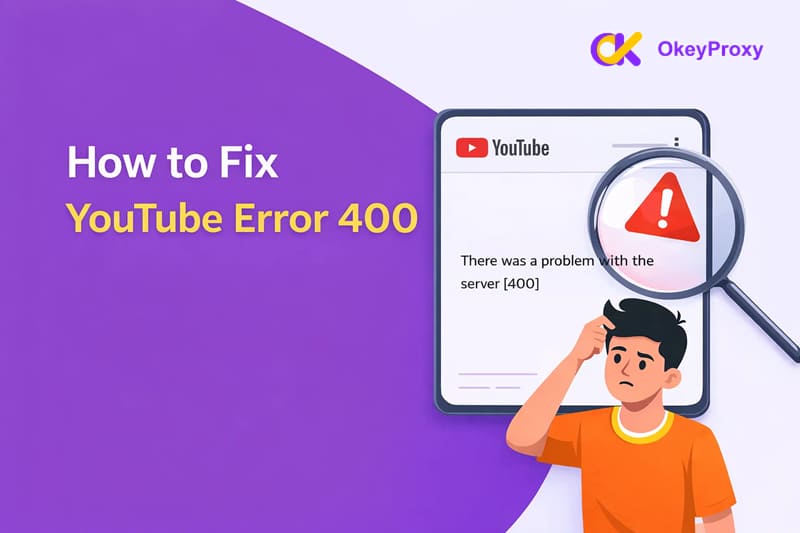
このような状況に遭遇したことはありますか?
YouTubeの動画をクリックし、猫の動画やお気に入りのクリエイターを期待する。
というエラーメッセージが表示される。
「サーバーに問題があった [400]"
突然、何の理由もなく閉ざされたドアをノックするような感じだ。
警告なし。説明もない。ただただ苛立ち。
YouTube Error 400に遭遇したことがあるのはあなただけではありません。この問題は、デスクトップ・ブラウザー、Android、iOSデバイスでよく発生します。一見深刻に見えますが、通常はいくつかの実践的なステップで解決可能です。
分解して、YouTubeを再び使えるようにしよう。
YouTubeエラー400とは?
YouTubeエラー400は通常、メッセージとともに表示されます:「サーバーに問題が発生しました[400]」というメッセージが表示されます。
このエラーは、あなたのデバイスがYouTubeに送信したリクエストが、サーバーによって正しく理解されなかったことを意味します。 つまり、あなたのデバイスがYouTubeと通信しようとしたが、そのリクエストの中の何かがシステムにとって意味をなさなかった。
ほとんどの場合、これはクライアント側の問題であり、YouTube自体の問題ではなく、あなたの側の問題が原因です。よくある原因としては、キャッシュやクッキーの破損、古いアプリやブラウザ、誤った設定、不安定なネットワーク接続などが挙げられます。
しかし、YouTubeのサーバーも、特に一時的な停止、メンテナンス、バックエンドの更新の際に、影響を受けることがあります。
カフェで注文をしたのに、注文票が汚れていたり、不備があったりするようなものだ。
バリスタはあなたが何かを頼んでいるのを見ますが、それが何なのかよくわからないので、注文は却下されます。
YouTubeエラー400の一般的な原因
エラーを修正するには、何が原因かを理解することが重要です。以下は、よくある原因です:
- 破損したキャッシュまたはクッキー:時間が経つにつれて、キャッシュデータやクッキーが古くなったり破損したりして、リクエスト時にYouTubeを混乱させることがあります。
- 誤った日付と時刻の設定:デバイスの日付または時刻が正しくない場合、YouTubeはセキュリティ上の理由からリクエストを拒否することがあります。
- 古いブラウザやアプリのバージョン:古いバージョンではYouTubeの最新プロトコルに対応していない場合があります。
- ブラウザの拡張機能またはプラグイン:広告ブロッカー、プライバシーツール、VPN拡張機能は、YouTubeのリクエストを妨害する可能性があります。
- ネットワーク接続不良または不安定:接続が弱い場合、データ転送がリクエストの途中で中断されることがある。
- 制限モードまたはデータ制限:YouTubeの制限モードまたは無効化されたバックグラウンドデータは、特定のコンテンツへのアクセスをブロックすることができます。
YouTubeエラー400のクイックフィックス(まずこれらをお試しください)
複雑な解決策を考える前に、簡単な対処法を試してみましょう。これらのステップを踏むことで、それほど手間をかけずに問題が解決することがよくあります:
1.YouTubeを更新する
更新するだけでエラーが解決することもあります。その方法をご紹介しましょう:
- マック:Command + RまたはCommand (⌘) + Shift + R(ハードリフレッシュ)を押します。
- ウィンドウズ:Ctrl + RまたはCtrl + Shift + R(ハードリフレッシュ)を押します。
- アンドロイド:最近使ったアプリ」を開き、YouTubeをスワイプして閉じます。その後、もう一度YouTubeを開いてください。
- iPhone:上にスワイプ(またはホームをダブルタップ)し、YouTubeアプリを終了します。その後、YouTubeを再起動してください。
ページをリフレッシュすることで、すべてを最初から読み込み直すことができ、一時的なエラーが解消される可能性があります。
2.デバイスを再起動する
疑わしい場合は、デバイスを再起動してください。再起動するだけで、一時的な不具合は解消されます。
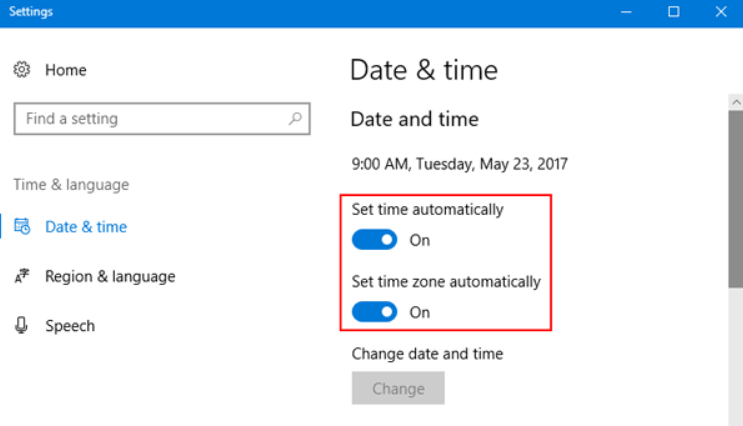
3.日付と時刻の設定を確認する
見落としがちなことですが、デバイスの日付と時刻の設定が正しくないと、YouTubeの接続が乱れることがあります。この問題を避けるために、デバイスの日付と時刻が自動に設定されていることを確認してください。
4.ネットワーク接続の確認
ネットワーク接続が遅かったり不安定だったりすると、さまざまな問題が発生します。どうすればいいのでしょう?
- デスクトップ:インターネット接続がYouTubeに対応しているか確認してください。通常、HDビデオのストリーミングには最低5Mbpsが必要です。
- モバイル:Wi-Fiとモバイルデータを切り替えて、安定性をチェック。
接続が弱い場合、ストリーミングが中断され、エラー400のようなエラーが発生する可能性があります。
5.Googleアカウントの同期を確認する
YouTubeをスムーズに利用するには、Googleアカウントが正しく同期されている必要があります。アカウントがデバイスに正しく接続され、同期されていることを再確認してください。
デスクトップのYouTubeエラー400を修正する方法
クイックフィックスでも問題が解決しない場合は、デスクトップ特有のトラブルシューティングを試してみましょう。以下の手順に従って、原因を突き止めましょう。
1.キャッシュとクッキーを消去する
インターネット接続が安定しているにもかかわらずYouTube Error 400が表示される場合は、ブラウザのデータが破損している可能性があります。
ステップ1:ブラウザの設定を開く
ステップ2:プライバシーとセキュリティ]に移動し、[閲覧データの削除]を選択します。
ステップ3:キャッシュされた画像やファイル、クッキーを消去する
ステップ4:ブラウザを再起動してYouTubeを見る
これにより、ブラウザは壊れたセッションファイルに頼るのではなく、新しいデータを読み込むようになる。
2.ブラウザの設定をリセットする
ブラウザの設定を誤ると、YouTubeへのリクエストが無言でブロックされる可能性があります。
ステップ1:ブラウザの設定を開く
ステップ2:設定のリセット(または設定をデフォルトに戻す)を探す
ステップ3:リセットを確認する
ステップ4:ブラウザを再起動して、もう一度お試しください。
ブックマークは削除されませんが、拡張機能が無効になり、デフォルトの動作に戻ります。
3.ブラウザの拡張機能を無効にする
拡張機能の中には、YouTubeのサーバーとの通信を妨害するものがあります。
ステップ1:ブラウザの拡張機能ページを開く
ステップ2:特に拡張機能を一時的に無効にする:
- 広告ブロッカー
- プライバシーまたは追跡ブロッカー
- VPN拡張機能
ステップ3:YouTubeを再読み込みして、エラーが消えるかどうか確認してください。
もしうまくいったら、問題を特定するために拡張機能をひとつずつ再有効化する。
4.インコグニートモードまたはプライベートモードを使用する
Incognitoモードは、クッキーや拡張機能が問題を引き起こしているかどうかをテストする簡単な方法です。
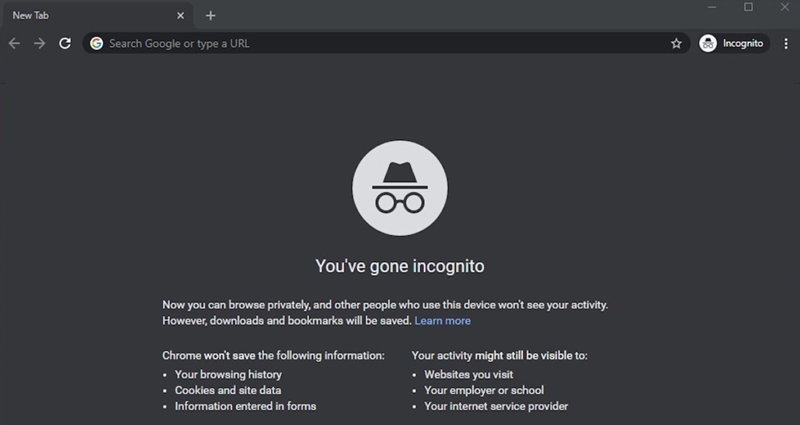
ステップ1:新しいシークレット/プライベートウィンドウを開く
ステップ2:YouTubeへ直接アクセス
ステップ3:ビデオを再生するか、ページに再度アクセスしてみてください。
このモードは既存のクッキーや拡張機能を無視するため、問題を素早く特定するのに役立ちます。
5.ブラウザを最新版にアップデートする
古いブラウザは、YouTubeの最新の機能やセキュリティ要件に完全に対応していない可能性があります。
ステップ1:ブラウザの設定を開く
ステップ2:アップデートの確認
ステップ3:最新バージョンのインストール
ステップ4:ブラウザを再起動する
最新の状態を維持することで、互換性に関連する400のエラーを防ぐことができる。
6.YouTubeのURLをダブルチェックする
ちょっとしたタイプミスが400 Bad Requestエラーを引き起こすことがある。
ステップ1:アドレスバーのURLをよく見る
ステップ2:不要なパラメータや変な文字を削除する
ステップ3:youtube.com経由でYouTubeに直接アクセスしてみてください。
サードパーティのリンクをクリックした場合は、YouTubeを手動で開くことで問題を回避できることが多い。
AndroidとiOSのYouTubeエラー400を修正する方法
お使いの携帯電話でYouTube Error 400が発生した場合、通常はアプリのキャッシュ、ネットワークの制限、またはDNSの問題が関係しています。お使いのデバイスに応じて、以下の手順に従ってください。
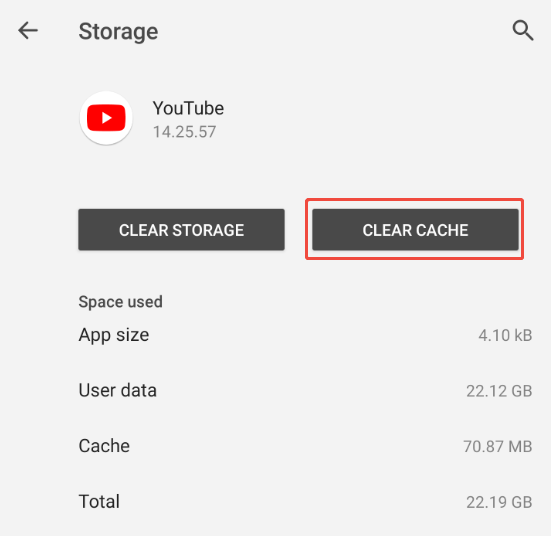
1.YouTubeアプリのキャッシュとデータを消去する
アプリのデータが破損すると、YouTubeがサーバーと正しく通信できなくなる可能性があります。
アンドロイド
ステップ1:設定を開く
ステップ2:アプリ → YouTubeをタップ
ステップ3:ストレージへ
ステップ4:キャッシュを消去」をタップします。
iPhoneの場合
iOSはキャッシュを直接クリアできない。
ステップ1:YouTubeアプリを長押し
ステップ2:アプリを削除をタップ
ステップ3:App Store から YouTube を再インストールする
ステップ4:アカウントにログイン
これにより、キャッシュされたデータとセッションファイルが効果的にリセットされる。
2.Google Playサービスのキャッシュをクリアする(Androidのみ)
YouTubeはGoogle Play Servicesに依存しており、そこで破損したデータも400エラーを引き起こす可能性がある。
ステップ1:設定を開く
ステップ2:アプリ → Google Play サービス
ステップ3:タップストレージ
ステップ4:データクリア(またはキャッシュクリア)を選択
データを消去した後、携帯電話を再起動してください。
3.YouTubeアプリをアップデートする
古いバージョンのアプリを使用すると、互換性の問題が発生する可能性があります。
ステップ1:Google PlayストアまたはApp Storeを開く
ステップ2:YouTubeで検索
ステップ3:利用可能な場合は「更新」をタップ
アップデート後、アプリを再度開いてテストしてください。
4.YouTubeアプリを再インストールする
アップデートやキャッシュクリアで解決しない場合は、クリーン再インストールでより深い問題が解決するかもしれない。
ステップ1:YouTubeアプリをアンインストールする
ステップ2:デバイスを再起動する
ステップ3:アプリストアからYouTubeを再インストール
ステップ4:サインインしてもう一度
5.YouTubeのデータ使用を許可する
YouTubeのバックグラウンドやモバイルデータへのアクセスが制限されている場合、アプリがサーバーとの通信に失敗し、エラー400が発生することがあります。
アンドロイドを例に取ろう:
ステップ1:携帯電話のYouTubeアプリのアイコンを長押ししてメニューを開きます。
ステップ2:オプションからアプリ情報をタップします。
ステップ3:下にスクロールし、「接続」、「ネットワークとインターネット」、または同様のオプションを選択します(文言はデバイスによって異なる場合があります)。
ステップ4:モバイルデータ(利用可能な場合はバックグラウンドデータ)の横にあるトグルを有効にすると、YouTubeが自由にデータを使用できるようになります。
ステップ5:OK」または「確認」をタップして変更を保存します。
このステップは、YouTubeがWi-Fiで動作しているにもかかわらず、モバイルデータを使用するとエラー400が表示される場合に特に重要です。
6.制限モードを無効にする
特定の動画を開こうとするとエラーが表示される場合、YouTubeの制限モードが原因である可能性があります。このモードは、成熟したコンテンツとしてマークされたコンテンツをフィルタリングし、場合によっては、動画が正しく読み込まれず、エラー400が発生することがあります。
制限モードをオフにすると、問題が解決する場合があります。
ステップ1:YouTubeアプリを開く
ステップ2:右上のプロフィールアイコンをタップ
ステップ3:設定 → 一般
ステップ4:制限モードをオフに切り替える
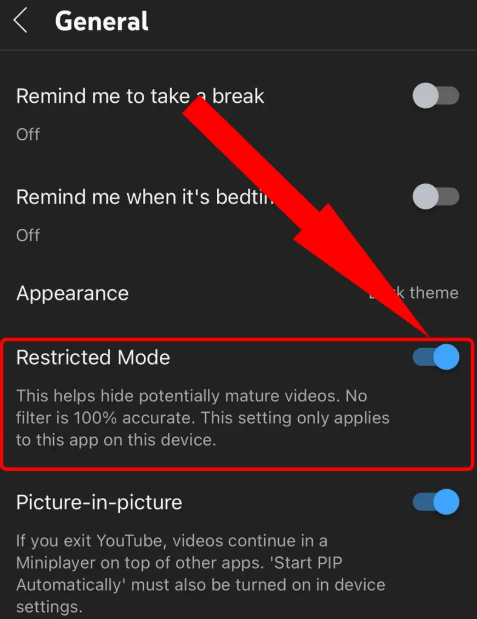
制限モードを無効にした後、YouTubeアプリを再起動し、再度動画にアクセスしてみてください。
7.DNS設定の更新(Android)
ISPのデフォルトDNSが不安定なため、400 Bad Requestエラーが発生する可能性があります。
ステップ1:設定を開く
ステップ2:タップ接続
ステップ3:プライベートDNSを選択
ステップ4:プライベートDNSプロバイダーのホスト名を選択
ステップ5:入力 dns.google
ステップ6:設定を保存する
GoogleのDNSに切り替えると、安定性が向上し、リクエストエラーも解消されることが多い。
試す価値のある他の解決策
これまでの対処法でうまくいかなかった場合、以下の対処法をお試しください。これらは、YouTube Error 400のあまり一般的ではありませんが、時には重大な原因をカバーしています。
1.YouTubeサーバーの状態を確認する
問題があなたの側にまったくないこともあります。YouTubeがダウンタイムやメンテナンス中の場合、ローカルでのトラブルシューティングは役に立ちません。以下のようなサイトをチェックしてみてください。 ダウンディテクター をクリックして、他のユーザーが問題を報告しているかどうかを確認し、YouTubeのサーバー状況を監視してください。
2.VPNを無効にするか、安定したプロキシを使用する
VPNは、リクエストの不一致を引き起こすことがあります。VPNは、トラフィックを異なるサーバーを経由させることで、YouTubeのセキュリティチェックを引き起こす可能性があります。
👉 チップ:よりスムーズな体験のために、高速の専用ケーブルの使用をご検討ください。 レジデンシャル・プロキシ.私たちのOkeyProxy YouTubeプロキシ は、安定した動画視聴、コメントの投稿、広告のチェック、データスクレイピングなど、YouTube のあらゆるユースケースに対応するように設計されています。一貫した IP を使用することで、リクエストは予測可能で信頼できるものになり、エラー 400 が発生する可能性を大幅に減らすことができます。
YouTubeプロキシの使用例:
- 地域制限のあるYouTubeコンテンツのブロックを解除する
- マルチアカウント管理
- YouTube広告のプレビューと検証
- YouTube SEO & ランキング・モニタリング
- データスクレイピングと自動化
3.デバイスのOSをアップデートする
古いシステムソフトウェアは、YouTubeアプリとの互換性の問題を引き起こす可能性があります。お使いのデバイスのOSバージョンが最新であることをご確認ください。
4.Googleアカウントを削除して再追加する
アカウント認証を更新すると、長引くログインや同期の問題を解決できます。デバイスからGoogleアカウントを削除し、再度追加してログインするだけです。
5.YouTubeサポートに連絡する
他に方法がない場合は、YouTubeの公式サポートチャンネルか、アプリ内の「ヘルプ&フィードバック」機能を使って問題を直接報告してください。
結論
YouTubeのエラー400は一見威圧的に見えますが、通常はお使いのデバイスとYouTubeのサーバー間の誤通信に過ぎません。
ほとんどの場合、キャッシュデータのクリア、ソフトウェアのアップデート、ネットワーク設定の修正で解決する。
問題があなたの側にないときは?サーバーのステータスをチェックすることで、不要なトラブルシューティングの時間を節約できます。
上記の手順で、スムーズなストリーミングができるようになります。🎬