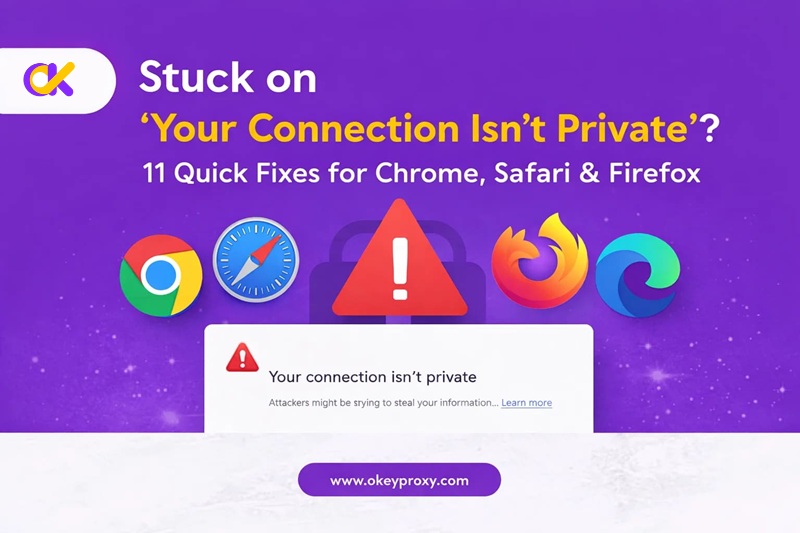
We’ve all been there: you’re clicking through a website, looking for information or trying to finish a purchase, and suddenly—BAM! A giant red warning sign fills your screen with the message, “Your connection isn’t private.” It’s frustrating, a bit scary, and usually happens at the worst possible moment. While this message looks like a digital “Do Not Enter” sign, it’s actually your browser acting as a security guard, warning you that the encrypted path between your device and the website might be compromised. The good news? Most of the time, the fix is just a few clicks away, and you can get back to browsing safely in no time.
What Does “Your Connection Isn’t Private” Actually Mean?
In simple terms, this error means your browser cannot verify the SSL (Secure Sockets Layer) certificate of the website you are trying to visit. Think of an SSL certificate as a digital passport; it proves the website is who it says it is and that the data sent between you and the site is encrypted. If the “passport” is expired, incorrectly set up, or missing, your browser pulls the emergency brake to protect your passwords, credit card numbers, and personal info from potential hackers. It doesn’t always mean the site is malicious—it often just means there’s a technical glitch in the handshake between your computer and the server.
How to Solve the “Your Connection Isn’t Private” Message
Before we dive into the step-by-step details, here is a quick-reference table to help you identify which solution to try first based on the difficulty and the nature of the fix.
| Category | Метод | Difficulty Rating |
|---|---|---|
| Basic Checks | Refresh the Page | ⭐ (Very Easy) |
| Check Website URL | ⭐ (Very Easy) | |
| Sync System Time | ⭐⭐ (Easy) | |
| Switch Networks / Restart Router | ⭐⭐ (Easy) | |
| Advanced Solutions | Incognito Mode / Disable Extensions | ⭐⭐ (Easy) |
| Очистить кэш и файлы cookie | ⭐⭐ (Easy) | |
| Disable VPN / Antivirus SSL Scanning | ⭐⭐⭐ (средний) | |
| Reset Browser Flags / Update OS | ⭐⭐⭐ (средний) | |
| Use a Proxy Server (Recommended) | ⭐⭐⭐ (средний) | |
| Change DNS Settings | ⭐⭐⭐⭐ (Hard) | |
| Cautionary Methods | Manual Bypass (thisisunsafe) | ⭐ (Easy but Risky) |
1. Refresh the Page (The “Turn It Off and On” Classic)
Difficulty: ⭐
Sometimes the error is just a hiccup. The SSL certificate might have failed to load because your connection timed out for a split second. Try a Hard Refresh by pressing Ctrl + F5 (Windows) или Cmd + Shift + R (Mac). This forces the browser to ignore its saved cache and fetch the newest version of the page.
2. Double-Check the Website URL
Difficulty: ⭐
A tiny typo can lead you to a different, non-secure site. Hackers often use “typosquatting” (e.g., g00gle.com instead of google.com) to trick users. Also, check if the URL starts with HTTPS. If it’s just HTTP, the connection isn’t encrypted, which triggers the warning. If you know the site should be secure, manually type https:// before the address.
3. Sync Your System Date and Time
Difficulty: ⭐⭐
This is the #1 “secret” cause of privacy errors. SSL certificates have a specific lifespan. If your computer thinks it’s 2015, it will see a 2026 certificate as “not yet valid” and block the site.
- Windows Fix: Нажмите
Победа + Я> Time & Language > Date & Time. Click Sync Now and ensure “Set time automatically” is toggled ON. - Mac Fix: System Settings > General > Date & Time > Set date and time automatically.
4. Use Incognito Mode or Disable Extensions
Difficulty: ⭐⭐
Browser extensions (like ad-blockers or security suites) can sometimes interfere with the SSL handshake. Open a “New Incognito Window.” If the site works there, one of your extensions is the culprit.
Совет: Перейти к chrome://extensions and toggle them off one by one to find the troublemaker.
5. Clear Your Browser Cache and Cookies
Difficulty: ⭐⭐
Overloaded browser data can contain outdated security certificates that cause “false positive” warnings. Clearing your “Cached images and files” and “Cookies” gives your browser a clean slate to re-validate the site’s identity.
6. Switch Networks or Restart Your Router
Difficulty: ⭐⭐
Public Wi-Fi (like at airports or cafes) is notorious for this error. Many public networks try to “intercept” your traffic to show you a login page, which looks like a Man-in-the-Middle attack to your browser. Switch to mobile data or your home Wi-Fi. If you’re already home, unplug your router for 60 seconds to clear any temporary DNS glitches.
7. Use a Professional Proxy Server
Difficulty: ⭐⭐⭐
If your local network or ISP has restrictive filtering or buggy DNS routing, a proxy server can act as a reliable intermediary. By routing your traffic through a high-quality proxy, you can bypass local network errors that trigger “not private” warnings.
Editor’s Choice: For those needing a stable and secure connection, we recommend OkeyProxy. With Более 150 миллионов жилых IP-адресов, OkeyProxy ensures your connection looks like a standard home user, helping you bypass network-level blocks and security mismatches that often cause browser errors.
8. Disable VPN or Antivirus SSL Scanning
Difficulty: ⭐⭐⭐
Some antivirus programs have a feature called “SSL Scanning” or “Web Protection.” While meant to keep you safe, it works by “breaking” the encrypted connection to inspect it—ironically causing the very error it’s trying to prevent. Try disabling your VPN or temporarily pausing your antivirus to see if the error disappears.
9. Reset Browser Flags
Difficulty: ⭐⭐⭐
If you’ve been “tweaking” your browser’s experimental settings, you might have broken something. Go to chrome://flags и нажмите Reset all in the top right corner. This returns your browser’s internal engine to its stable, factory-standard state.
10. Change DNS Settings
Difficulty: ⭐⭐⭐⭐
Your ISP’s DNS might be resolving the website to an incorrect IP. Changing to a global, high-speed DNS can fix this:
- Google DNS: 8.8.8.8 and 8.8.4.4
- Cloudflare DNS: 1.1.1.1
11. The “Last Resort” Manual Bypass
Difficulty: ⭐ (But risky!)
If you are 100% sure the site is safe (like an internal company tool), you can force your way through. Click Расширенный on the error page and then click “Proceed to [website] (unsafe).”
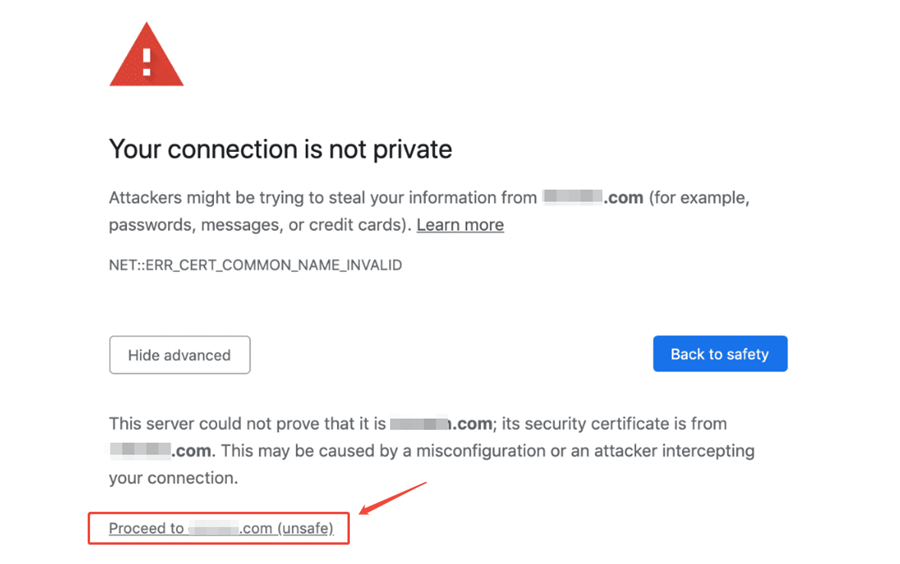
Примечание: On Chrome, if there is no button, you can simply click anywhere on the page and type thisisunsafe on your keyboard. The page will reload and let you in. Внимание: Never do this on banking or shopping sites!
For Webmasters: How to Prevent This Error on Your Site
If you own the website, seeing this error is a nightmare because it drives away 90% of your traffic. This is a “Server-Side” issue. Here is how to keep your site “Green”:
- Automate Certificate Renewal: Use services like Let’s Encrypt with auto-renewal enabled. Most privacy errors for owners happen because someone forgot to renew the SSL.
- Fix “Mixed Content”: Ensure every image, script, and CSS file on your site is loaded via
https://. If one image useshttp://, the browser will flag the whole page as “Not Fully Private.” - Complete the Certificate Chain: Sometimes the main certificate is fine, but the “intermediate” certificates are missing. Use an SSL checker tool to ensure your server is sending the full chain to the browser.
Privacy Error Code Dictionary: What Do the Codes Mean?
Knowing the specific name of an error can save you hours of troubleshooting. Here is a breakdown of the most frequent codes you’ll see across different browsers.
Common Chrome & Microsoft Edge Codes
| Код ошибки | Explanation | Primary Fix |
|---|---|---|
| NET::ERR_CERT_DATE_INVALID | The certificate is expired or your system time is wrong. | Sync system clock. |
| NET::ERR_CERT_AUTHORITY_INVALID | The SSL certificate cannot be authenticated or is self-signed. | Check for network filters or antivirus. |
| NET::ERR_CERT_COMMON_NAME_INVALID | Domain name doesn’t match the certificate (e.g., site.com vs blog.site.com). | Check for typos in the URL. |
| NET::ERR_SSL_VERSION_OR_CIPHER_MISMATCH | The site uses outdated encryption (TLS 1.0) that the browser blocked. | Update browser or contact site owner. |
| NET::ERR_CERTIFICATE_TRANSPARENCY_REQUIRED | The certificate isn’t listed in public transparency logs. | Usually a server-side config issue. |
Common Firefox Codes
- SEC_ERROR_EXPIRED_CERTIFICATE: The website’s security credentials have timed out.
- SEC_ERROR_UNKNOWN_ISSUER: Firefox doesn’t recognize the authority that issued the certificate. Often caused by antivirus SSL scanning.
- MOZILLA_PKIX_ERROR_MITM_DETECTED: Firefox thinks a “Man-in-the-Middle” (like a school filter) is intercepting your traffic.
- SSL_ERROR_NO_CYPHER_OVERLAP: The website and Firefox don’t agree on which encryption “language” to speak.
Safari Users
Safari is often less specific in its primary warning. To find the exact code, you must click on the “Show Details” button in the warning window to reveal the underlying certificate conflict.
Best Practices for Protecting Your Online Privacy
Fixing an error is great, but preventing future security issues is better. In 2026, web security is more proactive than ever. Follow these tips to stay safe:
- Use Strong Passwords & 2FA: Always protect your accounts with complex passwords and Two-Factor Authentication (2FA). Even if a connection is momentarily “not private,” 2FA acts as a secondary shield for your accounts.
- Vet Your Browser Extensions: Only install well-reviewed privacy extensions from trusted developers. Some “free” extensions are actually designed to track your browsing data.
- Never Share Sensitive Data via HTTP: Unless you see the green padlock or HTTPS in the address bar, never enter credit card details or social security numbers.
- Keep Software Updated: Set your OS and browser to “Auto-Update.” Outdated software is the biggest entry point for modern malware.
- Leverage Trusted Intermediaries: When using public networks, use a reputable proxy like OkeyProxy to ensure your data stays encrypted and your real IP is shielded from local network observers.
Заключение
Сайт “Your connection is not private” error is a helpful, albeit annoying, feature designed to keep you safe in an increasingly complex digital world. Most of the time, the fix is as simple as syncing your computer clock or clearing your cache. However, if you’re constantly hitting these errors on multiple sites, it might be time to look at your network security or switch to a high-quality proxy service like OkeyProxy to ensure a smooth, secure experience. Don’t let a red warning screen stop your progress—stay smart, stay updated, and browse with confidence!