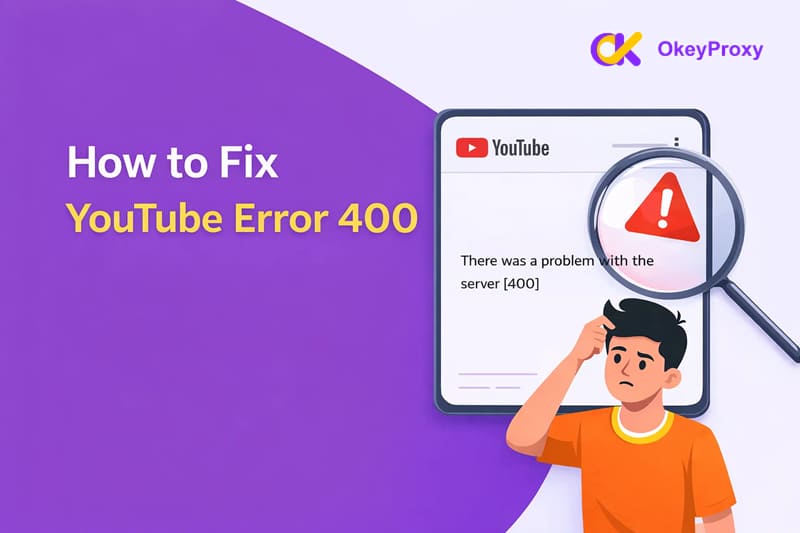
Vi siete mai trovati in questa situazione?
Si clicca su un video di YouTube, aspettandosi video di gatti o del proprio creatore preferito.
e invece si viene accolti da un messaggio di errore.
"Si è verificato un problema con il server [400]".
È come bussare a una porta che all'improvviso si chiude senza un motivo evidente.
Nessun avviso. Nessuna spiegazione. Solo frustrazione.
Se avete riscontrato l'errore 400 di YouTube, non siete i soli. Questo problema compare comunemente sui browser desktop, sui dispositivi Android e iOS e, sebbene sembri grave, di solito è risolvibile con alcuni accorgimenti pratici.
Vediamo di risolvere il problema e di far funzionare di nuovo YouTube.
Che cos'è l'errore 400 di YouTube?
L'errore 400 di YouTube viene solitamente visualizzato con il messaggio: "Si è verificato un problema con il server [400]".
Questo errore significa che la richiesta inviata dal dispositivo a YouTube non è stata compresa correttamente dal server. In altre parole, il dispositivo ha cercato di comunicare con YouTube, ma qualcosa nella richiesta non ha avuto senso per il sistema.
Nella maggior parte dei casi, si tratta di un problema lato client, causato da problemi dell'utente e non da YouTube stesso. Tra le cause più comuni vi sono cache o cookie danneggiati, applicazioni o browser obsoleti, impostazioni errate o connessioni di rete instabili.
Tuttavia, anche i server di YouTube possono essere occasionalmente coinvolti, in particolare in caso di aperture temporanee, manutenzione o aggiornamenti del backend.
Pensate che è come fare un'ordinazione al bar, ma il buono d'ordine è sbavato o incompleto.
Il barista vede che state chiedendo qualcosa, ma non riesce a capire cosa sia, quindi l'ordine viene rifiutato.
Cause comuni dell'errore 400 di YouTube
Per risolvere l'errore, è fondamentale capire cosa lo causa. Ecco alcuni colpevoli comuni:
- Cache o cookie corrotti: Nel corso del tempo, i dati della cache e i cookie possono diventare obsoleti o danneggiati, confondendo YouTube durante le richieste.
- Impostazioni di data e ora non corrette: Se la data o l'ora del dispositivo non sono corrette, YouTube potrebbe rifiutare la richiesta per motivi di sicurezza.
- Versione obsoleta del browser o dell'app: Le versioni precedenti potrebbero non supportare i protocolli più recenti di YouTube.
- Estensioni o plugin del browser: I blocchi degli annunci, gli strumenti per la privacy o le estensioni VPN possono interferire con le richieste di YouTube.
- Connessione di rete scarsa o instabile: Le connessioni deboli possono interrompere la trasmissione dei dati a metà della richiesta.
- Modalità limitata o limitazioni dei dati: La modalità limitata di YouTube o la disattivazione dei dati in background possono bloccare l'accesso a determinati contenuti.
Soluzioni rapide per l'errore 400 di YouTube (provate prima queste)
Prima di addentrarci in soluzioni più complesse, proviamo alcune semplici soluzioni. Spesso questi passaggi possono risolvere il problema senza troppi problemi:
1. Aggiornare YouTube
A volte basta un rapido aggiornamento per risolvere l'errore. Ecco come fare:
- Mac: Premere Comando + R o Comando (⌘) + Maiuscolo + R (aggiornamento rigido).
- Finestre: Premere Ctrl + R o Ctrl + Shift + R (aggiornamento rigido).
- Android: Aprire le applicazioni recenti e scorrere via YouTube per chiuderlo. Quindi riaprire YouTube.
- iPhone: Passare il dito verso l'alto (o toccare due volte Home) e chiudere l'applicazione YouTube. Quindi riavviare YouTube.
L'aggiornamento della pagina può aiutare a ricaricare tutto da zero, eliminando eventuali errori temporanei.
2. Riavviare il dispositivo
In caso di dubbio, riavviate il dispositivo. Un semplice riavvio può eliminare i problemi temporanei e potrebbe essere la soluzione giusta.
3. Controllare le impostazioni di data e ora
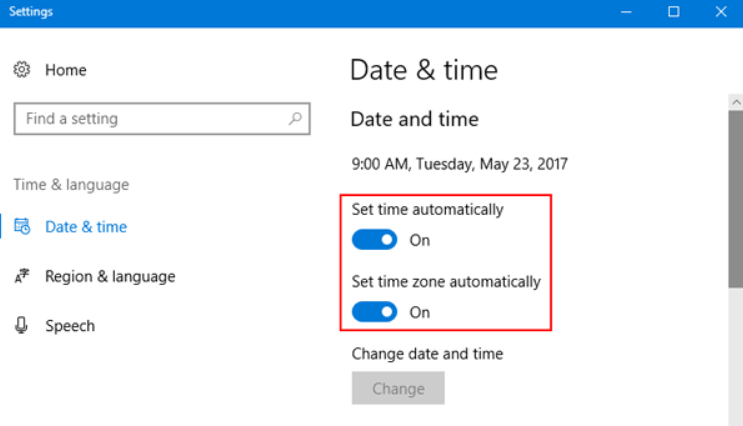
È una cosa facile da trascurare, ma le impostazioni errate di data e ora sul vostro dispositivo possono interferire con la connessione di YouTube. Assicuratevi che la data e l'ora del vostro dispositivo siano impostate su automatico per evitare questo problema.
4. Controllare la connessione di rete
Una connessione di rete lenta o instabile può causare ogni sorta di problema. Ecco cosa fare:
- Desktop: Verificate che la vostra connessione Internet sia in grado di gestire YouTube. Lo streaming di video HD richiede in genere almeno 5 Mbps.
- Mobile: Passare dal Wi-Fi ai dati mobili per verificare la stabilità.
Se la connessione è debole, è possibile che si verifichino interruzioni nello streaming, causando errori come l'Errore 400.
5. Controllare la sincronizzazione dell'account Google
L'account Google deve essere sincronizzato correttamente affinché YouTube funzioni correttamente. Verificate che il vostro account sia collegato e sincronizzato correttamente con il vostro dispositivo.
Come risolvere l'errore 400 di YouTube sul desktop
Se le soluzioni rapide non hanno risolto il problema, è il momento di provare a risolvere i problemi specifici del desktop. Seguite i passaggi seguenti uno per uno per individuare la causa.
1. Cancellare la cache e i cookie
Se la connessione a Internet è stabile ma l'errore 400 di YouTube continua a essere visualizzato, i dati del browser corrotti sono un colpevole comune.
Passo 1: Aprire le impostazioni del browser
Passo 2: Andare su Privacy e sicurezza, selezionare Cancella dati di navigazione.
Passo 3: Cancella le immagini e i file nella cache e i cookie
Passo 4: Riavviare il browser e rivisitare YouTube
Questo costringe il browser a caricare dati freschi invece di affidarsi a file di sessione non funzionanti.
2. Ripristino delle impostazioni del browser
Impostazioni errate del browser possono bloccare silenziosamente le richieste di YouTube.
Passo 1: Aprire le impostazioni del browser
Passo 2: Trova Ripristino delle impostazioni (o Ripristino delle impostazioni predefinite)
Passo 3: Conferma il reset
Passo 4: Riavviare il browser e riprovare
Questa operazione non cancellerà i segnalibri, ma disabiliterà le estensioni e ripristinerà il comportamento predefinito.
3. Disattivare le estensioni del browser
Alcune estensioni interferiscono con il modo in cui YouTube comunica con i suoi server.
Passo 1: Aprire la pagina delle estensioni del browser
Passo 2: Disattivare temporaneamente le estensioni, in particolare:
- Blocco degli annunci
- Blocco della privacy o del tracciamento
- Estensioni VPN
Passo 3: Ricaricare YouTube per vedere se l'errore scompare.
Se funziona, riabilitare le estensioni una per una per identificare il problema.
4. Utilizzare la modalità Incognito o Privata
La modalità in incognito è un modo rapido per verificare se il problema è causato dai cookie o dalle estensioni.
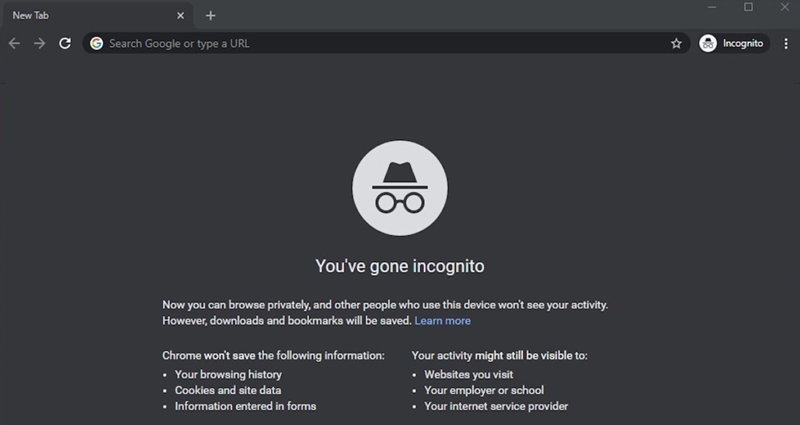
Passo 1: Aprire una nuova finestra in incognito/privata
Passo 2: Visita direttamente YouTube
Passo 3: Provare a riprodurre un video o ad accedere nuovamente alla pagina.
Poiché questa modalità ignora i cookie e le estensioni esistenti, aiuta a isolare rapidamente il problema.
5. Aggiornare il browser alla versione più recente
I browser obsoleti potrebbero non supportare appieno le funzioni e i requisiti di sicurezza più recenti di YouTube.
Passo 1: Aprire le impostazioni del browser
Passo 2: Controlla gli aggiornamenti
Passo 3: Installare l'ultima versione
Passo 4: Riavviare il browser
Rimanere aggiornati evita gli errori di compatibilità di 400.
6. Ricontrollare l'URL di YouTube
Un piccolo errore di battitura può causare un errore 400 Bad Request.
Passo 1: Osservare attentamente l'URL nella barra degli indirizzi
Passo 2: Rimuovere i parametri non necessari o i caratteri strani
Passo 3: Prova ad accedere a YouTube direttamente tramite youtube.com
Se si è cliccato su un link di terze parti, l'apertura manuale di YouTube può spesso aggirare il problema.
Come risolvere l'errore 400 di YouTube su Android e iOS
Se sul vostro telefono si verifica l'errore YouTube 400, di solito è legato alla cache dell'app, a restrizioni di rete o a problemi DNS. Seguite i passaggi indicati di seguito in base al vostro dispositivo.
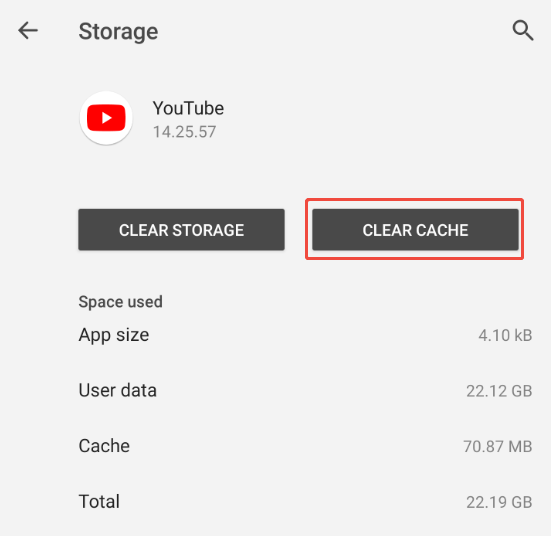
1. Cancellare la cache e i dati dell'app YouTube
I dati corrotti dell'app possono impedire a YouTube di comunicare correttamente con i suoi server.
Su Android
Passo 1: Aprire le impostazioni
Passo 2: Toccare le applicazioni → YouTube
Passo 3: Vai all'immagazzinamento
Passo 4: Toccare Cancella cache (e Cancella dati, se necessario).
Su iPhone
iOS non consente di cancellare direttamente la cache.
Passo 1: Premere a lungo sull'applicazione YouTube
Passo 2: Toccare Elimina app
Passo 3: Reinstallare YouTube dall'App Store
Passo 4: Accedere nuovamente al proprio account
In questo modo si ripristinano effettivamente i dati della cache e i file di sessione.
2. Cancellare la cache di Google Play Services (solo per Android)
YouTube si appoggia a Google Play Services e anche in questo caso i dati danneggiati possono causare un errore 400.
Passo 1: Aprire le impostazioni
Passo 2: Andare in Applicazioni → Servizi Google Play
Passo 3: Stoccaggio del rubinetto
Passo 4: Selezionare Cancella dati (o Cancella cache)
Riavviare il telefono dopo aver cancellato i dati.
3. Aggiornare l'applicazione YouTube
L'utilizzo di una versione obsoleta dell'app può causare problemi di compatibilità.
Passo 1: Aprire Google Play Store o App Store
Passo 2: Ricerca di YouTube
Passo 3: Toccare Aggiorna se disponibile
Dopo l'aggiornamento, riaprire l'applicazione e ripetere il test.
4. Reinstallare l'applicazione YouTube
Se gli aggiornamenti e la cancellazione della cache non hanno aiutato, una reinstallazione pulita può risolvere i problemi più profondi.
Passo 1: Disinstallare l'applicazione YouTube
Passo 2: Riavviare il dispositivo
Passo 3: Reinstallare YouTube dall'app store
Passo 4: Accedi e riprova
5. Consentire l'uso dei dati per YouTube
Se l'accesso a YouTube in background o ai dati mobili è limitato, l'app potrebbe non riuscire a comunicare con i suoi server, generando l'errore 400, soprattutto quando non si è in Wi-Fi.
Prendiamo ad esempio Android:
Passo 1: Tenere premuta l'icona dell'applicazione YouTube sul telefono per aprire il menu.
Passo 2: Toccare Info app dalle opzioni.
Passo 3: Scorrere verso il basso e selezionare Connessioni, Rete e Internet o un'opzione simile (la dicitura può variare a seconda del dispositivo).
Passo 4: Attivare la levetta accanto a Dati cellulare (e Dati in background, se disponibili) per consentire a YouTube di utilizzare liberamente i dati.
Passo 5: Toccare OK o Conferma per salvare le modifiche.
Questo passaggio è particolarmente importante se YouTube funziona in Wi-Fi ma mostra l'errore 400 quando si utilizzano i dati mobili.
6. Disattivare la modalità ristretta
Se l'errore viene visualizzato quando si tenta di aprire determinati video, la causa potrebbe essere la Modalità con restrizioni di YouTube. Questa modalità filtra i contenuti contrassegnati come maturi e, in alcuni casi, può impedire il caricamento corretto dei video, causando l'errore 400.
La disattivazione della modalità limitata può risolvere il problema.
Passo 1: Aprire l'applicazione YouTube
Passo 2: Toccare l'icona del proprio profilo nell'angolo in alto a destra.
Passo 3: Andare su Impostazioni → Generale
Passo 4: Disattivare la modalità limitata
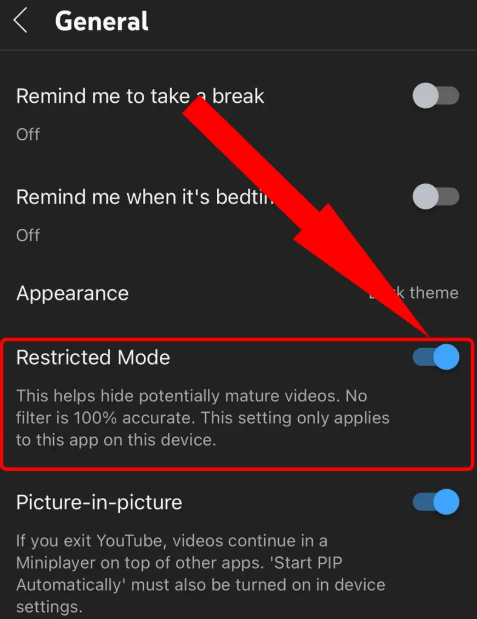
Dopo aver disabilitato la Modalità con restrizioni, riavviare l'applicazione YouTube e provare ad accedere nuovamente al video.
7. Aggiornare le impostazioni DNS (Android)
Il DNS predefinito del vostro ISP potrebbe essere instabile, il che può portare a errori 400 Bad Request.
Passo 1: Aprire le impostazioni
Passo 2: Connessioni del rubinetto
Passo 3: Selezionare DNS privato
Passo 4: Scegliere il nome host del provider DNS privato
Passo 5: Entrare dns.google
Passo 6: Salva le impostazioni
Il passaggio al DNS di Google spesso migliora la stabilità e risolve gli errori di richiesta.
Altre soluzioni da provare
Se le soluzioni precedenti non hanno funzionato, ecco alcune soluzioni aggiuntive che potete provare. Si tratta di cause meno comuni ma talvolta cruciali dell'errore 400 di YouTube.
1. Controllare lo stato del server YouTube
A volte il problema non è affatto a carico dell'utente. Se YouTube è inattivo o in fase di manutenzione, non è possibile risolvere il problema in loco. È possibile controllare siti come Downdetector per vedere se altri segnalano problemi e monitorare lo stato dei server di YouTube.
2. Disattivare la VPN o utilizzare un proxy stabile
Le VPN possono occasionalmente causare disguidi nelle richieste. Inoltrando il traffico attraverso server diversi, le VPN possono attivare i controlli di sicurezza di YouTube, soprattutto se il vostro IP cambia improvvisamente o proviene da un intervallo contrassegnato.
👉 Suggerimento: Per un'esperienza più fluida, considerare l'utilizzo di un dispositivo dedicato ad alta velocità. delega residenziale. Il nostro OkeyProxy Proxy di YouTube sono progettati per tutti i casi d'uso di YouTube, che si tratti della visualizzazione stabile di video, della pubblicazione di commenti, del controllo degli annunci o dello scraping di dati. Con un IP coerente, le richieste appaiono prevedibili e affidabili, riducendo notevolmente le possibilità di errore 400.
Casi d'uso dei proxy YouTube:
- Sbloccare i contenuti di YouTube soggetti a restrizioni geografiche
- Gestione di più conti
- Anteprima e verifica degli annunci YouTube
- Monitoraggio del SEO e delle classifiche di YouTube
- Scraping e automazione dei dati
3. Aggiornare il sistema operativo del dispositivo
Un software di sistema non aggiornato può causare problemi di compatibilità con l'app YouTube. Assicuratevi che sul vostro dispositivo sia in esecuzione l'ultima versione del sistema operativo.
4. Rimuovere e aggiungere nuovamente l'account Google
L'aggiornamento dell'autenticazione dell'account può risolvere i problemi di accesso o di sincronizzazione che persistono. È sufficiente rimuovere l'account Google dal dispositivo, quindi aggiungerlo nuovamente e accedere di nuovo.
5. Contattare l'assistenza di YouTube
Se non funziona nient'altro, utilizzate i canali di assistenza ufficiali di YouTube o la funzione "Aiuto e feedback" dell'applicazione per segnalare direttamente il problema.
Conclusione
L'errore 400 di YouTube ha un aspetto intimidatorio, ma di solito è solo un errore di comunicazione tra il dispositivo e i server di YouTube.
Nella maggior parte dei casi, la cancellazione dei dati nella cache, l'aggiornamento del software o la correzione delle impostazioni di rete sono sufficienti a risolvere il problema.
E quando il problema non dipende da voi? Il controllo dello stato del server vi risparmia ore di inutili ricerche di guasti.
Con i passaggi sopra descritti, lo streaming dovrebbe tornare ad essere fluido: niente porte sbattute, niente errori criptici, solo video che si caricano come dovrebbero. 🎬